Close menu
Nureva® App

Overview
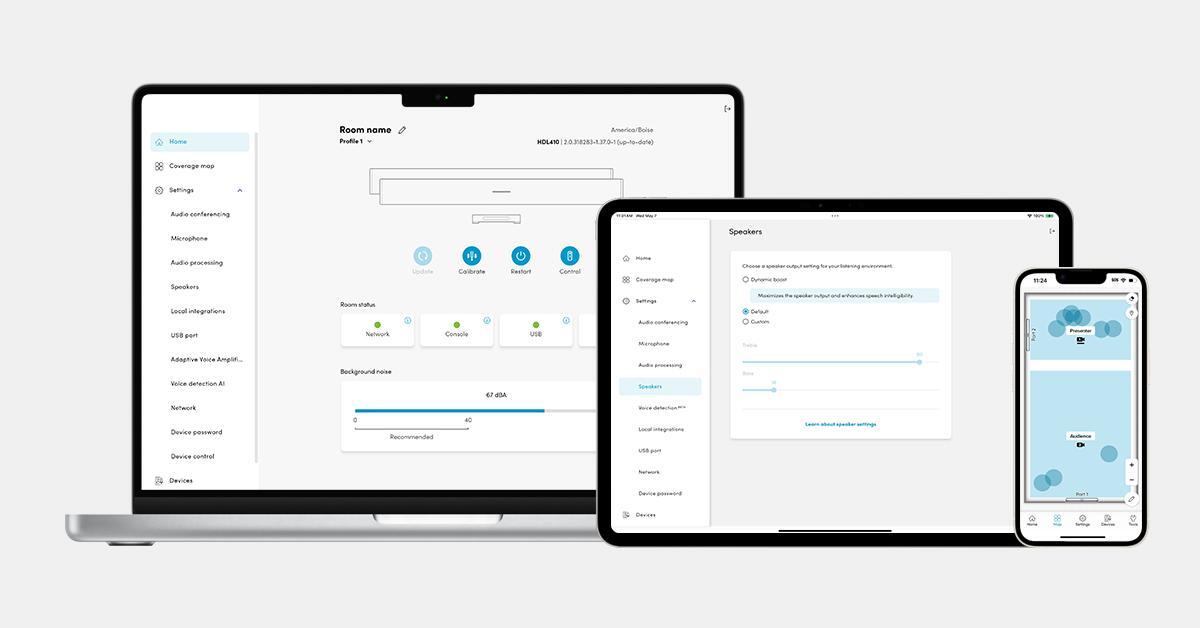
With the Nureva App, setting up and configuring your audio device is quick and easy.
Here are some of the things you can do in the app:
- Perform an acoustic check. Gain valuable insights into room acoustics prior to device installation, which will help you to mitigate audio issues and improve overall audio performance for remote participants. iOS only
- Stay up to date. Update your Nureva device with a single click (you can do this without putting the device on the internet or on an external network).
- Customize and optimize. Tailor your audio system by adjusting simple settings and controls. Audio processing settings for optimal audio quality and speaker settings based on your listening environment are a couple of your customization options.
- Automate camera switching. Make camera switching in extra-large rooms simple and effective, thanks to sound location data and AI-enabled voice detection. Remote participants won’t miss a thing. Available with HDL410
Getting started
To get started with the Nureva App, download it from the App Store® or Google PlayTM store, download it to a computer with Windows® operating system or use the web app in a ChromeTM or Safari® browser.
Required operating systems
The Nureva App is compatible with:
- iPhone® 13 devices and newer using iOS 16.0 or later
- iPad® generation 5 devices and newer using iPadOS 16.0 or later
- Android™️ 13 and newer phones and tablets
- Chromebook™️ notebook computers
- Windows operating systems
Connecting your device
You can connect the Nureva App to your Nureva device through:
- Direct connection. Connect an Ethernet cable from the system’s connect module to a tablet, mobile phone or computer.
Learn more - LAN connection. Use a local area network (LAN) to connect to the Nureva device. This requires an IP address on the same network.
Learn more - USB connection. Connect your HDL200, HDL300 or Dual HDL300 system to a Windows computer using a USB cable. The computer must have the Nureva App and a web browser installed.
Learn more
App features
Discover a range of tools designed to enhance your audio experience with insights, controls and optimizations for your Nureva system.
| Feature | Description |
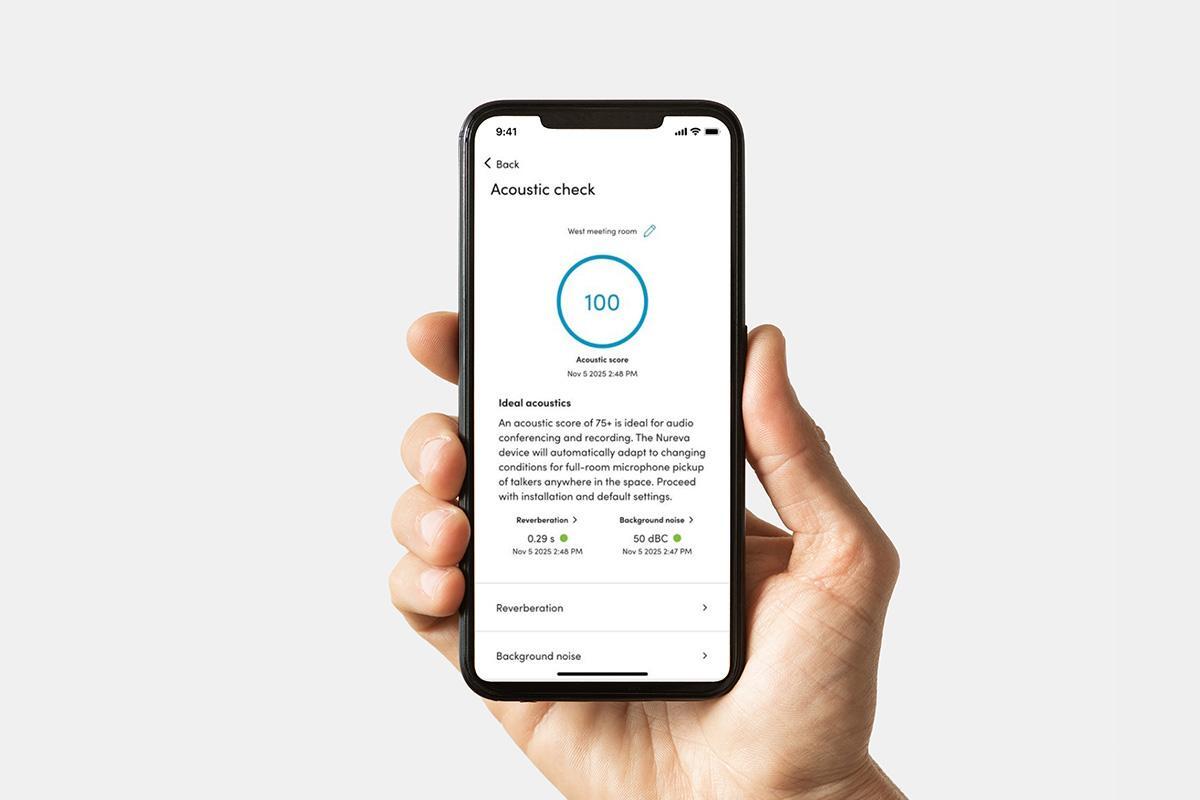
| Acoustic check iOS only | Use an iPhone or iPad to generate an acoustic score to help avoid the hassle of post‑installation issues. |
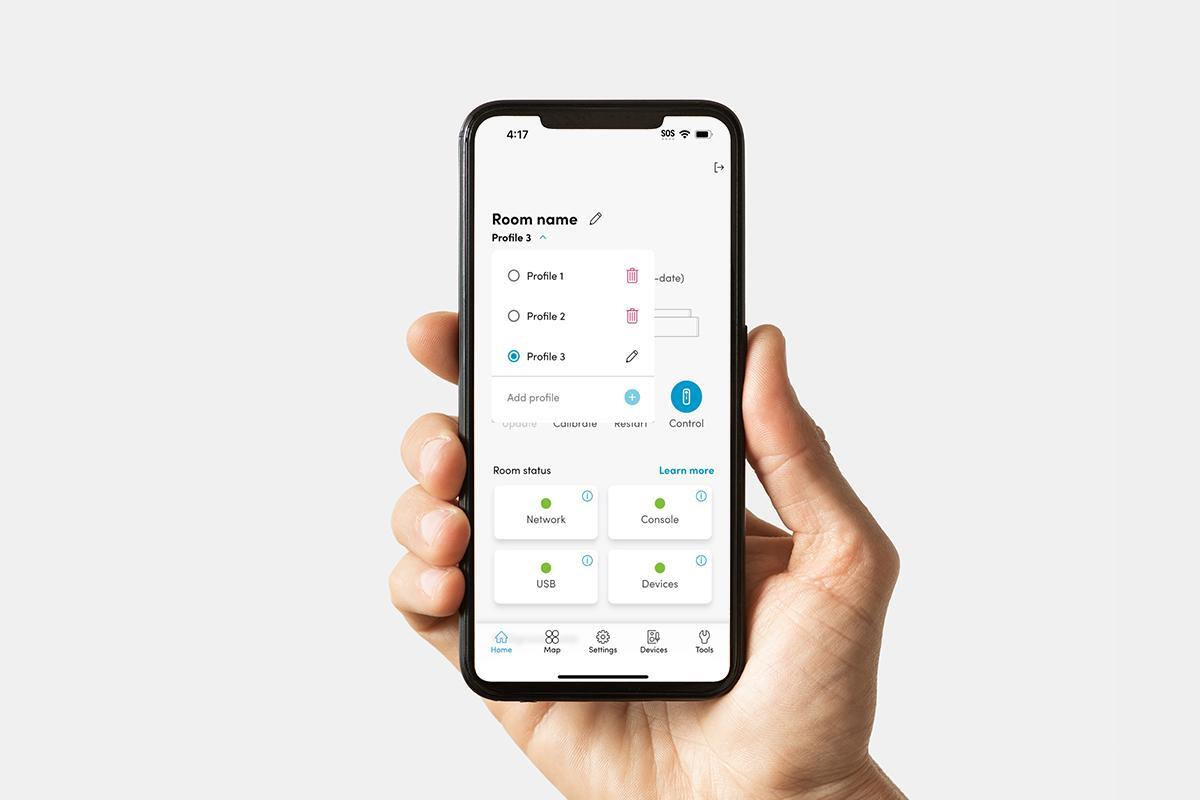
| Room profiles HDL300, Dual HDL300 and HDL410 |
Create room profiles to configure up to three distinct meeting setups for a single space, each with customized zones and camera switching settings. |
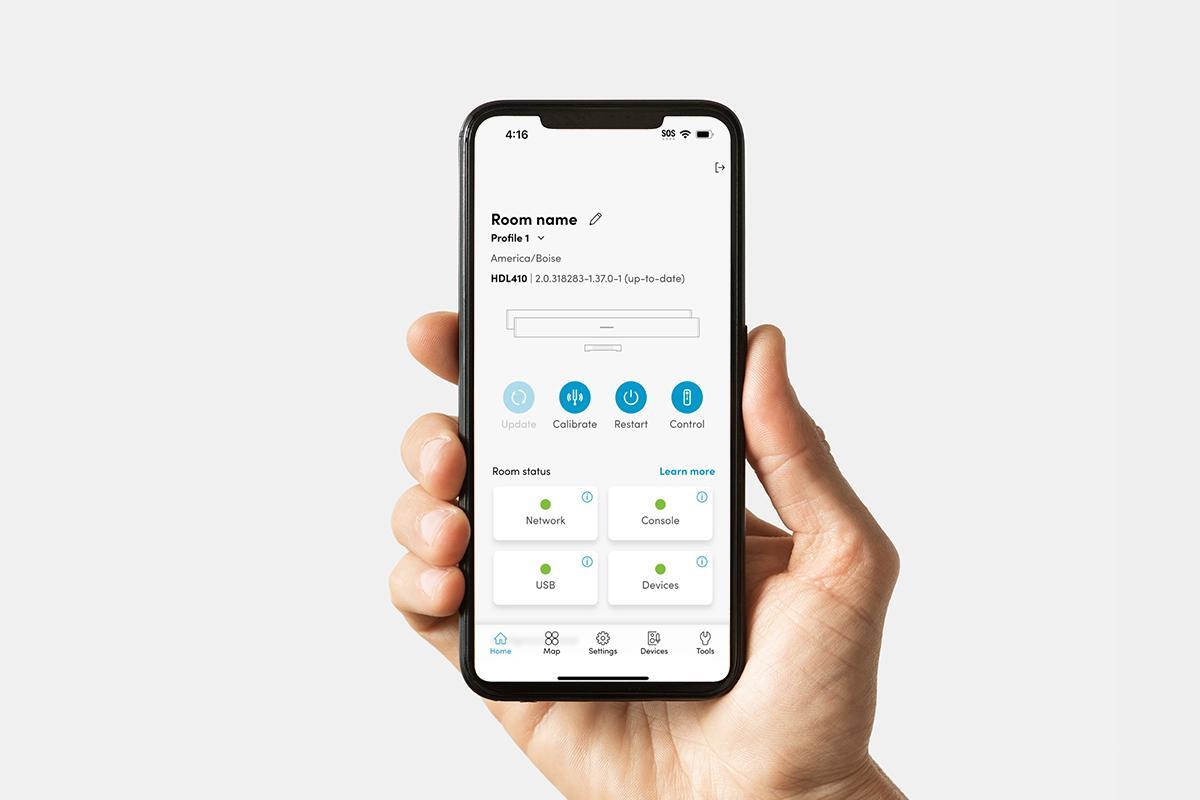
| Home | Update, calibrate or restart your device. View the connection status of your network, Nureva Console, USB and devices in the Room status section. You can also see the background noise level of your room. |
| Coverage map HDL410 only | View sound location data in real time and create camera switching zones. |
| Settings | Manage Nureva audio device settings and features. |
| Devices | View device details and add peripherals. |
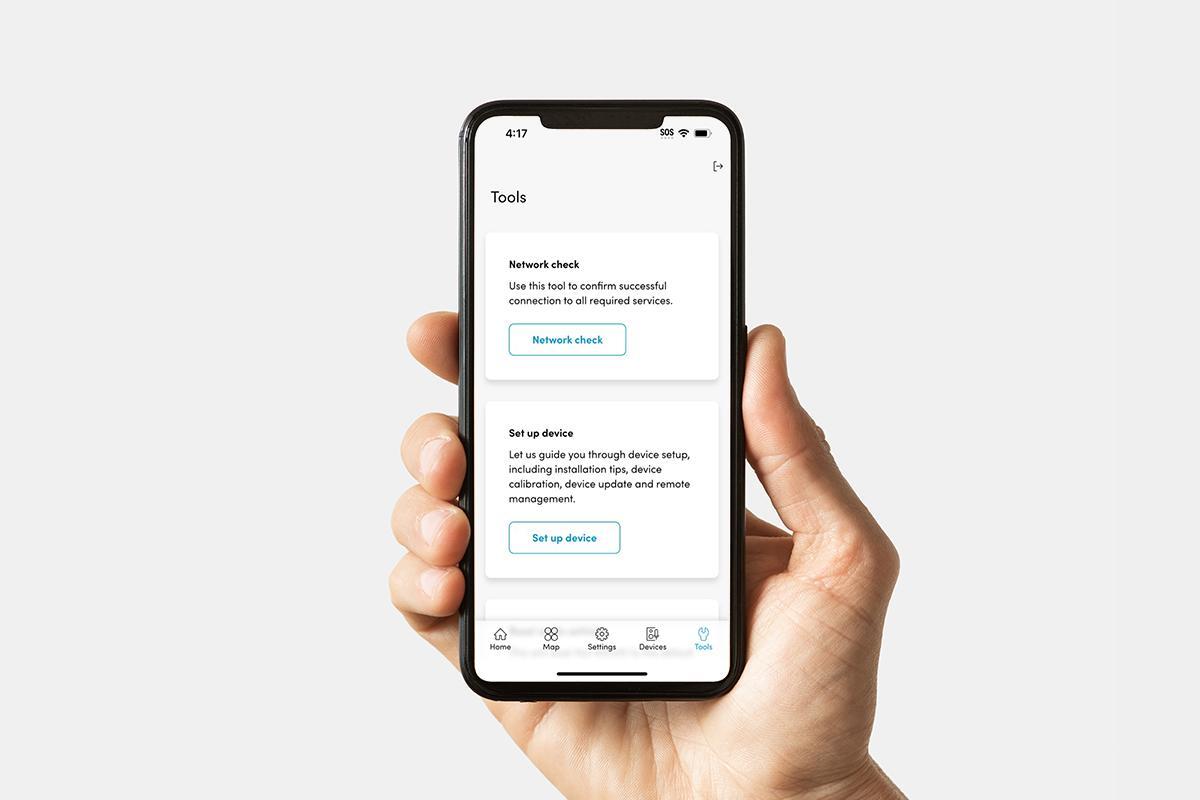
| Tools | Perform network check, set up device, reset audio settings, restart device and download logs. |
Acoustic check
Available for iOS only
The acoustic check feature simplifies the process of measuring room acoustics using the microphone on an iPhone or iPad. This feature is designed to provide valuable insights into room acoustics prior to device installation.
Note: Microphone access must be granted to use the acoustic check feature.
To perform an acoustic check:
- Open the Nureva App on an iPhone or iPad.
- Press the Start acoustic check button.
- Name the room where the acoustic check is taking place.
- Measure the room’s reverberation and receive an RT60 score.
- Measure the background noise to learn the average level of ambient noise in the room.
- Press the Done button to receive a location score and description of the room’s audio characteristics.
- Make a screen capture of the summary page to share the results.
Room profiles
Supported with HDL300, Dual HDL300 and HDL410
Settings
With room profiles, you have the flexibility to instantly reconfigure zones or camera settings in a space for multiple scenarios. Whether you’re hosting a small team huddle or a large all-hands session, you can switch setups easily without manually readjusting zones or camera settings each time.
Learn more about room profiles — HDL300 and Dual HDL300
Learn more about room profiles — HDL410
You can create, delete and switch between room profiles by clicking the Profile menu on the Home page.
Home
Settings
Keep your device running at its best — update, calibrate or restart as needed. Easily check the room status and monitor background noise levels in your room.
The room status indicators show the connectivity between the HDL310 or HDL410 and the network, Nureva Console and USB. Detailed information is available by tapping or clicking the relevant status card.
Coverage map
Coverage map
Supported with HDL410
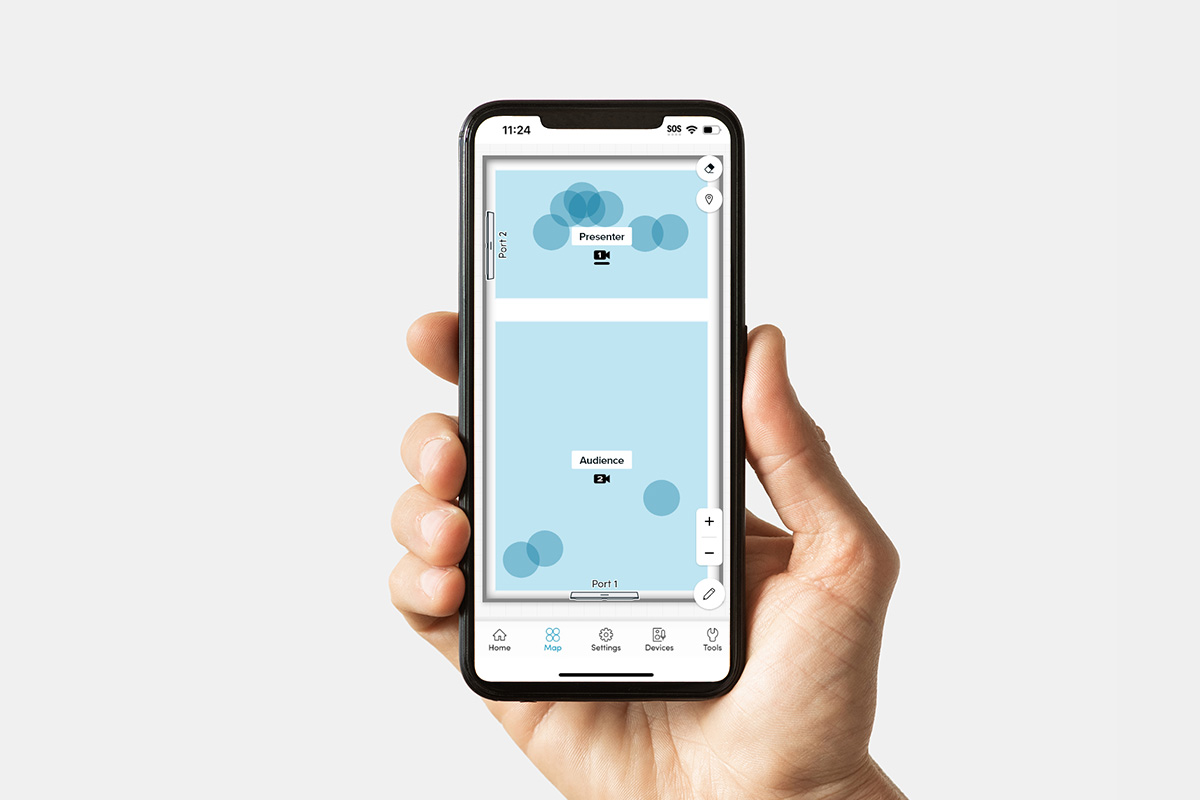
The unified coverage map in the Nureva App visually represents the HDL410 system’s microphone coverage. It updates in near real time with sound location data, allowing you to adjust room dimensions, create zones and monitor audio for optimal performance.
Camera zones
Create camera zones on the coverage map to enable automated camera switching.
To create and edit a camera zone:
- Go to Coverage map.
- Select Create zone and adjust the zone.
On a mobile device: Select the pen tool and tap Create zone.
Settings
Settings
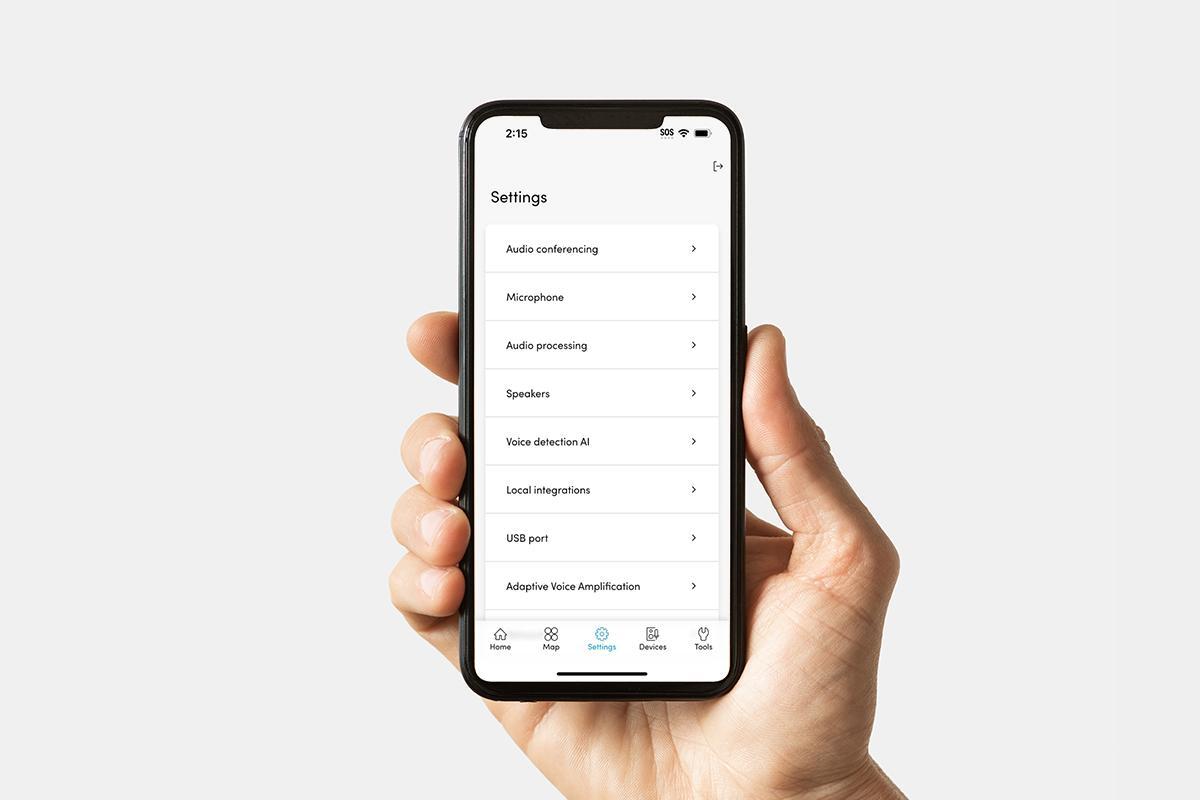
In Settings, you can make adjustments and enable features.
| Setting | Description |
| Audio conferencing | Apply recommended settings for Microsoft® Teams Rooms or Zoom Rooms. |
| Microphone | Adjust the gain with the microphone EQ settings. |
| Audio processing | Adjust echo reduction and noise reduction settings or calibrate your device. |
| Speakers | Choose a speaker output setting for your listening environment. |
| Voice detection | Enable a pretrained AI algorithm that differentiates between the human voice and background sounds to improve camera switching. |
| Local integrations | Enable integrations for camera tracking and switching. |
| USB port | Select the USB speed that matches the host computer or device. |
| Network | Set a static or dynamic IP address for your device. |
| Device password | Reset your device password. |
Devices
Settings
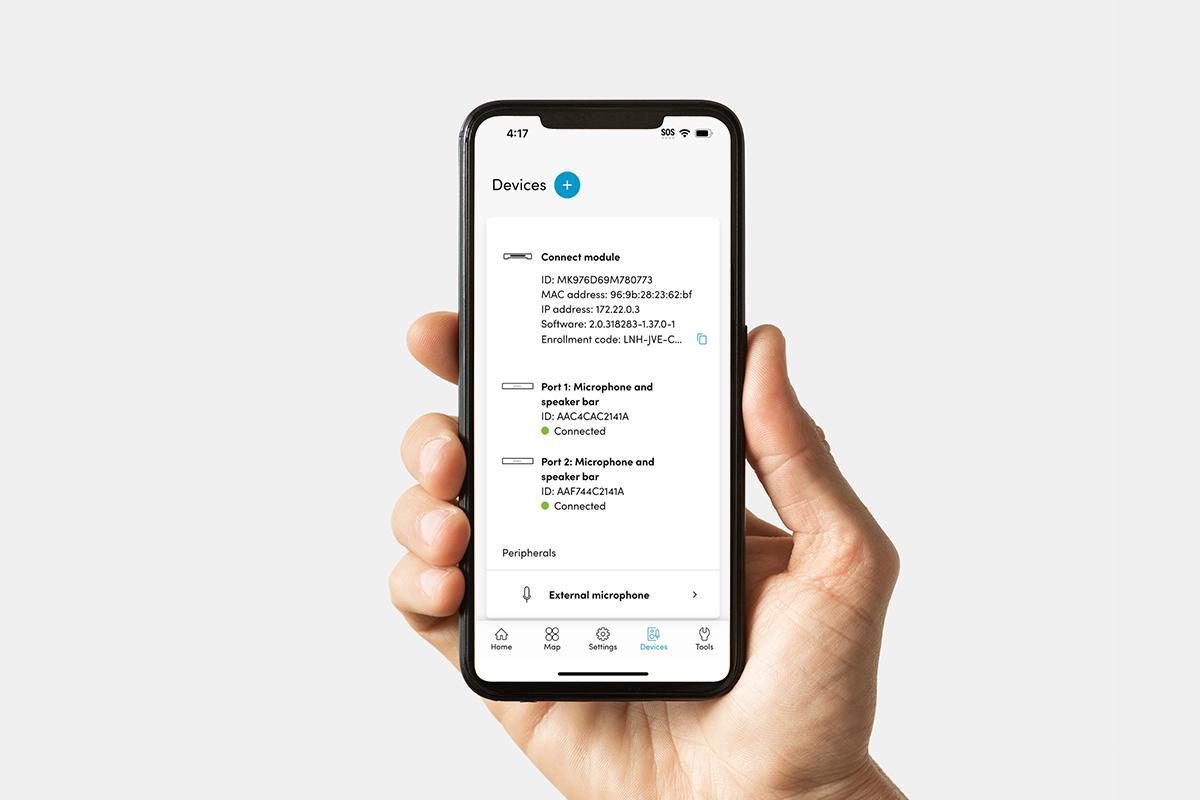
Under Devices, you’ll find information including the MAC address, IP address and enrollment code for the connect module.
You’ll also find information related to the microphone and speaker bars. The microphone and speaker bar status lets you know when a bar is connected or disconnected.
You can also add peripherals to your Nureva system by clicking the blue + button.
The Devices page simplifies the process of integrating and managing additional devices with your Nureva system. This includes support for camera switchers, external microphones, IP cameras and other auxiliary devices, making it easier to expand and customize your setup.
| Devices you can add | Description |
| Camera switcher |
Use an INOGENI® CAM230 camera selector to automatically switch between cameras. Enable the following data to be shared:
|
| External microphone |
Add an external microphone to your system to enable Adaptive Voice Amplification. Enable this feature to amplify the presenter’s voice through the Nureva device speakers and improve the overall experience for in-room and remote participants. |
| IP device |
Monitor Internet Protocol (IP) devices, also known as network-connected devices, by adding them to the Nureva App. IP devices that benefit from monitoring include cameras and video displays. |
| Analog aux device |
Adjust the settings for the aux ports on the Nureva device, which send and receive audio streams from third-party devices. Aux input: Connects auxiliary input source at line level to output through the HDL410 speakers. Aux output: Select from mic level, line level, speaker out, mixed signal and speaker. |
The tools in the app can help quickly diagnose and resolve issues with Nureva audio systems.
| Tool | Description |
| Network check | Confirm successful connection to all required services. |
| Reset to default settings | Reset the Nureva device to the default audio settings. Any changes you may have made to the audio settings will be lost. |
| Download logs | Download logs to share with your support technician to troubleshoot device issues. |
| Contact support | support.nureva.com |
Developer toolkit
The Nureva Developer Toolkit gives you access to cloud-based and local APIs. You can integrate Nureva devices with other products to save time and automate tasks.
Our easy-to-use APIs include:
- Device management API
- Device control API
- Sound location device API
- Room data API
Nureva Console
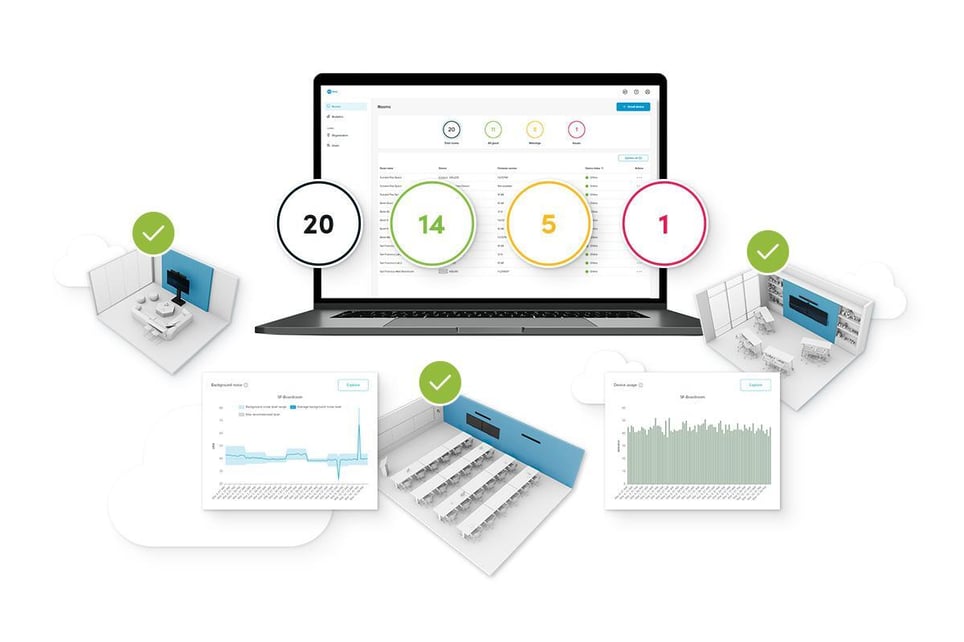
Nureva Console provides remote management and monitoring capabilities for Nureva systems. It allows you to manage and monitor devices at scale and provides access to historical metrics for device usage and audio quality.