Nureva® Console
Overview
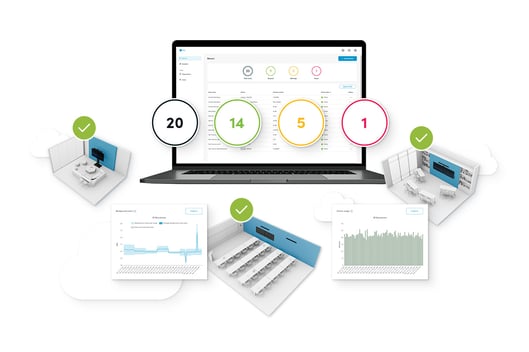
Nureva Console is a secure, cloud-based platform that makes it easy to manage and monitor your Nureva products from anywhere. It’s included with every Nureva device.
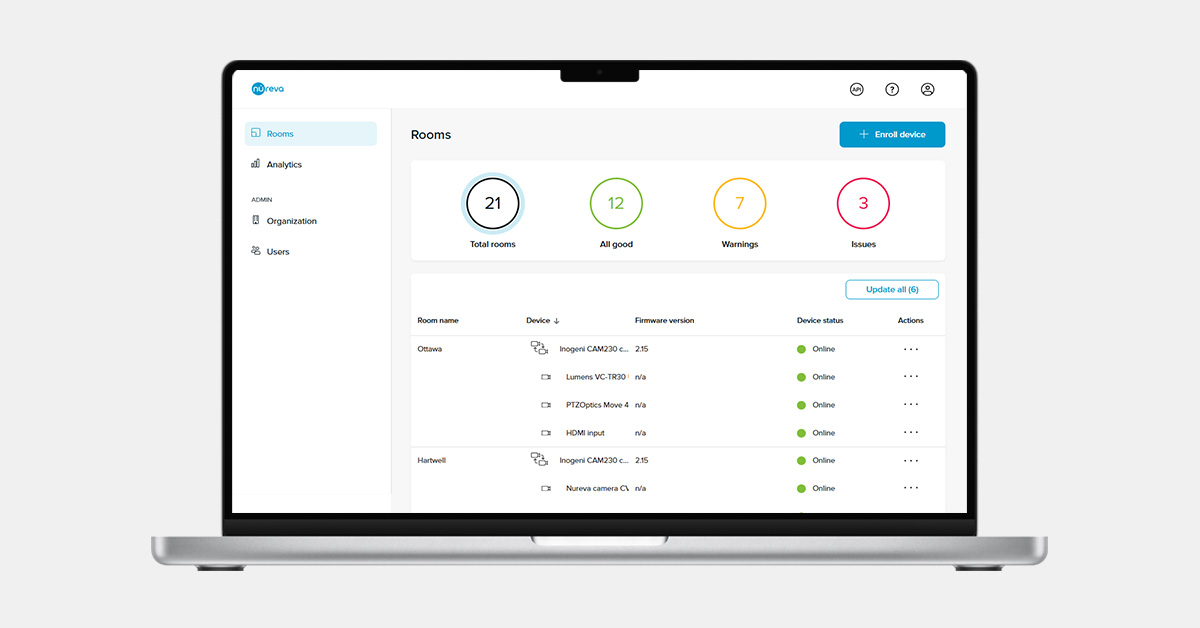
- A color-coded dashboard makes it easy to see the status of a device at a glance, including available updates.
- Email alerts let you know instantly if there are issues in your rooms so you can resolve them right away.
- Device settings to configure your systems are available, such as enabling Adaptive Voice Amplification, choosing speaker presets and more.
- Analytics and insights equip you with usage and acoustic performance data to identify potential improvements (up to 12 months of data available with Nureva Pro).
- Asset management features let you name and tag devices and classify your rooms by device type and size.
Getting started
Before a device can be managed remotely, it must be enrolled into Nureva Console. Enrollment enables the connection between the physical hardware and the Nureva Console application.
An account must be set up before devices can be added to Nureva Console.
Here’s how to get started with Nureva Console.
 |
|
Enrolling a device
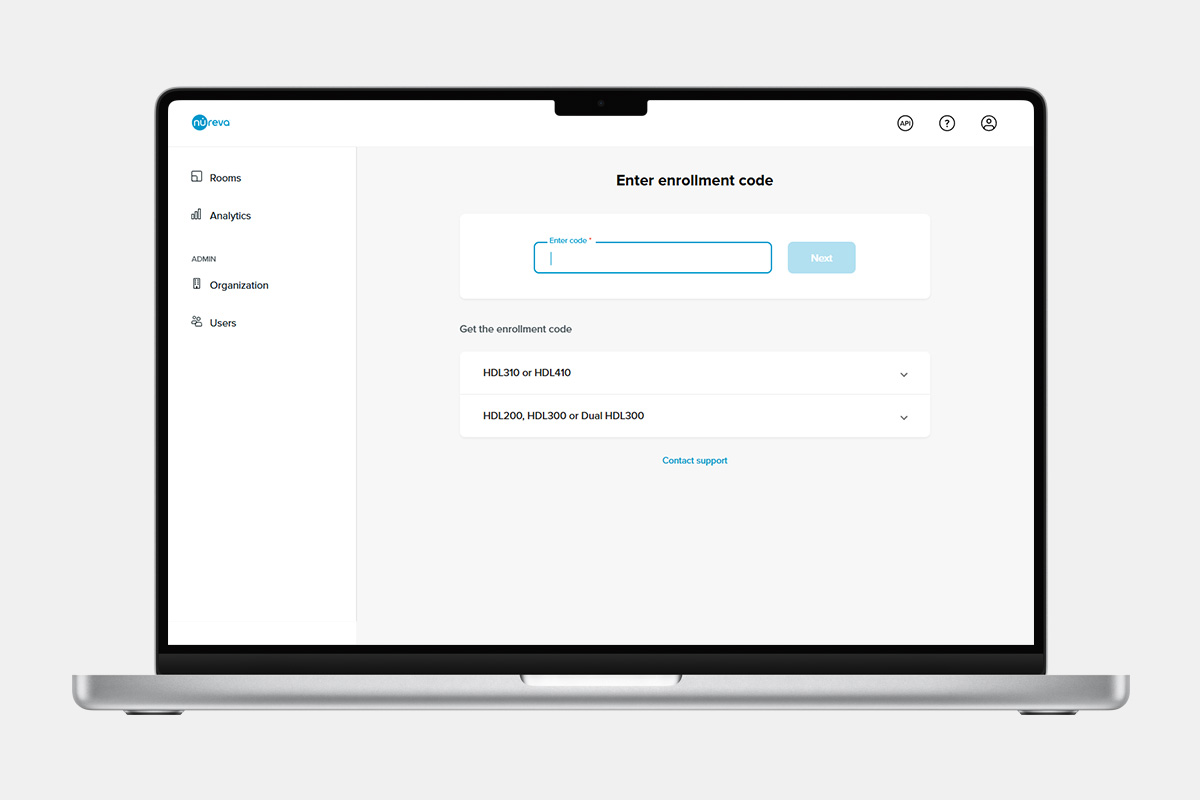
Enrolling an HDL310 or HDL410 system
- On the Rooms dashboard, click Enroll device.
- Enter the enrollment code and click Next. Note: The code can be found on the connect module.
- Allow the pop-up window so you can continue.
- Enter room details (name, type, capacity, tags and time zone).
- Click Save.
Enrolling an HDL200, HDL300 or Dual HDL300 system
- On the Rooms dashboard, click Enroll device.
- Enter the enrollment code and click Next. Note: The code can be found in the Nureva App or Console client.
- Allow the pop-up window so you can continue.
- Enter room details (name, type, capacity, tags).
- Click Save.
The Nureva audio device will now appear in the list of devices enrolled into Nureva Console. The device can now be managed online.
Nureva Console also supports monitoring third-party devices such as USB cameras and Internet Protocol (IP) network-connected devices. Therefore, all components of the room, including displays and other cameras, can be monitored.
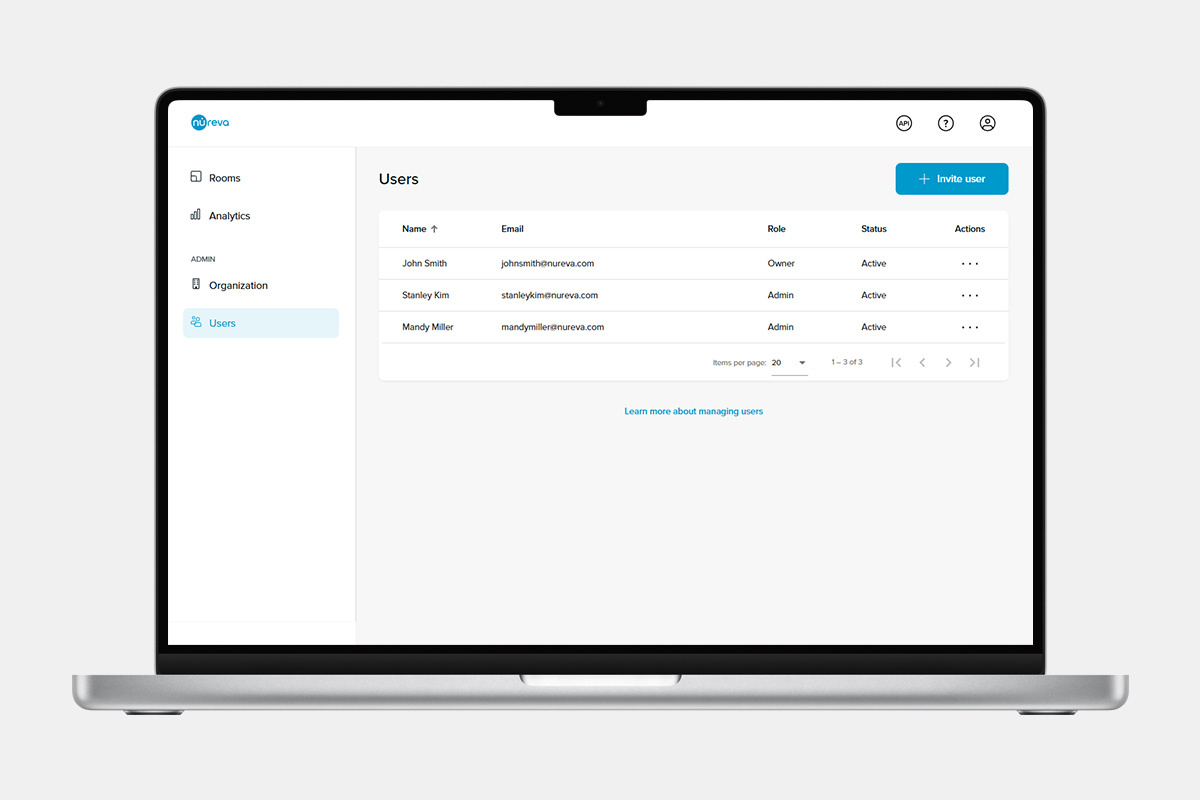
Nureva Console allows multiple users within an organization to manage and monitor devices. When you invite additional users, they too can access and manage the enrolled devices.
Adding users to your organization
- Sign in to Nureva Console.
- Select Users in the left side panel.
- On the Users page, click Invite user in the upper-right corner.
- Enter the email address of the invited person and click Invite.
Console features
Discover a range of tools designed to enhance your audio experience with insights, controls and optimizations for your Nureva system.
| Feature | Description |
| Room status dashboard | Monitor room readiness and issues like disconnected components or offline devices. |
| Room overview | Update, calibrate or restart your device. View the USB and devices connection statuses in the Room status section. You can also see the background noise level of your room. |
| Room control HDL310 and HDL410 | Quickly access key room controls, such as mute and volume, view connected peripherals and restart or calibrate the device. |
| Email status alerts | Get alerts for issues like disconnected components or offline devices to quickly resolve problems before they affect collaboration. |
| Third-party device monitoring | Monitor USB cameras and IP devices, regardless of manufacturer, to resolve issues quickly. |
| Remote device updates | Bulk install updates to keep devices up to date with a few clicks. |
| Device information and settings | Remotely access device information and settings for timely resolution of issues. |
| Device troubleshooting tools | Quickly resolve issues remotely with restart and audio reset options. |
| Remote support | Contact Nureva support directly from Nureva Console for quick issue resolution. |
| Analytics | Access charts and graphs showing sound location, device usage and noise levels to identify opportunities for improvements. |
Intelligent monitoring
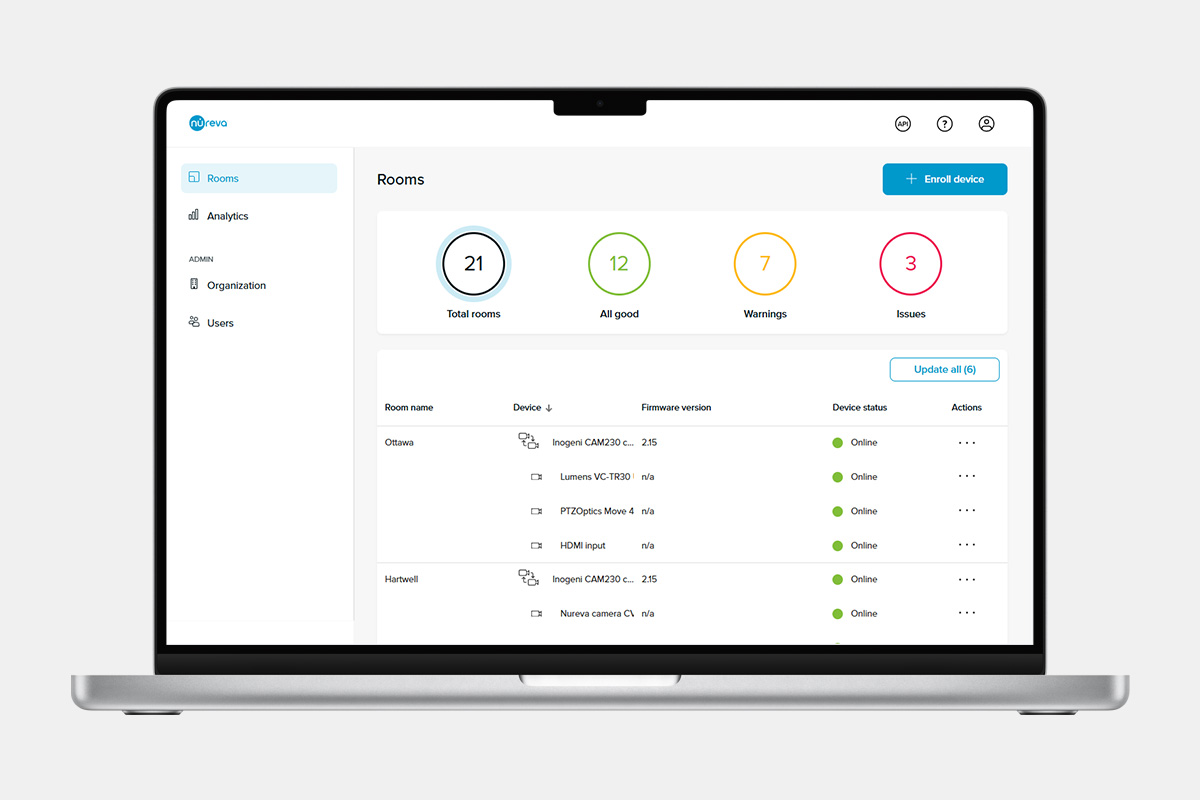
Quickly resolve problems before they impact your spaces. Email alerts and a room status dashboard mean you’ll always know if updates are available or if any devices have been disconnected. You can also monitor any USB-connected camera and IP device right from Nureva Console.
Rooms dashboard: Do a quick health check of your systems with this easy-to-use dashboard that’s accessible from anywhere. Always-on remote monitoring means you’ll know right away if a cable has been unplugged or if a device requires an update.
Device status: Instantly view the individual state of each device at a glance in the Device status column on the Rooms dashboard.
| Status | Description |
| Online | Device is connected and operating as expected. |
| Disconnected | USB or power cable is disconnected. |
| Unavailable | Nureva Console cannot communicate with the in-room computer. |
| Offline | Nureva Console cannot communicate with the connect module. |
| Cable unplugged | System’s microphone and speaker bar is disconnected from the connect module. |
| Unknown | Enrollment of device has not been completed. |
Email alerts
Get immediate notifications of urgent issues without having to check in constantly. Our always-on remote monitoring assists you in identifying and fixing technical glitches from anywhere, beyond just local network or device-specific solutions.
Nureva Console provides email alerts for the following:
Audio system updates- Device updates
- Disconnected USB or power cables
- Unplugged Nureva audio components
- Offline devices
- Connect module issues
- Disconnected USB or power cables
Email alerts for your account can be disabled in the User settings section of Nureva Console.
Third-party device monitoring
Monitor your IP-network-connected devices, such as displays and other cameras, as well as USB cameras including the Nureva CV30. Just add them to your room setup in Nureva Console and you’re ready to go. You’ll see right away if devices go offline, and there’s no need to install or use additional software.
How to add an IP deviceHow to add a USB camera
Remote management
Manage and fine-tune all your systems from anywhere with a secure, cloud-based dashboard. Nureva Console lets you remotely access your Nureva audio devices to ensure they’re up to date and to make changes to settings without having to go on site.
From the Rooms dashboard, you can:
- Bulk install updates. Save time and effort by bulk installing updates with just one click. Bulk updates can be completed easily from the device dashboard.
- Manage devices individually. Select any Nureva audio device in the Rooms dashboard to manage updates, access device information and adjust settings.
- Update devices. Easily manage individual device updates right from the devices menu. Simply click Update and your device will remotely update.
- Change device settings. Select the device you want to manage in the Rooms dashboard and adjust the settings from anywhere.
Room overview
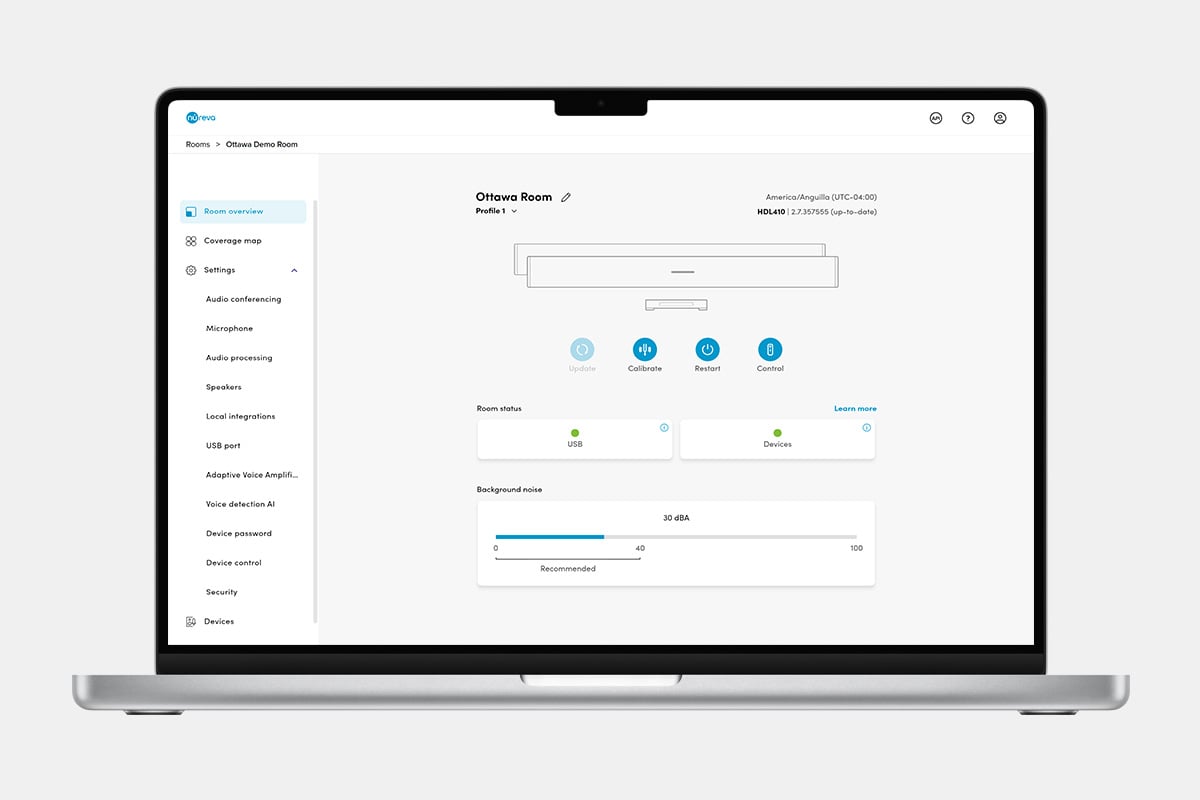
Keep your device running at its best — update, calibrate or restart it, or use room control as needed. Easily check the room status and monitor background noise levels in your space.
View the USB and devices connection statuses in the Room status section. Detailed information is available by tapping or clicking the relevant status card.
|
Settings |
HDL200 |
HDL300 |
HDL310 |
| Microphone pickup | |||
| Microphone gain | |||
| Speaker presets | |||
| Dynamic boost | |||
| Treble and bass settings | |||
| Sound test | |||
| Echo reduction levels | |||
| Noise reduction levels | |||
| Remote calibration | |||
| Aux-out port | |||
| Sleep mode | |||
| Active zone | |||
| Adaptive Voice Amplification | |||
| Local integration | |||
| Camera switching | |||
| Coverage map | |||
| Display theme | |||
| Clock settings | |||
| Automatic updates |
Device info
Nureva Console provides remote access to device information such as enrollment codes, IP addresses and device identification numbers (like serial numbers). Remote access saves you from going room to room to find this information.
|
Device information |
HDL200 |
HDL300 |
HDL310 |
| Device version | |||
| Port number | |||
| Bar ID / serial number | |||
| Connect module serial number | |||
| MAC address | |||
| IP address | |||
| Enrollment code |
Tools
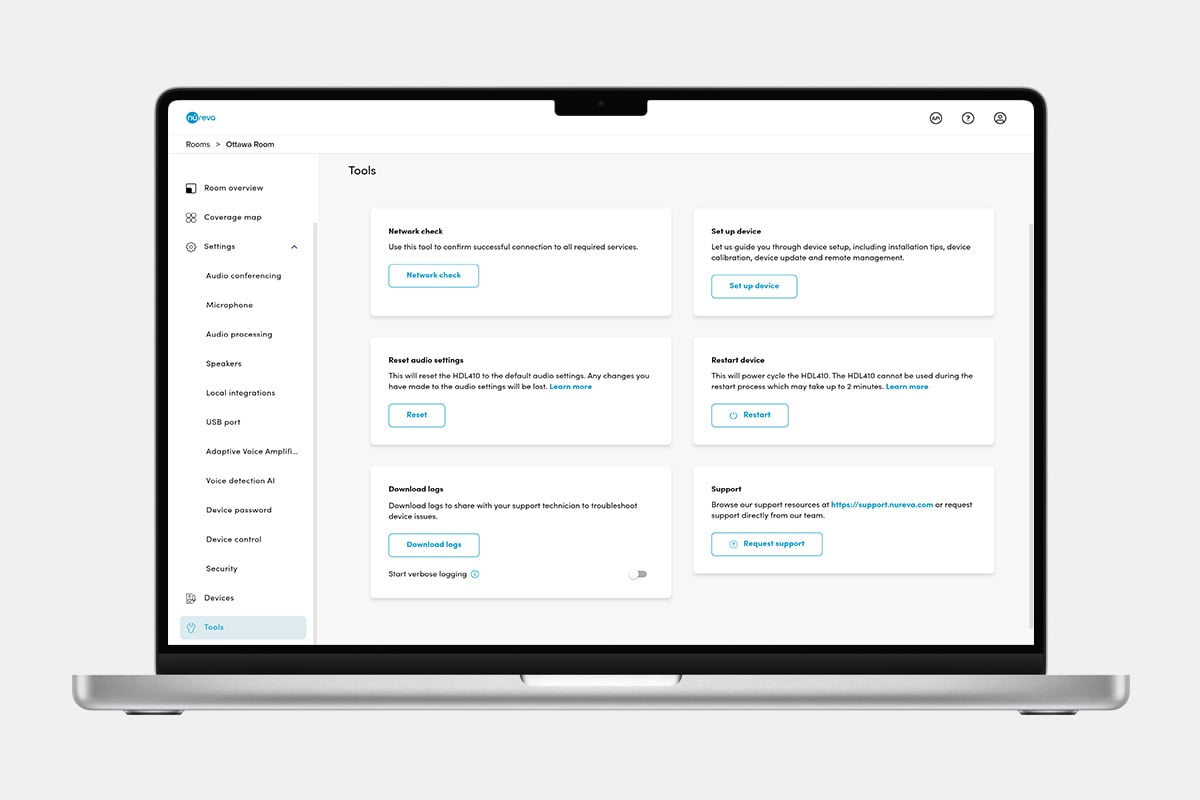
Resolve issues remotely with restart and audio reset options, eliminating the need for physical access. You can also complete the support form for assistance with troubleshooting.
Remote restart: You can remotely restart your Nureva audio system, which is sometimes necessary when troubleshooting issues. By initiating a power cycle, the system is turned off and then on again. HDL310 and HDL410 only
Remote audio reset: You can easily return your Nureva audio system to its default settings when troubleshooting issues. Simply press the Reset button to restore the original audio settings.
Restarting and resetting a device
- Open the Rooms dashboard.
- Select the system you want to manage in the list of rooms.
- Go to the Tools page.
- Select either Restart or Reset, depending on your needs and the audio system.
When remotely restarting and resetting the device, it must be online and connected to Nureva Console. These features will not be available if the device is offline.
Requesting support: You can easily request technical support with a button and form available on Nureva Console. When requesting support in this way, Nureva Console captures important information to speed up the time it takes to resolve the case.
To submit a support request, go to the Rooms dashboard and follow these steps:
- Select the room with the system issue.
- Go to the Tools page and click Request support on the Support card.
- Select the device with the issue in the drop-down menu.
- Select the issue type in the drop-down menu and enter a detailed description.
- Click Submit to request technical support.
A case will be created in Nureva Console and a request will be sent to the Nureva technical support team.
Analytics and insights
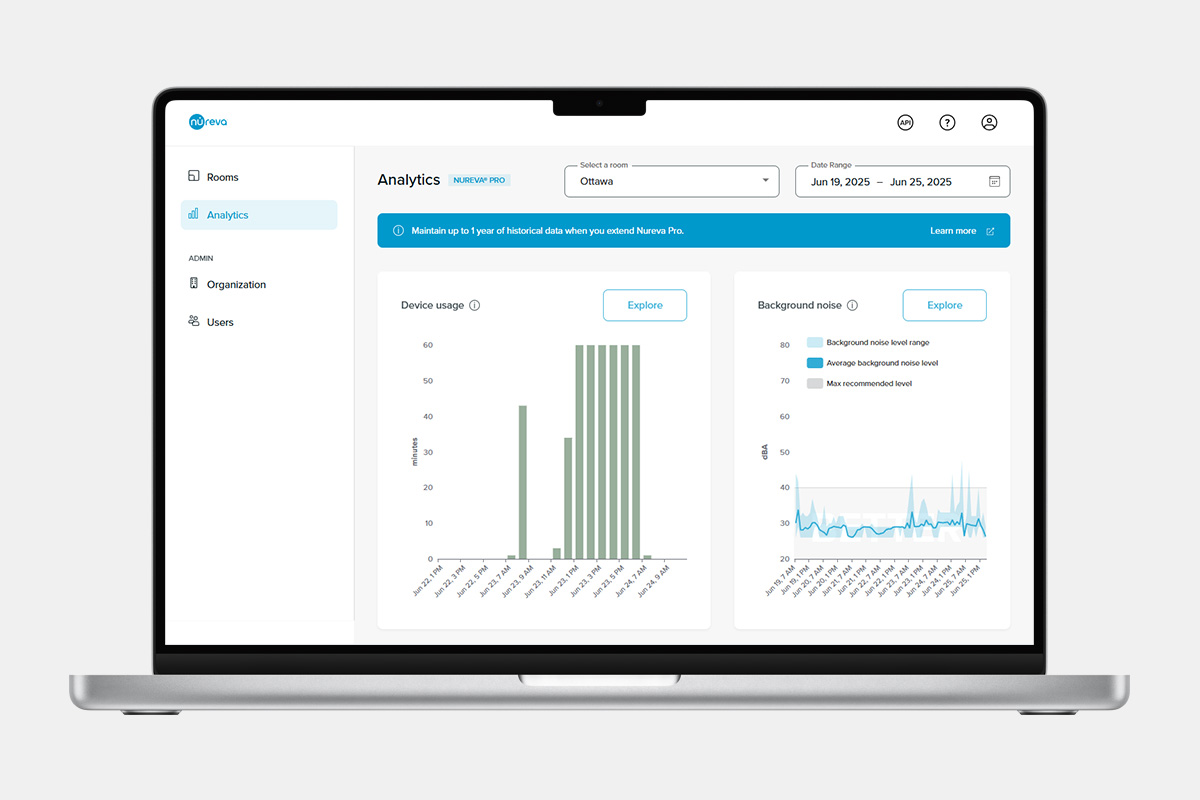
Get the information you need to gain a deeper understanding of your rooms. With access to background noise, sound location and signal-to-noise ratio (SNR) level charts, you can identify rooms that may benefit from acoustic treatment. In addition, historical usage data lets you know how and when rooms are being used so you can find opportunities for optimization or further investment. With Nureva Pro, you can access up to 12 months of historical data.
Explore the following analytics and insights:
Device usage: Get the data you need to understand how your spaces are being used and identify opportunities for optimization. It’s easy to compare rooms to find out which setups are popular.
Background noise: Access background noise charts to see how your rooms perform acoustically and make adjustments if needed.
Sound location: Get historical data to visualize where sounds are being picked up by the HDL410 system.
Signal-to-noise ratio: View SNR levels remotely and improve the in-room sound quality.
User settings
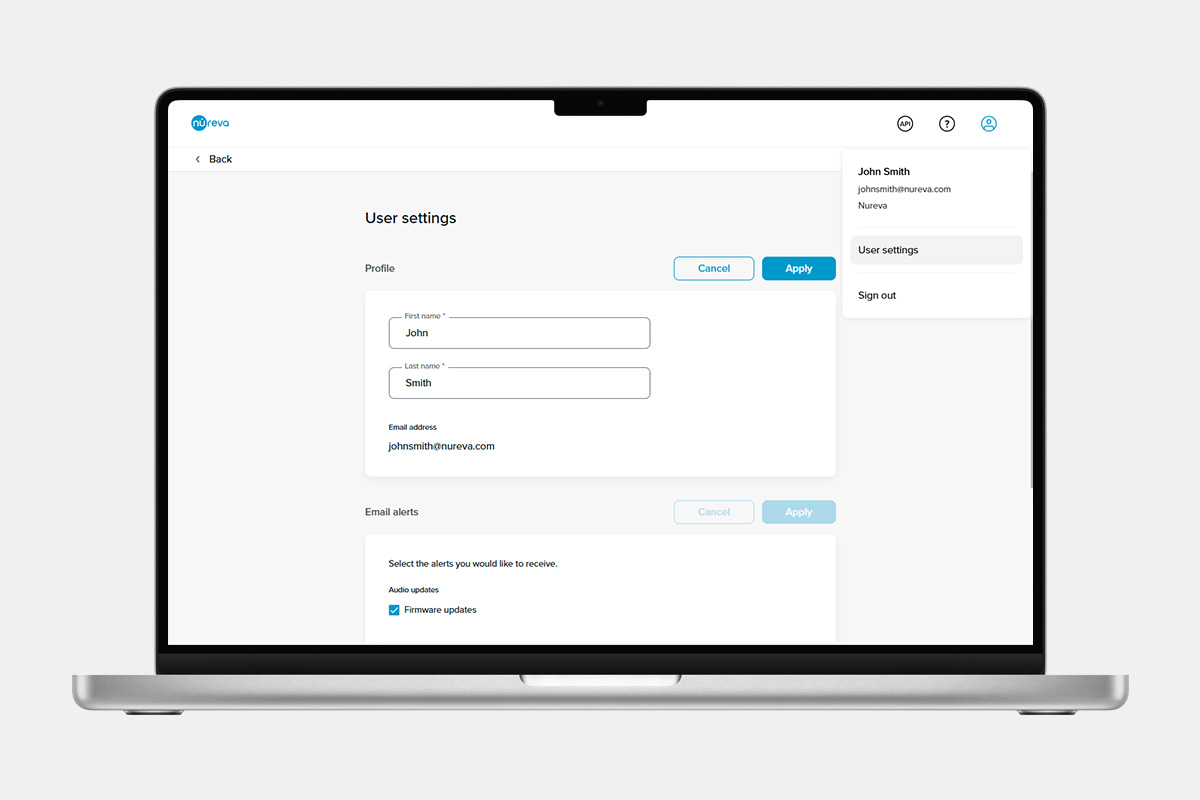
In the user settings, you can edit your profile information and enable specific email alerts.
| Setting | Description |
| Profile | Edit the name and email address connected to the account. |
| Email alerts | Select the alerts you would like to receive. Email alerts include device updates, audio issues and camera issues. |
Security
Nureva Console is designed and built with security and privacy at its core. Our strict security governance ensures security and privacy are built into every feature. To provide state-of-the-art security, we leverage industry leaders Microsoft and Okta.
Also, Nureva Console limits data exposure by not collecting and storing sensitive and personal meeting and classroom data. And since our platform is cloud based, there is no need for additional servers and the management, maintenance and security issues they may entail.
Developer toolkit
The Nureva Developer Toolkit gives you access to cloud-based and local APIs. You can integrate Nureva devices with other products to save time and automate tasks.
Our easy-to-use APIs include:
- Device management API
- Device control API
- Sound location device API
- Room data API
Nureva App
The Nureva App makes it simple to set up, optimize and customize your audio devices. You can use our iOS, Android or web-based version with the HDL310 and HDL410 systems. A web-based version is available for the HDL200, HDL300 and Dual HDL300 systems. There’s no need to create an account.
Nureva Pro
Nureva Pro is a value-added service plan that helps you keep your meeting rooms and classrooms functioning smoothly. It gives you access to additional features in Nureva Console and includes an enhanced services offering. Two years of Nureva Pro are included with the purchase of your Nureva device.