Nureva HDX HDX BETA

HDX user guide feature lighter bg 1200x628
 To install and set up an HDX system, follow the simple steps outlined below.

Overview

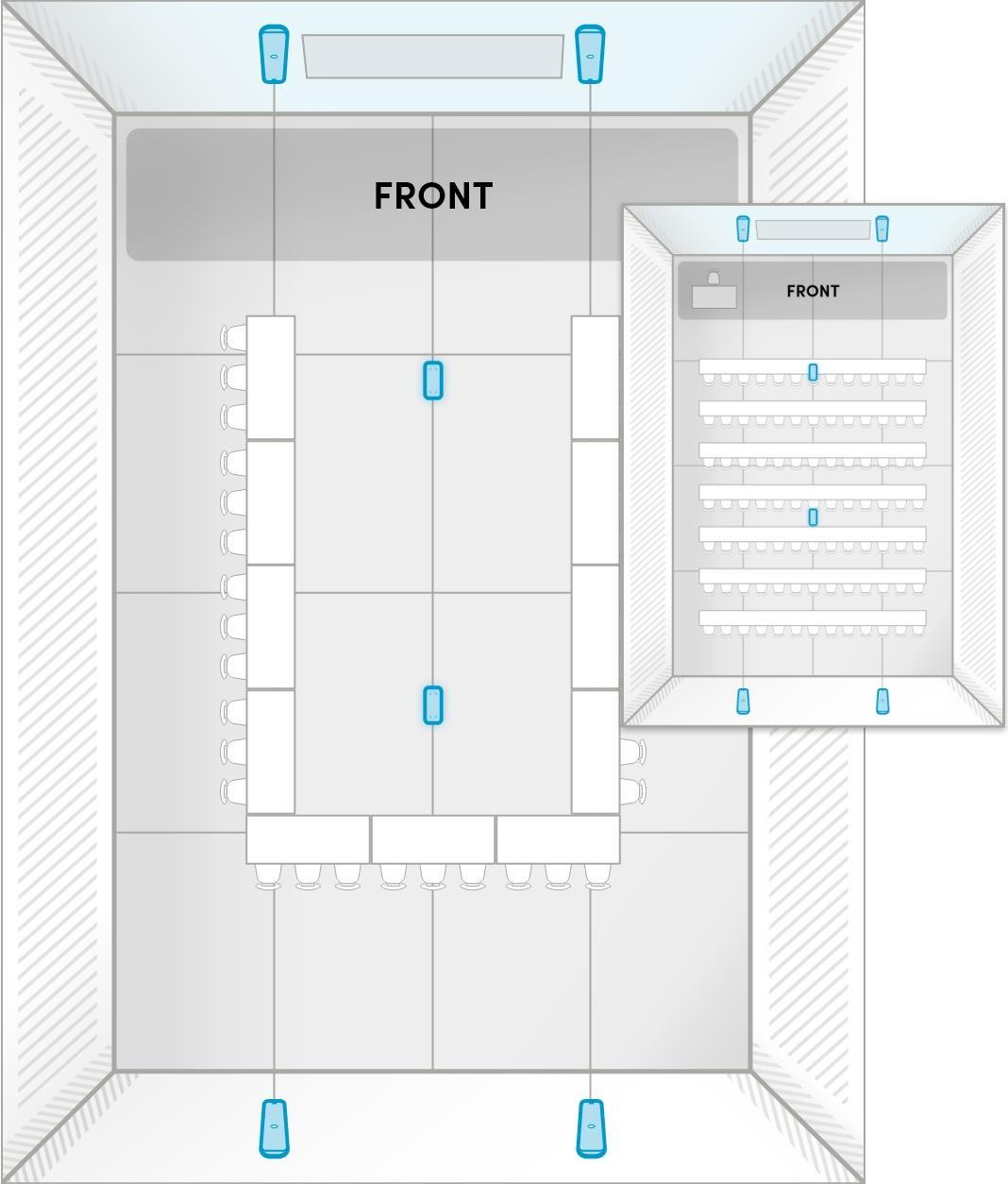
The Nureva® HDX pro audio series delivers adaptive large-room audio with revolutionary intelligence, automation and simplicity. With five flexible system configurations, HDX meets the audio needs of spaces up to 2,400 square feet (223 square meters).

With patented Microphone MistTM technology, HDX fills a room with thousands of virtual microphones, ensuring all voices are heard.

Here are some of the things HDX can do:

  • Full-range distributed audio: Distributes sound throughout the space through multiple loudspeakers, with full-range audio that spans the listening spectrum, so details are heard as intended.
  • Adaptive Voice Lift: Subtly amplifies a talker’s voice in the room so they can be heard anywhere in a large space without the need for a dedicated microphone, and adapts to their location (therefore avoiding complex setup).
  • Adaptive Voice Amplification: Subtly amplifies a talker’s voice with an external microphone so they can be heard anywhere in a large space. Full-room microphone coverage is maintained for simultaneous remote conferencing and streaming.
  • Full-room microphone coverage: Enables people in the room to be heard naturally and clearly by remote participants, even when they move around in the space or the room configuration changes. This is made possible with Microphone Mist technology and the unified coverage map, which combines multiple physical arrays into a single giant microphone array.
  • Assistive listening with AuracastTM broadcast audio: Delivers in-room audio to personal devices like hearing aids and earbuds, using full-room microphone coverage and Auracast broadcast audio over Bluetooth® LE, so everyone can hear the discussion and content.

Components

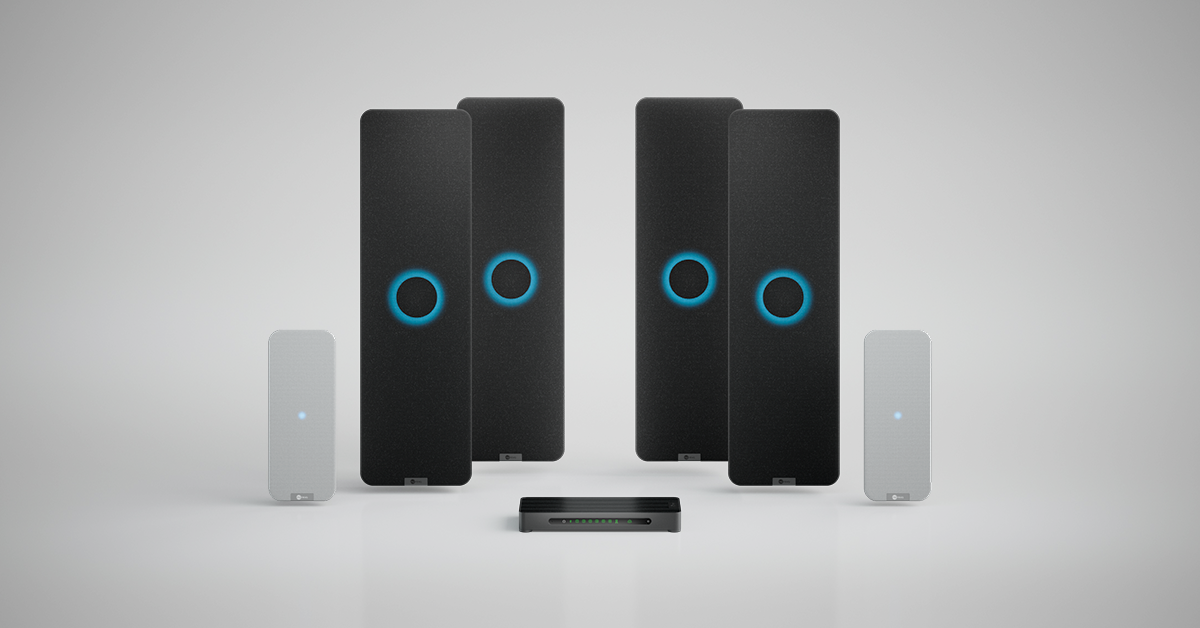
The HDX series offers five modular configurations, with options depending on the room size and features needed. The main components are the system hub, the audio bar (two or four) and the optional microphone pod (one or two). Each system also includes a remote control with Bluetooth technology as well as remote monitoring tools in the Nureva App and cloud-based monitoring tools in Nureva Console.

HDX is designed with sustainability in mind, combining durable construction, responsible material choices and energy-efficient features that help reduce environmental impact.

Learn more


System hub

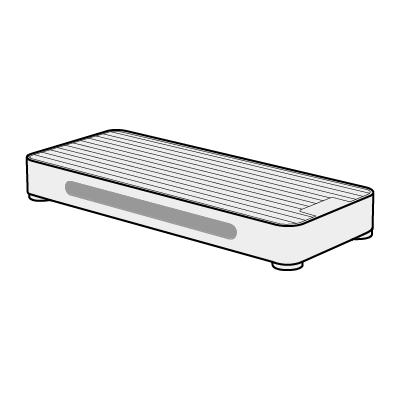
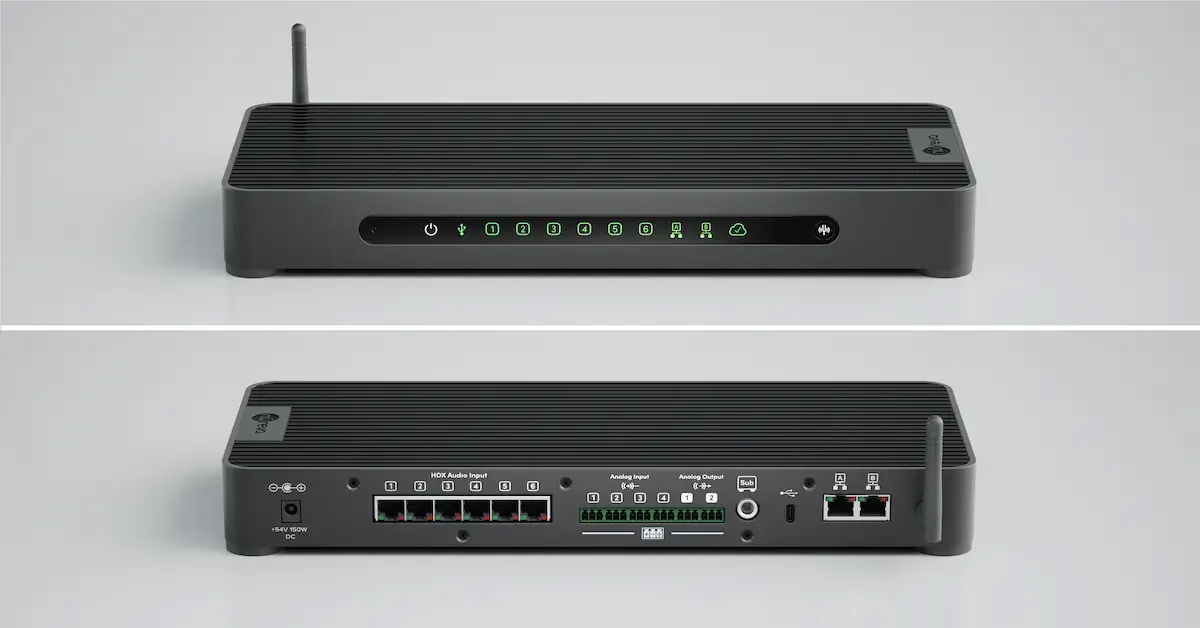
The system hub is the brains of the system, eliminating the need for separate DSPs, amplifiers and Bluetooth transmitters.

Systemhub

Key features

  • AVoIP support for single-cable installation
  • Bluetooth LE streaming, Auracast and Dante® AV connectivity support
  • Intelligent compute features including camera tracking, controller integration and device management
  • Passive cooling without fans for quiet operation
  • Sleep mode for energy conservation
  • Recyclable low-carbon aluminum fabrication

Front panel

Systemhub-Frontpanel
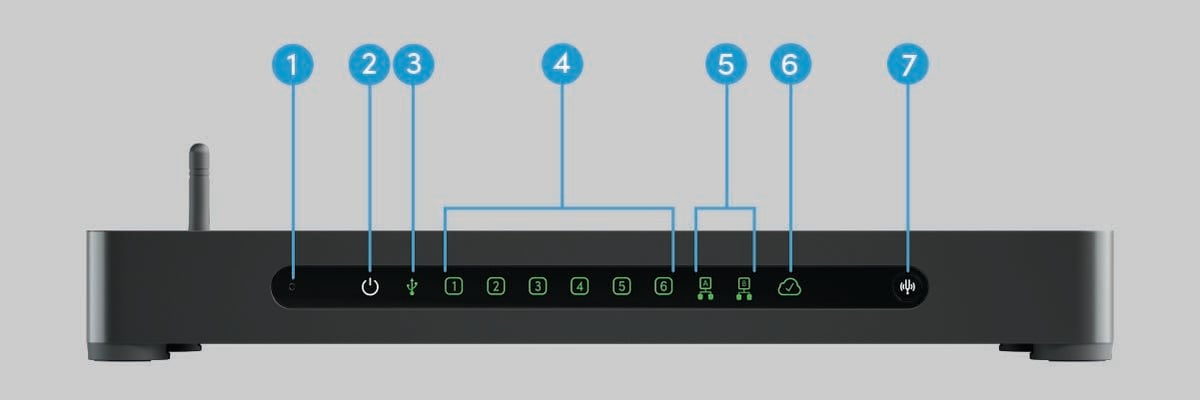
  1. Reset pinhole — for resetting an HDX system to factory settings and unenrolling from Nureva Console. This will also reset the device password to the original code (XXX-XXX-XXX) located on the bottom of the system hub.
  2. Power indication.
  3. USB connection status for computer or collaboration hub.
  4. Port connection status for audio bars and microphone pods.
  5. Network status.
  6. Cloud status pertaining to internet, communication with Nureva Console cloud and enrollment.
  7. Calibrate button for quickly optimizing audio when the room setup or furniture placement has changed significantly.

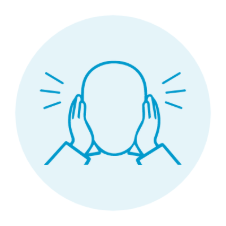
Warning: Calibration produces a series of loud sounds for approximately 45 seconds. Ensure the room is quiet before starting. We recommend covering your ears or using hearing protection.


Back panel

Systemhub-Backpanel
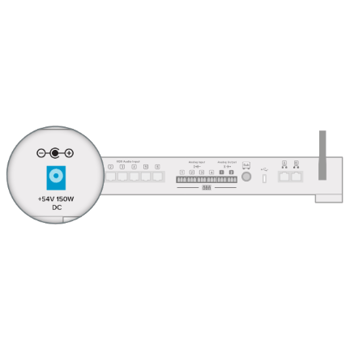
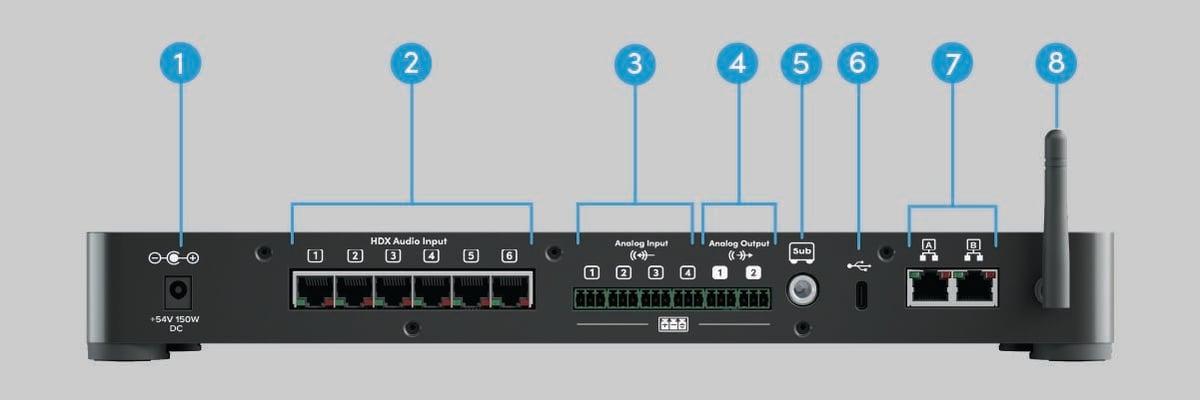
  1. Input jack for power supply.
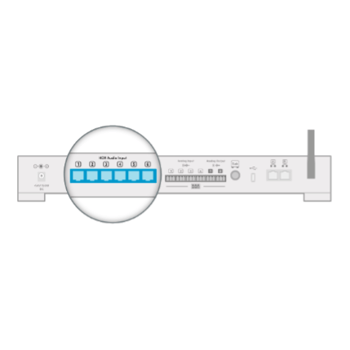
  2. Six PoE connections to audio bars and microphone pods, RJ45 (maximum of four audio bars and two microphone pods).
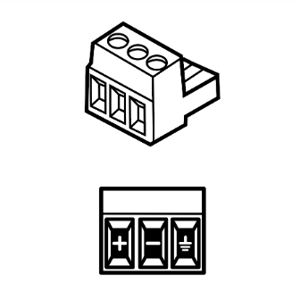
  3. Four analog audio input channels, balanced, Euroblock 3.5 mm pitch.
  4. Two analog audio output channels, balanced, Euroblock 3.5 mm pitch.
  5. Subwoofer connection, balanced, ¼" jack.
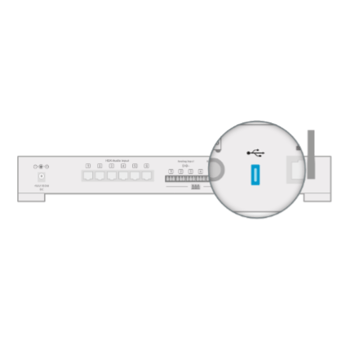
  6. USB 2.0 interface to computer or collaboration hub, Type-C.
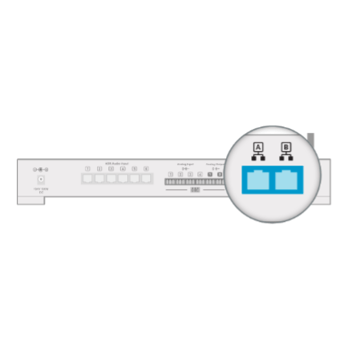
  7. Two connections for Console Direct (cloud-based device management), local area network (LAN) and Dante 2x2 AVoIP, RJ45. Use network port A for a direct connection to the Nureva App.
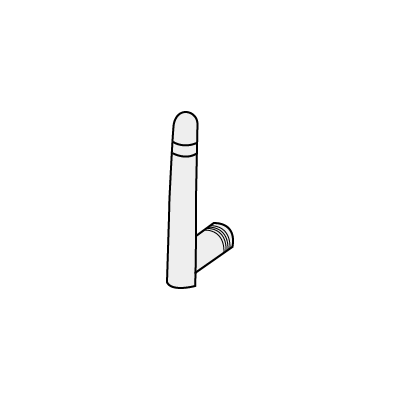
  8. Bluetooth LE technology radio antenna — for wireless communication between the HDX system and other devices.
    • Enables wireless communication with the Nureva App and HDX handheld remote control. Also enables streaming and receiving Auracast broadcast audio.


Audio bar

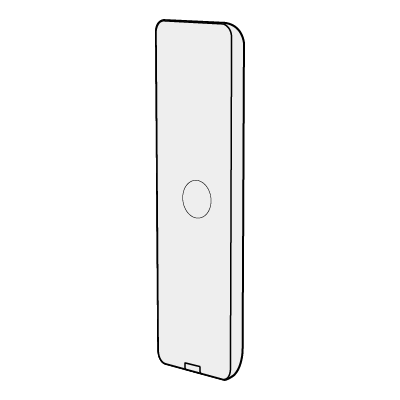
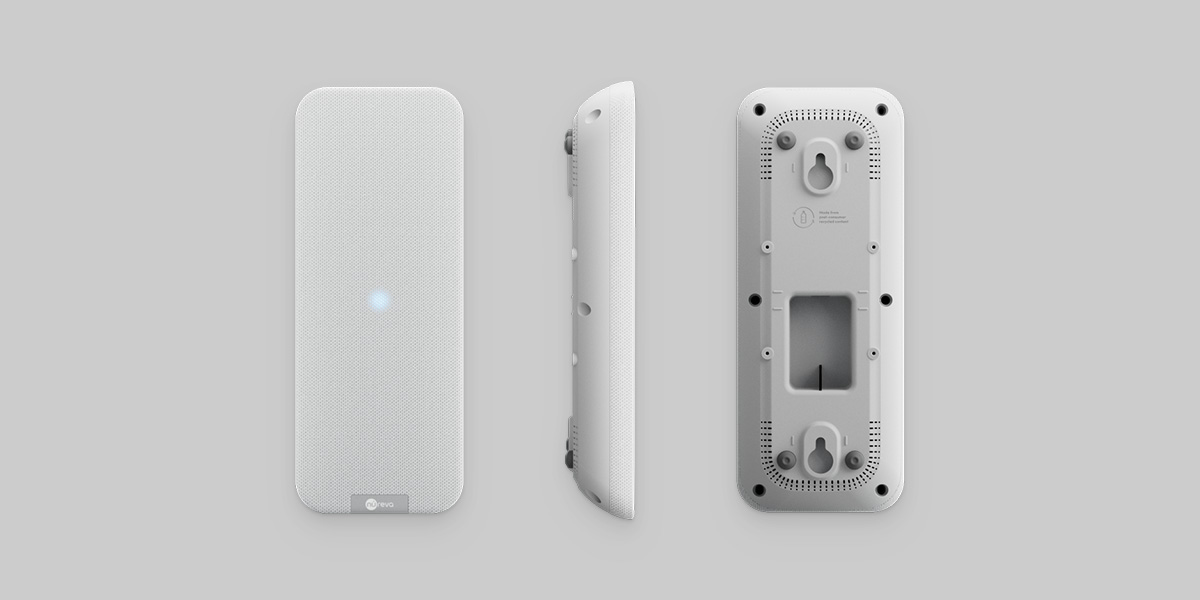
The audio bar combines speakers and microphones in a single, easy-to-install unit that delivers full-room audio coverage. It supports distributed in-room audio and can be mounted vertically or horizontally.

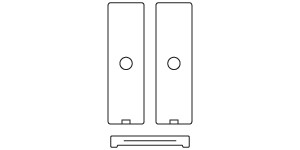
Nureva HDX audio bar shown from front, side and back views


Key features

  • Full-range distributed audio in the room and full-room microphone coverage
  • Two-way speaker system with tweeter and dual woofer
  • Acoustically isolated two-dimensional microphone array
  • Single Ethernet cable connection to system hub
  • Flexible vertical or horizontal installation with included mounting brackets (threaded inserts are also available to support optional VESA mounting)
  • Sustainable materials with recycled plastics and fabrics
  • Sleep mode for energy conservation
  • Adjustable lighting intensity, color and size to suit the room’s environment and use

Microphone pod

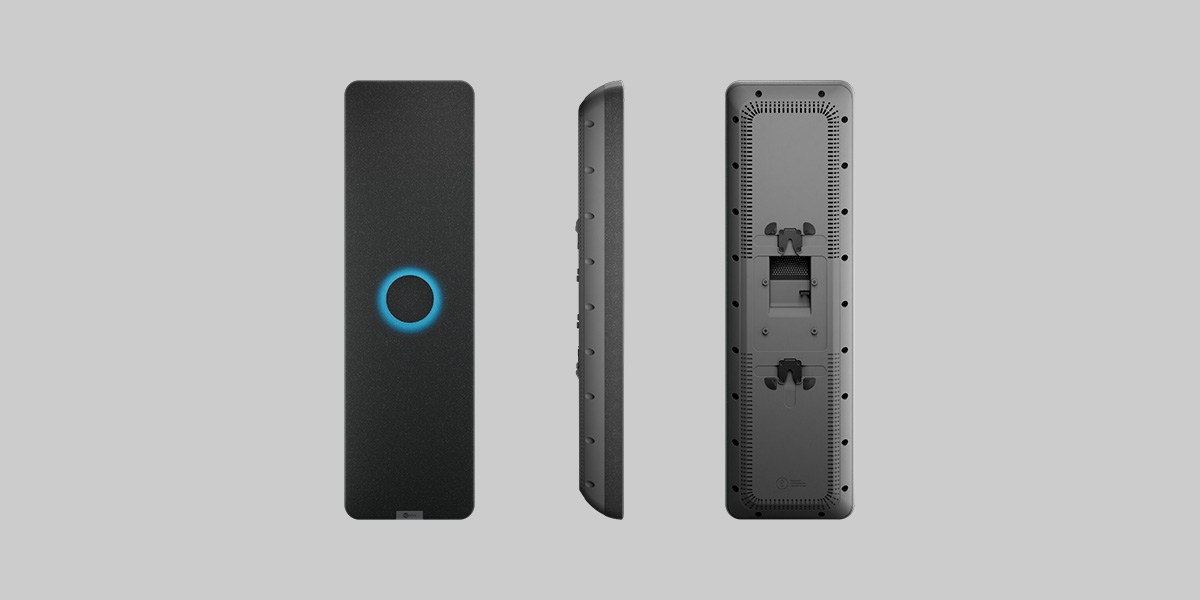
The microphone pod produces a 2D microphone array that supports the HDX system’s Microphone Mist technology for improved full-room microphone coverage. This pod can be installed on the ceiling or the wall.

Nureva HDX microphone pod shown from front, side and back views

Key features

  • Two-dimensional microphone array that supports full-room microphone coverage
  • Microphone Mist technology with unified coverage map
  • Visual indicators for system status
  • Single Ethernet cable connection to system hub
  • Flexible installation with included mounting bracket that supports vertical or horizontal positioning (threaded inserts are also available to support optional VESA mounting)
  • Sustainable materials with recycled plastics and fabrics
  • Sleep mode for energy conservation
Remote

Remote

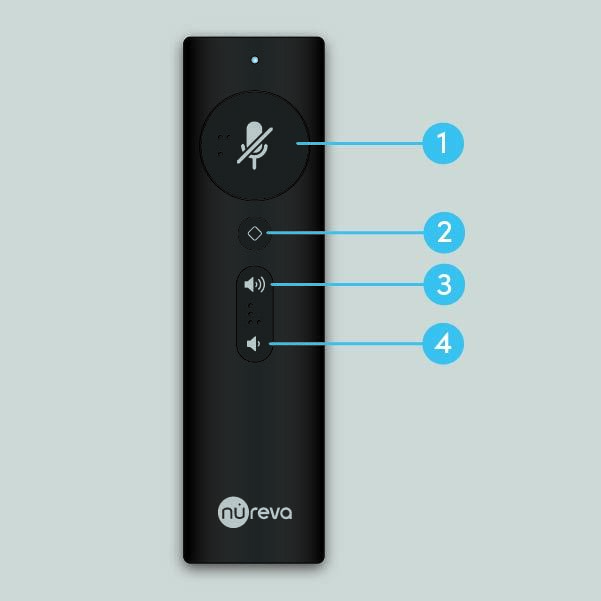
The HDX remote with Bluetooth technology offers quick and convenient control of the system. After inserting the batteries, the remote automatically attempts to pair with the system hub. The blue indicator light flashes while searching for the hub, then stays solid for 2 seconds once paired and ready to use.
Pair the remote

Remote buttons

  1. Mute and unmute
  2. Customizable button, which can be configured in the Nureva App
  3. Volume increase
  4. Volume decrease

Step 1: Plan the placement


Choose HDX configuration

HDX is available in five configurations for different room sizes, use cases and required features.


What to know before selecting a configuration

  • Room dimensions: Measure the length and width of your room to determine the microphone and speaker coverage requirements.
  • Talker location: Understand how the room is being used and where people typically speak. Is the room mainly used for presentations with talking at the front? Or do participants sit around a table? This will help determine HDX component placement and the best configuration.
  • Audio priority — speaker output vs. microphone pickup: Determine if the room is used primarily for in-room audio, clear speech capture or both. Microphone pods can be added for extra coverage, but make sure you consider the audio priority when deciding where to place the HDX components.
  • Room acoustics: Understand the room acoustics, with reverberation and background noise, to evaluate the best location for the HDX system components. Get the Nureva App for iOS and perform an acoustic check using the microphone on an iPhone® or iPad® device. Learn more about acoustic check.


Recommended configurations

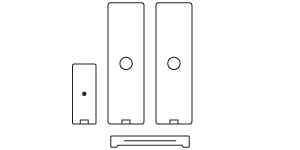
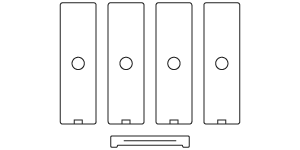
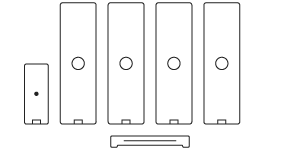
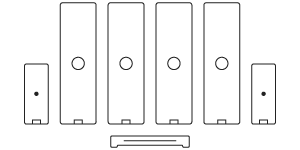
The configuration table below lists the recommended maximum room size and features available for each HDX configuration.

Note: If you require features available only with larger configurations — such as 3D sound location data, camera tracking or Adaptive Voice Lift — you can install a larger configuration in a smaller room, provided mounting recommendations are followed. This approach delivers enhanced audio performance and access to those advanced features. For example: If you have a room that’s 30' x 30' (9.1 x 9.1 m) or smaller and require camera tracking, simply add a microphone pod.
  Line drawing of the Nureva HDX system with two audio bars and a system hub for large meeting spaces. Line drawing of the Nureva HDX system with two audio bars, microphone pod and a system hub for large meeting spaces. Line drawing of the Nureva HDX system with four audio bars and a system hub for large meeting spaces. Line drawing of the Nureva HDX system with four audio bars, microphone pod and a system hub for large meeting spaces. Line drawing of the Nureva HDX system with four audio bars, two microphone pods and a system hub for large meeting spaces.
Configuration 2 bar 2 bar + 1 pod 4 bar 4 bar + 1  pod 4 bar + 2 pod
Max room size Up to 30' x 30'
(9.1 x 9.1 m)
Up to 35' x 40'
(10.7 x 12.2 m)
Up to 40' x 60'
(12.2 x 12.2 m)
Up to 40' x 60'
(12.2 x 18.3 m)
Up to 40' x 60'
(12.2 x 18.3 m)
Camera tracking  
Adaptive Voice Lift        
3D sound location data  

Note: Adaptive Voice Lift is available only with the 4 bar + 2 pod configuration.
Placement overview

After selecting the right HDX system, the next step is to decide where each component can be installed.

Placement considerations

Begin by checking the room for obstacles and surfaces that can impact audio quality and microphone performance:

  • Maintain clear sound paths — A direct line of sight is needed between components and talkers to avoid muffled pickup and uneven speaker output.
  • Avoid obstacles — Posts, alcoves, covers and recessed areas block sound paths and degrade audio quality.
  • Avoid placing on reflective surfaces — Glass walls and hard surfaces cause echoes and distort sound.
  • Keep away from noise sources — HVAC vents, fans and other equipment introduce persistent noise that interferes with microphone clarity.
  • Avoid installing on soft surfaces — Acoustic panels and fabric walls absorb sound and reduce pickup sensitivity.

For assistance with unique rooms, contact support.


Audio bar placement

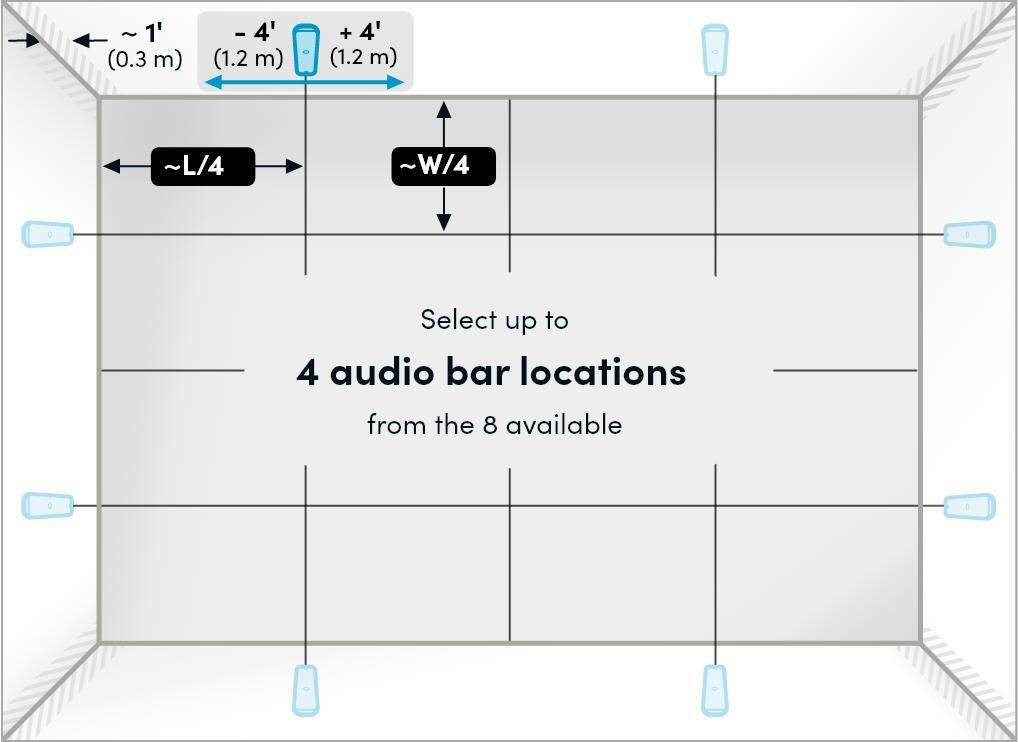
Identifying installation locations

To determine the preferred audio bar installation locations, make the following measurements using a top-down (bird’s eye) view of the room:

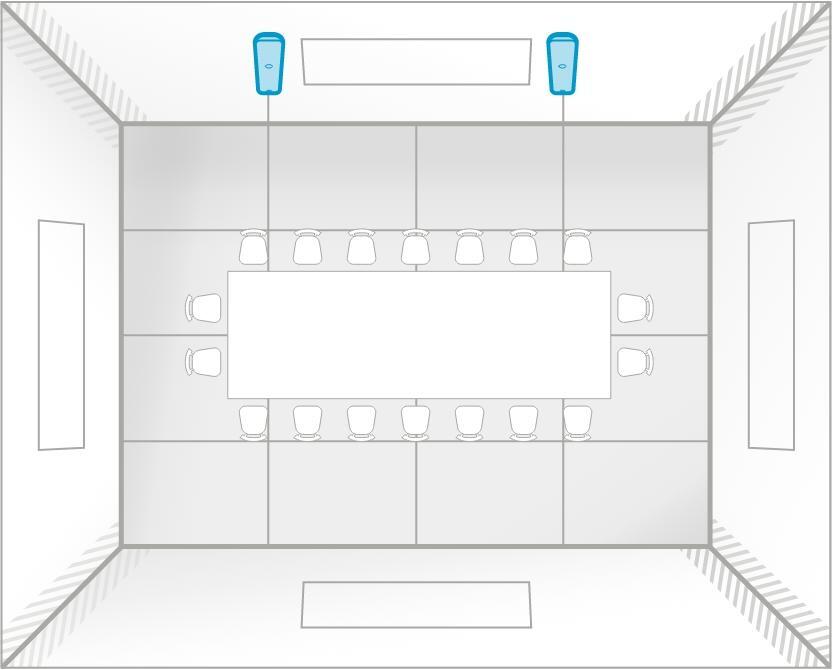
  • Divide each wall in the room into four equal sections.
  • Identify the 1/4 and 3/4 positions of each wall.
  • Define a tolerance area extending 4' (1.2 m) on either side of each 1/4 and 3/4 division line.

Important: Audio bars must be positioned at least 1' (12" / 30 cm) away from any corner or adjacent wall. This requirement takes precedence over all other placement guidelines.

There are eight potential preferred mounting locations in the room.

These are flexible installation locations and, as illustrated below, each is approximately 8' (2.4 m) in width.

8 locations audio bar.sq

Front of room

The front of the room is a rectangular space where a presenter typically stands or where a display may be mounted on the wall in a meeting room environment.

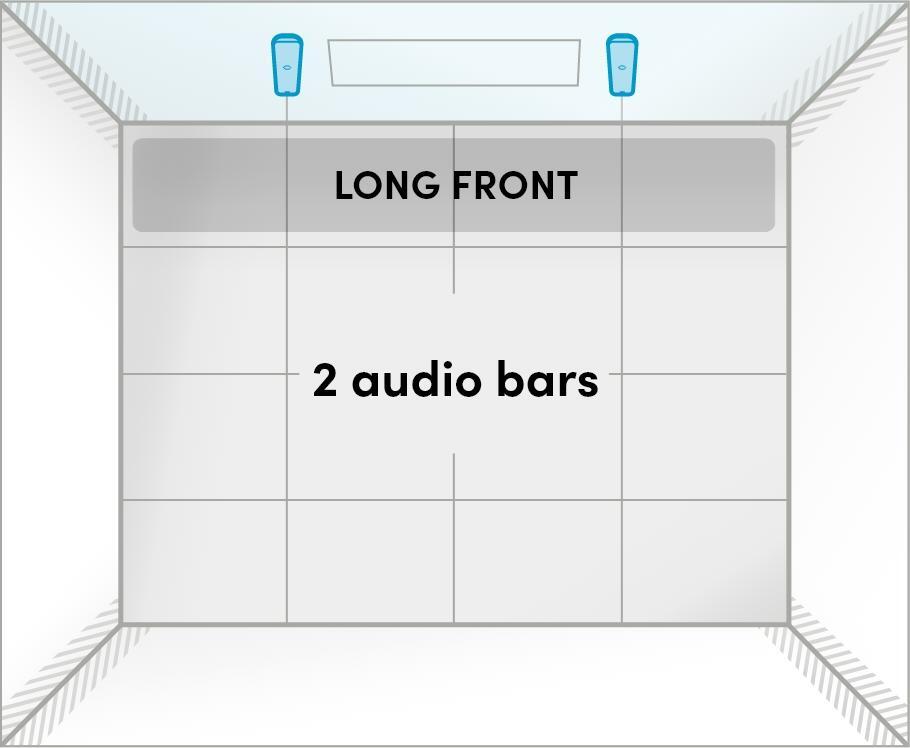
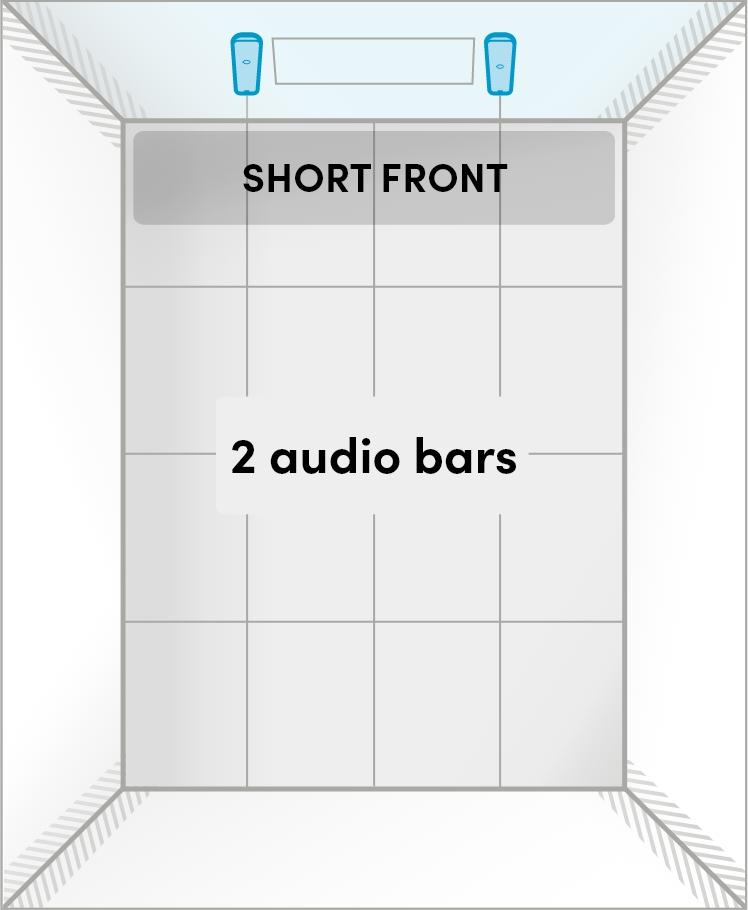
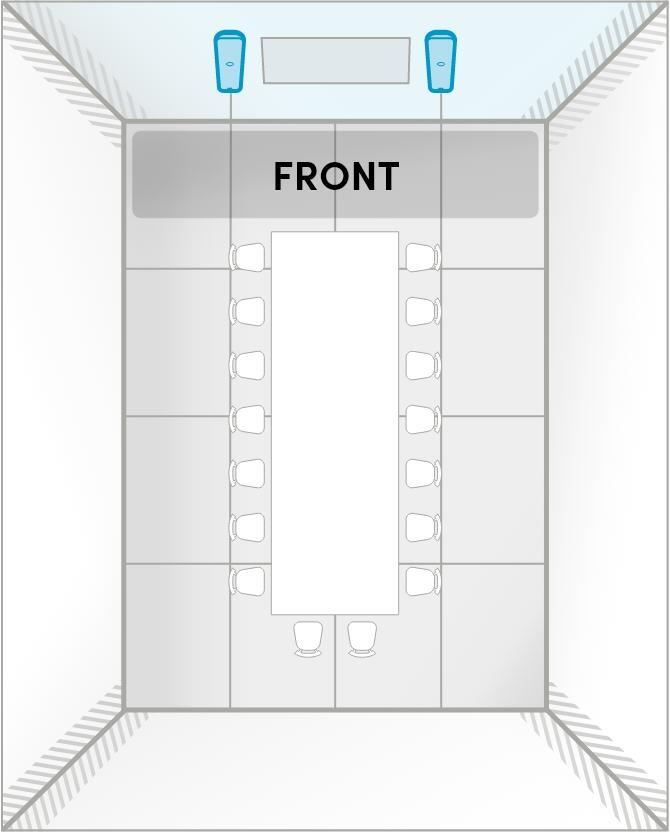
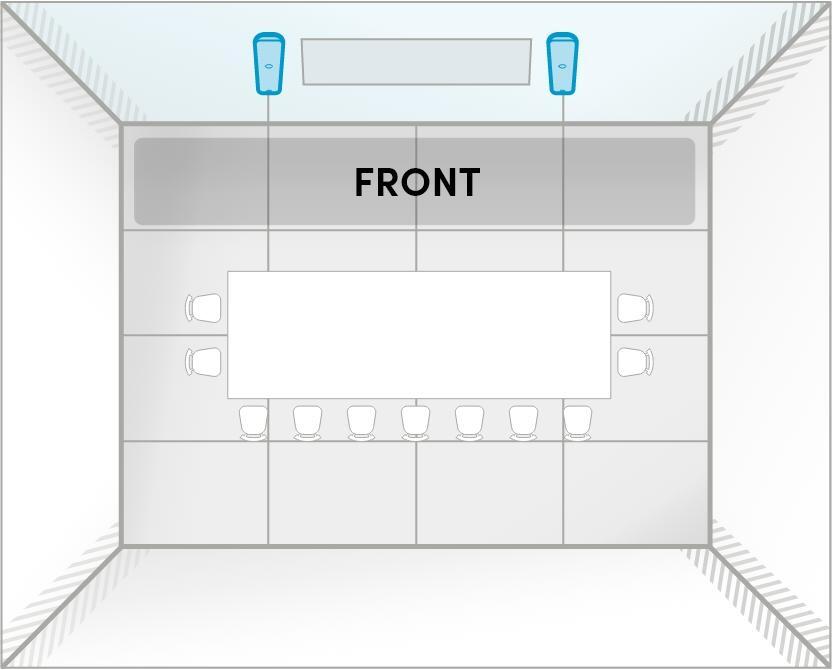
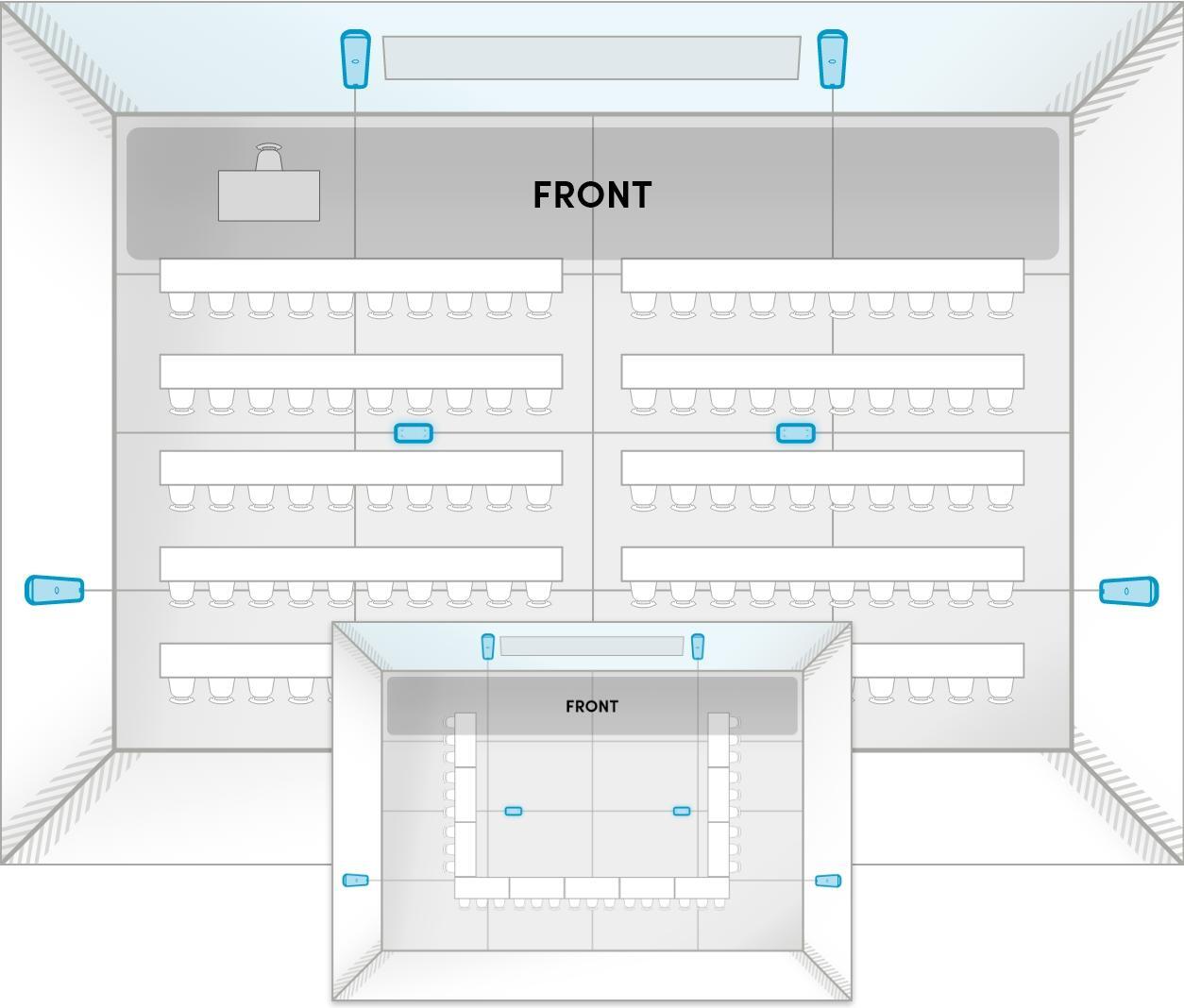
Important: For all HDX configurations, two bars must be placed on the same wall. It’s recommended these audio bars are placed in the 1/4 and 3/4 areas on the wall at the front of the room.

Two audio bars placed on the long wall at the front of the room.

Long front 2 bars.sq

Two audio bars placed on the short wall at the front of the room.

Short front 2 bars.sq

No front of room

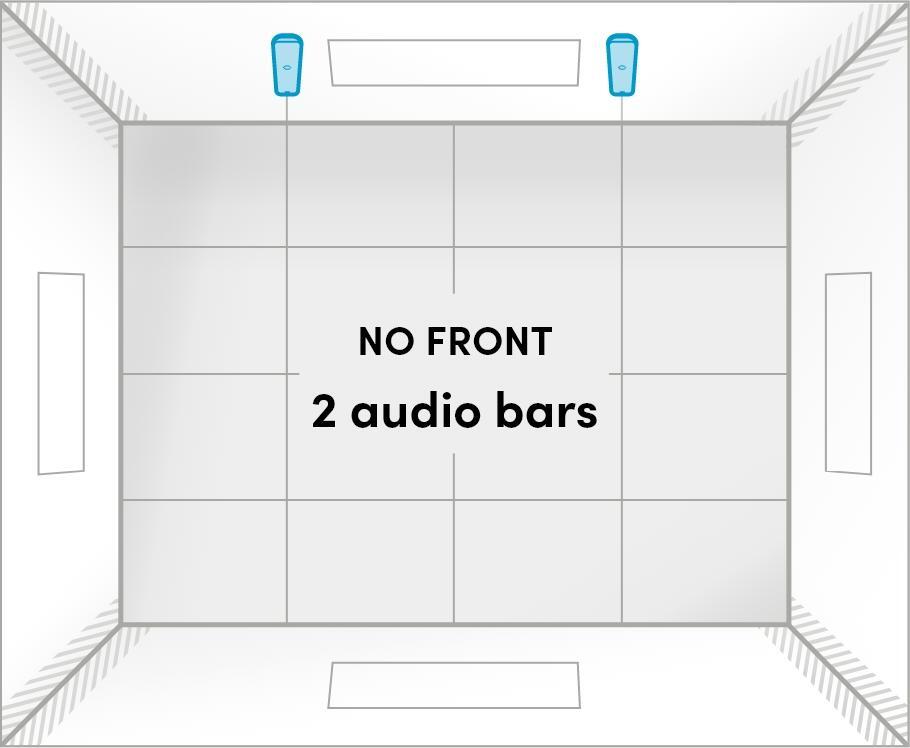
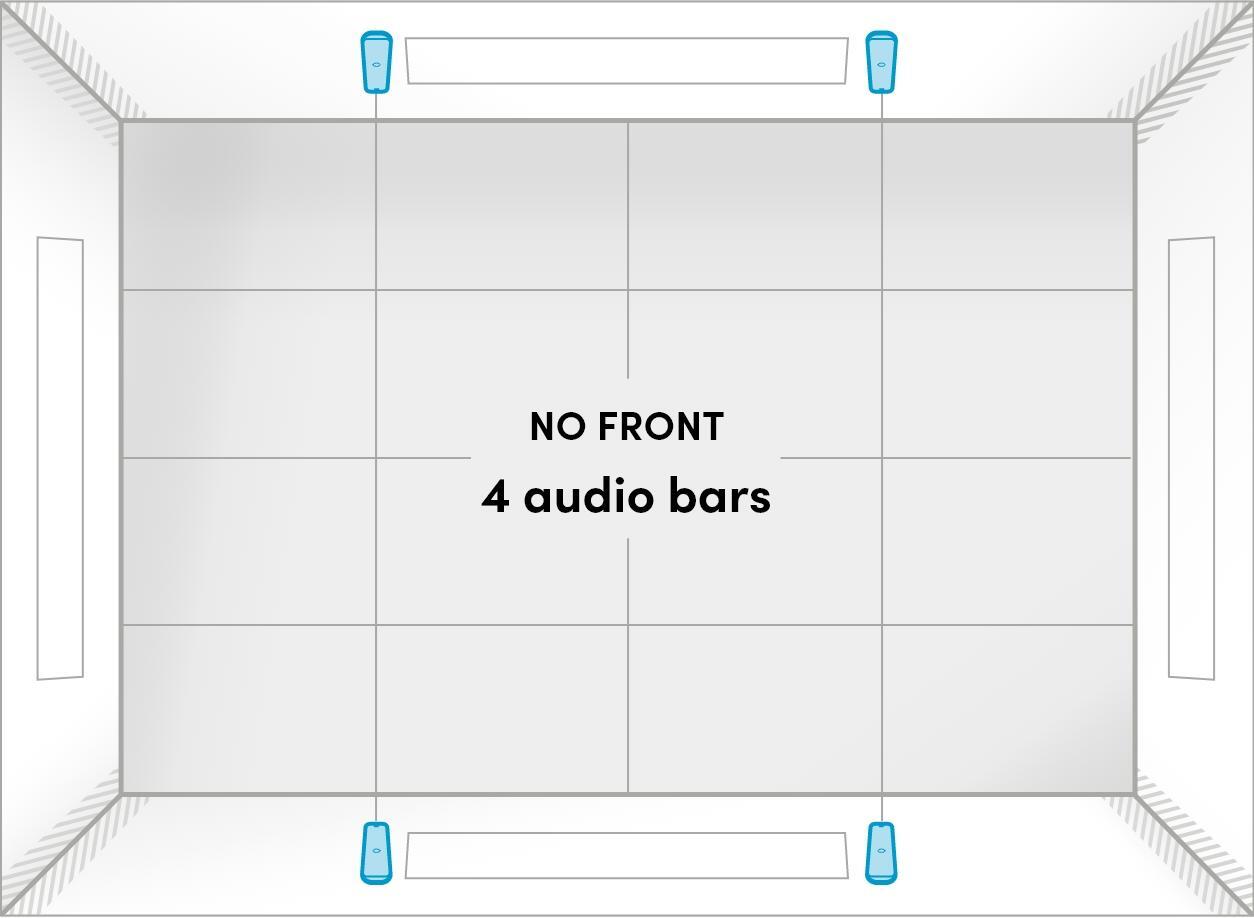
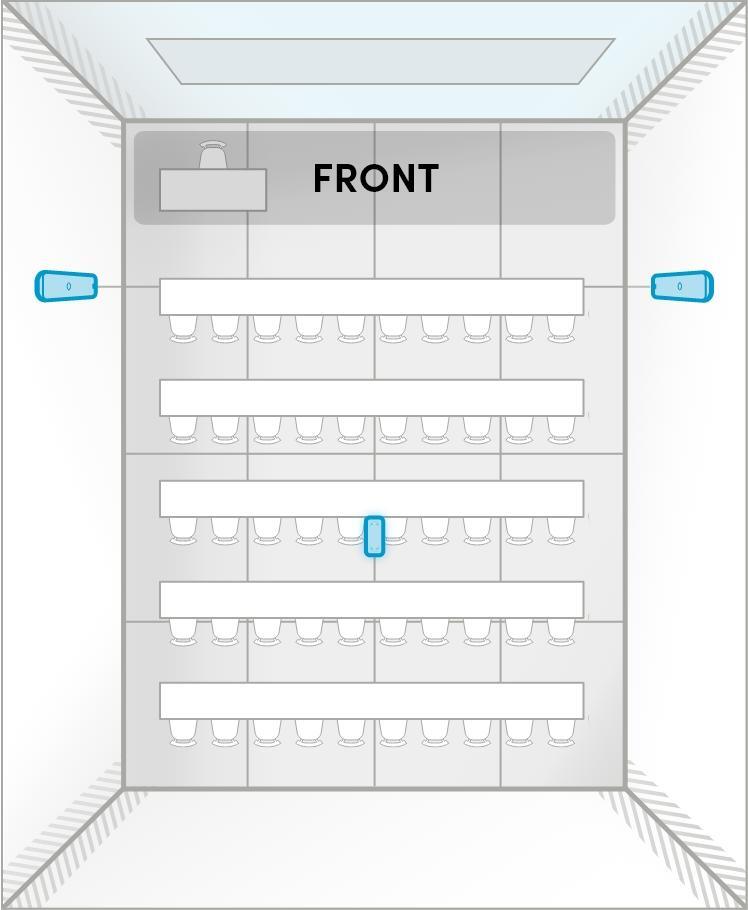
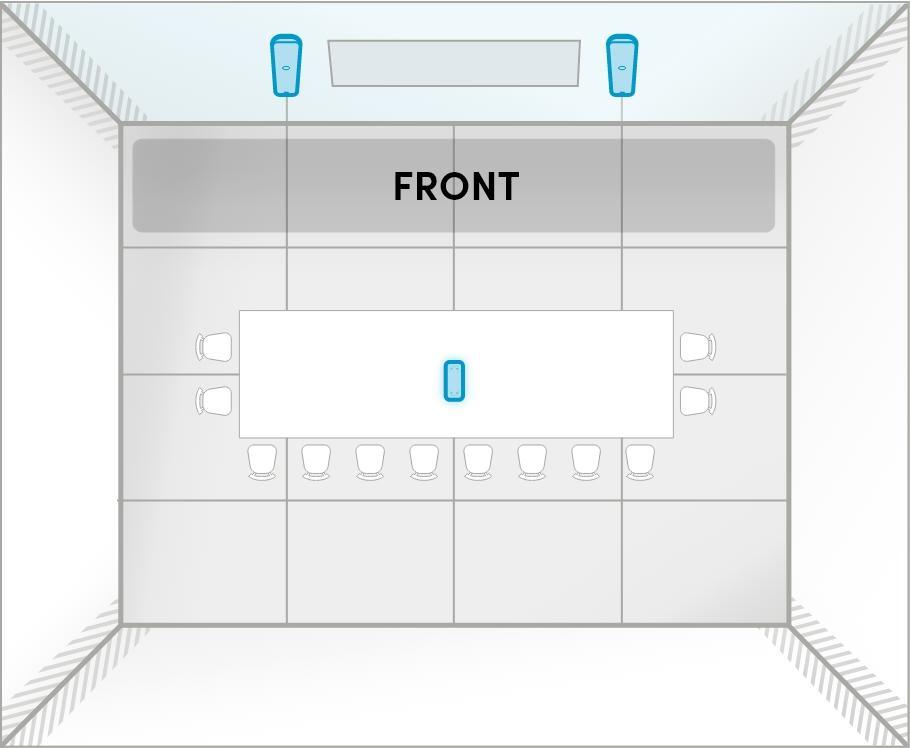
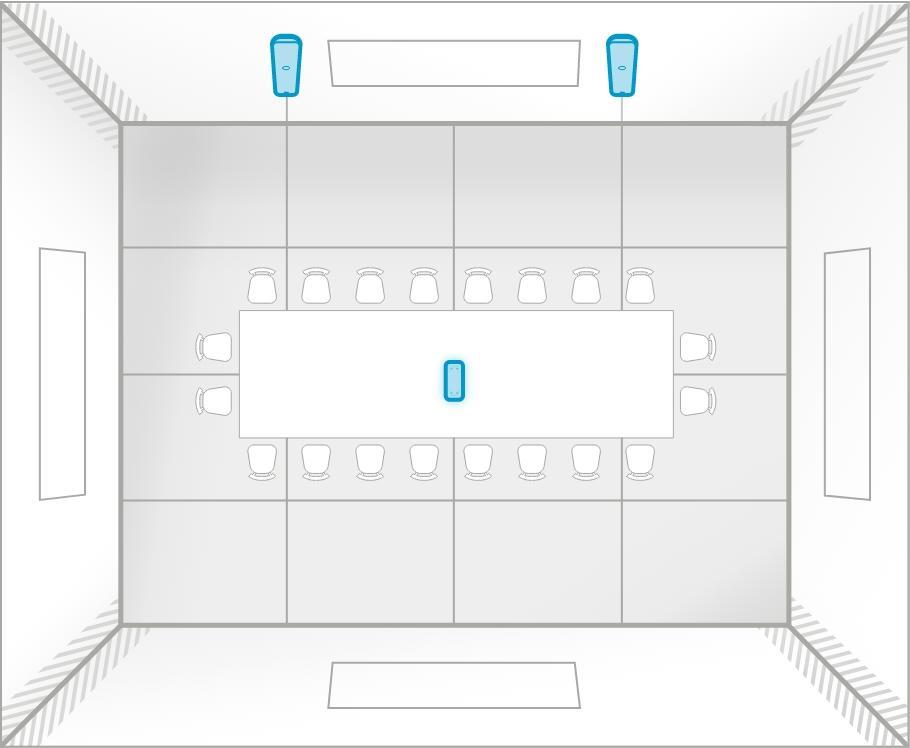
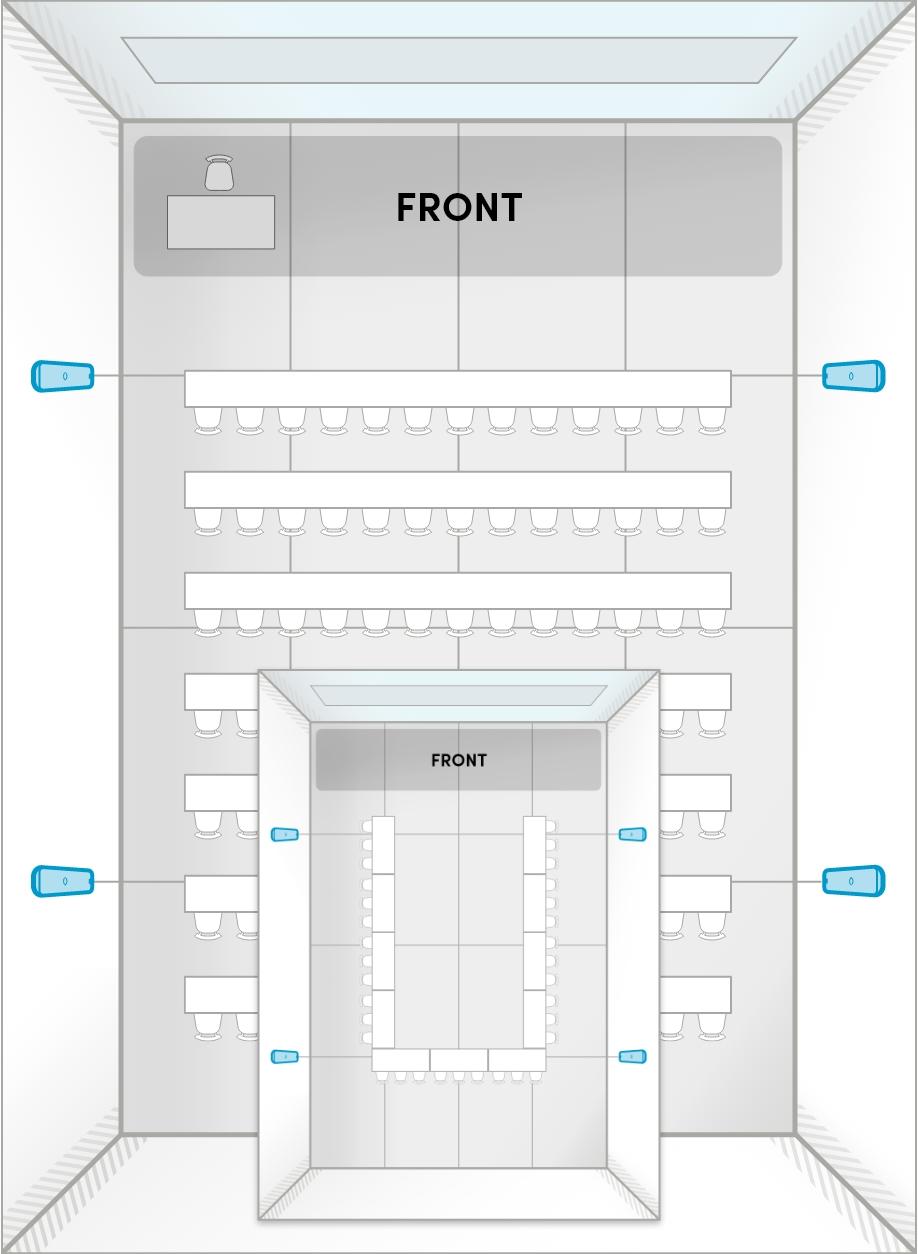
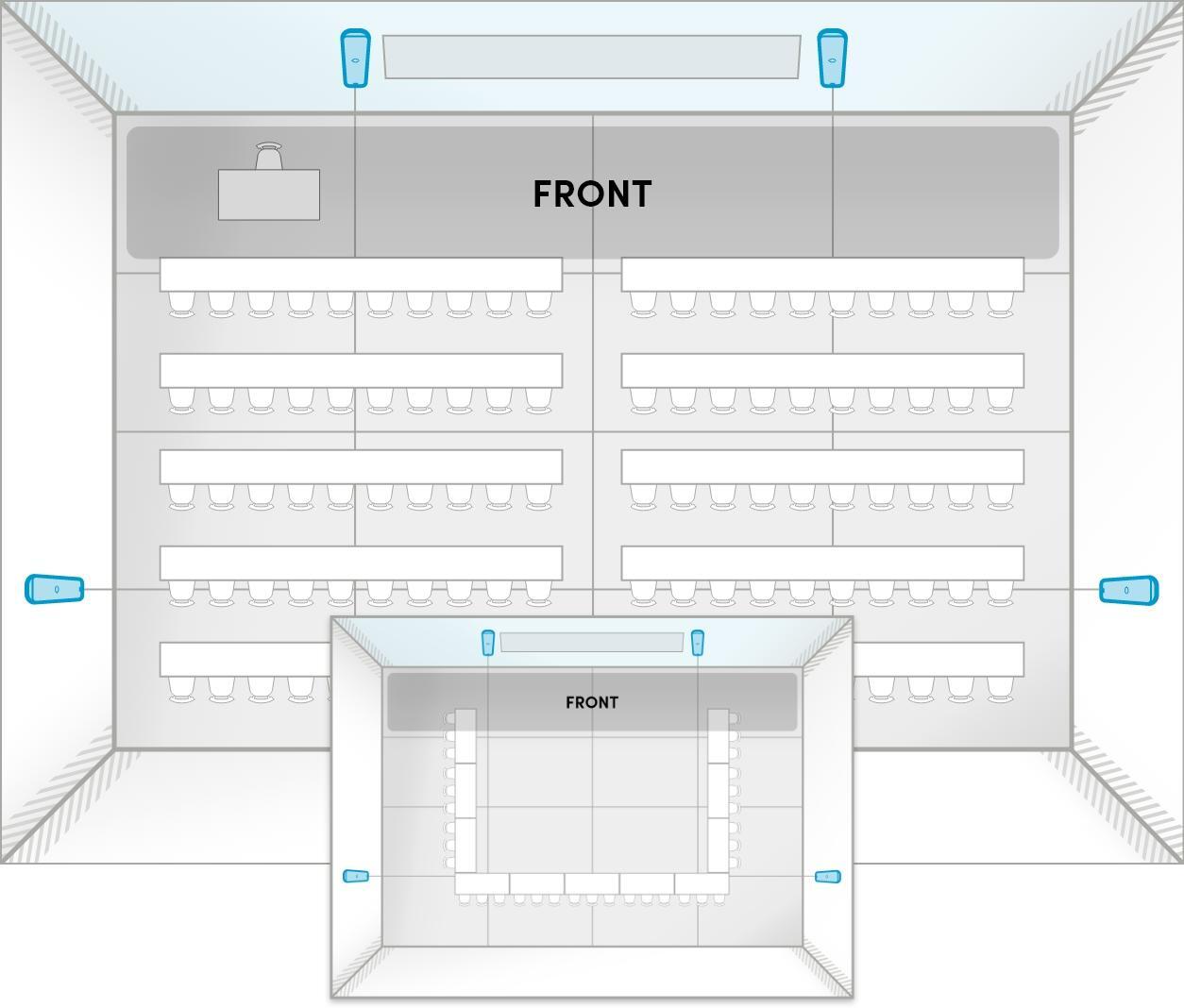
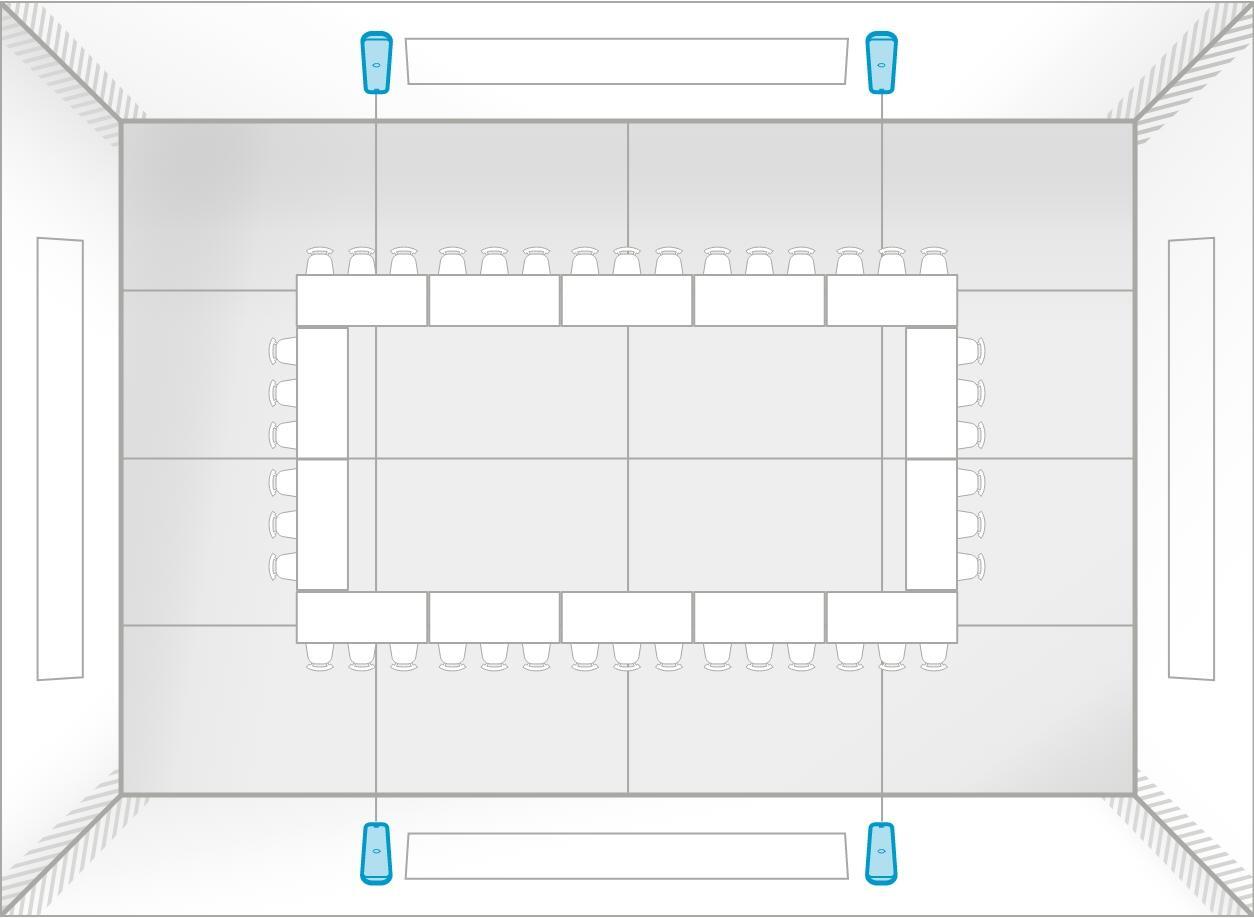
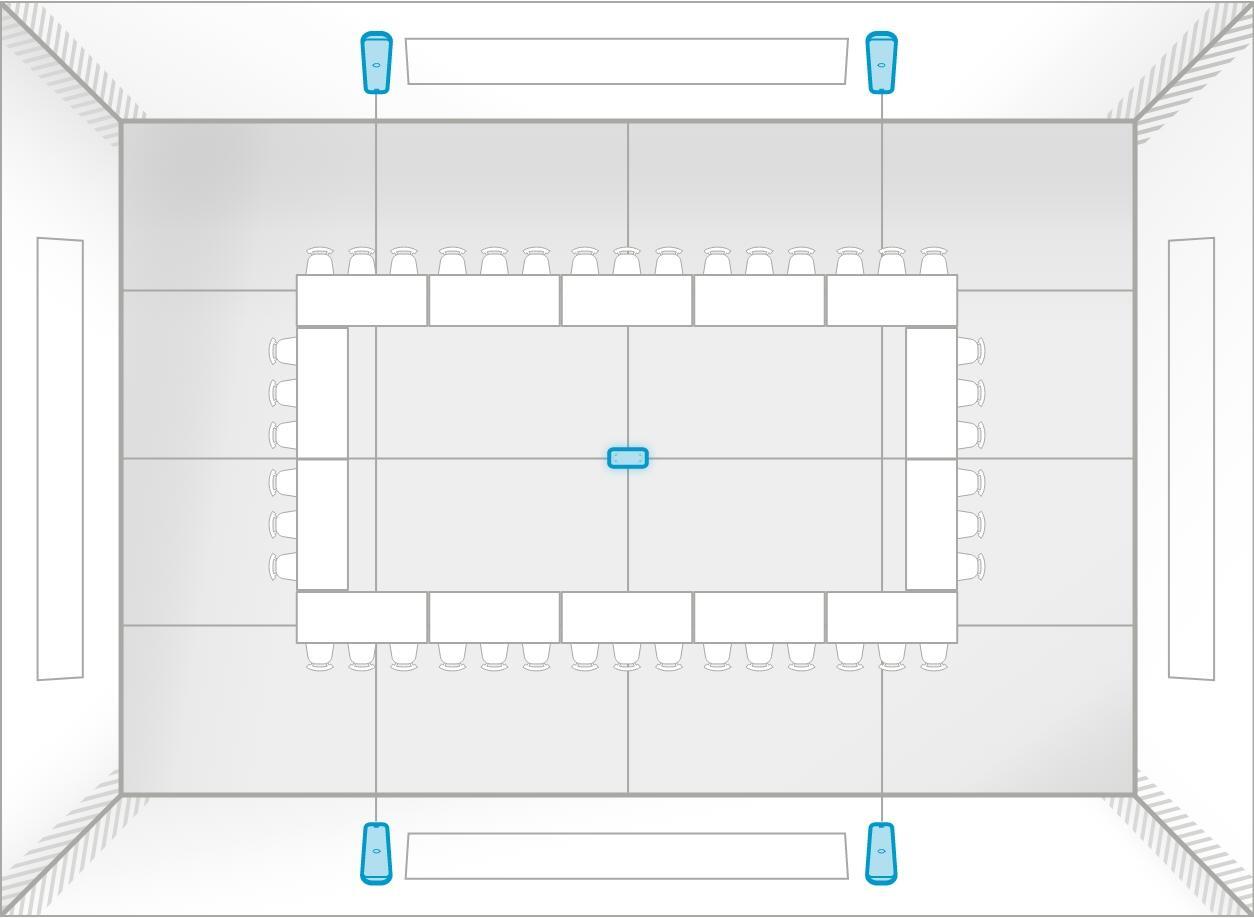
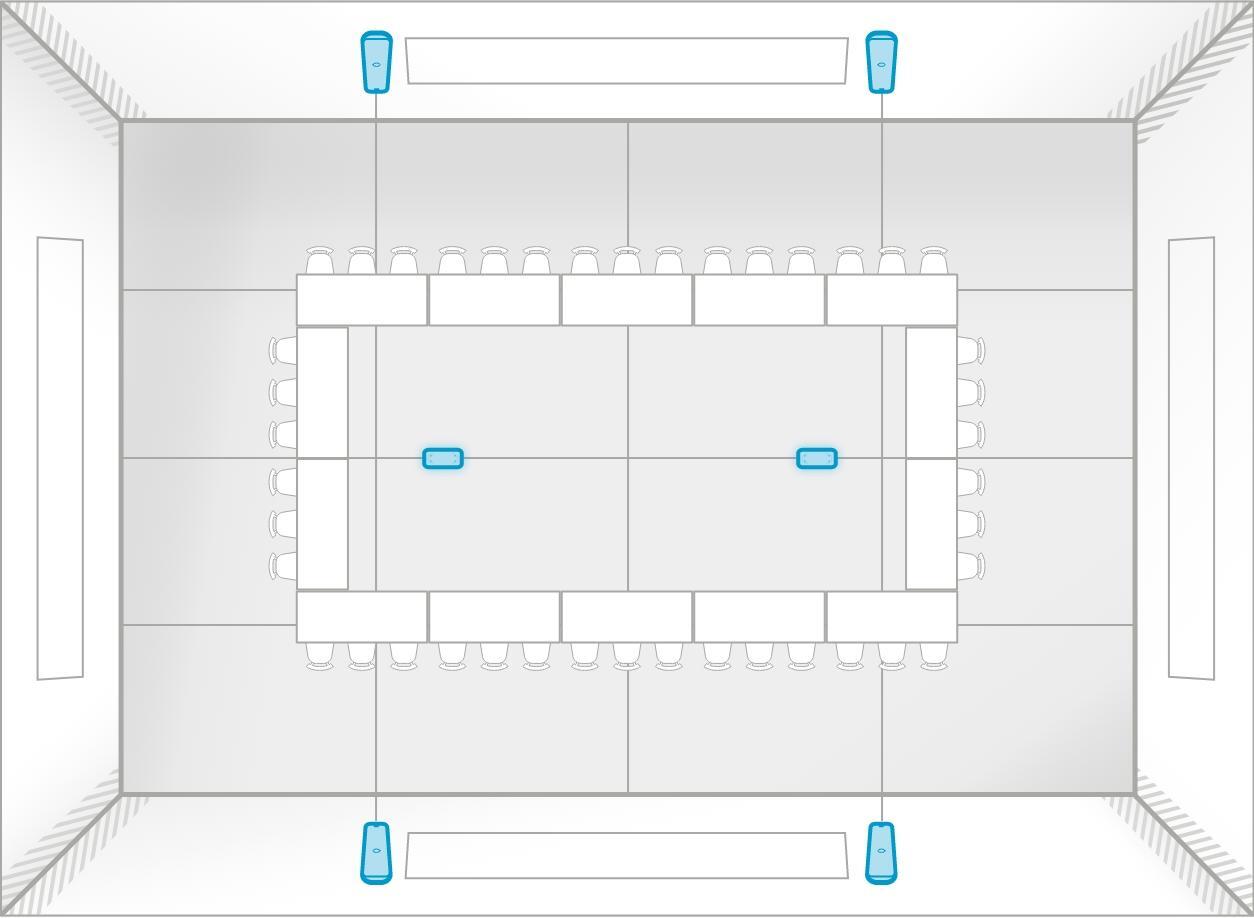
If the room has no defined front or is set up to be a collaborative or multipurpose space, ideally the audio bars will be positioned in the 1/4 and 3/4 areas of the longest wall.

Two-bar system:
Place two audio bars on the same long wall.

No front 2 audio bars.sq

Four-bar system:
Place two audio bars on each long wall.

NO front- 4 audio bars.sq

Best practices

  • Two audio bars on the same wall: Ideally, two audio bars will be placed on either side of the main display when there is a front of room or on the longest wall when there is no front of room.
  • Symmetry: Keep audio bar placement symmetrical to maintain balanced stereo imaging and avoid phase issues.
  • Height consideration: Mount the audio bars at or above head level for optimal sound projection.
  • Away from corners: Installing audio bars near corners can cause bass buildup and distorted sound.
  • Orientation: Audio bars can be mounted vertically or horizontally — vertical mounting offers optimal speaker dispersion.
  • Irregular-shaped rooms: Ideally, the audio bars will be placed in a rectangular or square layout that aligns with the front of the room.
  • Adaptive Voice Amplification: An external microphone is required. Position the audio bars so they are facing the audience and away from fixed podiums to prevent double pickup and feedback.
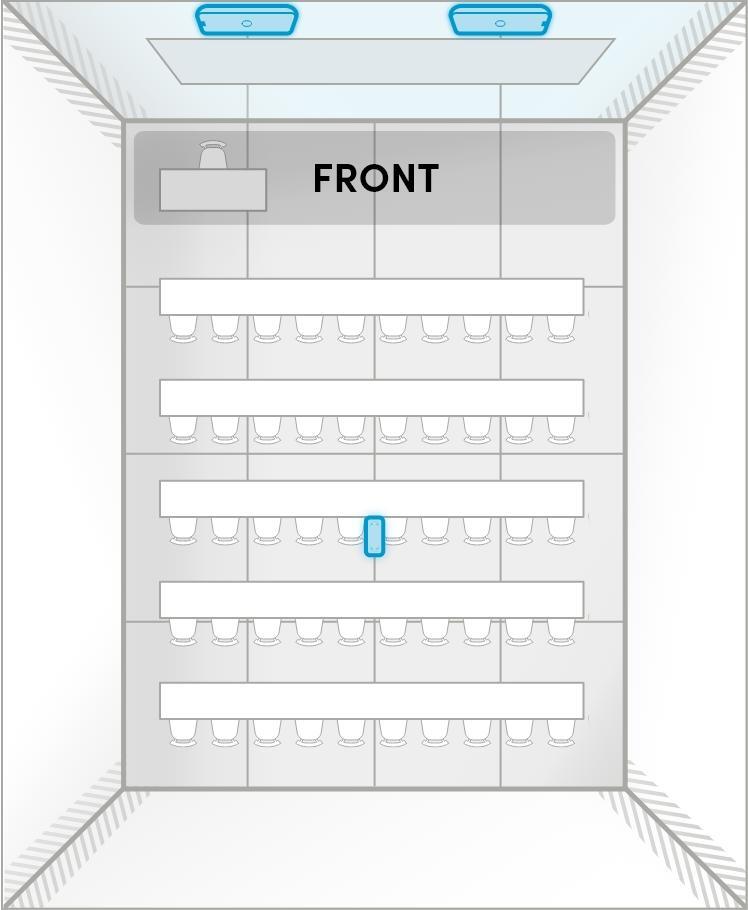
  • Tiered rooms: Ideally, four audio bars will be used — mounted at a consistent height above the floor on each tier, with their alignment following the slope of the floor.

Mounting recommendations

Recommended audio bar placement for optimal audio performance.

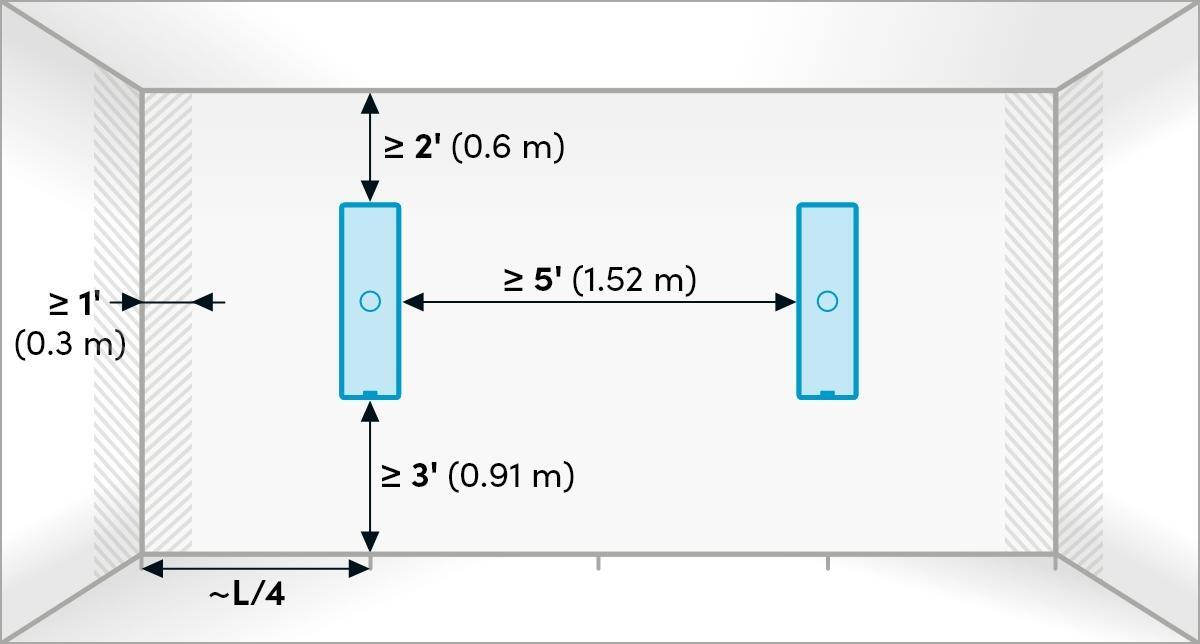
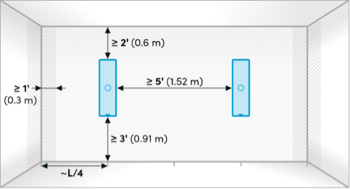
Requirement Measurement
Notes
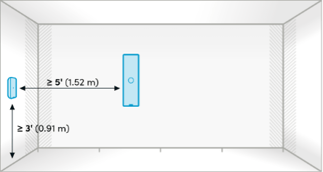
Minimum distance from floor 3' (36" / 91 cm)  There’s no strict maximum height, but avoid placing audio bars too high or too low. Aim for a clear line of sight to participants. 
Minimum distance from ceiling  2' (24" / 61 cm)  Measured from the top of the audio bar. 
Minimum distance from adjacent wall or corner  1' (12" / 30 cm)  Avoid placing audio bars directly in corners. 
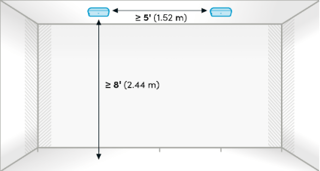
Minimum spacing between audio bars on the same wall  5' (60" / 1.5 m)  There’s no maximum limit for spacing between audio bars, but ensure even coverage across the room. Add more audio bars or microphone pods if needed. 
Recommended wall placement  At approximately the 1/4 and 3/4 marks along the wall length, ±4' (48" / 122 cm)  Provides balanced coverage. 
Audio Bar-wall placement.sq

Audio bar orientation

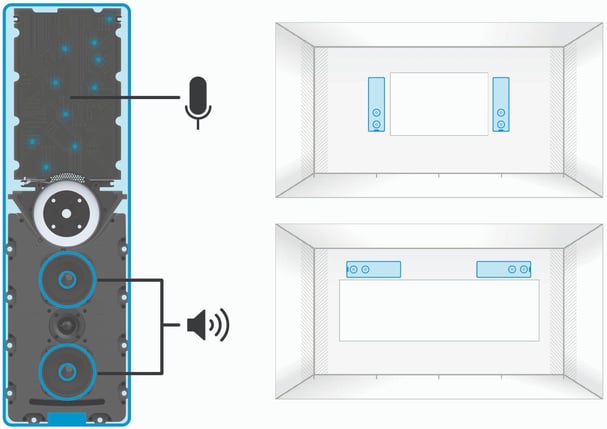
HDX audio bars can be installed vertically or horizontally, providing flexibility to work around room fixtures like windows and whiteboards. Audio bars come out of the box set up for vertical installation.

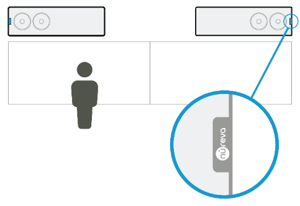
In a vertical orientation, the microphones are in the top half of the audio bar and speakers in the bottom half. This separation between input and output sources is necessary for improving sound localization and minimizing interference.


Vertical Horizontal Audio bar.sq

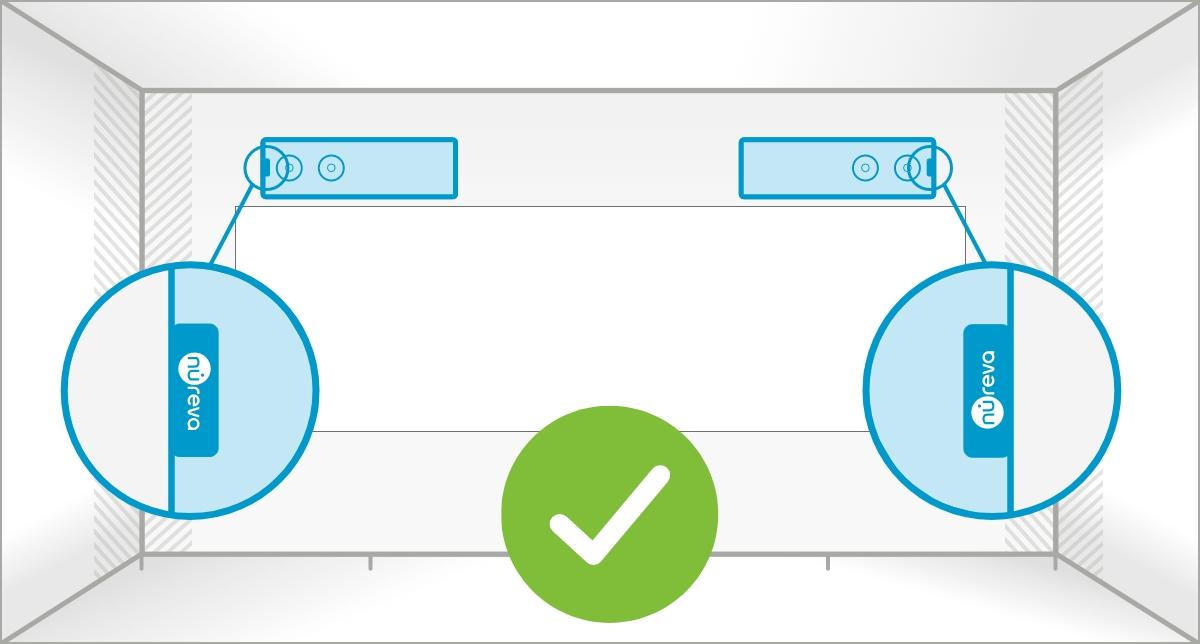
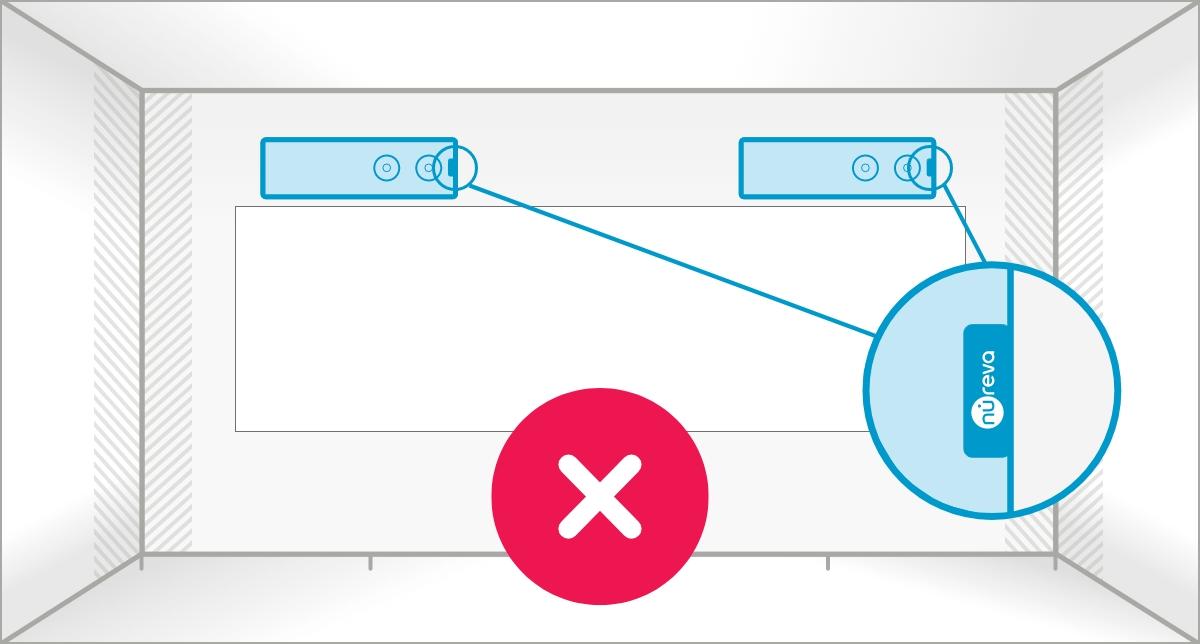
Note: When installing two audio bars horizontally, make sure the speaker drivers (located on the bottom half near the Nureva logo) are positioned at the outer edges of the room. This helps ensure even sound distribution across the space.

Correct installation:
Nureva logos face outer edges of room

Horizontal placement - good.sq

Incorrect installation:
One Nureva logo faces center of room

Horizontal placement bad.sq

Microphone pod placement

Identifying installation areas

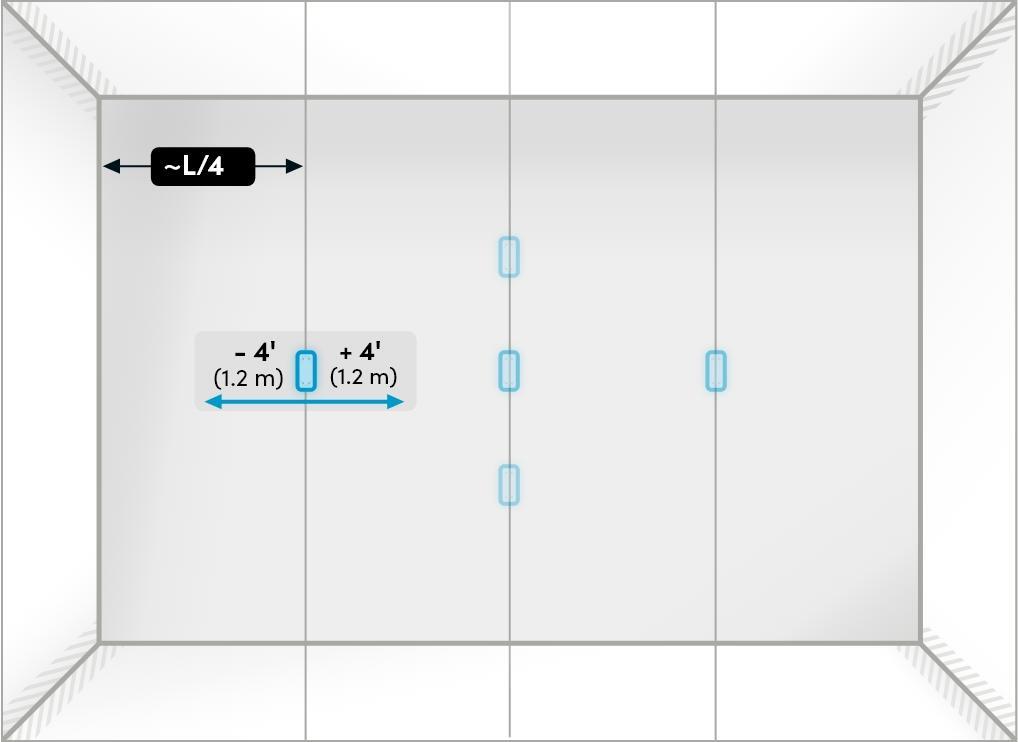
HDX microphone pods can be positioned on the wall or on the ceiling, wherever additional microphone pickup is required in the room. To determine the standard microphone pod placement areas for full-room pickup:

  1. Divide each wall into four equal sections to create a grid.
  2. Identify three key placement bands centered at the 1/4, 1/2 and 3/4 division lines.
  3. Define a tolerance area extending 4' (1.2 m) on either side of each division line.
  4. Choose anywhere along these bands to place a single microphone pod or a pair of pods.

The five ceiling-mounted positions shown in the diagram below represent the preferred areas for pod installation, ensuring optimal pickup for both participant seating and presentation areas. Microphone pods can also be installed on the wall and positioned anywhere in the room following the mounting recommendations below.

Select up to two microphone pod locations from the five locations below

Mic ceiling locations

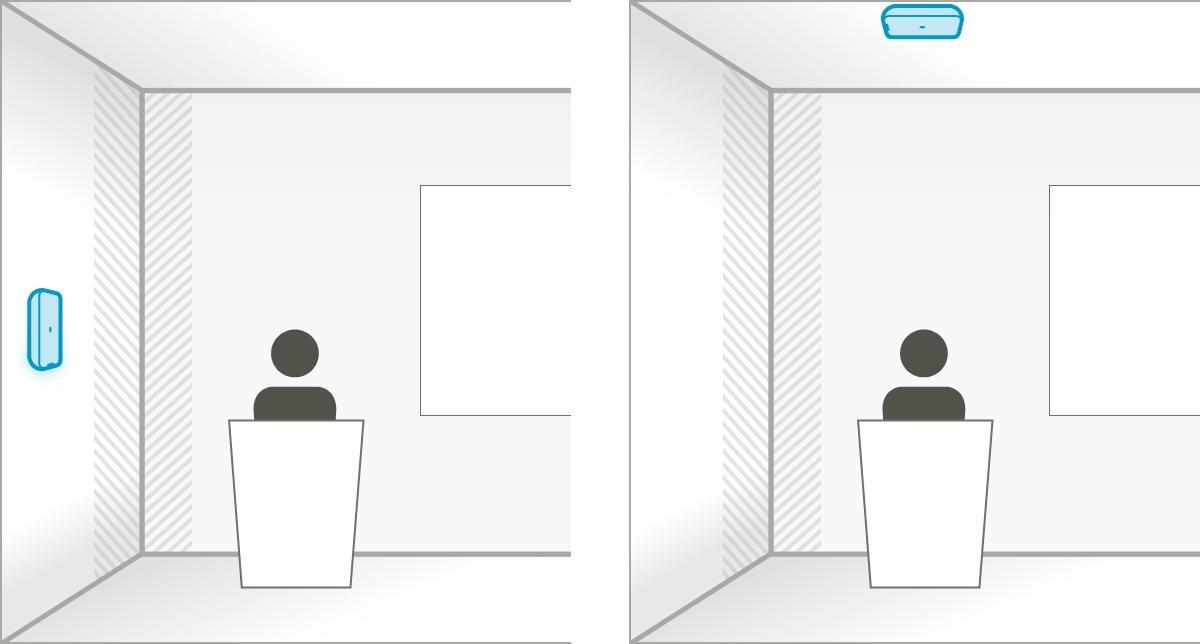
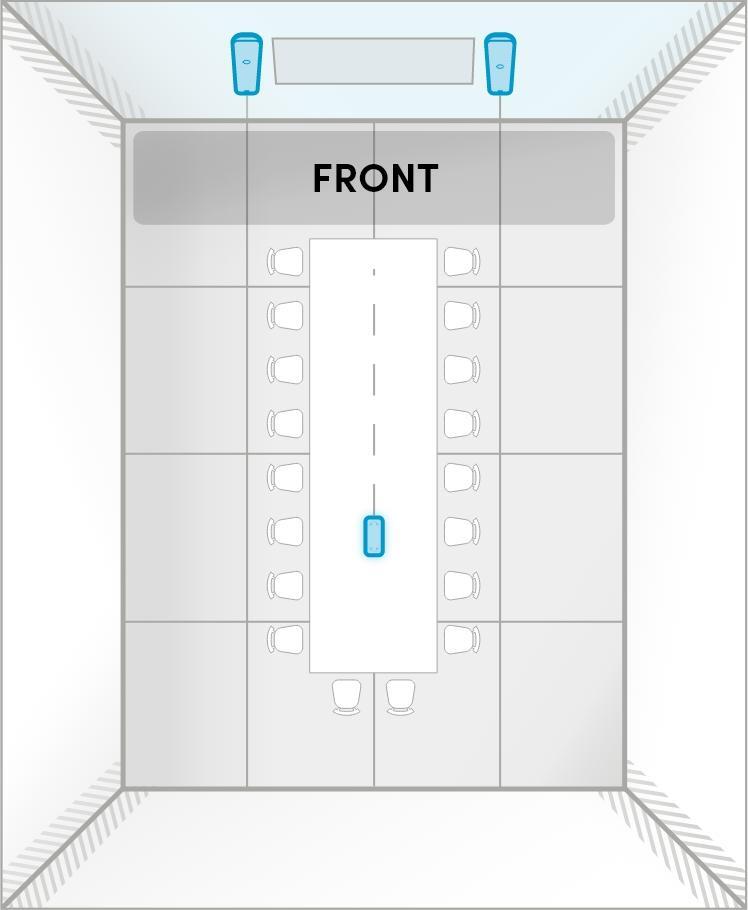
Microphone pod in front of talker location either on the wall or on the ceiling

Podium pod positions

If the room has a podium or the primary talker location is known, position the microphone pod either on the wall or the ceiling in front of that location.

Best practices

  • Physical proximity: Position the pods near talkers, and directed toward them, for best clarity.
  • Even coverage: Space pairs of pods evenly to avoid dead zones and hot spots.
  • Overlap of coverage: Allow a slight overlap between pickup zones to maintain consistent clarity from any direction.
  • Height matters: Mount pods above head level (8–12' / 2.4–3.7 m) for clear audio from all participants.
  • Away from noise: Keep pods away from HVAC vents, fans and other persistent noise sources to reduce ambient noise.
  • Adaptive Voice Lift: Add up to two microphone pods for additional coverage or Adaptive Voice Lift support.

Mounting recommendations

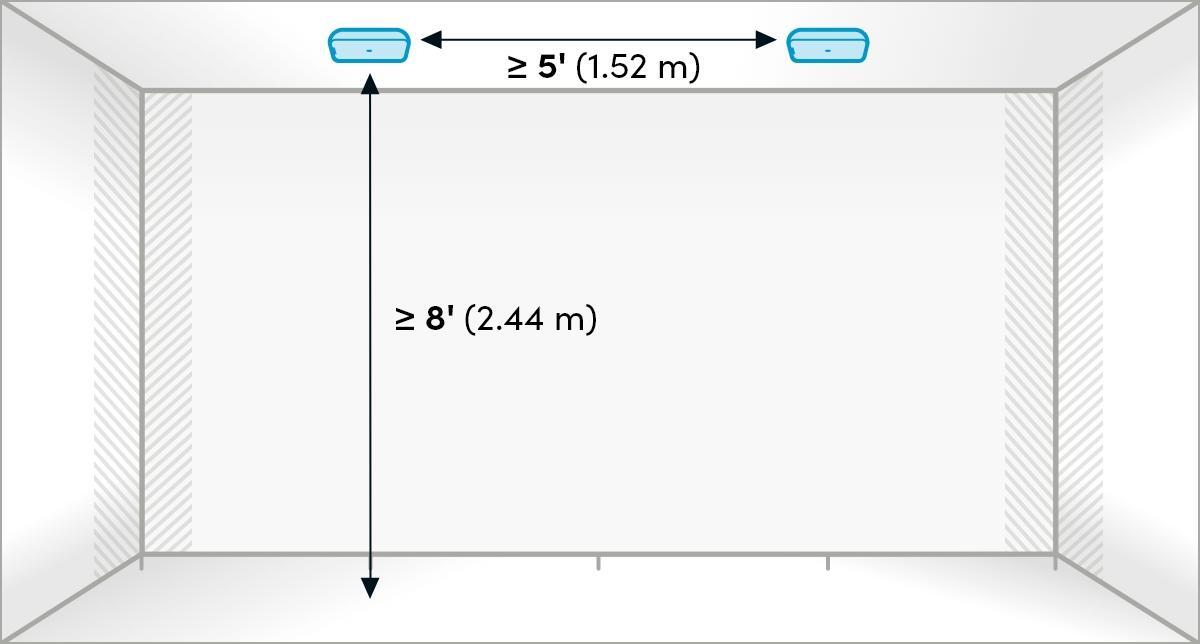
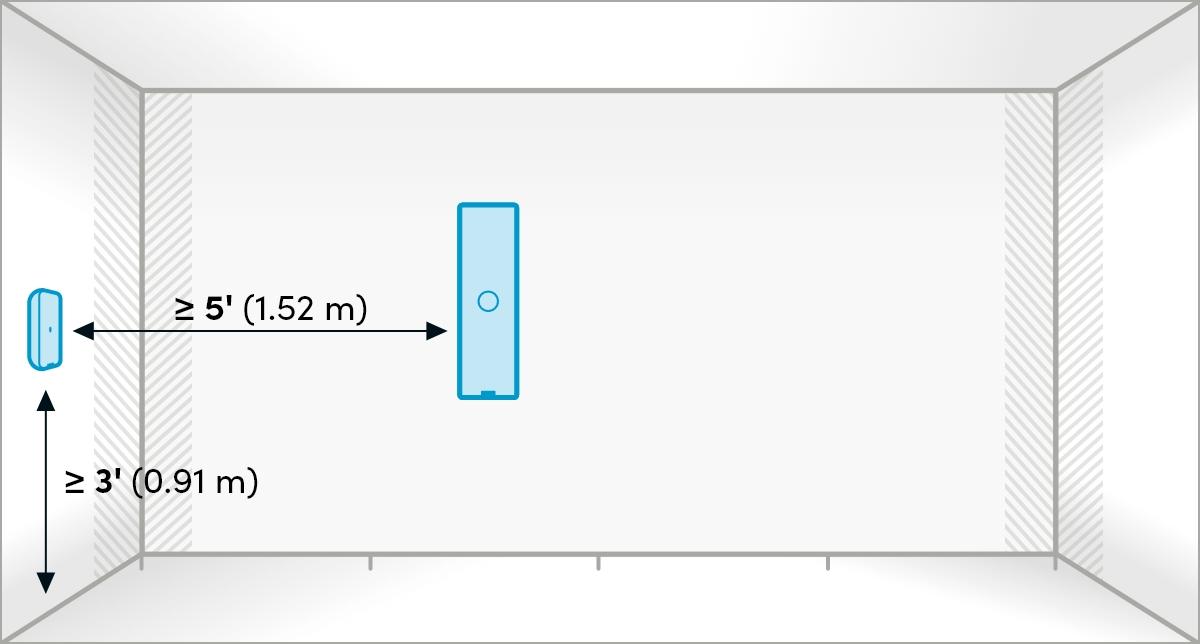
Recommended microphone pod placement for optimal microphone performance.

Requirement Measurement
Notes
Minimum height from floor (ceiling-mounted pod) 8' (96" / 2.4 m)  While there’s no strict maximum height, placing pods too high may reduce pickup sensitivity. For best results, install within standard ceiling height ranges (8–12' / 2.4–3.7 m). 
Minimum height from floor (wall-mounted pod)  3' (36" / 91 cm)
Theres no strict maximum height, but avoid placing pods too high or too low. Aim for a clear line of sight to participants. 
Minimum spacing from audio bars or other microphone pod 
5' (60" / 1.5 m) 
There’s no maximum limit for spacing between pods, but consistent audio coverage should be maintained. In larger rooms, two pods may be required. 

Ceiling mounted

Mic pod - ceiling placement

Wall mounted

Mic pod - wall placement


System hub placement

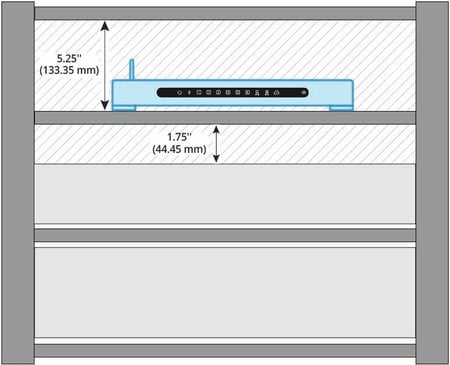
The HDX system hub offers flexible placement options — tabletop, wall mount or server rack, for example. Wherever it’s placed, ensure sufficient ventilation and a clear Bluetooth wireless technology connection.


General placement guidelines

  • Ventilation: Ensure all ventilation holes on the top, bottom and sides of the system hub are clear from obstructions.
  • Airflow: Ensure at least 2" (5 cm) of clearance around all vents to maintain airflow, prevent overheating and support proper cooling.
  • Heat considerations: Do not install the system hub near other devices that generate heat or in a location where the temperature can exceed 40° C (104° F).
  • Bluetooth antenna orientation: Position the antenna straight upward for best signal strength and range for the Bluetooth connection. Fold down the antenna only if Bluetooth connection is not required.
  • Bluetooth antenna extension: An extension connector is included should the antenna need to extend outside a cabinet, but this setup is not recommended and is used at your own risk.
  • Antenna clearance: Maintain a minimum clearance of 5.25" (133.35 mm) around the antenna from any nearby objects, walls or obstructions. This helps prevent signal interference and ensures reliable wireless communication.
  • Enrollment code: Record the code (XXX-XXX-XXX) located on the bottom of the system hub. This is required for Nureva App device connection as well as enrollment into Nureva Console cloud.
  • Network: See network requirements to ensure the system hub can connect and provide the latest updates to the HDX system.


Server rack considerations

  • Temperature: Internal ambient temperature within the rack must be below 40° C (104° F).
  • Remotely mounting Bluetooth antenna: If placing the system hub in a server rack, remotely mount the Bluetooth antenna in the room. Third-party kits are available for this.
  • Metal interference: Metal enclosures may reduce the Bluetooth LE signal strength.
Server-rack-considerations


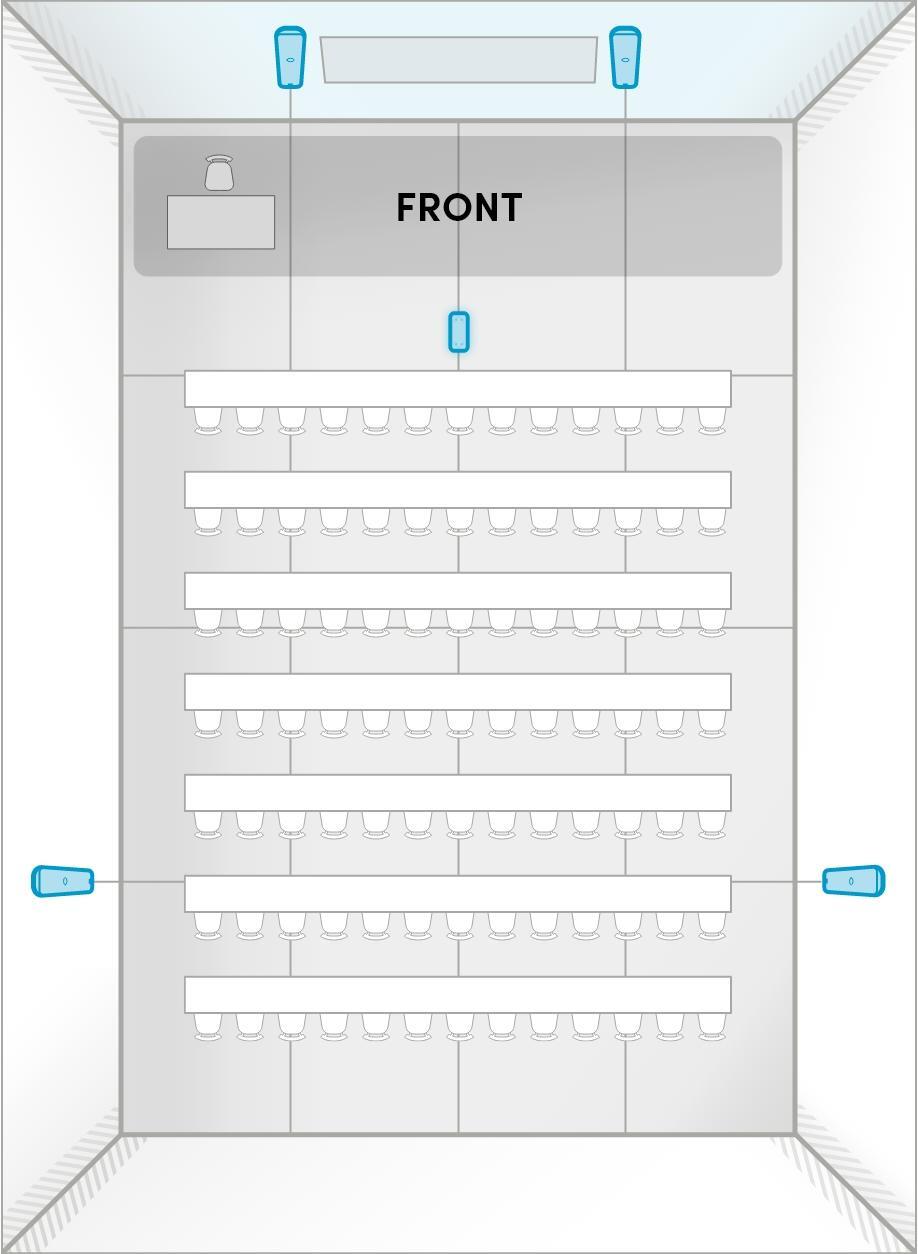
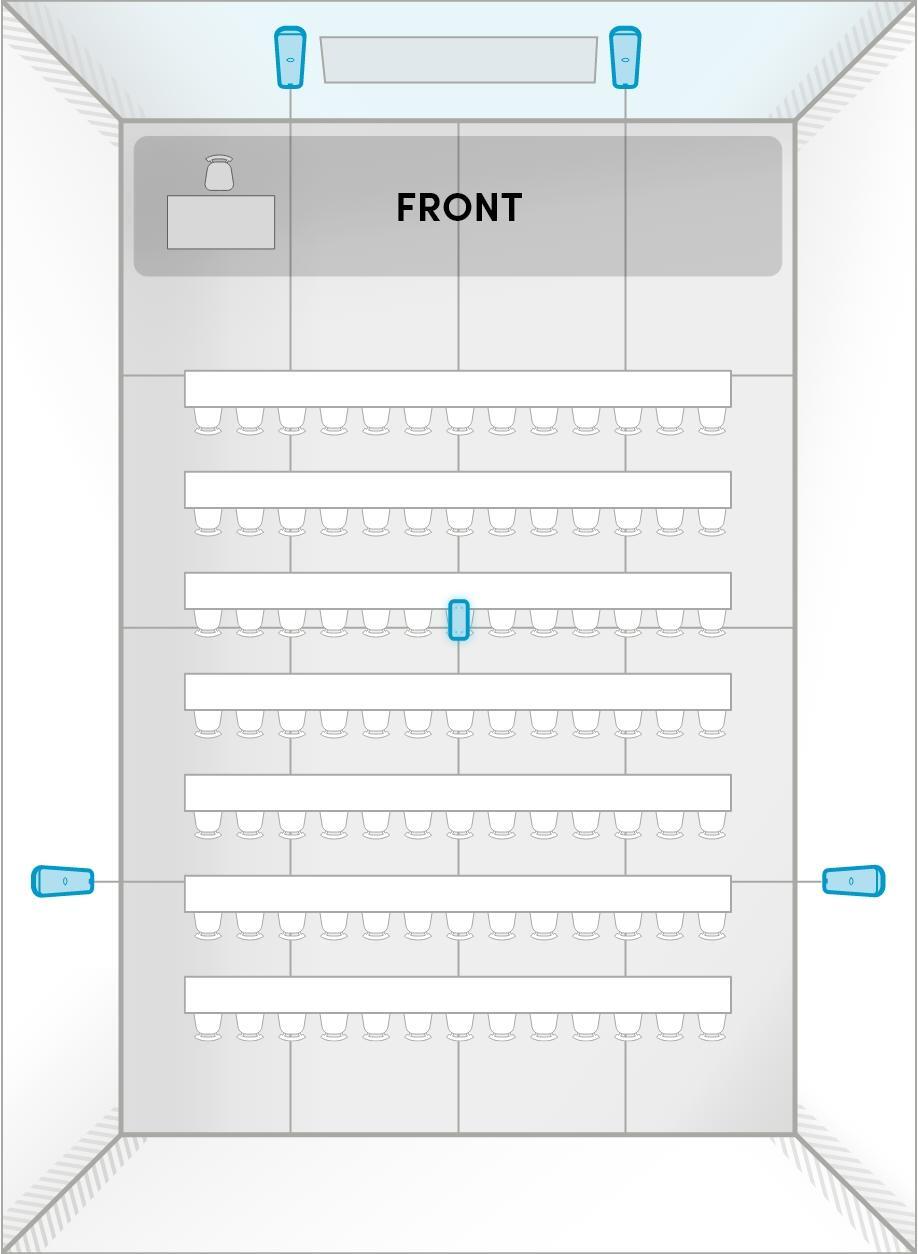
Placement in a tiered room

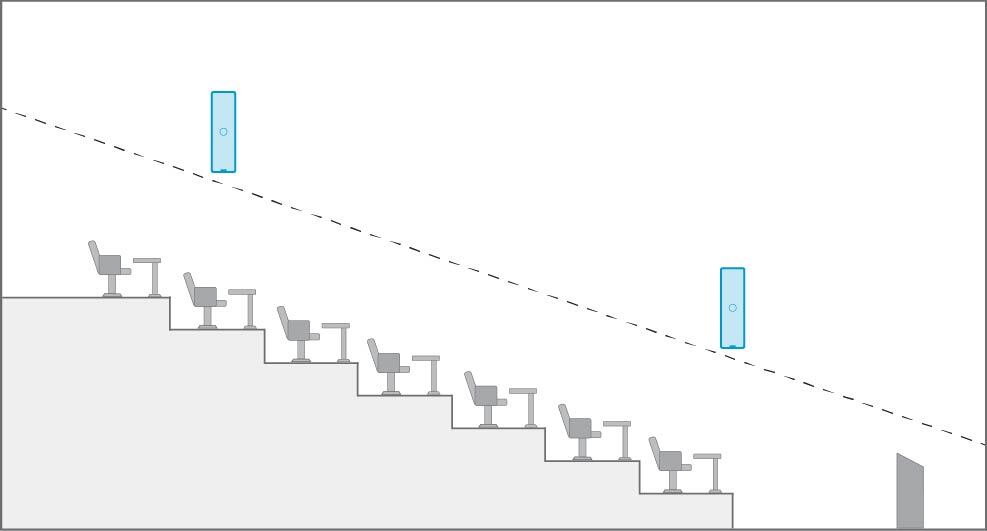
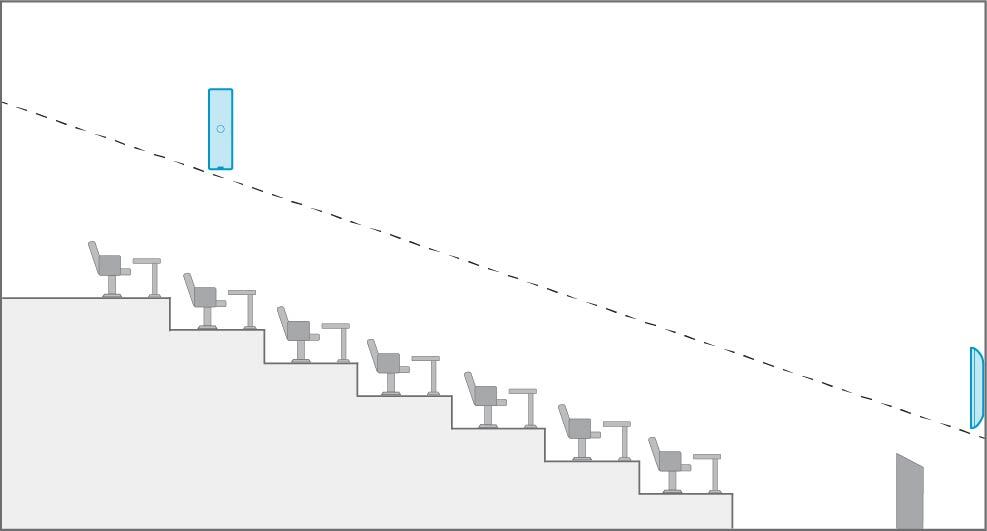
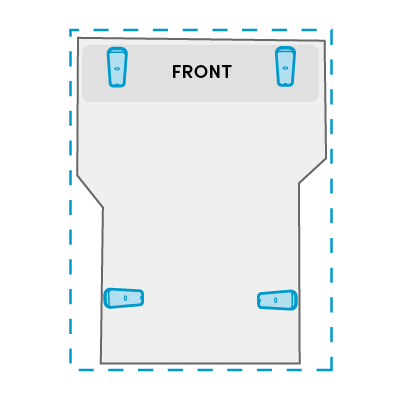
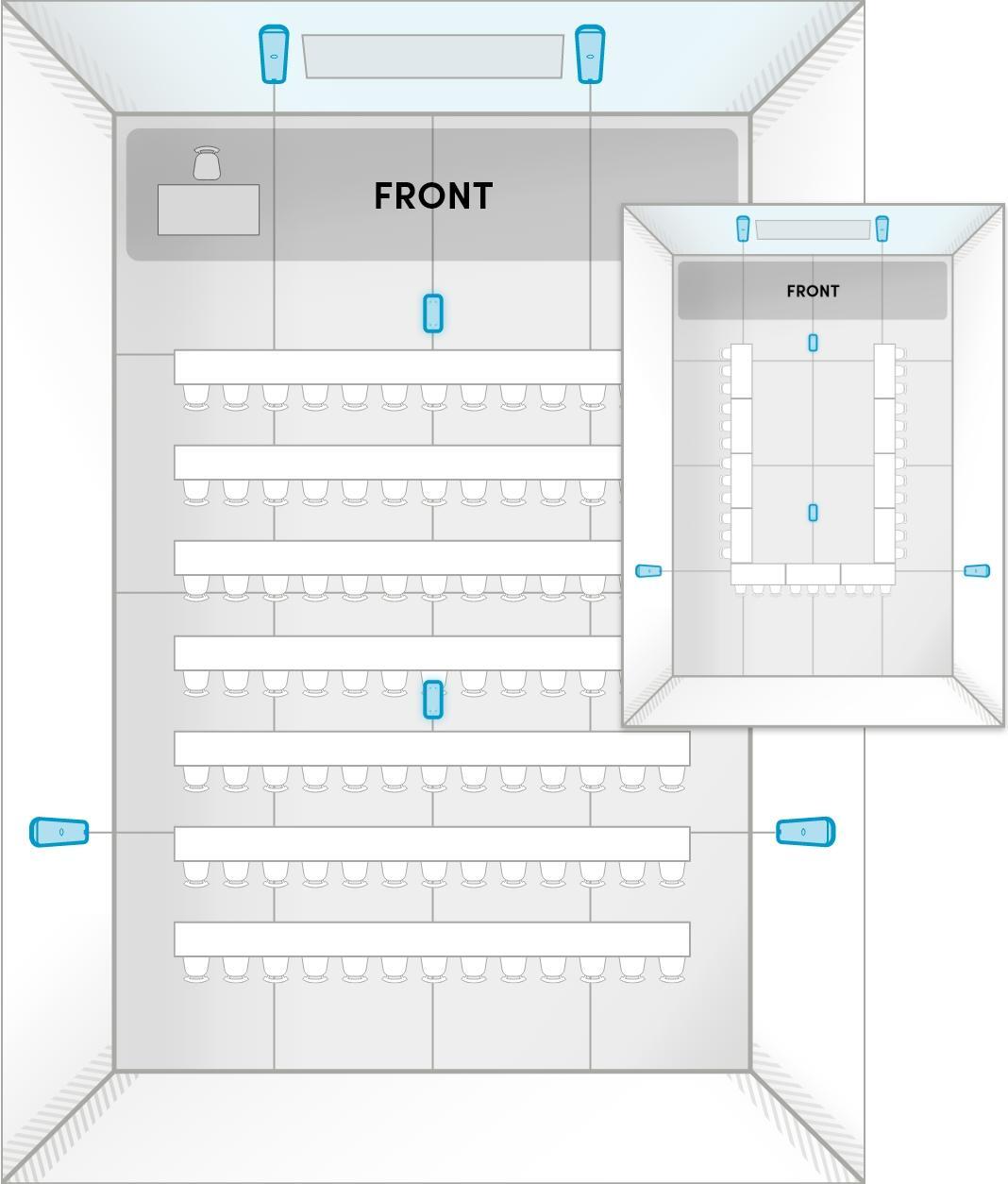
When installing HDX audio bars and microphone pods in tiered rooms, it’s important to position them at a consistent height above the floor on each tier, following the slope of the floor. Typically, in a tiered room, the front of room or presentation area is at the lowest point with the audience seats rising gradually toward the back.

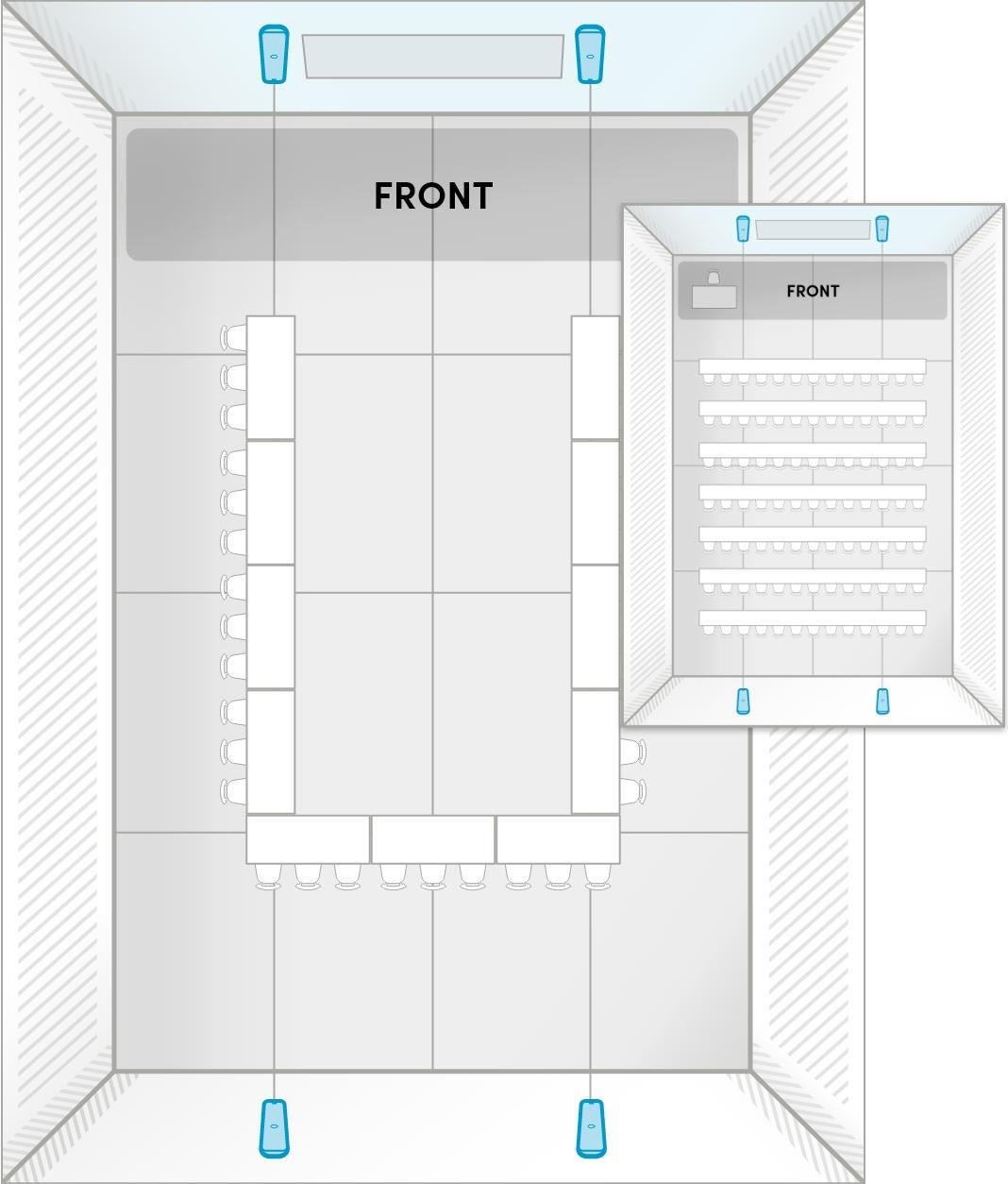
There are two recommended options for positioning four audio bars in tiered rooms; microphone pods can also be added.

Option A — Two audio bars on each long wall.
Best for optimal microphone pickup.

Placement-TieredRoom-OptA

Option B — One audio bar on each long wall and one on the front wall behind the podium.
Best for use with Adaptive Voice Amplification.

Placement-TieredRoom-OptB


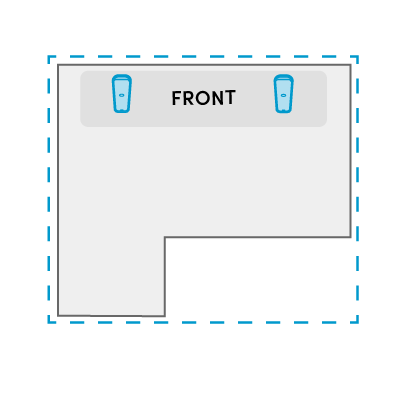
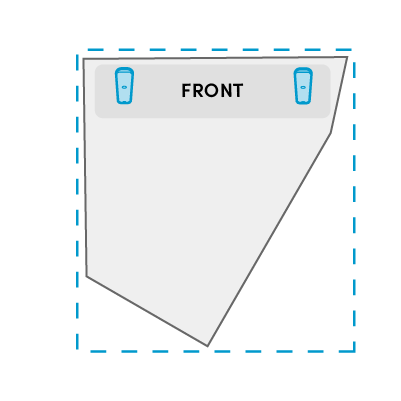
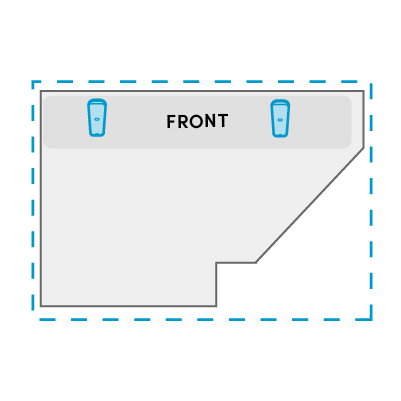
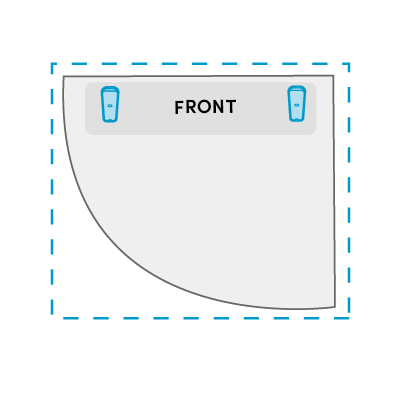
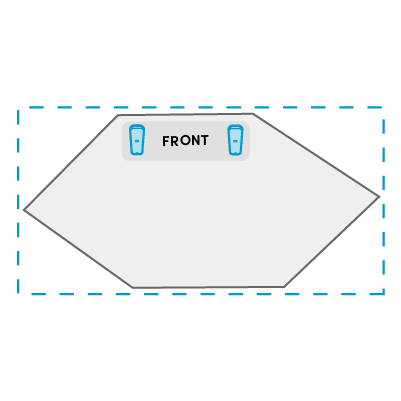
Placement in an irregular-shaped room

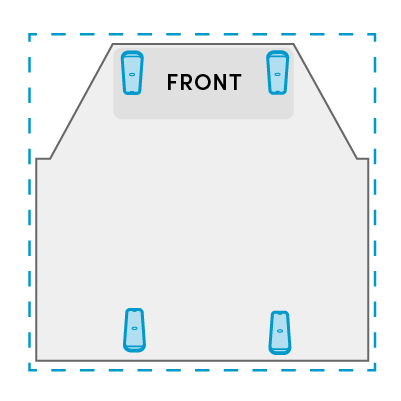
Regardless of the room’s geometry, the same guidelines apply for audio bar placement. For an irregular-shaped room, try to envision it as a rectangular space and then follow the audio bar placement guidelines.

For guidance tailored to your specific room, contact support.

Irregular-shaped-room-1
Irregular-shaped-room-2
Irregular-shaped-room-3
Irregular-shaped-room-4
Irregular-shaped-room-5
Irregular-shaped-room-6
Irregular-shaped-room-7
Irregular-shaped-room-8

Placement in a divisible room


Coming soon

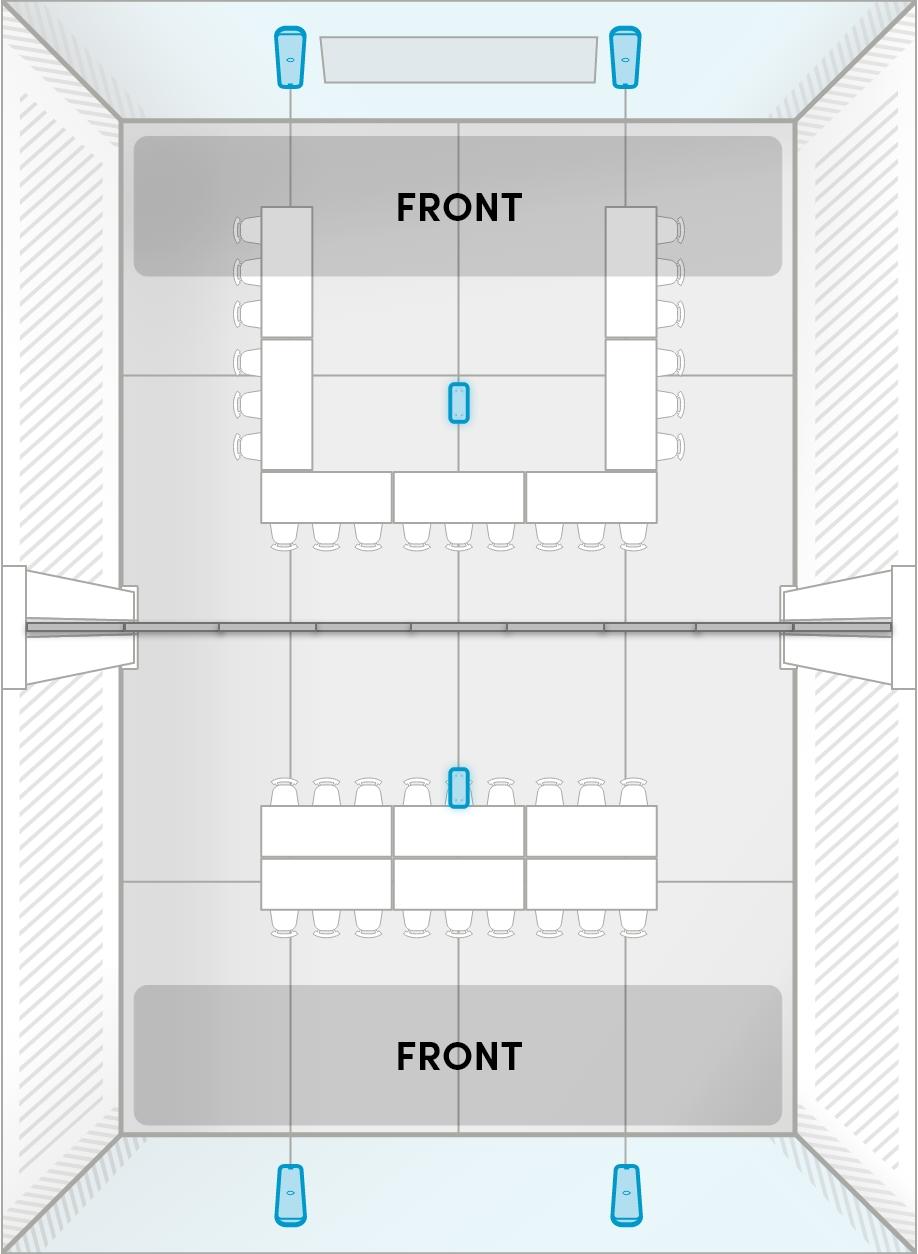
For HDX systems in divisible rooms that switch between one large space and two smaller rooms, the following requirements must be considered during planning.

  • A divisible room setup requires a minimum of two HDX systems, meaning there must be a minimum of two system hubs.
  • A maximum of 4 audio bars and 2 microphone pods can be used in a combined room.
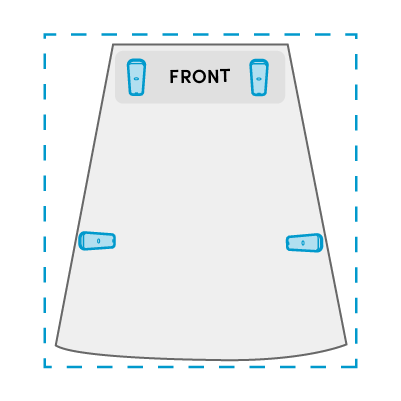
  • Ideally, in each divided room, two audio bars would be installed on either side of the displays on a wall that’s parallel to the center divider.
  • Microphone pods (optional): For optimal pickup, one microphone pod can be installed on the ceiling or the wall in each divided room.

Combined room

HDX Divisible combined.sq

Divided room

HDX Divisible divided.sq


Subwoofer placement

Subwoofers enhance low-frequency response and should be positioned carefully to avoid excessive bass buildup. Follow these guidelines:

  • Maintain a clear line of sight from the subwoofer to the listening area.
  • Avoid placing subwoofers directly against walls or in corners, which can cause bass buildup.
  • Ensure access to balanced analog input and space for gain and low-pass filter adjustments.
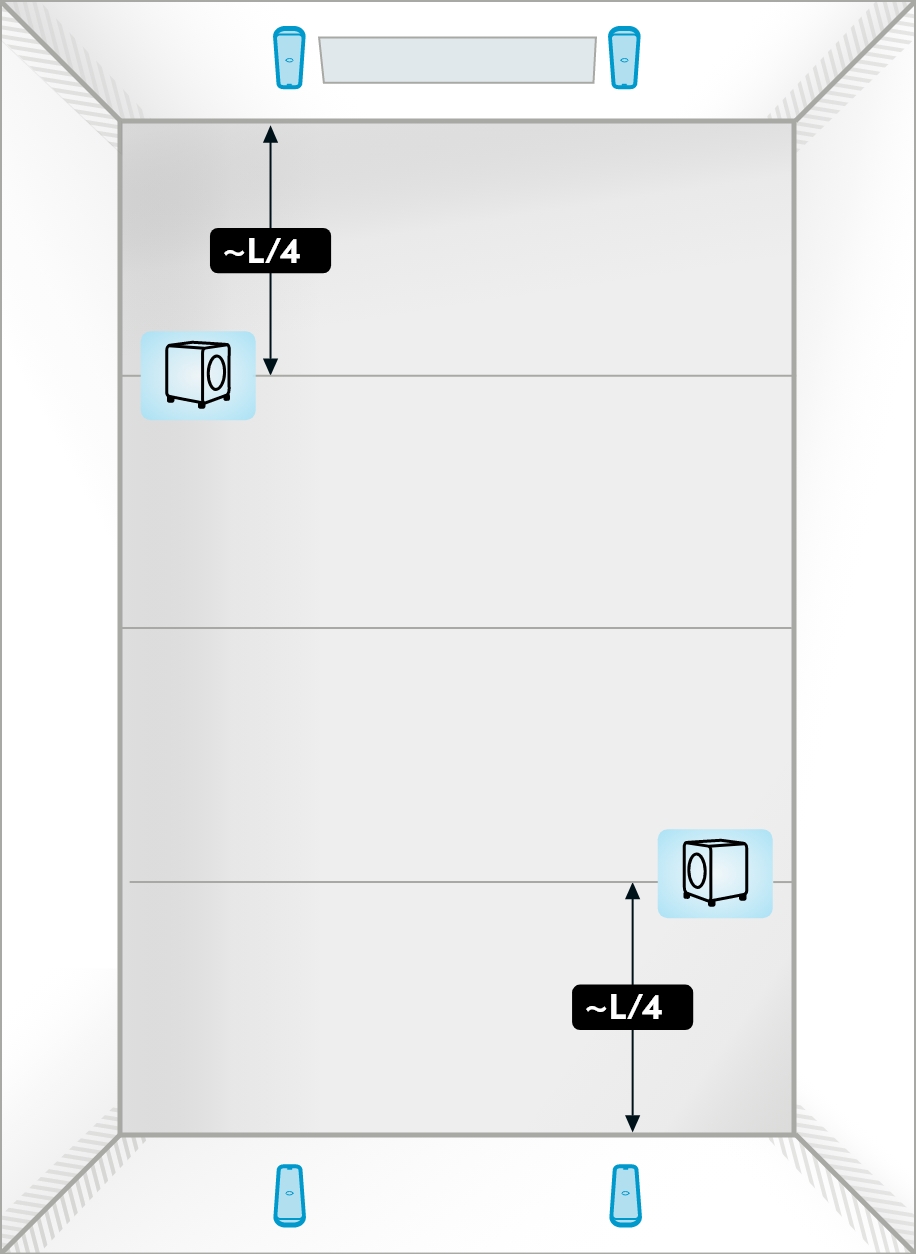
  • Note that for rooms under 40' (12.2 m) in length, we do not recommend using two subwoofers, as this can lead to uneven bass distribution.
  • Refer to your subwoofer’s manual for product‑specific placement guidance, as this section provides general recommendations only.

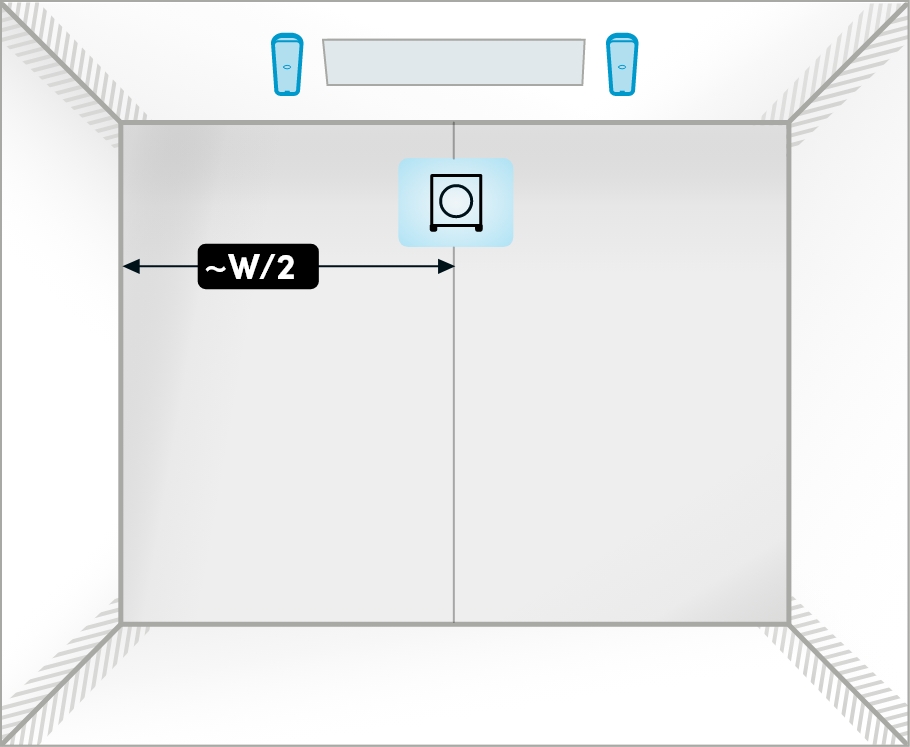
For one subwoofer: Place it at the front center between the left and right HDX audio bars.

1 subwoofer - FINAL

For two subwoofers: Position them in diagonally opposite corners or at the 1/4 points from the front and rear walls to minimize room resonances and achieve more consistent bass coverage. The subwoofers should face the center of the room.

2 subwoofers – FINAL

Placement for Adaptive Voice Amplification

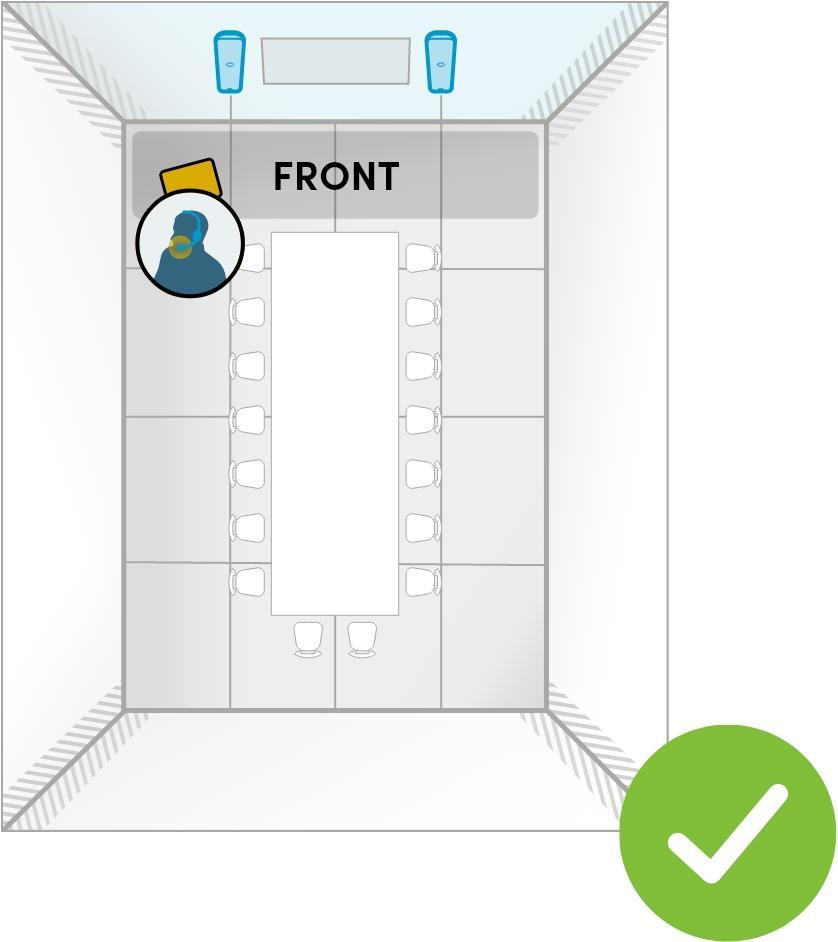
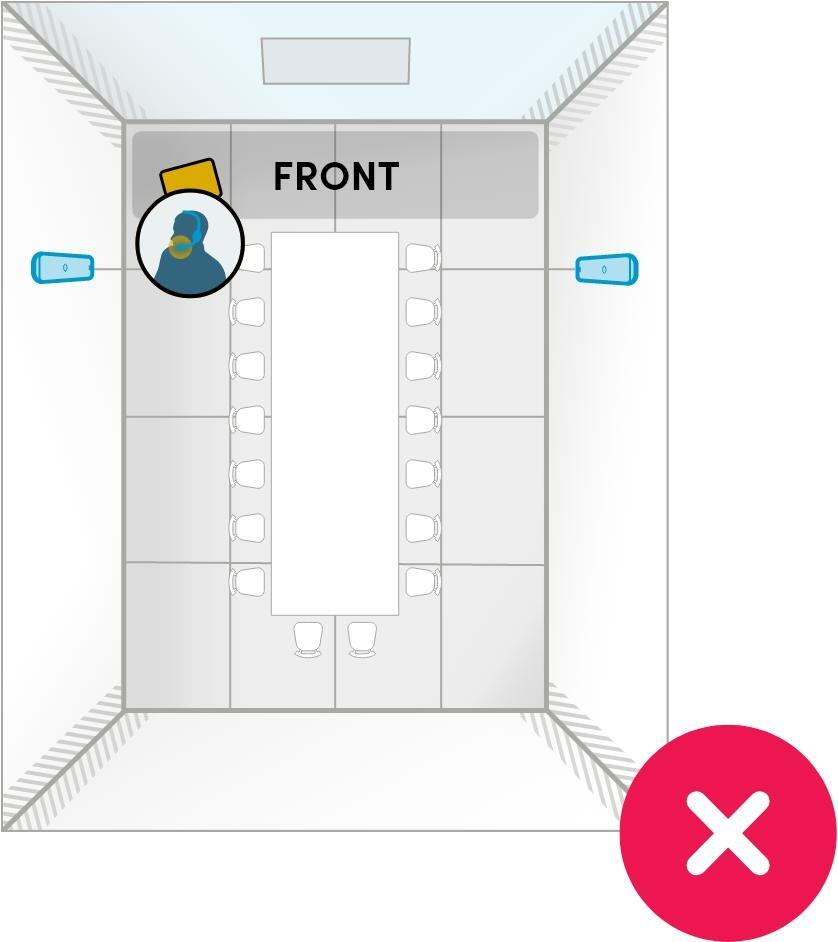
An external microphone connected to the Nureva HDX system is required for Adaptive Voice Amplification. Position the HDX audio bars so the speakers face the audience. If there’s a fixed podium where the presenter will use an external microphone, avoid placing the audio bars too close to the podium to prevent double pickup and feedback.

Adaptive voice lift good.sq
Adaptive voice lift bad.sq

Placement for Adaptive Voice Lift

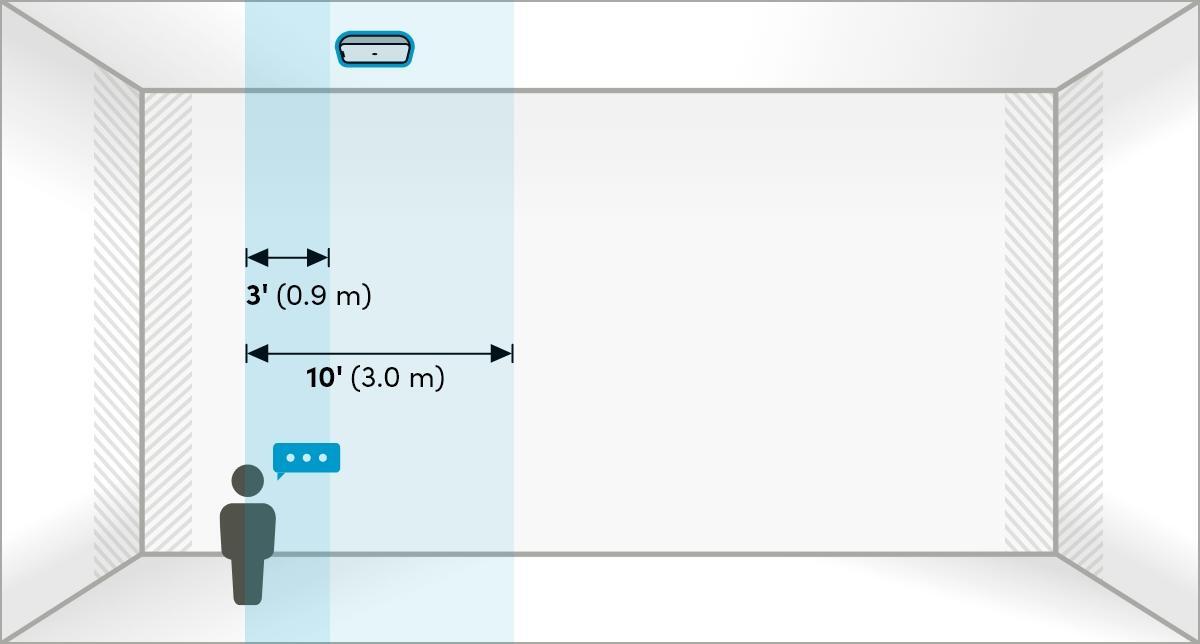
Ensure the microphone pods are positioned at a distance of 3' (0.9 m) to 10' (3.0 m) from the presenter for optimal mic pickup and voice lift.

  • Closer than 3' (0.9 m): Avoid placing the microphone pods too close, as this can cause over-amplification and unnatural sound.
  • Farther than 10' (3.0 m): Avoid placing the microphone pods too far away, as the pickup sensitivity decreases.
Placement-AdaptiveVoiceLift-FINAL.sq

Example room layouts

Optional room layouts are shown for each HDX configuration.
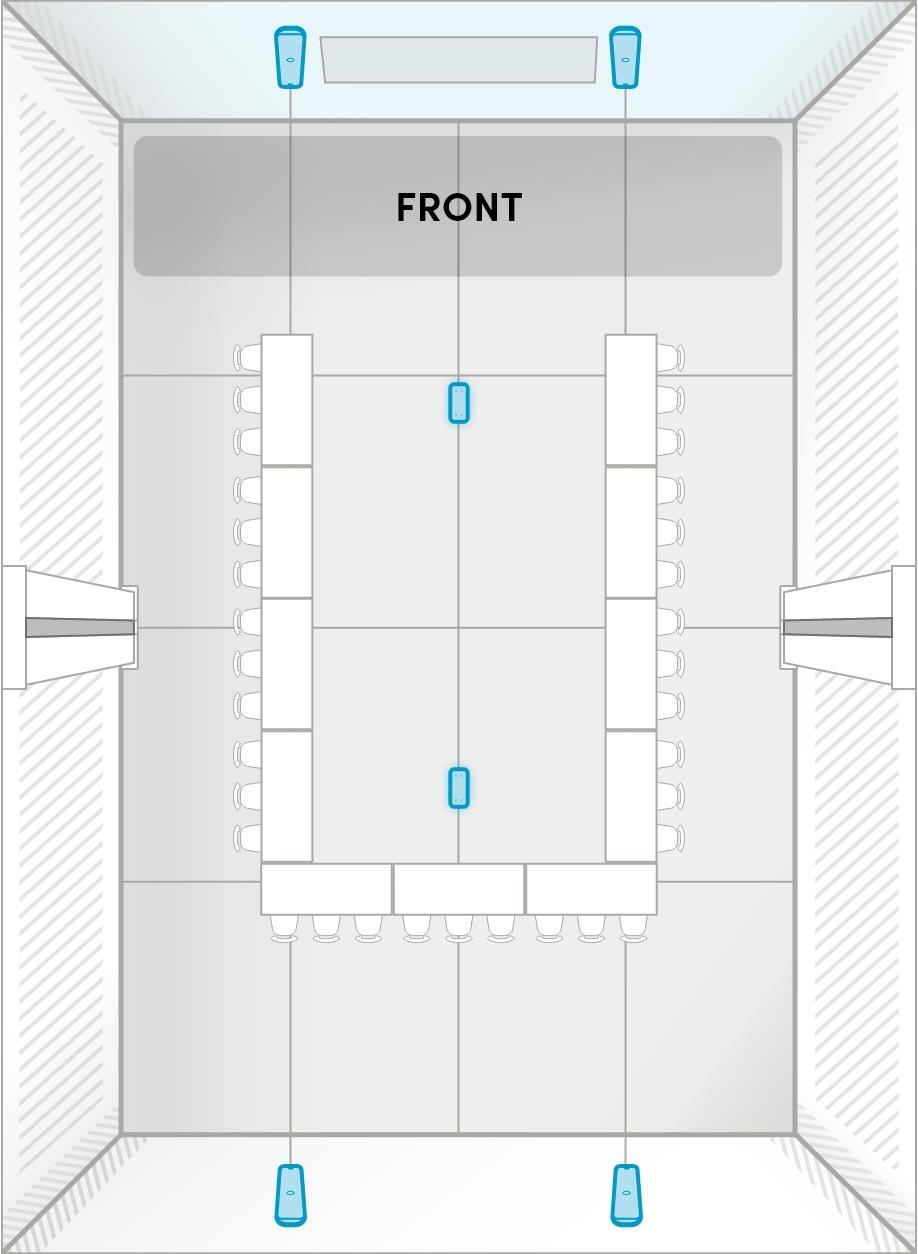
Note: We recommend installing the audio bars vertically for best performance. However, the layouts shown here also apply to audio bars being placed in a horizontal orientation.

Screenshot 2025-07-21 at 9.06.59 AM HDX 2 bar: room layouts

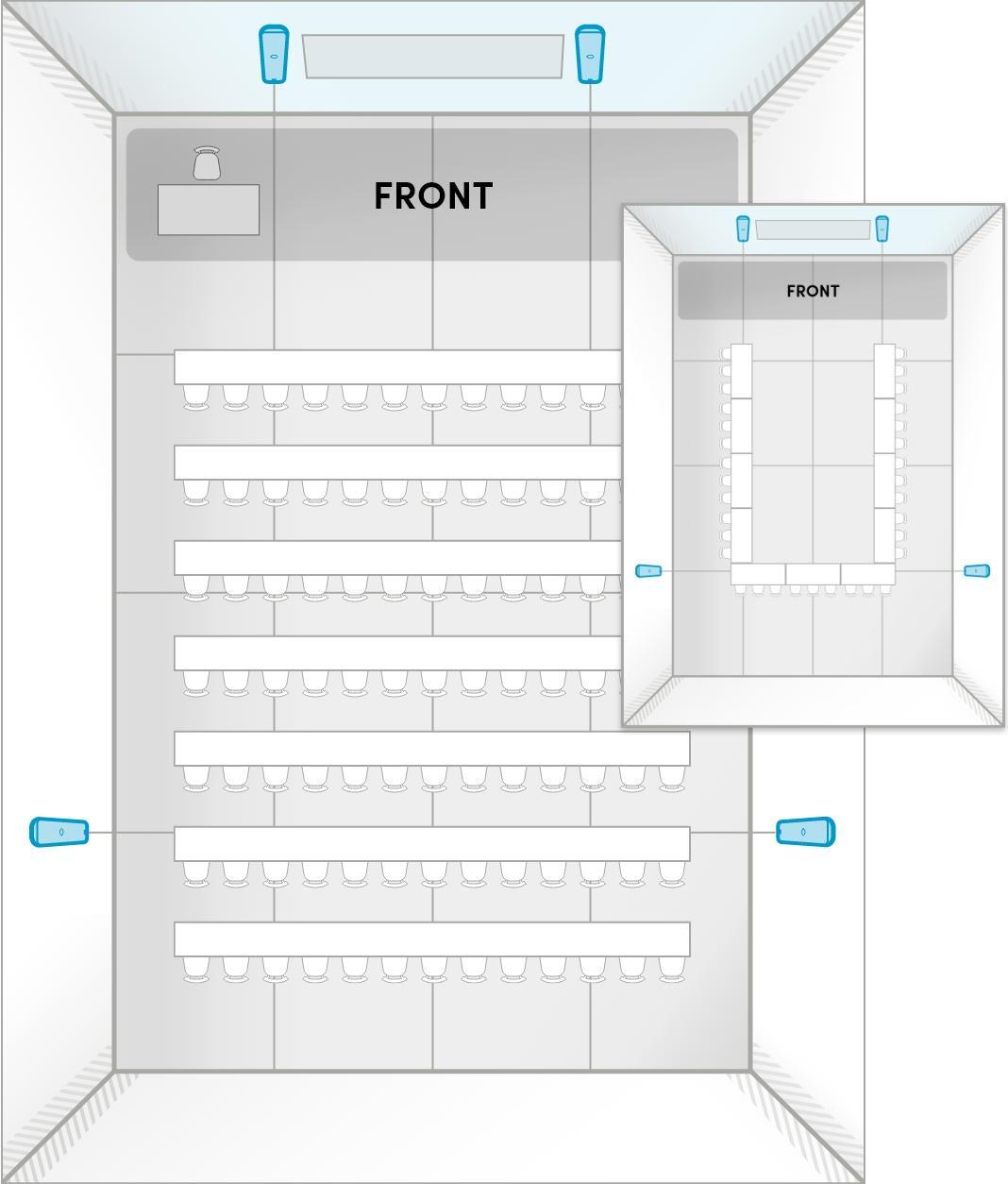
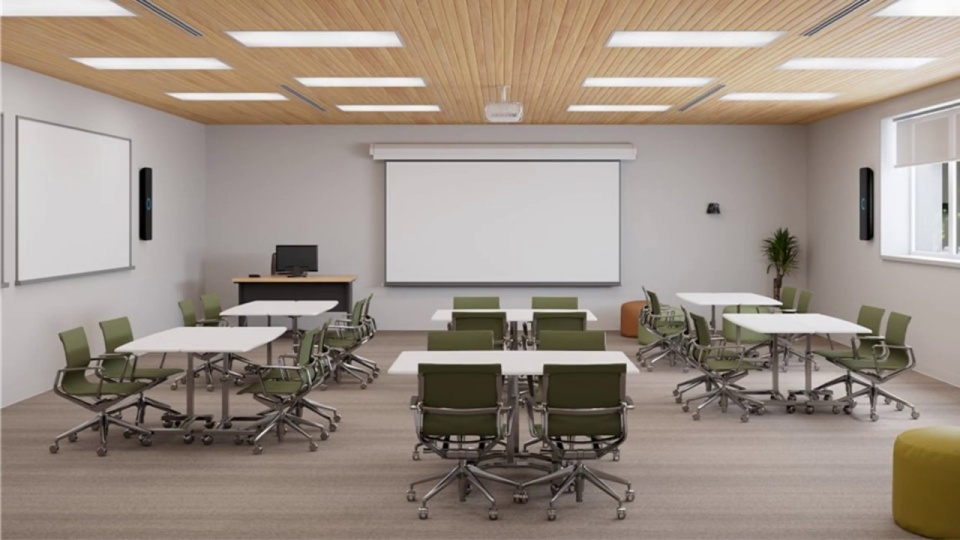
This setup is ideal for high-impact Teams Rooms, Zoom Rooms and other meeting or collaboration spaces up to 30' x 30' (9.1 x 9.1 m). 

What’s included

  • Full-room microphone coverage, with a unified coverage map
  • Full-range distributed audio
  • Adaptive Voice Amplification with a range of external mics
  • Assistive listening with Auracast broadcast audio
HDX 2 bar A

HDX 2 bar: A

Room size: Up to 30' x 30' (9.1 x 9.1 m)

Room use: Meetings, collaboration

Front of room: Short wall

Features available:
✓ Adaptive Voice Amplification for instructor or presenter

HDX 2 bar B

HDX 2 bar: B

Room size: Up to 30' x 30' (9.1 x 9.1 m)

Room use: Meetings, collaboration

Front of room: Long wall

Features available:
✓ Adaptive Voice Amplification for instructor or presenter

HDX 2 bar C

HDX 2 bar: C

Room size: Up to 30' x 30' (9.1 x 9.1 m)

Room use: Meetings, collaboration

Front of room: None install both audio bars on the longest wall

Features available:
Adaptive Voice Amplification for instructor or presenter

Screenshot 2025-07-21 at 9.46.50 AM HDX 2 bar + 1 pod: room layouts

This setup is ideal for multipurpose spaces up to 35' x 40' (10.7 x 12.2 m). You can combine two of these system configurations to create a divisible room with built-in switching — no need to purchase extra components.

What’s included

  • Full-room microphone coverage, with a unified coverage map
  • Full-range distributed audio
  • Adaptive Voice Amplification with a range of external mics
  • Assistive listening with Auracast broadcast audio
  • 3D sound location data for camera tracking and switching
HDX 2 bar+1pod A

HDX 2 bar + 1 pod: A

Note: Audio bars are positioned for ideal speaker output. Microphone pod is positioned to ensure everyone at the back of the room can be heard.

Room size: Up to 35' x 40' (10.7 x 12.2 m)

Room use: Meetings, collaboration, classroom, training, presentations

Front of room: Short wall

Features available:
✓ Acoustic camera tracking
✓ Adaptive Voice Amplification for instructor or presenter

HDX 2 bar+1pod B


HDX 2 bar + 1 pod: B

Note: Microphone pickup at the front of the room is prioritized over the speaker output to provide clear speech pickup of an instructor facing the audience. Speaker coverage may be reduced at the back of the room.

Room size: Up to 35' x 40' (10.7 x 12.2 m)

Room use: Classroom, training, presentations

Front of room: Short wall

Features available:
✓ Acoustic camera tracking
Adaptive Voice Amplification is not recommended

HDX 2 bar+1pod C

HDX 2 bar + 1 pod: C

Note: Horizontal placement of audio bars may reduce sound dispersion and clarity of speakers. This layout is ideal for classrooms where there is limited space for vertical installation.

Room size: Up to 35' x 40' (10.7 x 12.2 m)

Room use: Classroom, training, presentations

Front of room: Short wall

Features available:
✓ Acoustic camera tracking
✓ Adaptive Voice Amplification for instructor or presenter

HDX 2 bar+1pod D


HDX 2 bar + 1 pod: D

Note: Audio bars are positioned for ideal speaker output. Microphone pod is positioned to ensure everyone at the back of the room can be heard.

Room size: Up to 35' x 40' (10.7 x 12.2 m)

Room use: Meetings, collaboration

Front of room: Long wall

Features available:
✓ Acoustic camera tracking
✓ Adaptive Voice Amplification for instructor or presenter

HDX 2 bar+1pod E

HDX 2 bar + 1 pod: E

Note: Audio bars are positioned for ideal speaker output. Microphone pod is positioned to ensure everyone throughout the room can be heard.

Room size: Up to 35' x 40' (10.7 x 12.2 m)

Room use: Meetings, collaboration

Front of room: None

Features available:
✓ Acoustic camera tracking
✓ Adaptive Voice Amplification for instructor or presenter

Screenshot 2025-07-21 at 10.52.24 AM HDX 4 bar: room layouts

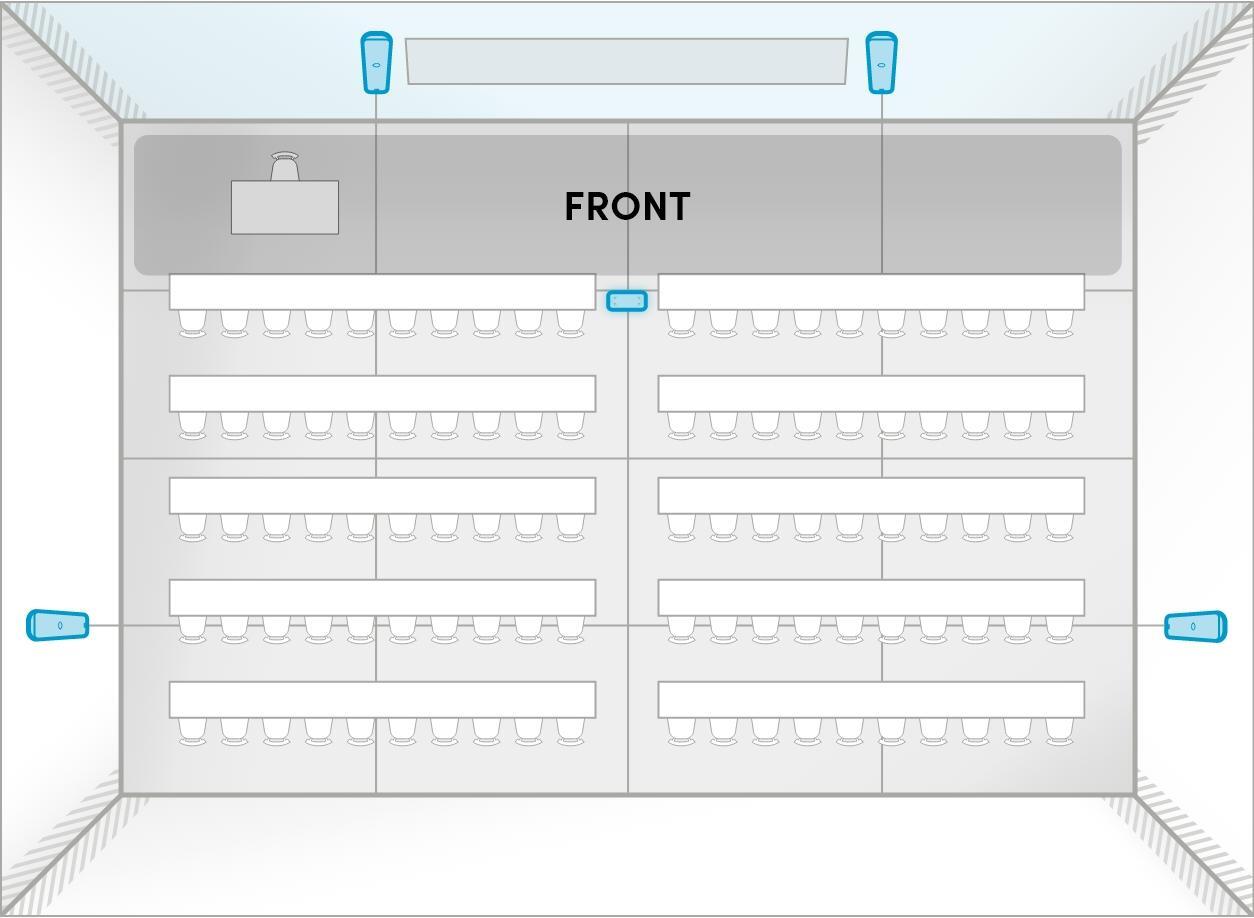
This setup is ideal for meeting and learning spaces up to 40' x 60' (12.2 x 18.3 m).

What’s included

  • Full-room microphone coverage, with a unified coverage map
  • Full-range distributed audio
  • Adaptive Voice Amplification with a range of external mics
  • Assistive listening with Auracast broadcast audio
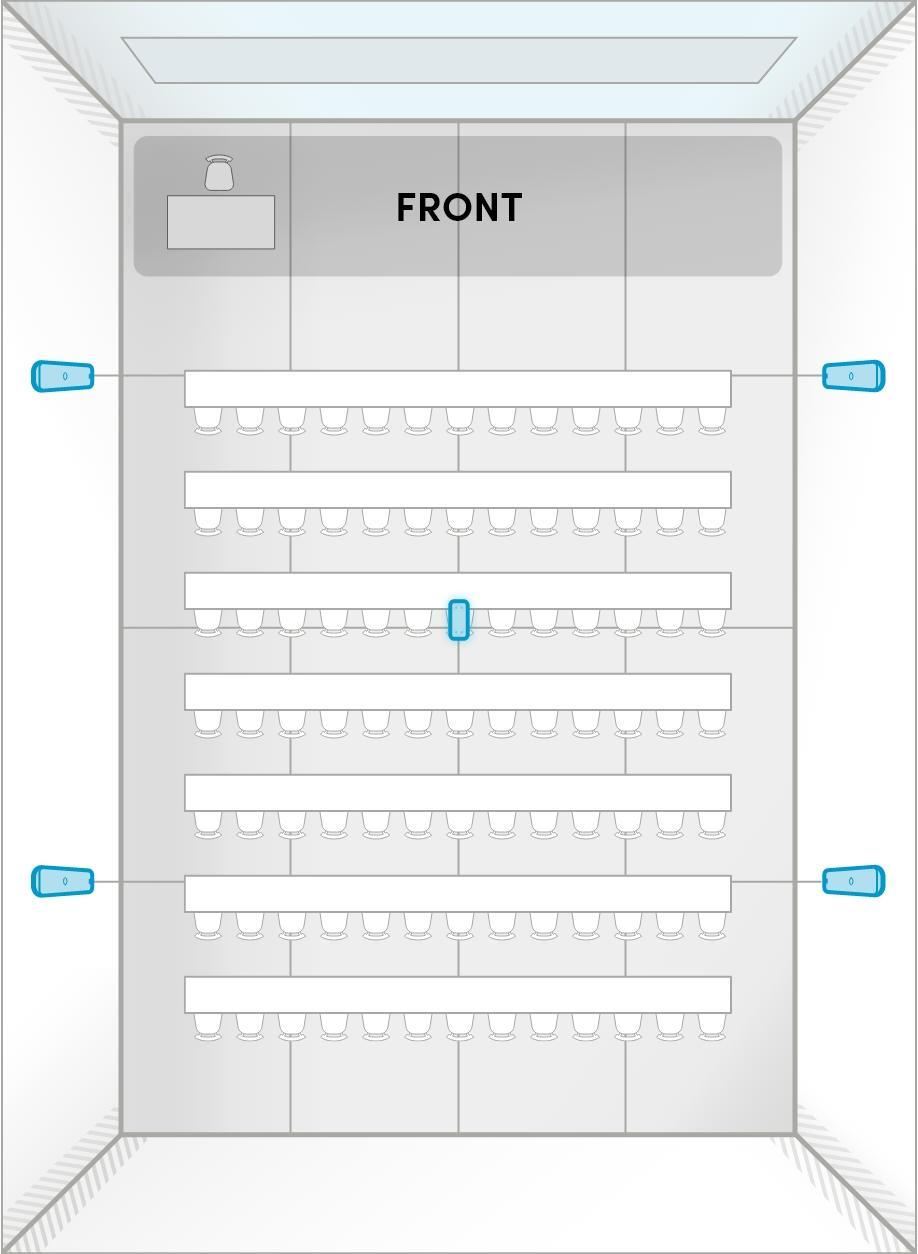
  • 3D sound location data for camera tracking and switching
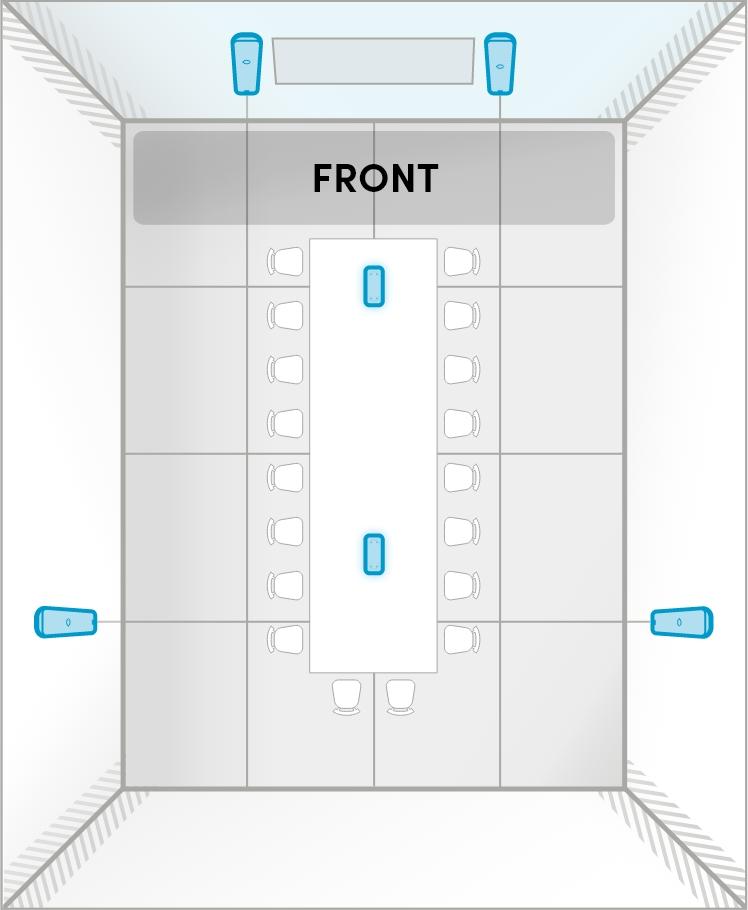
HDX 4 Bar A

HDX 4 bar: A

Note: Audio bars are positioned for full-room speaker output and even full-room microphone pickup.

Room size: Up to 40' x 60' (12.2 x 18.3 m)

Room use: Classroom, training, presentations, meetings, collaboration

Front of room: Short wall

Features available:
✓ Acoustic camera tracking
✓ Adaptive Voice Amplification for instructor or presenter

HDX 4 Bar B


HDX 4 bar: B

Note: Audio bars are positioned to prioritize microphone pickup for a presenter speaking to an audience.

Room size: Room size: Up to 40' x 60' (12.2 x 18.3 m)

Room use: Classroom, training, presentations, meetings, collaboration

Front of room: Short wall

Features available:
✓ Acoustic camera tracking

HDX 4 Bar C

HDX 4 bar: C

Note: This room may not have long walls suitable for installation. Audio bars are positioned for optimal speaker output. Consider adding a microphone pod to ensure microphone pickup at the back of room is clear.

Room size: Up to 40' x 60' (12.2 x 18.3 m)

Room use: Meetings, collaboration

Front of room: Short wall

Features available:
✓ Acoustic camera tracking
✓ Adaptive Voice Amplification for instructor or presenter

HDX 4 Bar D


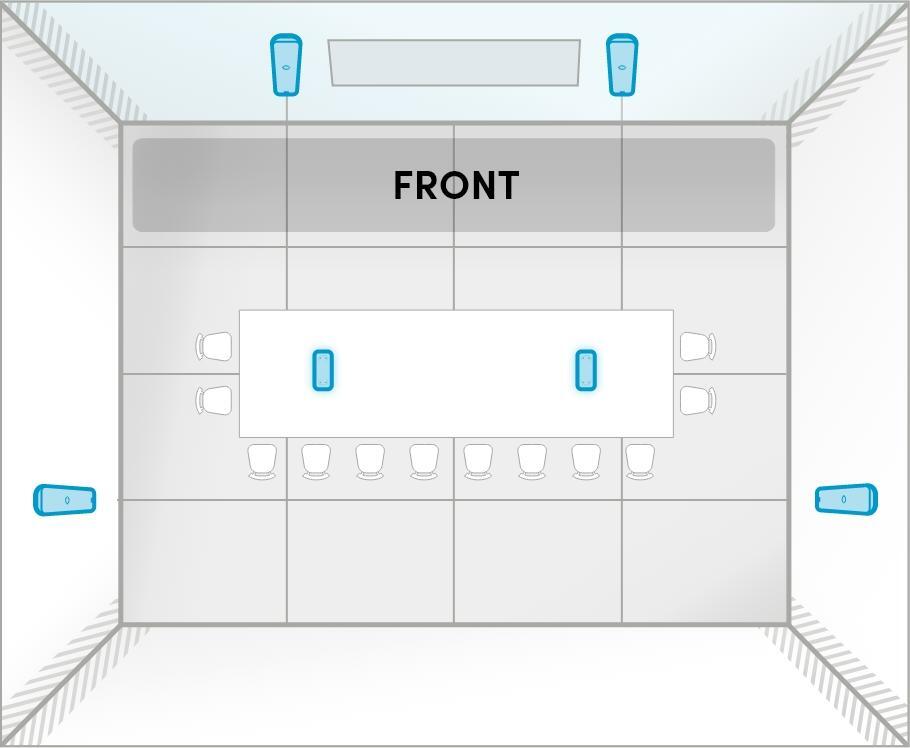
HDX 4 bar: D

Note: Audio bars are positioned for full-room speaker output and balanced full-room microphone pickup.

Room size: Up to 40' x 60' (12.2 x 18.3 m)

Room use: Classroom, training, presentations, meetings, collaboration

Front of room: Long wall

Features available:
✓ Acoustic camera tracking
✓ Adaptive Voice Amplification for instructor or presenter

HDX 4 Bar E

HDX 4 bar: E

Note: Audio bars are placed on the long walls for optimal dispersion in the room.

Room size: Up to 40' x 60' (12.2 x 18.3 m)

Room use: Classroom, training, presentations, meetings, collaboration

Front of room: None

Features available:
✓ Acoustic camera tracking
✓ Adaptive Voice Amplification for instructor or presenter

Screenshot 2025-07-21 at 10.52.32 AM HDX 4 bar + 1 pod: room layouts
This setup is ideal for enhanced microphone pickup in lecture halls and training rooms up to 40' x 60' (12.2 x 18.3 m). 

What’s included

  • Full-room microphone coverage, with a unified coverage map
  • Full-range distributed audio
  • Adaptive Voice Amplification with a range of external mics
  • Assistive listening with Auracast broadcast audio
  • 3D sound location data for camera tracking and switching
HDX 4 Bar 1pod A

HDX 4 bar + 1 pod: A

Note: Audio bars are positioned for full-room speaker output and even microphone pickup. The microphone pod is positioned to pick up the voice of a presenter speaking to an audience. If a podium is being used, position the pod closer to the podium on the wall or ceiling.

Room size: Up to 40' x 60' (12.2 x 18.3 m)

Room use: Classroom, training, presentations

Front of room: Short wall

Features available:
✓ Acoustic camera tracking
✓ Adaptive Voice Amplification for instructor or presenter

HDX 4 Bar 1pod B


HDX 4 bar + 1 pod: B

Note: Audio bars are positioned for full-room speaker output and even microphone pickup. The microphone pod is positioned to pick up voices in the audience.

Room size: Up to 40' x 60' (12.2 x 18.3 m)

Room use: Classroom, training, presentations

Front of room: Short wall

Features available:
✓ Acoustic camera tracking
✓ Adaptive Voice Amplification for instructor or presenter

HDX 4 Bar 1pod C

HDX 4 bar + 1 pod: C

Note: Audio bars are positioned to prioritize microphone pickup for the voice of a presenter speaking to an audience. The microphone pod is positioned to pick up voices in the audience.

Room size: Up to 40' x 60' (12.2 x 18.3 m)

Room use: Classroom, training, presentations

Front of room: Short wall

Features available:
✓ Acoustic camera tracking

HDX 4 Bar 1pod D

HDX 4 bar + 1 pod: D

Note: This room may not have long walls suitable for installation. Audio bars are positioned for optimal speaker output, but back wall microphones may be behind talkers in the room. The microphone pod is positioned to pick up the voices of participants at the back of the room.

Room size: Up to 40' x 60' (12.2 x 18.3 m)

Room use: Meetings, collaboration, classroom, training presentations

Front of room: Short wall

Features available:
✓ Acoustic camera tracking
✓ Adaptive Voice Amplification for instructor or presenter

HDX 4 Bar 1pod E

HDX 4 bar + 1 pod: E

Note: Audio bars are positioned for full-room speaker output and even full-room microphone pickup. The microphone pod is positioned to pick up the voice of a presenter speaking to an audience. If a podium is being used, position the pod closer to the podium on the ceiling or wall.

Room size: Up to 40' x 60' (12.2 x 18.3 m)

Room use: Classroom, training, presentations

Front of room: Long wall

Features available:
✓ Acoustic camera tracking
✓ Adaptive Voice Amplification for instructor or presenter

HDX 4 Bar 1pod F


HDX 4 bar + 1 pod: F

Note: Audio bars are positioned for full-room speaker output and even microphone pickup. The microphone pod is positioned to pick up the voices of participants at the back of the room.

Room size: Up to 40' x 60' (12.2 x 18.3 m)

Room use: Meetings, collaboration

Front of room: Long wall

Features available:
✓ Acoustic camera tracking
✓ Adaptive Voice Amplification for instructor or presenter

HDX 4 Bar 1pod G

HDX 4 bar + 1 pod: G

Note: Audio bars are placed on the long walls for even coverage. With no defined front of room, the microphone pod is positioned at the room’s center.

Room size: Up to 40' x 60' (12.2 x 18.3 m)

Room use: Classroom, training, presentations, meetings, collaboration

Front of room: None

Features available:
✓ Acoustic camera tracking
✓ Adaptive Voice Amplification for instructor or presenter

Screenshot 2025-07-21 at 11.44.17 AM HDX 4 bar + 2 pod: room layouts
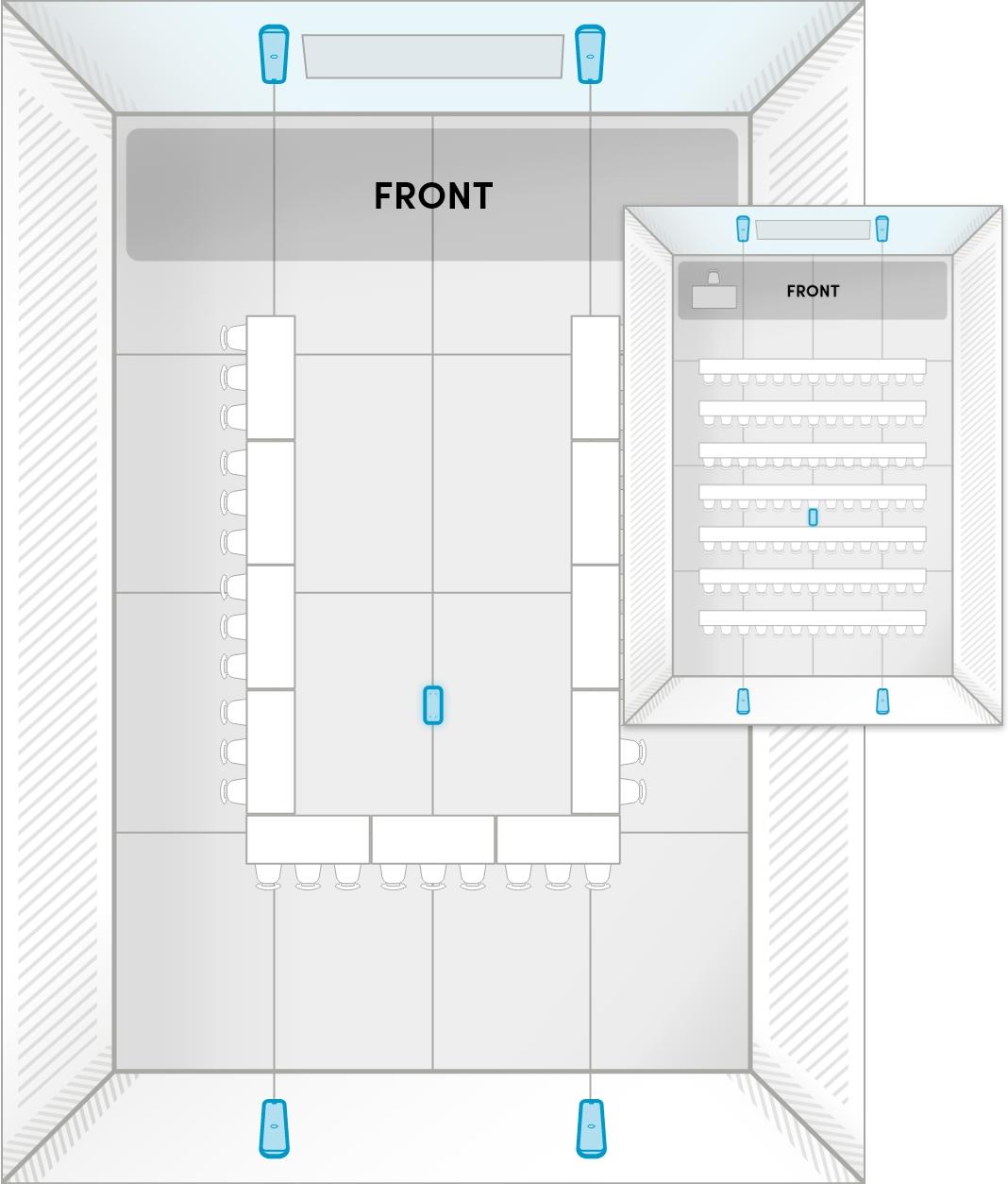
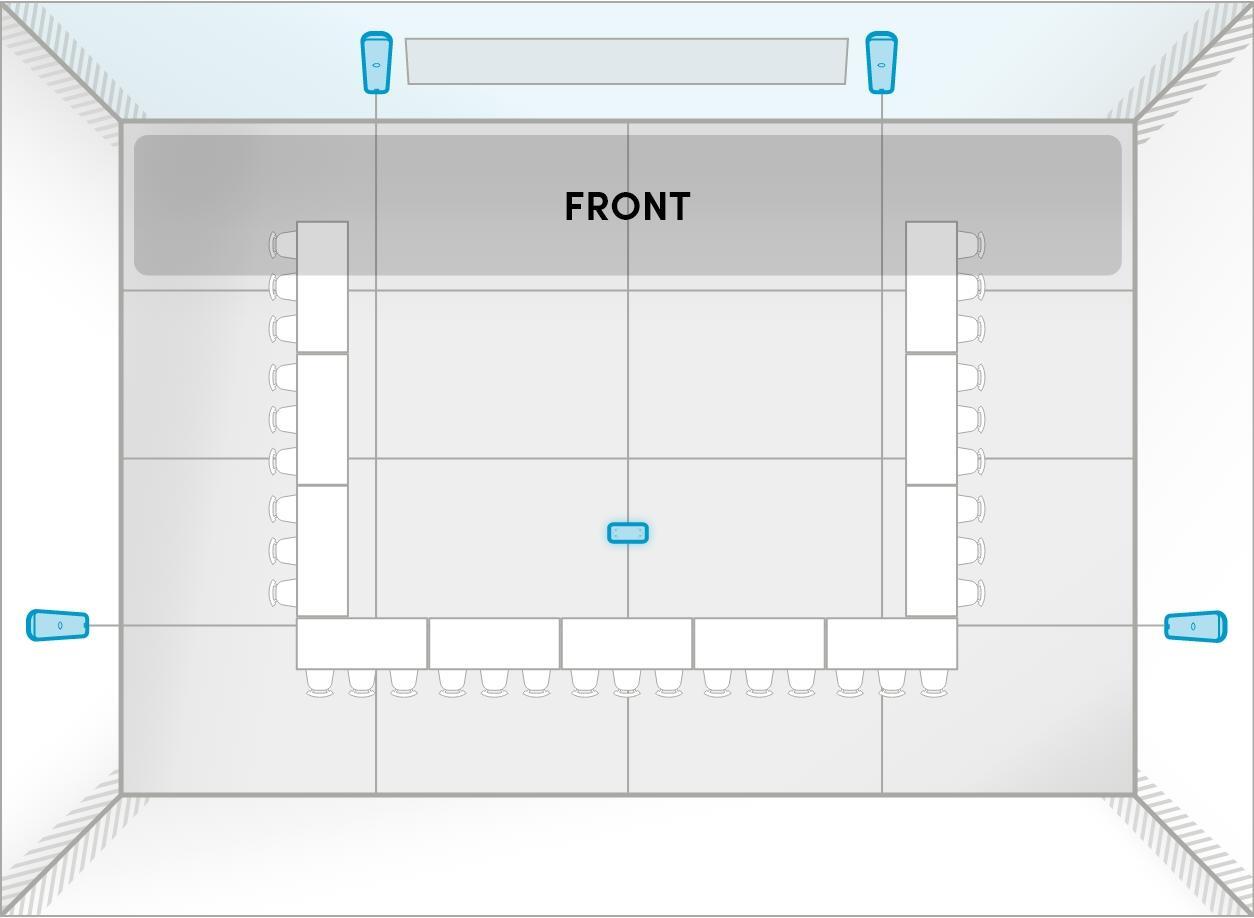
This setup is ideal for high-impact learning and meeting spaces up to 40' x 60' (12.2 x 18.3 m) that require voice lift everywhere. 

What’s included

  • Full-room microphone coverage, with a unified coverage map
  • Full-range distributed audio
  • Adaptive Voice Lift throughout the entire room
  • Adaptive Voice Amplification with a range of external mics
  • Assistive listening with Auracast broadcast audio
  • 3D sound location data for camera tracking and switching
HDX 4 Bar 2 pod A

HDX 4 bar + 2 pod: A

Note: Audio bars are positioned for full-room speaker output and even microphone pickup. The microphone pods are positioned to pick up the voice of a presenter speaking to an audience as well as voices in the audience at the back.

Room size: Up to 35' x 40' (10.7 x 12.2 m)

Note: This same configuration is shown in a larger room in HDX 4 bar + 2 pod: C

Room use: Meetings, collaboration

Front of room: Short wall

Features available:
✓ Acoustic camera tracking
✓ Adaptive Voice Amplification for instructor or presenter
✓ Full-room Adaptive Voice Lift

HDX 4 Bar 2 pod B


HDX 4 bar + 2 pod: B

Note: Audio bars are positioned for full-room speaker output and even microphone pickup. The microphone pods are positioned to pick up the voices of participants in the center of the room.

Room size: Up to 35' x 40' (10.7 x 12.2 m)

Note: This same configuration is shown in a larger room in HDX 4 bar + 2 pod: E

Room use: Meetings, collaboration

Front of room: Long wall

Features available:
✓ Acoustic camera tracking
✓ Adaptive Voice Amplification for instructor or presenter
✓ Full-room Adaptive Voice Lift

HDX 4 Bar 2 pod C

HDX 4 bar + 2 pod: C

Note: Audio bars are positioned for full-room speaker output and even microphone pickup. The microphone pods are positioned to pick up the voice of the presenter and voices in the audience. If a podium is being used, position one of the pods closer to the podium on the ceiling or wall.

Room size: Up to 40' x 60' (12.2 x 18.3 m)

Room use: Classroom, training, presentations, meetings, collaboration

Note: This same configuration is shown in a smaller room in HDX 4 bar + 2 pod: A

Front of room: Short wall

Features available:
✓ Acoustic camera tracking
✓ Adaptive Voice Amplification for instructor or presenter
✓ Full-room Adaptive Voice Lift

HDX 4 Bar 2 pod D

HDX 4 bar + 2 pod: D

Note: This room may not have long walls suitable for installation. Audio bars are positioned for optimal speaker output, but some microphones may be behind talkers. The microphone pods are distributed along the center of the room to pick up voices of participants.

Room size: Up to 40' by 60' (12.2 x 18.3 m)

Room use: Classroom, training, presentations, meetings, collaboration

Front of room: Short wall

Features available:
✓ Acoustic camera tracking
✓ Adaptive Voice Amplification for instructor or presenter
✓ Full-room Adaptive Voice Lift

HDX 4 Bar 2 pod E


HDX 4 bar + 2 pod: E

Note: Audio bars are positioned for full-room speaker output and even microphone pickup. The microphone pods are positioned to pick up voices of participants throughout the center of the room.

Room size: Up to 40' x 60' (12.2 x 18.3 m)

Note: This same configuration is shown in a smaller room in HDX 4 bar + 2 pod: B

Room use: Classroom, training, presentations, meetings, collaboration

Front of room: Long wall

Features available:
✓ Acoustic camera tracking
✓ Adaptive Voice Amplification for instructor or presenter
✓ Full-room Adaptive Voice Lift

HDX 4 Bar 2 pod F

HDX 4 bar + 2 pod: F

Note: Audio bars are placed on the long walls for even coverage. With no defined front of room, the microphone pods are distributed along the room’s center.

Room size: Up to 40' x 60' (12.2 x 18.3 m)

Room use: Classroom, training, presentations, meetings, collaboration

Front of room: None

Features available:
✓ Acoustic camera tracking
✓ Adaptive Voice Amplification for instructor or presenter
✓ Full-room Adaptive Voice Lift

Network requirements

The HDX system hub has two network ports that provide connection with the Nureva App and Nureva Console for device management, updates and monitoring. These Ethernet ports support integrations with room control systems and camera systems and they support Dante 2x2 channels.

Note: Nureva Console connections are both inbound and outbound initiated. These are bidirectional, nonpersistent connections.

Configuration tips

  • Ensure port 8883 is open and the MQTT protocol is allowed on your network.
  • Ensure the network uses Dynamic Host Configuration Protocol (DHCP) to assign the Internet Protocol (IP) address.
  • Note that HDX does not support proxy server configurations.
  • Ensure port 123 is open and the Network Time Protocol (NTP) is allowed on your network.
  • Note that static IP addresses are not supported by HDX at this time.

When enhanced internet security measures or firewalls are being used, some URLs and IP addresses will need to be approved to allow for a steady connection.

URLs to approve

Service URLs
Configuration https://app.launchdarkly.com
https://clientstream.launchdarkly.com
https://events.launchdarkly.com
https://stream.launchdarkly.com
Firmware updates https://nurevaproddistribution.blob.core.windows.net
https://versions.nureva.com
Device enrollment to Nureva Console https://account-management-service.nureva.com
IoT Hub gateway-iothub-prod.azure-devices.net
Needs either port 8883 for MQTT protocol or port 443 for SSL
System software updates https://api.snapcraft.io
https://assertions.ubuntu.com
https://cloudfront.cdn.snapcraftcontent.com
https://login.ubuntu.com
Telemetry https://dc.applicationinsights.azure.com
https://dc.applicationinsights.microsoft.com
https://dc.services.visualstudio.com
Ad blocking breaks telemetry functionality (continuous connection)
NTP ntp.ubuntu.com

IP addresses to approve

Service IP address
LaunchDarkly 18.209.243.58
(events.launchdarkly.com)
Microsoft  services 20.166.40.71
Microsoft  Azure cloud 20.50.65.88
Microsoft  Network management, load balancing 20.9.155.145
Microsoft  Network management, load balancing 20.9.155.148
Microsoft  Network management, load balancing 20.9.155.150
Amazon Web Services (AWS) 23.23.137.6
Amazon Web Services (AWS) 3.229.64.113
Amazon Web Services (AWS) 3.231.244.68
AWS Network management, load balancing 3.209.131.209
AWS  Network management, load balancing 3.215.101.233
AWS  Network management, load balancing 3.218.251.176
AWS  Network management, load balancing 3.224.157.225
Amazon Web Services (AWS) 52.84.90.126
Amazon Web Services (AWS) 54.147.5.20

Step 2: Install

This section covers the physical installation steps for setting up your HDX system, including mounting components and connecting cables.

Audio bar installation

Whats in the box

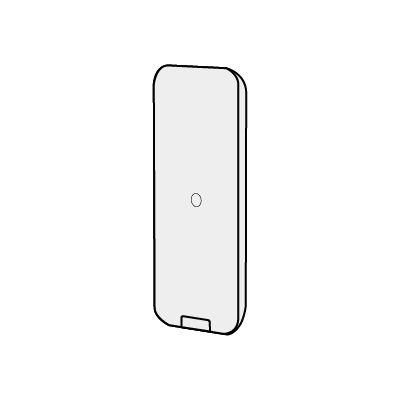
InBox-AudioBar

Audio bar

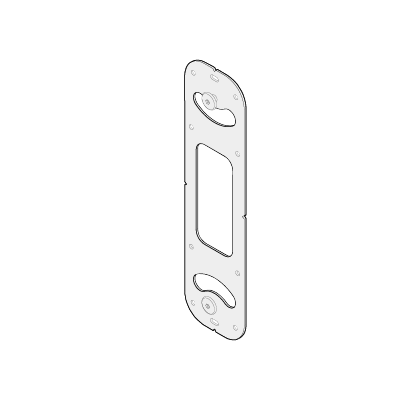
InBox-AudioBar-Mount

Mounting bracket

What you’ll need

  • Phillips-head screwdriver
  • Drill
  • Ethernet (CAT5e) cable
  • #10 panhead anchors or M5 panhead anchors (x2)
  • #10 panhead screws or M5 panhead screws (x2)
  • Pencil or pen for marking

Installation steps

The audio bar can be installed with the mounting bracket provided in the box. It also supports standard VESA mounting for additional flexibility.

Note: Ensure you review Audio bar placement requirements before installation.

1. Plan the mounting location

Select an appropriate location on the wall for installation.

See Step 1: Plan the placement

placements-1

2. Choose orientation

A: Vertical orientation:

The mounting squares on the audio bar come pre-attached for vertical mounting.

install-02

B: Horizontal orientation:

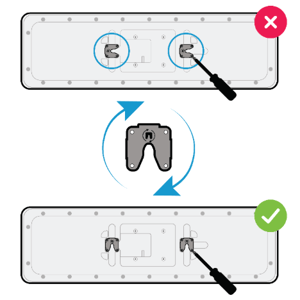
Hardware adjustment is required to install the audio bar in the horizontal position:

  • Remove the four screws of each mounting square.
  • Rotate each mounting square to position them for horizontal installation.
  • Reinsert the screws in the new orientation.

install-03

Note: For horizontal orientation of two audio bars on the same wall, ensure the speakers are facing away from each other.

The speakers are in the lower section of the audio bar, closest to the Nureva logo.

install-05

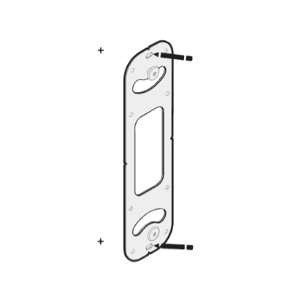
3. Mark for installation

Position the mounting bracket on the wall and mark the hole positions with a pencil or pen.

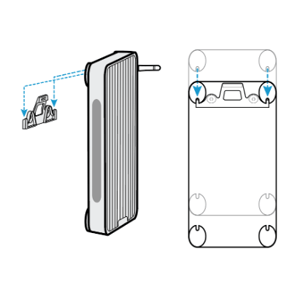
install-22

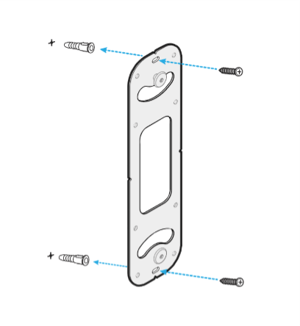
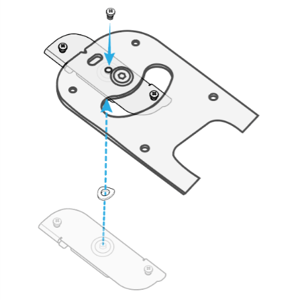
4. Install the mounting bracket 

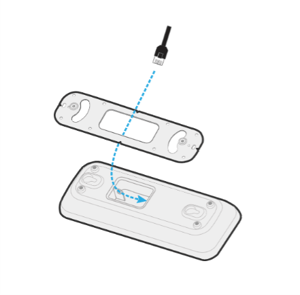
Drill the marked holes, insert wall anchors and then position the mounting bracket and securely screw it to the wall.

See wiring diagram for wiring options 

install-23

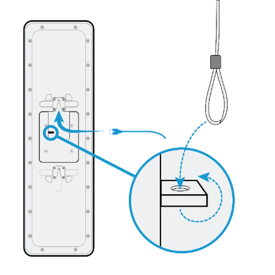
5. Route the Ethernet cable

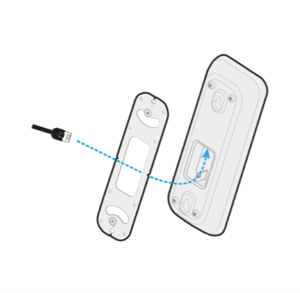
Run the Ethernet cable to the mounting area and plug it into the back of the audio bar

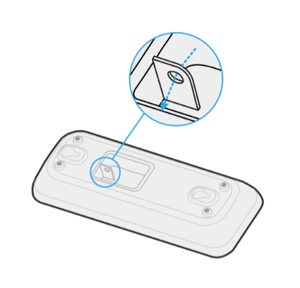
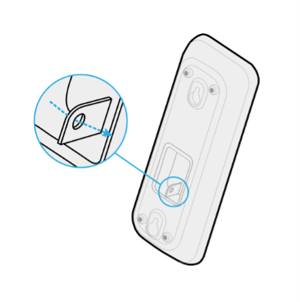
Tip: For extra security, thread the security wire through the small metal frame hole on the back of the audio barlocated in the divot. 

install-08

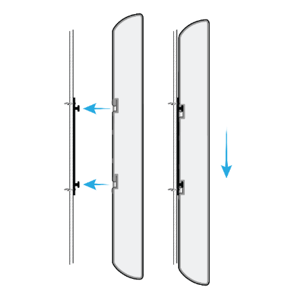
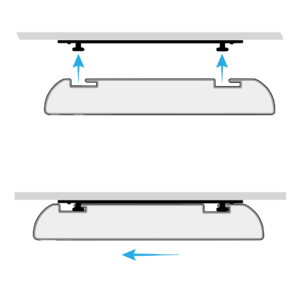
6. Mount the audio bar

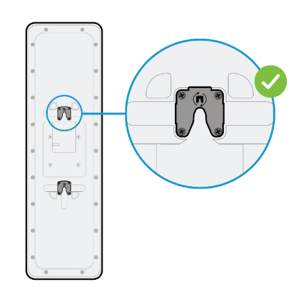
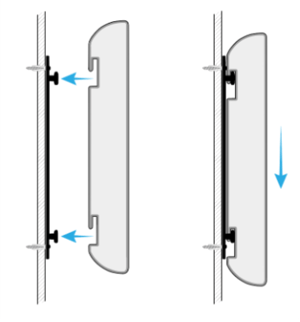
Align the audio bar with the mounting bracket and slide it into place until you hear it click. 

Tip: For cleaner cable management, cables can be tucked and hidden behind the audio bar.

install-09

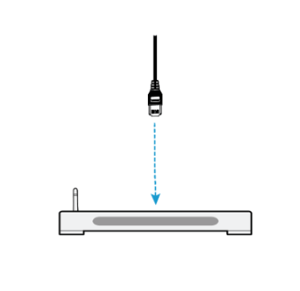
7. Connect to system hub

Connect the audio bar to the system hub with the Ethernet cable. 

See Step 3: Connect the components

install-10

Microphone pod installation

What’s in the box

InBox-MicPod

Microphone pod

InBox-MicPod-Mount

Mounting bracket

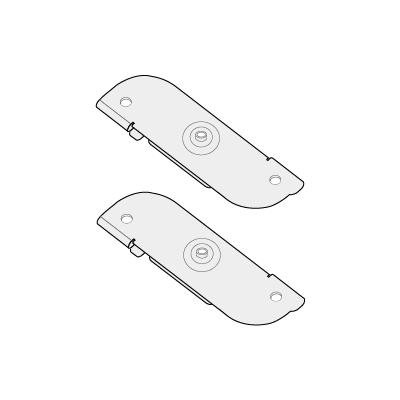
InBox-MicPod-TbarClips

T-bar clips x2

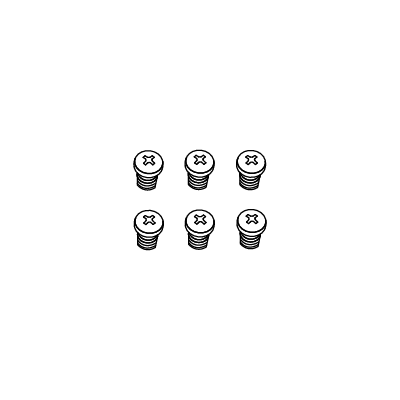
InBox-MicPod-Screws

M3 panhead screws x6

InBox-MicPod-Washer

Wave washer x2 

What you’ll need

  • Phillips-head screwdriver
  • Drill
  • Ethernet (CAT5e) cable
  • #10 panhead screws or M5 panhead screws (x2)
  • #10 panhead anchors or M5 panhead anchors (x2)
  • Pencil or pen for marking
  • Ladder

Installation steps

The microphone pod can be installed on the ceiling or on the wall with the mounting bracket provided in the box. It also supports standard VESA mounting for additional flexibility.

Note: Ensure you review Microphone pod placement requirements before installation.

Ceiling mounting

Note: T-bar clips allow the mounting bracket to be fixed to the main tees and cross tees of a T-bar (suspended) grid ceiling.

1. Plan the mounting location

Choose a suitable spot on the ceiling for optimal audio pickup.

See Step 1: Plan the placement 

install-11

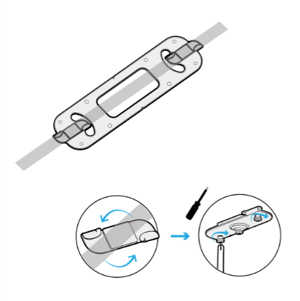
2. Attach T-bar clips to the mounting bracket

Retrieve the T-bar clips from the packaging. 


install-12

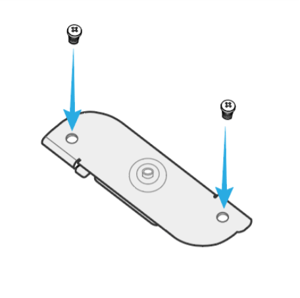
Place the two screws into the side holes of the clip, but do not fully tighten them yet. Final tightening will occur in a later step. 

install-13

Add the wave washer to the center of the T-bar clip, then place the mounting bracket on top of the T-bar clip and tighten the screw to the washer area.

Repeat the steps above for the T-bar clip on other side. 

install-14

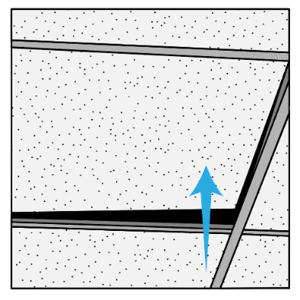
3. Prepare the mounting spot on the ceiling T-bar

Position a ladder under the mounting spot. Lift and move the ceiling tiles aside to access the T-bar. 

install-15

4. Affix the mounting bracket to the T-bar 

Position the mounting bracket over the T-bar. Slide each T-bar clip so it fits over both edges of the T-bar. Tighten both screws to secure them in place.  

install-16

5. Route the Ethernet cable

Run the Ethernet cable to the mounting area and plug it into the back of the microphone pod. 

Tip: You may need to notch the ceiling tile to allow it to lay flat.

install-17

6. Attach the microphone pod

Align the connection points on the bottom of the microphone pod with the posts on the mounting bracket. Slide the microphone pod into place until you hear it click. 

install-18

Tip: For extra security, thread the security wire through the small metal frame hole on the back of the microphone pod — located in the divot.

install-19

7. Connect to system hub

Connect the microphone pod to the system hub with the Ethernet cable.

See Step 3: Connect the components

install-27

Wall mounting

1. Plan the mounting location

Choose a suitable spot on the wall for optimal audio pickup. 

See Step 1: Plan the placement

install-21

2. Mark for installation

Position the mounting bracket on the wall and mark the hole positions with a pencil or pen. 

install-22

3. Mount the bracket

Drill the marked holes, insert wall anchors and then position the mounting bracket and securely screw it to the wall.

install-23

4. Route the Ethernet cable

Run the Ethernet cable to the mounting area and plug it into the back of the microphone pod.  

Tip: For cleaner cable management, cables can be tucked and hidden behind the microphone pod.

install-24

5. Attach the microphone pod

Align the connection points on the microphone pod with the posts on the mounting bracket. Slide the microphone pod into place until you hear it click. 


install-25


Tip: For extra security, thread the security wire through the small metal frame hole on the back of the microphone pod — located in the divot.

install-26

6. Connect to system hub

Connect the microphone pod to the system hub with the Ethernet cable.

See Step 3: Connect the components

install-27

System hub installation

What’s in the box

InBox-SystemHub
System hub
InBox-SystemHub-WallMountClip
Mounting bracket
InBox-SystemHub-BLTAntenna
Bluetooth antenna
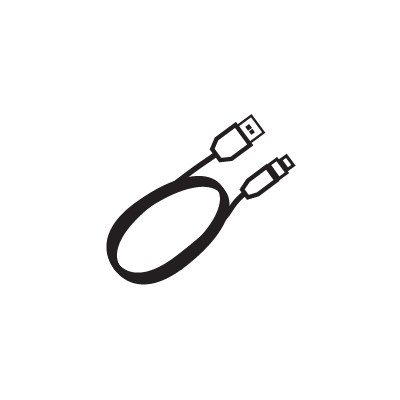
InBox-SystemHub-USBCable
USB cable with USB-C to USB-A adapter
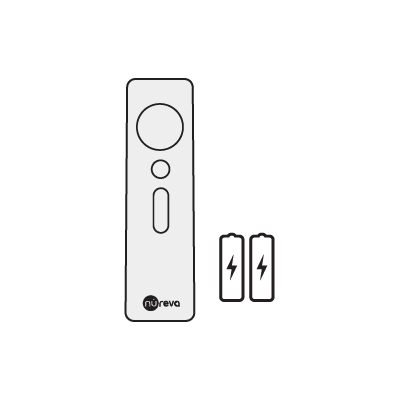
InBox-SystemHub-Remote
Remote control with AAA batteries
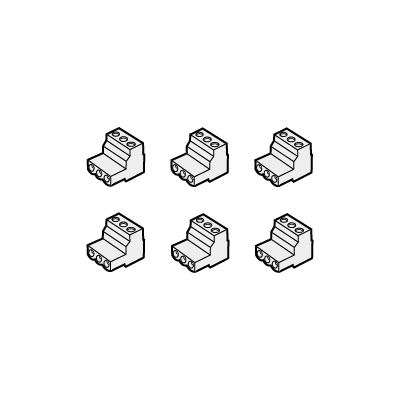
InBox-SystemHub-Euroblocks
Euroblock connectors x6
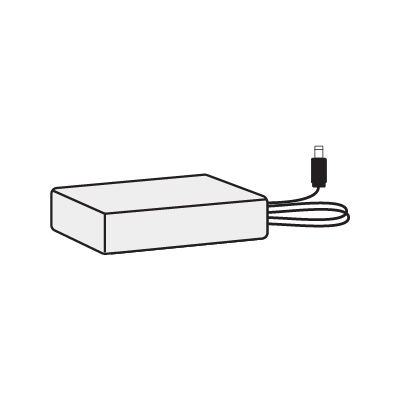
InBox-SystemHub-PowerSupply
Power supply
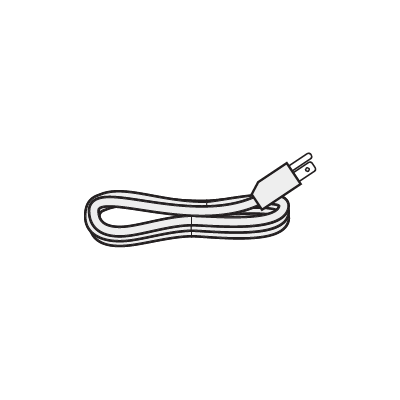
InBox-SystemHub-PowerCable
Power cable

What you’ll need

  • Phillips-head screwdriver
  • Drill
  • Ethernet (CAT5e) cable
  • #10 panhead anchors or M5 panhead anchors (x2)
  • #10 panhead screws or M5 panhead screws (x2)
  • Pencil or pen for marking

Installation steps

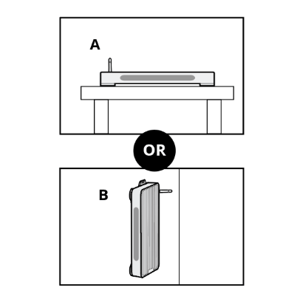
The system hub can be placed on a tabletop or a shelf, or it can be mounted on a wall.

Note: Review System hub placement requirements before installation.

Choose a location

A: Tabletop or shelf
B: Wall mounted

See Step 1: Plan the placement

install-28

A: Tabletop or shelf


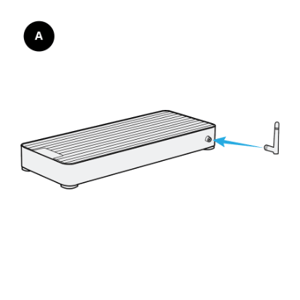
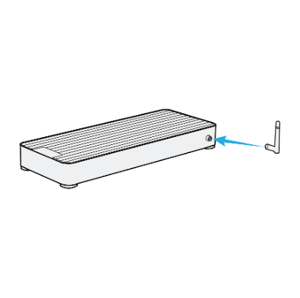
1. Attach the antenna to the back of the system hub. 

  • Ensure the antenna has enough clearance to stand upright.

install-29

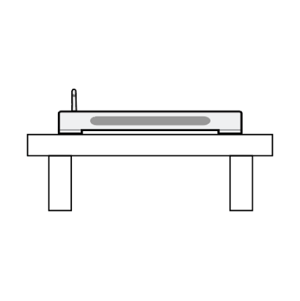
2. Place the system hub on a sturdy table or shelf. 

install-30

B: Wall mounted 


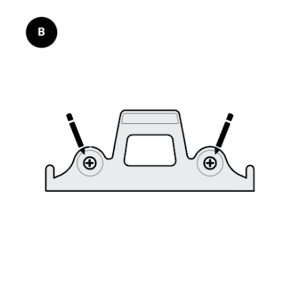
1. Hold the bracket in place at the desired wall location and mark the pilot holes.

install-31


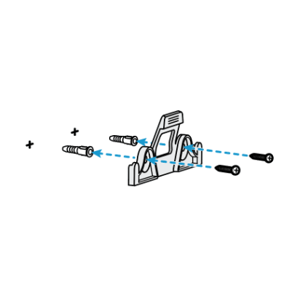
2. Drill the marked holes, insert wall anchors if needed, then securely screw the mounting bracket to the wall. 


install-32


3. Attach the antenna to the back of the system hub.

install-33

4. Clip the system hub to the mounting bracket.

Ensure the antenna has enough clearance and the LED lights are facing forward.

new-image-today-1

Step 3: Connect the components

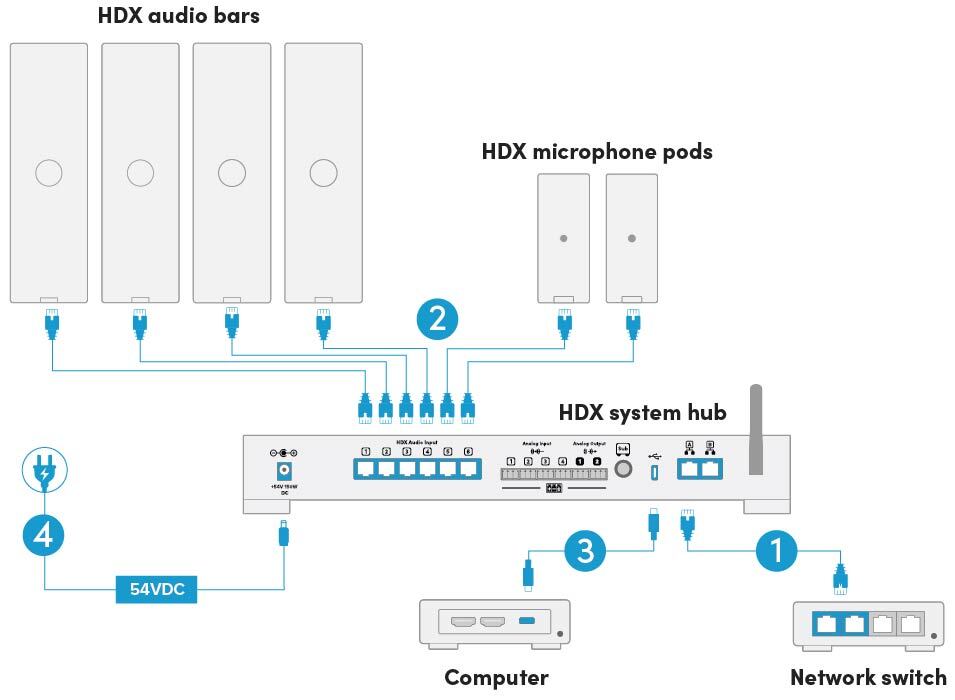
Note: Ethernet cables are required to connect the audio bars and microphone pods to the system hub and connect the system hub to the network.


Ethernet cable requirements

HDX does not include Ethernet cables for the system hub, audio bar and microphone pod connections. Nureva recommends using Ethernet cables that meet the following minimum requirements.

  • CAT5e
  • UTP (unshielded twisted pair)
  • 24 AWG
  • Underwriters Laboratories (UL) certified cable


Connect HDX

Connect HDX - connection diagram

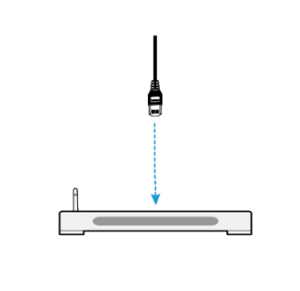
1. Connect the network cable

  • Run an Ethernet cable from the system hub to the network access point (router, modem, wall jack).

  • Plug the Ethernet cable into a network connection port on the back of the system hub.

  • Plug the Ethernet cable into an available port at the network access point.

Note: If the HDX system hub is not connected to the network, updates must be done manually.

connect-05

2. Connect the audio bars and (if applicable) microphone pods

  • Run Ethernet cables between the system hub and each audio bar and microphone pod.

  • Plug each Ethernet cable into an HDX audio input port on the back of the system hub.

  • Plug the Ethernet cables into the ports on the back of each audio bar and microphone pod.

connect-06

3. Connect the computer

The HDX system can now be connected to a computer or a conferencing device:

  • Plug the USB-C cable (provided) into the USB-C port on the back of the system hub.

  • Plug the other end of the USB-C cable into a USB-C port on the computer or conferencing device.

A USB-C to USB-A adapter is included.

connect-07

It is recommended that all HDX components be physically installed in the room before connecting the system to power.

4. Connect the power supply and calibration will start

Warning: Do NOT plug or unplug the audio bars or microphone pods from the system hub, or unplug the cable from the audio bar or microphone pod itself, while the system hub is powered on. Doing so could irreparably damage the system.

connect-08

Warning: The HDX system will begin an automatic calibration sequence as soon as it’s connected to power. This calibration sequence can be loud. We recommend covering your ears or using hearing protection.

Note: If the system hub was powered prior to installation of all components, another calibration will be required after they’re installed. To calibrate the HDX system, press the calibrate button on the front of the system hub.

connect-09

Pair the remote

The remote, which uses Bluetooth technology, will automatically attempt to pair with the system hub after its batteries have been inserted. To disconnect the remote from the system hub, press and hold the customizable button 2 and the volume-down button 4 simultaneously for 2 seconds. This will clear any existing Bluetooth connection. To re-pair the remote, press any button to initiate the pairing process.

Step 4: Update

An update is required when setting up an HDX system for the first time to ensure all features function as intended.

Keeping the HDX system up to date is also important for maintaining performance, security and access to the latest features.

To understand network requirements for updates, see the network requirements section.

Important: Do not unplug your system while an update is in progress.

The table below provides details of the available HDX system update options and the connections required for each.

Update type

Interface

Required device connection

Automatic

None

LAN with internet access

Manual

Nureva App

LAN without internet access

Direct connection with Ethernet cable from Port A to computer with internet access

Manual

Nureva Console

Internet or LAN

Bulk

Nureva Console

LAN with internet access

Important: HDX updates cannot be performed by using a Bluetooth wireless connection. Ensure the HDX device is connected to a network and configured properly before attempting any update.


Automatic updates

When connected to the internet, HDX will automatically check for and install available updates. No user intervention is required, and the system’s LED indicators will show when an update is in progress.

Tip: Automatic updates are ideal for environments where minimal manual maintenance is preferred.


Updating in the Nureva App

LAN without internet access

The HDX system can be updated through a network connection to the Nureva App. The device running the Nureva App must have access to Nureva services through the internet.

  1. Ensure your HDX system and your device (computer, tablet or phone) are connected to the same local network.
  2. Open a browser and enter the IP address of the HDX system to access the Nureva App.
  3. Go to the Device settings section.
  4. Follow the on-screen prompts to check for and install updates.

Direct connection with Ethernet cable from Port A to computer with internet access

  1. Use an Ethernet cable to connect the computer to Port A on the HDX system.
  2. Access the Nureva App through a browser by entering the IP address or use 169.254.254.254 if a static IP address has not been set.

Note: Port B is not supported for direct connection to the Nureva App.


Updating in Nureva Console

Internet or LAN

In Nureva Console, IT and AV managers can update HDX systems remotely.

  1. Ensure your HDX system is enrolled in Nureva Console.
  2. Log in at console.nureva.com.
  3. In the Rooms dashboard, select the device you need to update.
  4. Use the Remote update feature to initiate the update process.

Network note: The HDX system must have internet access and be enrolled in Nureva Console to receive updates through Nureva Console.

Using HDX

The HDX system works right out of the box and can connect to any UC&C platform without additional setup. After it has been installed, you can begin using the system and place a call immediately.

If you want to customize your HDX settings, you can easily do that through the Nureva App.

HDX and the Nureva App

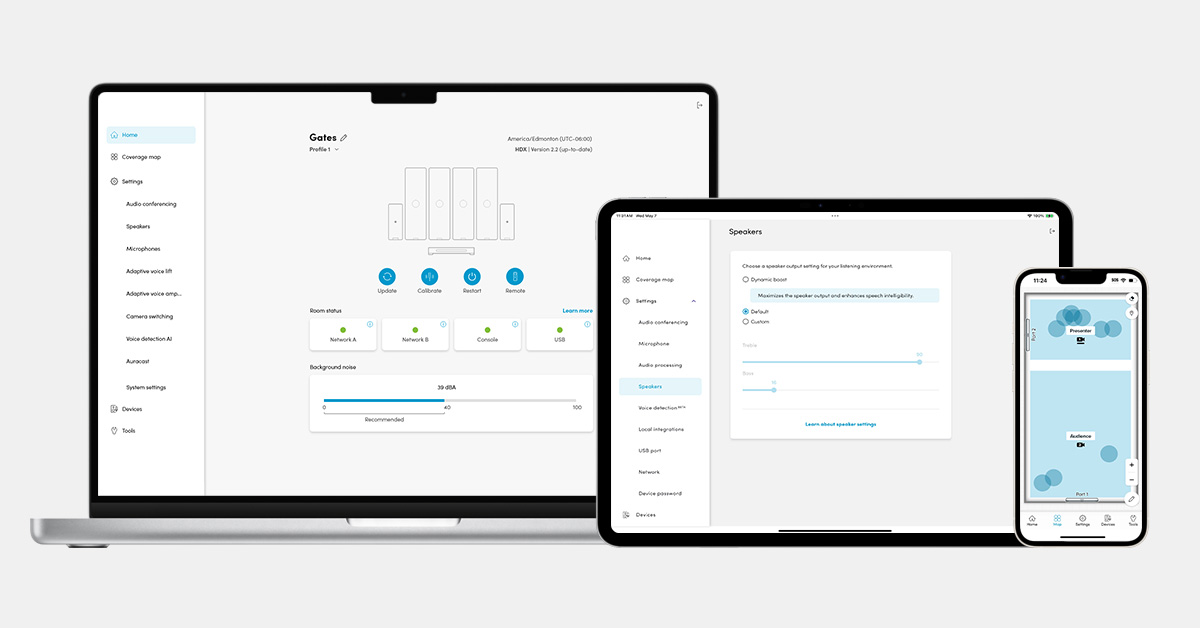
The Nureva App makes it simple to set up, optimize and customize your Nureva audio devices. You can use our iOS, Android or web-based version, or download our version for Windows, and there’s no need to create an account. With it, you can analyze room acoustics to determine the best place to install your system, update your device and optimize and customize both the in-room and remote audio experiences.

Learn more

App-Heroimage-HDX

In the app, you’ll find a range of features that let you tailor the HDX system to your room layout, acoustic needs and specific use cases.

Overview of features

HDX has comprehensive features to support your various room needs and use cases.

Feature

Description

Full-range distributed audio

Speaker EQ

Adjusts sound automatically for music or conferencing.

Adaptive sound

Optimizes audio for meetings or media playback by switching between voice-focused conferencing mode and full-range music mode.

Balance

Adjust the volume for each speaker and set the channel (mono, left or right).

Subwoofer

Add subwoofer and adjust settings.

Full-room microphone coverage

Microphone EQ

Adjust gain uniformly.

Audio processing

Adjust noise reduction settings — only if experiencing audio issues.

Calibration

Calibrate HDX when the room changes significantly to quickly optimize the audio.

Noise suppression AI

Reduces background noise while keeping voices clear and natural.

Adaptive Voice Lift

Coming soon

Boosts voices of in-room talkers so everyone can hear clearly.

Adaptive Voice Amplification

Coming soon

Connect an external mic to amplify an instructor’s voice.

Assistive technology

Auracast

Stream audio to multiple devices at once with Bluetooth wireless technology. To enable this feature, ensure the Nureva App is connected to the HDX system through Bluetooth LE.

Lecture capture

Enables amplification of an instructor’s voice and audience mute to support clear transcription and translation in lecture capture systems.

Divisible room setup

Divisible rooms

Coming soon

Link multiple HDX systems for divided and combined room setups.

Camera automation

Coverage map

Set the room size, create zones and configure camera switching.

Camera switching

Use an INOGENI® CAM230 multi-camera selector to switch camera inputs automatically between zones defined on the coverage map.

Voice detection AI

Detects voices and filters out background sounds for smoother camera switching.

System settings

Network

View and update network settings and select a network port.

Bluetooth LE

Allow Bluetooth wireless technology connection to the HDX system for streaming audio.

Device password

Set a new device password that will be used to access the device through the Nureva App.

Device control

Adjust basic HDX system settings by using a virtual remote control.

Low power mode

Reduces power usage by automatically putting the device to sleep after a period of inactivity.

Display and brightness

Adjust display and brightness settings.

Device sounds

Choose which system sounds are enabled.

Full-range distributed audio

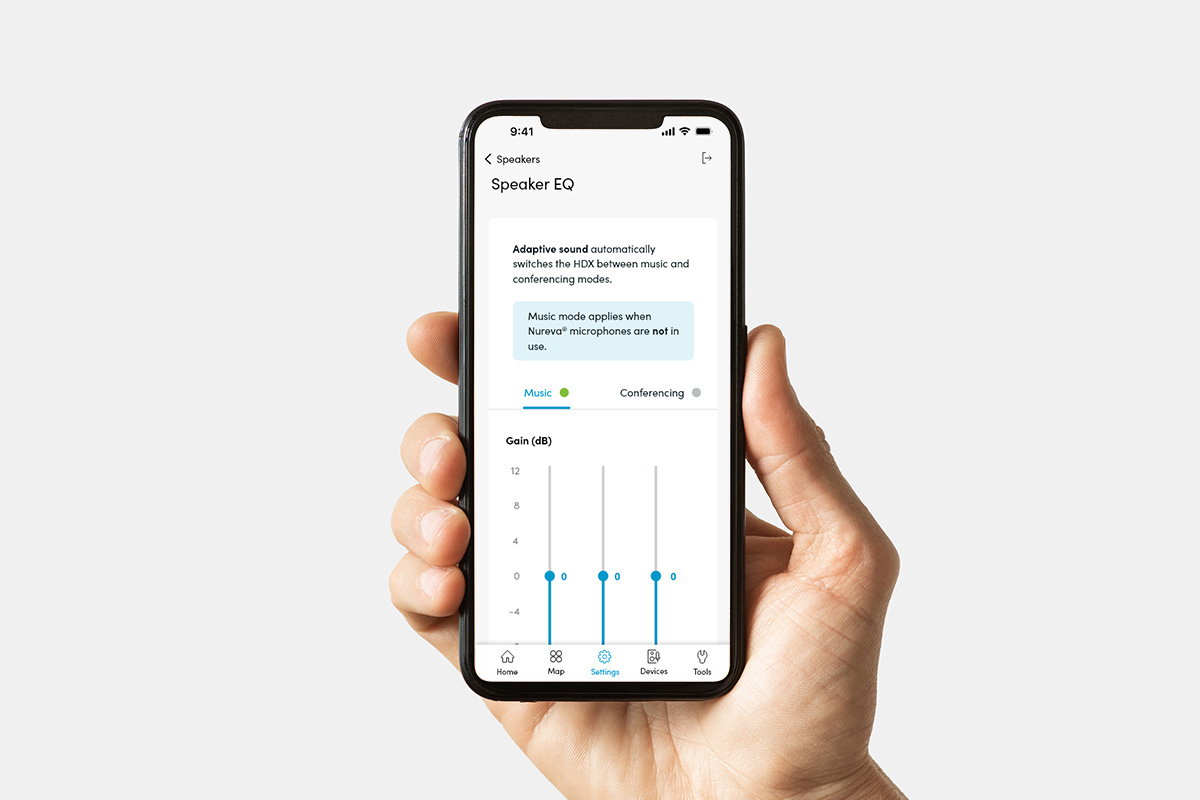
Speaker EQ

In the speaker EQ (equalizer), the balance of different frequency components in an audio signal can be adjusted. Therefore, you can fine-tune how the speaker reproduces sound across the frequency spectrum (bass, midrange, treble).

HDX has independent 3-band EQ controls for both conferencing and music modes. These EQs allow adjustment of low-, mid- and high-frequency bands with a 20 dB range, enabling tailored tuning to compensate for room-specific acoustic issues and to optimize audio performance for speech or media playback.

Speaker EQ

To adjust the speaker EQ:

In the Nureva App, open the Settings menu.
Select Speakers, then select Speaker EQ.
Choose a mode: Conferencing or Music.
For each frequency band, (low, mid, high)

  • Adjust slider down to reduce frequency gain.

  • Adjust slider up to increase frequency gain.

The default setting is 0 dB, and the range is from −8 dB to 12 dB.


Adaptive sound

Adaptive sound in HDX offers two distinct speaker modes that are intelligently optimized for specific use cases. When the microphones are active, HDX is in conferencing mode, the subwoofer output is unavailable and the frequency band is limited to optimize for voice. When the microphones are inactive, HDX is in music mode, the subwoofer output is enabled and the audio frequency range is extended to full range, providing a rich listening experience.

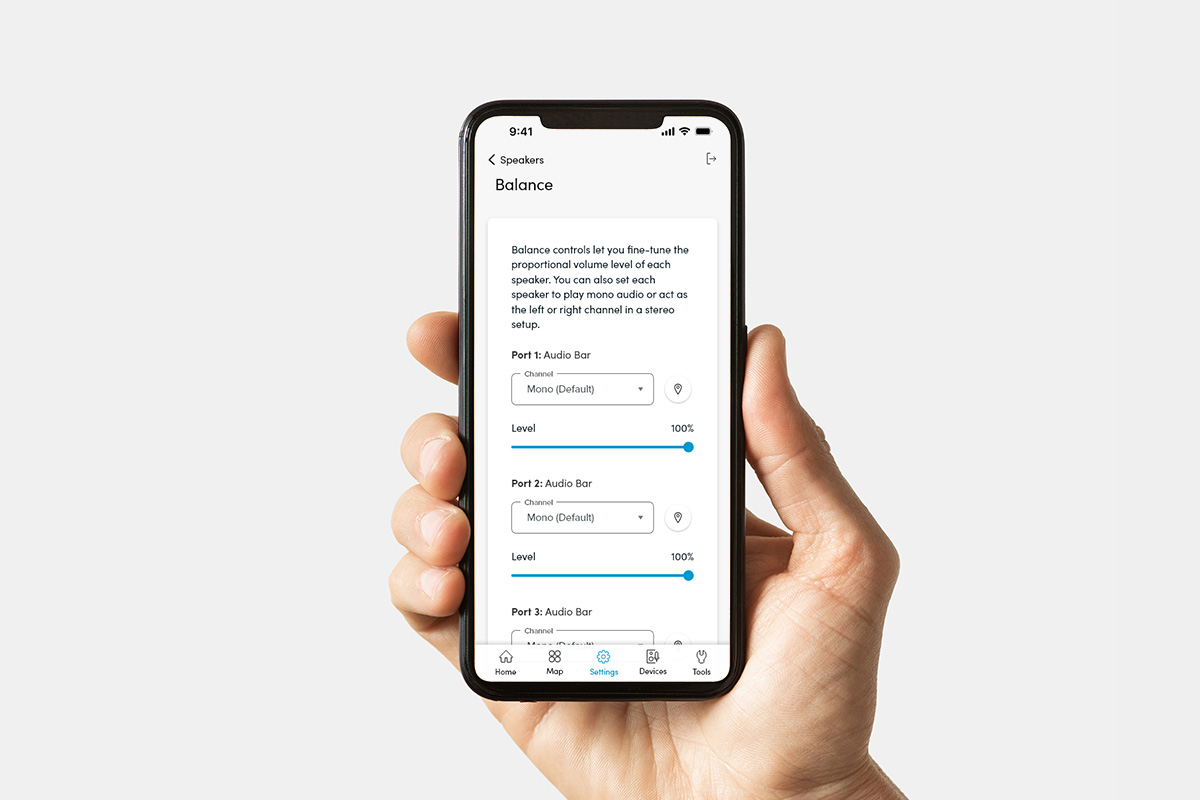
Balance

Balance

In the balance controls, you can fine-tune the audio for a consistent listening experience across any room. You can adjust individual speaker levels to compensate for uneven placement of system components or a room’s unique acoustics. Choose mono for uniform sound or create an immersive stereo setup by assigning left and right channels — depending on your room layout and audience needs. You can fine-tune the proportional volume level of each speaker.

To adjust balance:

In the Nureva App, open the Settings menu.
Open the Speaker page.
Select Balance and follow the instructions on the page.


Subwoofer

Adding a subwoofer to your HDX system enhances low-frequency performance, delivering richer, more immersive sound — especially in larger rooms.

Note: The subwoofer will be active only when playing content such as videos or music.

Connecting a subwoofer

Use the ¼" TRS (Tip-Ring-Sleeve) connector on the HDX system hub’s subwoofer output.

  • Tip = Hot (+)

  • Ring = Cold (–)

  • Sleeve = Ground/Shield

Ensure the subwoofer has a balanced analog input and its own amplification, as the HDX output is line level (maximum 4 dBu / 1.23 Vrms) and cannot drive passive subwoofers directly.

As soon as the subwoofer is connected, it will be automatically detected and appear in the devices list in the Nureva App.

Full-room microphone coverage

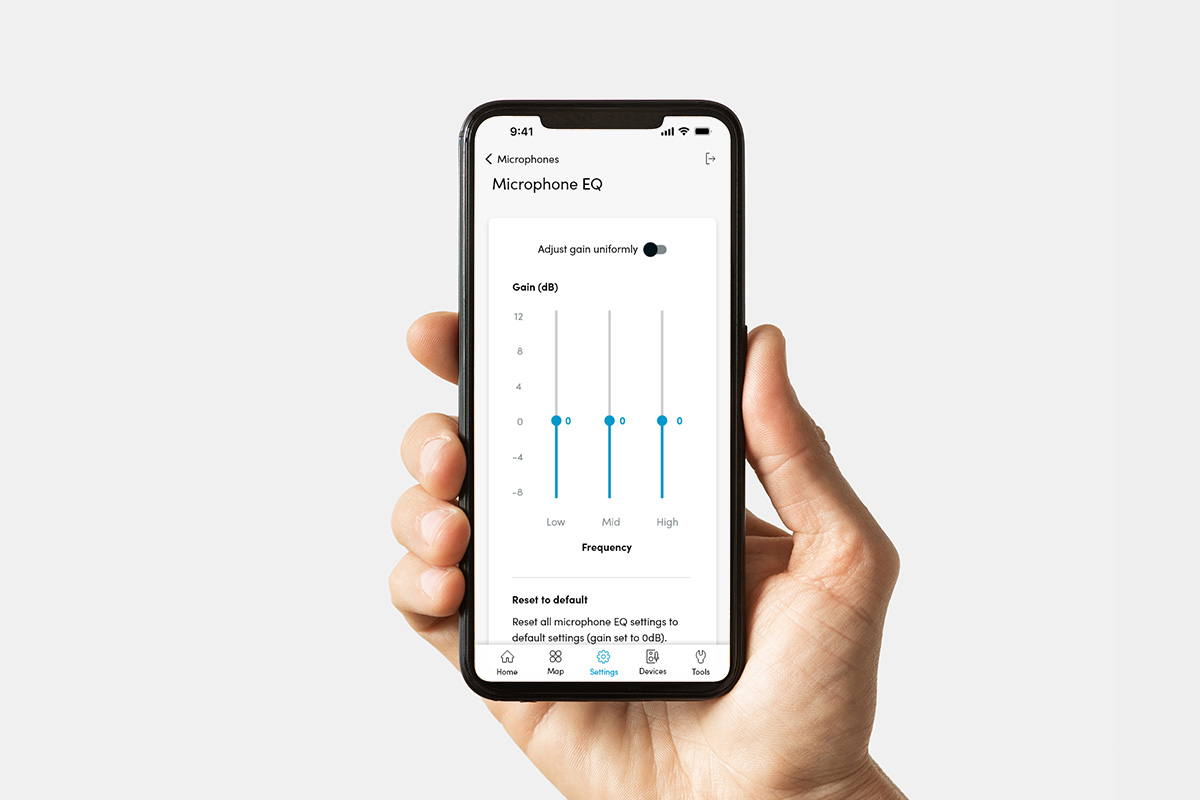
Microphone EQ

The HDX microphone EQ settings enable the fine-tuning of low, mid and high frequencies to improve the audio experience for remote participants.

In some cases, adjusting these settings can improve speech clarity, reduce unwanted noise and enhance overall sound quality by boosting or cutting specific frequency ranges for a more balanced tone.

Microphone EQ

To adjust the microphone EQ:

In the Nureva App, open the Settings menu.
Open the Microphone page.
Move each slider down to reduce the frequency gain.
Move each slider up to increase the frequency gain.
Switch the Adjust gain uniformly toggle on to make the adjustment to all three sliders at the same time.

The default setting is 0 dB, and the range is from −8 dB to 12 dB.


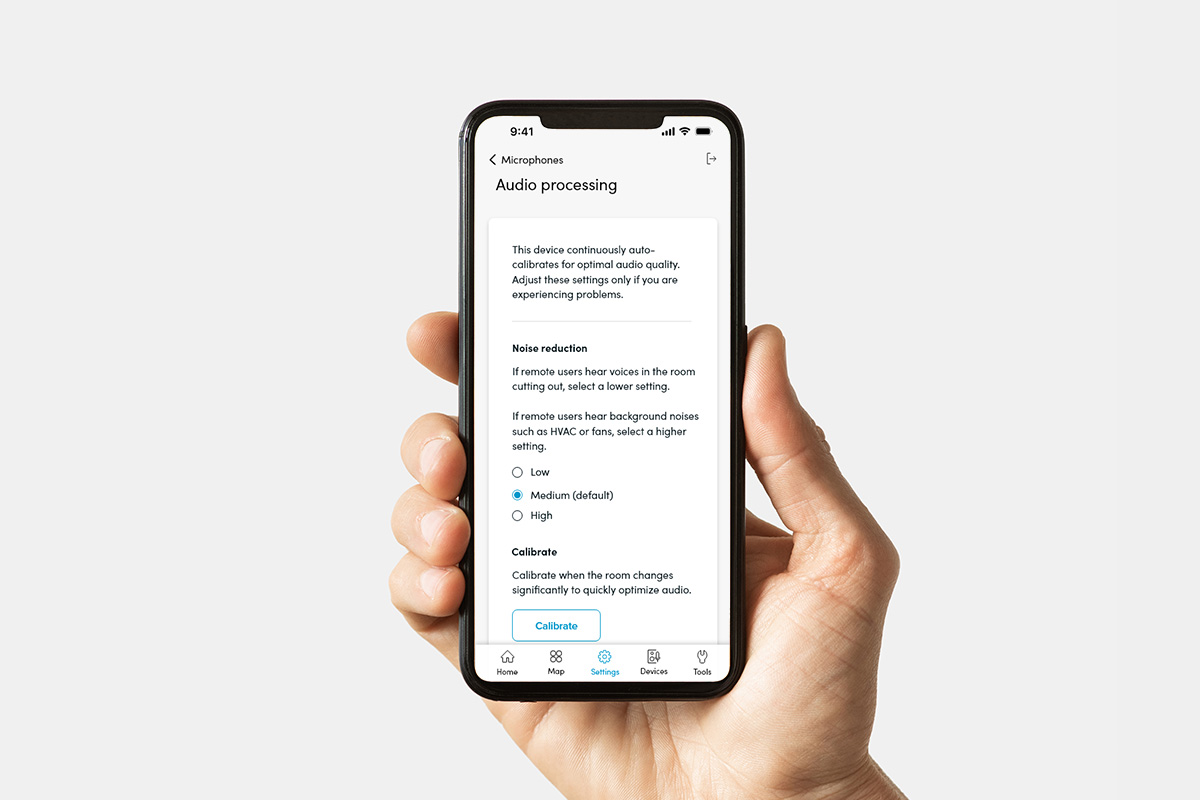
Audio processing

HDX continuously auto-calibrates for optimal audio quality. Audio processing settings are available in the Nureva App, and they should be adjusted only if users are experiencing problems.

Noise reduction

Noise reduction focuses on persistent or semi-persistent sounds like HVAC systems, fans and projector hum. HDX continuously learns the acoustic signature of these noises and applies targeted filtering to minimize their presence in the audio stream.

You can select a lower setting if remote users notice that voices in the room are cutting out. If remote users hear background noises such as HVAC systems or fans, you can select a higher setting.

Audio processing

To use noise reduction:

In the Nureva App, open the Settings menu.
Open the Microphones page.
Open the Audio processing page.

Go to the Noise reduction section to select:

  • Low

  • Medium (recommended)

  • High


Calibration

HDX automatically runs a calibration sequence the first time it’s switched on, so all components should be fully installed before connecting the system to power.

Note: If the system is switched on prior to installation, another calibration will be required after it is installed.

Warning: Calibration produces loud sounds for about 45 seconds. Ensure the room is quiet and cover your ears or consider using hearing protection.

You can use the calibrate button on the front of the system hub to quickly optimize audio when the room setup or furniture placement has changed significantly.
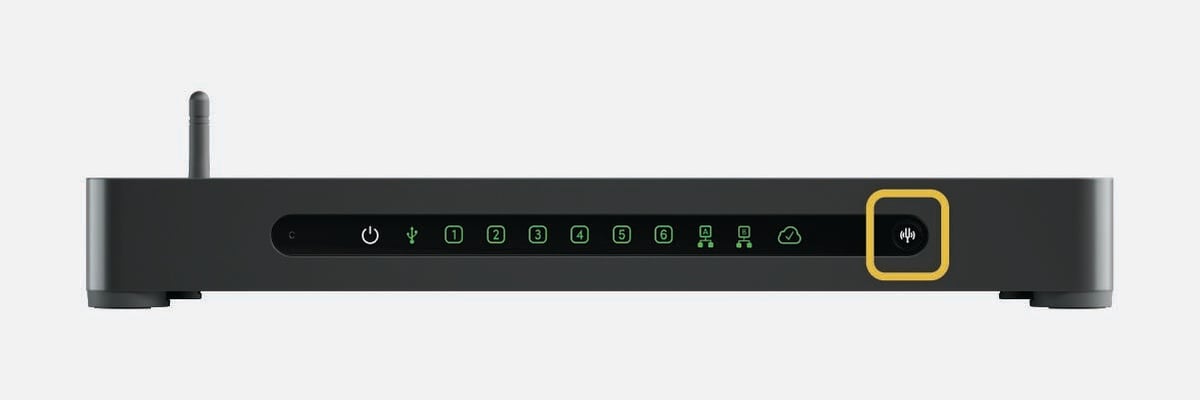
Calibrate-Hardware

Calibrate-App-Image

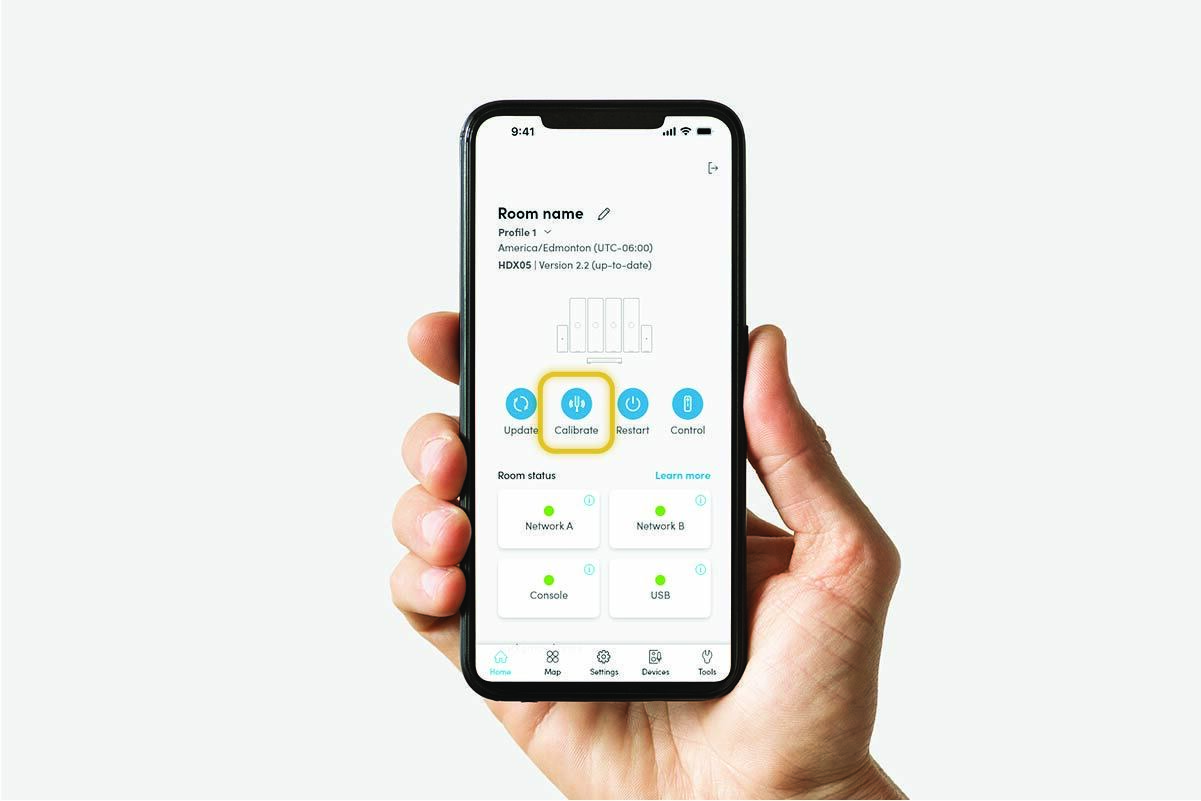
You can also calibrate HDX by using the Nureva App.

To calibrate:

In the Nureva App, open the home page.
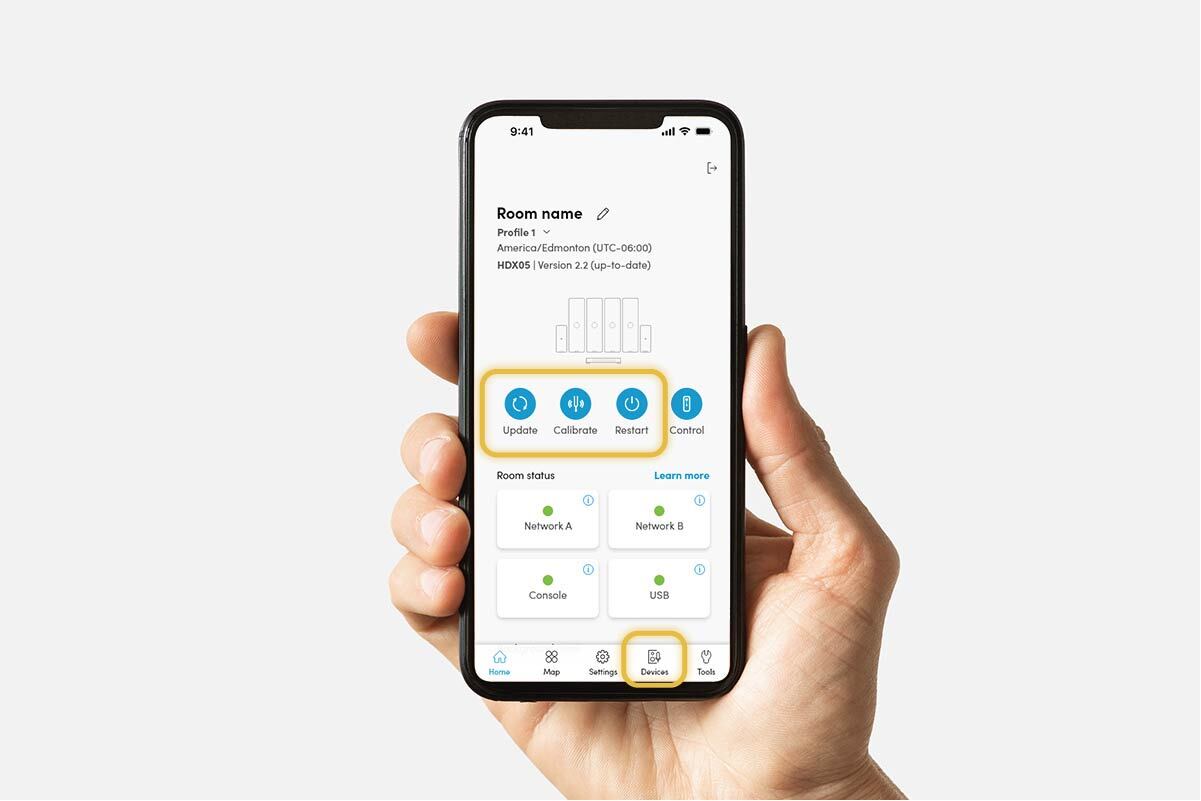
Click the Calibrate button on the home page.


Noise suppression AI

Noise suppression AI is designed to handle unpredictable, short-duration sounds that occur during meetings or classes, such as typing, chair movement or paper shuffling. It uses real-time detection and adaptive filtering to attenuate these noises without introducing artifacts or cutting off speech.

The noise suppression AI feature will block out unwanted transient noises in a space and ensure that remote participants hear only the voices.

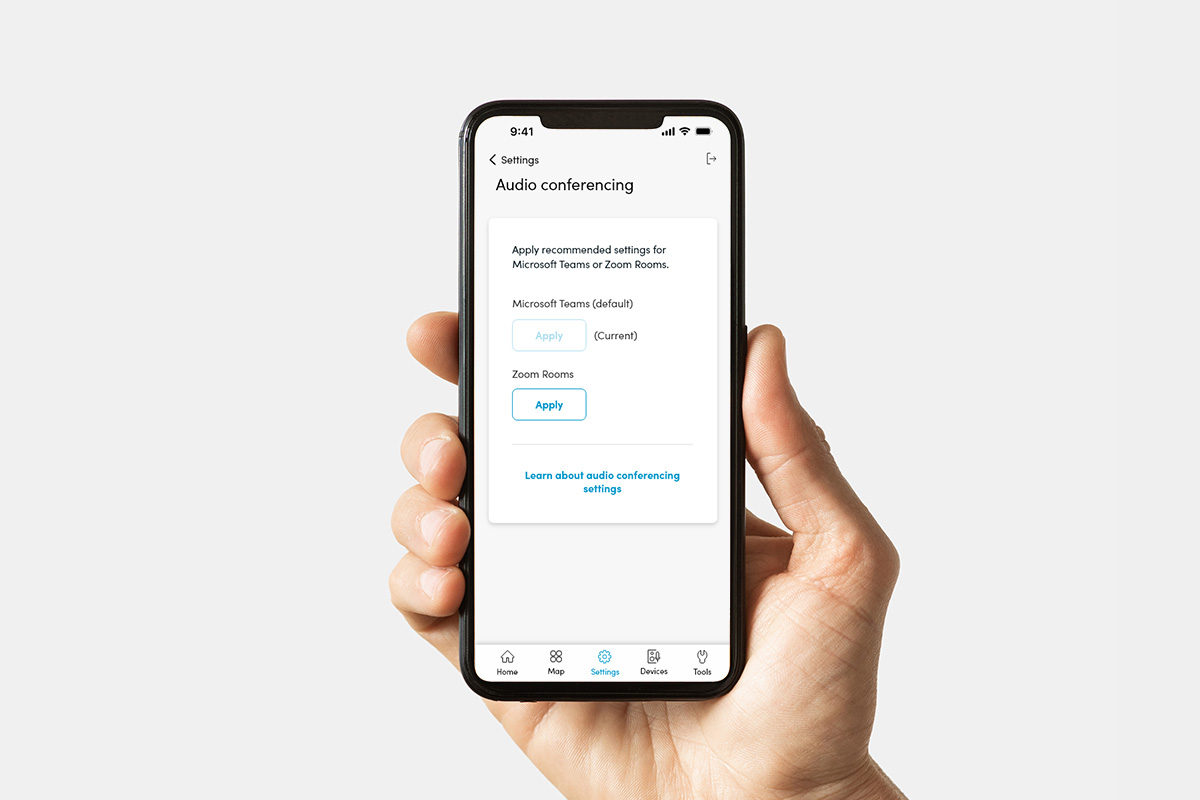
Use this feature when you’re working with audio applications that don’t have built-in noise suppression. If you’re using UC&C platforms that already include noise suppression, such as Microsoft Teams or Zoom, you can turn off this feature in HDX to avoid conflicts and ensure the best performance.

Image_PlaceHolder_1.0

To use noise suppression AI:

In the Nureva App, open the Settings menu.
Open the Noise suppression AI page.
Slide the toggle to turn the feature on or off.


Adaptive Voice Lift


Coming soon   Available for HDX 4 bar + 2 pod only

Adaptive Voice Lift augments the voice of a talker in the room so they can be heard anywhere in a large space. As the distance between talkers increases, it becomes harder to hear one another due to the way sound travels. Unlike with traditional audio systems that have voice lift features that are complex to set up and maintain, Adaptive Voice Lift automatically configures to the space in which HDX is installed. With full-room microphones, HDX isolates the talker’s voice, determines its location and then sends each audio bar the appropriate gain based on the location. Adaptive Voice Lift responds to ensure everyone is heard throughout the space without painful feedback loops or complex setups.

Image_PlaceHolder_1.0

To use Adaptive Voice Lift:

In the Nureva App, open the Settings menu.
Open the Adaptive Voice Lift section.
Slide the toggle to turn the feature on.


Adaptive Voice Amplification


Coming soon

Adaptive Voice Amplification can be used in a space where the voice of an instructor or a presenter needs to be clearly heard by both in-person and remote participants. With the use of an external microphone, including the headset, lavalier, earset, handheld and gooseneck types, the voice is amplified in the room. Adaptive Voice Amplification supports up to four external microphones at once. Setup is simple through the Nureva App, with controls for aux-in, amplification level, gate threshold and far-end mic gain.

The external microphones can be connected to the system hub through the balanced analog inputs. Add them in the Nureva App under Devices and configure the settings for each mic, including ducking, gain and gate thresholds. Tune the microphones according to the room size, acoustics, ambient noise and number of in-room participants.

Adaptive Voice Amplification should be used when regular microphone pickup of the instructor’s or presenter’s voice and the in-room speaker volume are inadequate.

Image_PlaceHolder_1.0

Assistive technology

Auracast

Auracast broadcast audio is a next-generation Bluetooth LE Audio feature that enables one-to-many audio broadcasting. HDX has this technology built in to send high-quality audio to an unlimited number of nearby Auracast receivers, such as hearing aids, earbuds and headphones.

HDX integrates Auracast broadcasting directly into the system hub, which includes a Bluetooth 5.2 radio. This allows HDX to deliver assistive listening capabilities without additional hardware or third-party systems.

When enabled, HDX can broadcast:

  • Speaker only

  • Speaker plus in-room microphones

This broadcast is available to anyone within the Bluetooth LE Audio range (typically up to 60' or 18.3 m) with an Auracast receiver.

Image_PlaceHolder_1.0

Configuring Auracast broadcast audio in the Nureva App

To use Auracast broadcast audio:

In the Nureva App, open the Settings menu.
Open the Auracast section.
Ensure Bluetooth is on and slide the toggle to enable the broadcast.


Lecture capture

HDX provides flexible integration with lecture capture systems — both hardware and software versions — through direct connection (USB, balanced analog or stereo aux out). With Adaptive Voice Amplification, HDX delivers clear, intelligible audio with instructor voice amplification and audience mute, ideal for transcription and translation services through lecture capture systems.

Divisible room setup

Divisible rooms

Coming soon

Two HDX systems can be set up to switch quickly between two divided rooms and one combined room without requiring hardware changes.

See more information on divisible room placement.

To set up a divisible room:

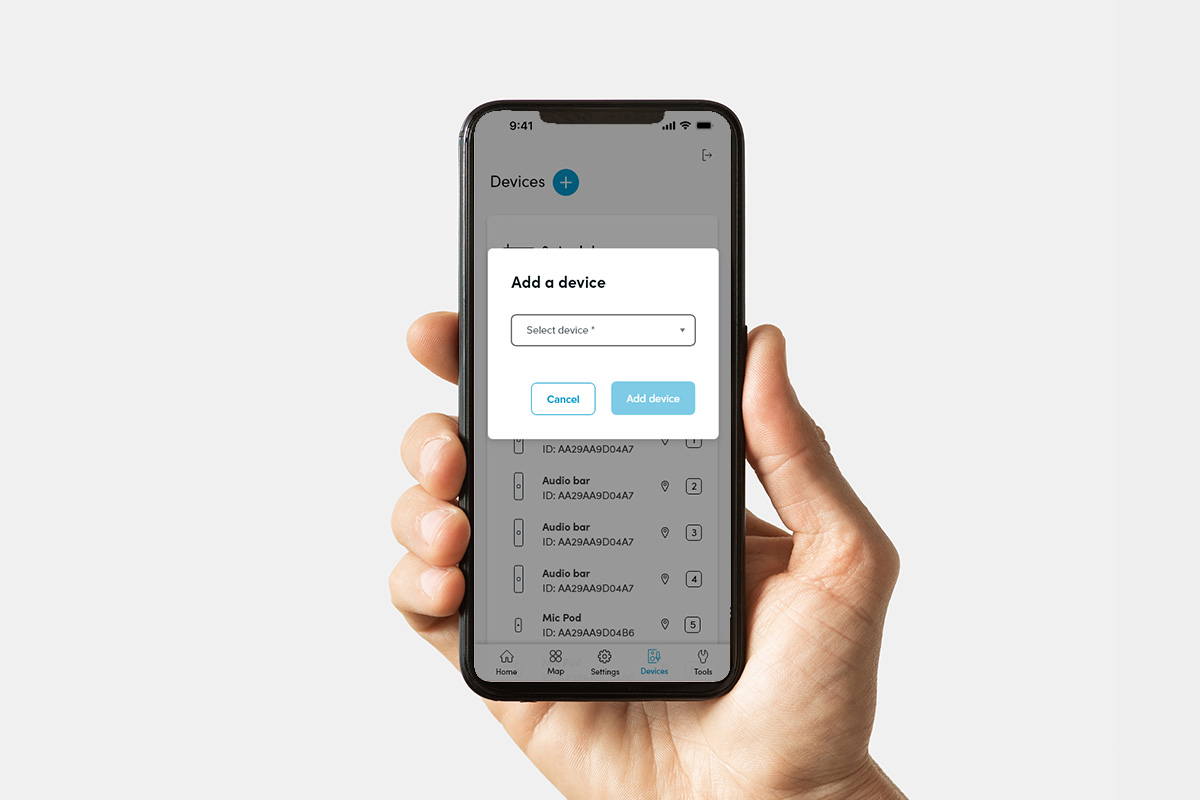
Connect to the primary system hub using the Nureva App.
Go to the Devices page.
Press Add, then select HDX system hub to add the second system hub to the primary one.
Complete the setup to enable full-room audio functionality.

To set up a divisible room:

Connect to the primary system hub using the Nureva App.
Go to the Devices page.
Press Add, then select HDX system hub to add the second system hub to the primary one.
Complete the setup to enable full-room audio functionality.

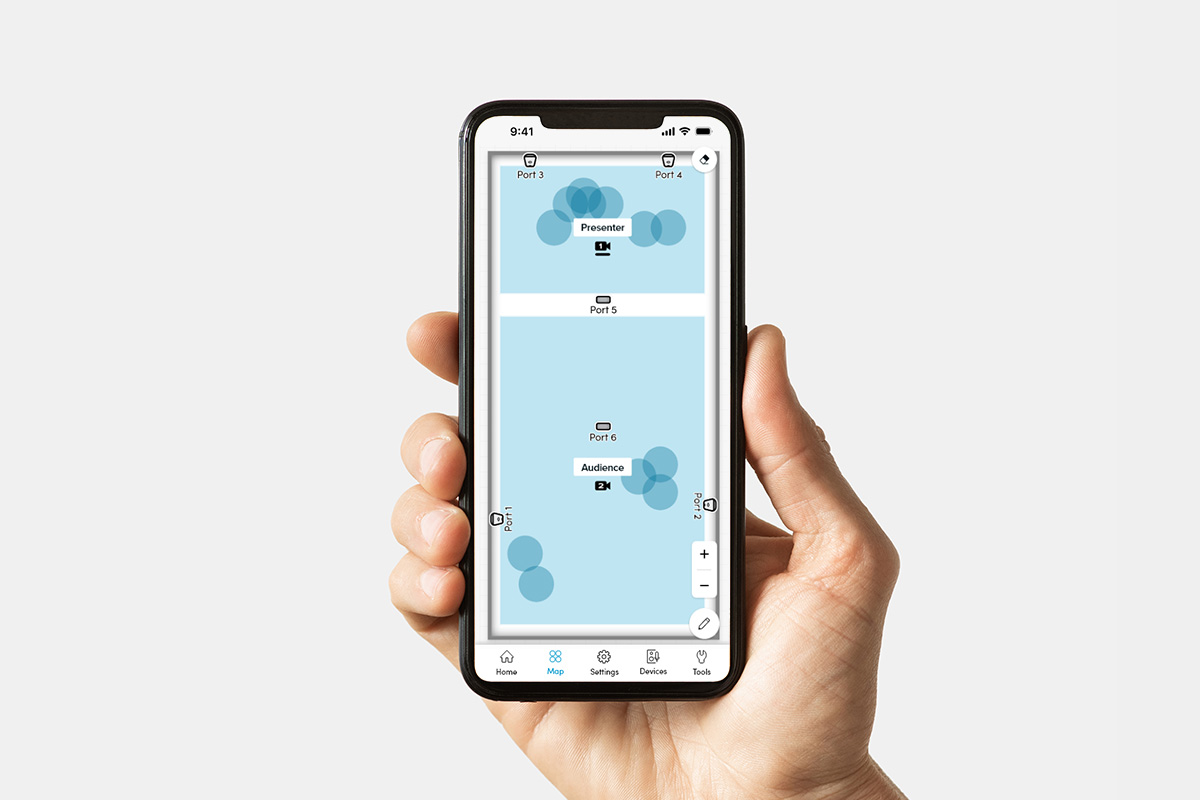
Coverage map

Camera automation

Coverage map

When a Nureva HDX system calibrates, it determines the location and orientation of each audio bar and microphone pod in a room. A coverage map is generated representing the area between each component.

As the HDX system captures sound location data, the coverage map updates to show any changes in the data. The updates occur in near real time and offer up to 5 minutes of sound location data. When new data is received, the oldest data is replaced. Sound location data may not appear if sound is not generated in a room.


Camera switching

HDX makes automated camera switching easy by using precise sound location data generated by Microphone Mist technology. It can detect the location of a person speaking across up to six microphone arrays. It then switches camera views automatically, so remote participants always see the person talking without any need for manual control.

In the Nureva App, you can define camera zones on the coverage map and link them to your preferred camera views or inputs. HDX integrates seamlessly with a wide range of USB switches from INOGENI.

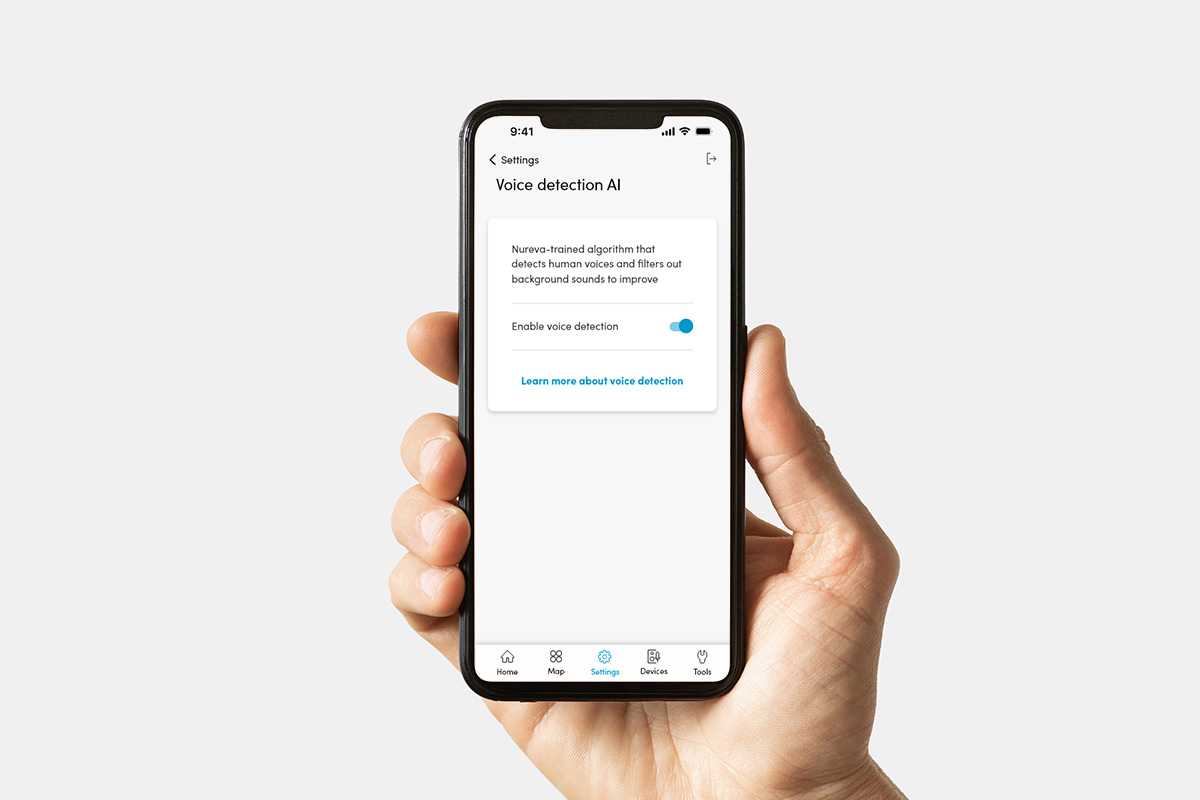
Voice detection AI

Voice detection AI

Voice detection is a pretrained algorithm that differentiates between the human voice and background noise, such as HVAC systems, to improve human voice targeting and audio location data for camera switching and tracking. Voice detection should be enabled when camera switching or tracking is in use.

To use voice detection AI:

In the Nureva App, open the Settings menu.
Open the Voice detection AI page.
Slide the toggle to turn the feature on or off.

System settings

Bluetooth LE

HDX offers Bluetooth Low Energy connectivity to support audio streaming, Nureva App control and handheld remote control.

You can:

  • Enable and disable streaming: Toggle Bluetooth audio streaming on or off, depending on your use case.

  • Set a passcode: Define a secure passcode for Bluetooth LE pairing to restrict access and ensure only authorized devices can connect.

  • Set a custom name: Assign a recognizable name to your HDX device for easy identification during pairing — especially useful in multi-device environments like classrooms and conference rooms.

Device password

A device password is required to manage an HDX system through the Nureva App. The default device password is the enrollment code, which can be found on the bottom of the system hub. The password can be changed at any time after the device has been connected to the Nureva App. 

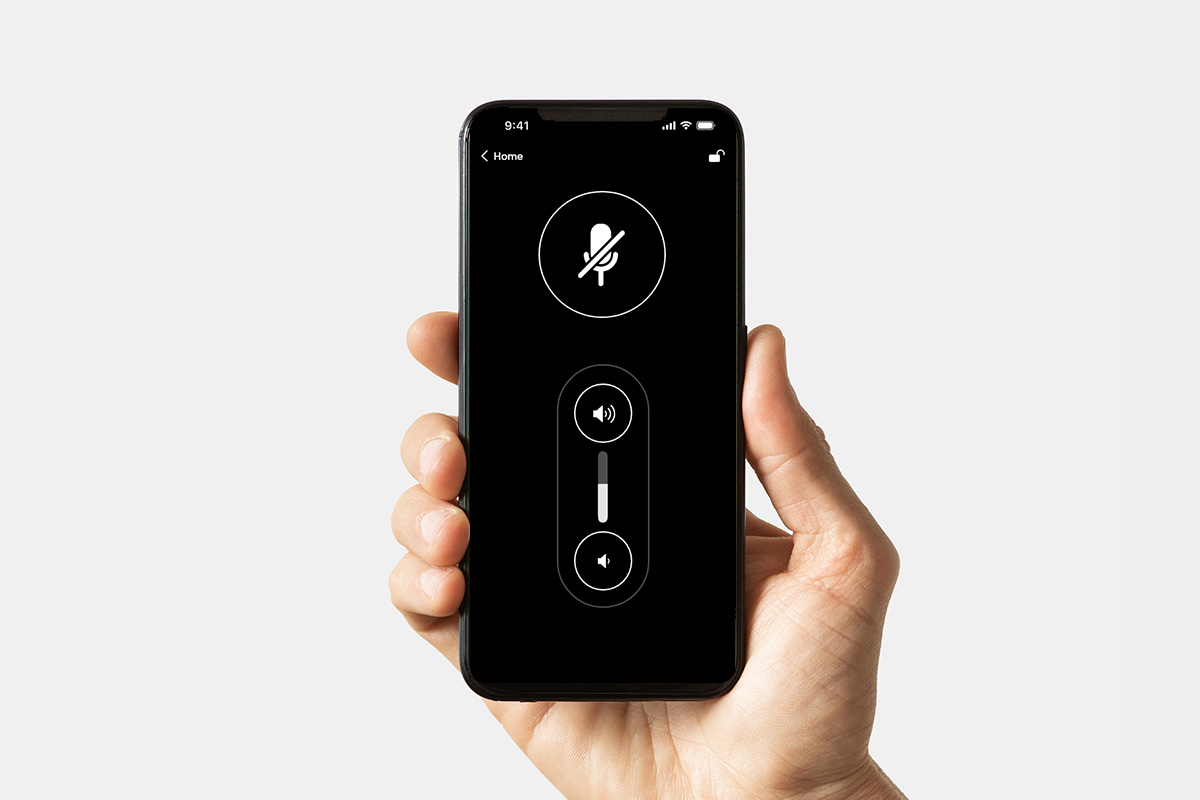
Device control

The device control is built into the Nureva App and provides access to key HDX controls, such as mute and volume. Additional features — like audience mute, divisible room control and camera switching — will appear as they become available.

In-room users can access a simplified, restricted version of the device control from a dedicated tablet, protected by a device password. This virtual remote works offline over the local network, using the system’s existing security model, and no extra configuration is required.

Device control

To use the device control:

In the Nureva App, open the home page.
Click the Remote button to access the device control.


Low power mode

The low power mode on HDX is designed to reduce power consumption by up to 75%. When activated, parts of the system hub remain operational while power is turned off to the audio bars and microphone pods, dropping total system consumption to under 10 watts.

Low power mode can be used whenever the system is not being used. Waking up the system can take up to 45 seconds, so be sure to allow enough time before its next use.

HDX offers three ways to enter low power mode:

1. Automatic sleep

    • Set an idle time: HDX monitors system activity and enters sleep after a user-defined idle time.

      • This feature can be enabled or disabled in the settings.

2. Sleep scheduler

    • Create a 7-day schedule to automatically put HDX into sleep mode at specific times.

3. Sleep APIs

    • Use APIs to automate sleep mode and integrate HDX with third-party systems.

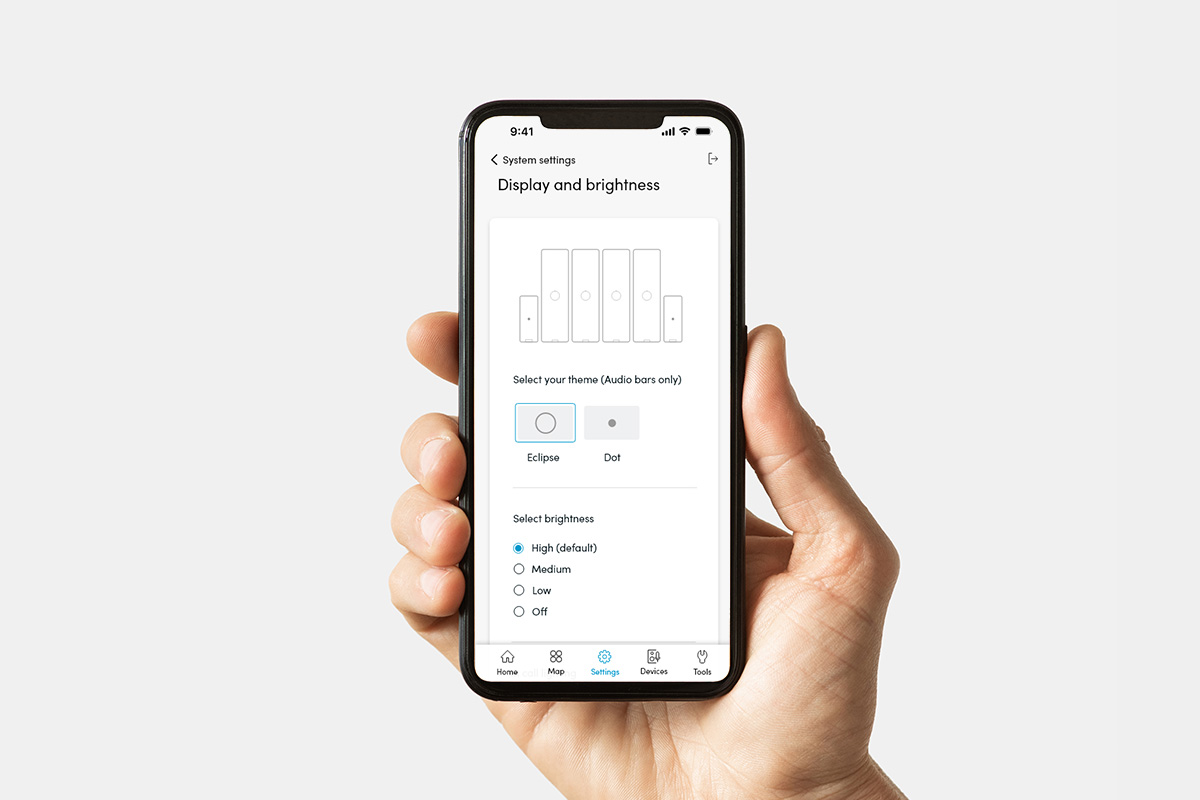
Display and brightness

HDX offers configurable lighting options that provide visual feedback and improve usability. These settings can be adjusted in the Nureva App or the system interface and they include three main controls: Type, in-call color and brightness.

  • Type — Choose between Off, Dot and Eclipse modes, each offering a distinct lighting style on the device.

  • In-call color — Select blue or green to indicate when the system is active in a call.

  • Brightness — Set the lighting to low, medium or high to match your room’s lighting conditions.

With these options you can tailor the HDX lighting modes to fit your room setup and preferences.

Display & brightness

To adjust light settings:

In the Nureva App, open the Settings menu.
Go to System settings and select Display and brightness.
Configure the light settings on that page.


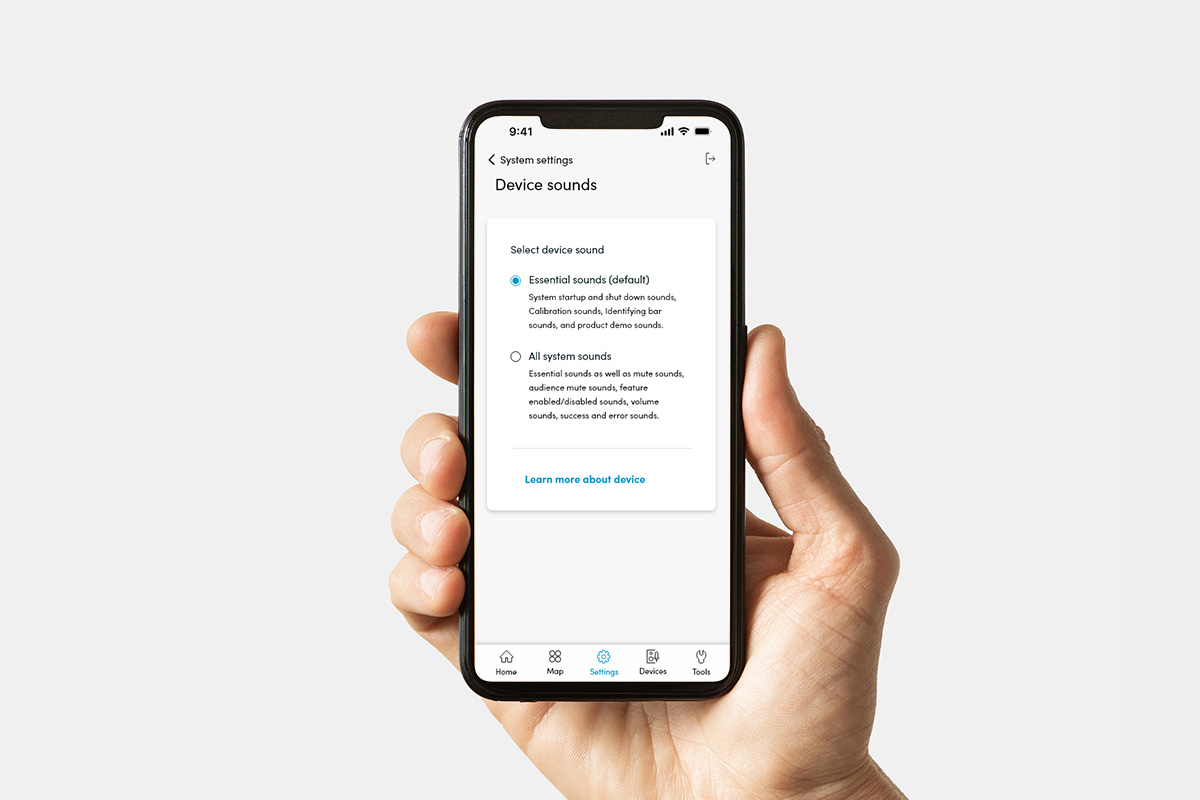
Device sounds

HDX comes with device sounds to provide feedback about system status, system health and key feature activity. These sounds help you to ensure the system is operating correctly and make it easier to identify alerts or issues during setup and regular use.

You can adjust which sounds the system plays through the Nureva App. HDX offers two sound preference options:

Essential sounds only

Plays only critical audio cues, such as device health indicators, alerts and important notifications. This is recommended for most installations, especially in environments where minimal audio disruption is preferred.

All sounds

Includes essential alerts plus all additional feature-related sounds. Select this option if you want audible feedback for every available device function.

Device sounds

To adjust sound preferences:

In the Nureva App, open the Settings menu.
Go to System settings and select Device sounds.
Configure the sound settings on that page.

Device management


Manage locally and remotely

Nureva HDX systems can be managed locally or intelligently monitored from anywhere in the world. Use the code (XXX-XXX-XXX) on the bottom of the system hub as the access password when connecting to the Nureva App or as the enrollment code when connecting to Nureva Console.

Nureva Console

Nureva Console makes it easy to manage and monitor your Nureva products from anywhere. It’s included with every Nureva device.

This secure, cloud-based platform ensures your data is protected. Nureva Console has no network restrictions and it does not require any additional servers to manage it.

Learn more

After purchasing your HDX system, here’s how to get started with Nureva Console.


1. Sign up

Enter your email address and details to create your account.

2. Enter code

Enter your code. This can be found on the bottom of the system hub (XXX-XXX-XXX).

3. Manage

Manage and monitor your devices from anywhere.

Ecosystem and integrations


Using auxiliary ports on an HDX system 

HDX comes with auxiliary ports on the system hub. They are used to send and receive audio streams to and from third-party devices. The auxiliary port options are found in the Nureva App (Devices) and Nureva Console (Settings).

The back of the system hub has six Euroblock connections:

  • Four inputs:

    • Default level: 4 dBu (1.23 Vrms)

    • Input impedance: ≥ 10 kΩ

  • Two outputs:

    • Maximum level: 4 dBu (1.23 Vrms)

    • Output impedance: ≤ 100 Ω

These 3-pin connectors are for balanced (differential) signals (positive, negative and ground). These inputs and outputs can be configured in the Nureva App or Nureva Console when adding a device.

[Image description: Euroblock connectors]

Replacement terminal blocks can be obtained, as long as they are Euroblock compatible, 3.5 mm pitch and a plug type. The connectors provided with HDX are manufactured by Same Sky, part number TBP03P3-350GR.

Adding analog inputs

Adding analog inputs

The four analog inputs can be configured as individual mono inputs or as stereo inputs. To configure as stereo, the pairs must be inputs 1 and 2 or 3 and 4.

To connect and configure the HDX system hub analog inputs:
In the Nureva App, open the Devices section.
Click the + button to add a new device.
In the drop-down menu, select the type of input to be added.
Follow the instructions in the app to configure your inputs.

Adding analog outputs

HDX supports third-party speakers. However, there may be limitations on the number of external speakers that can be used, and consideration will be needed regarding speaker and microphone placement.


UC&C platforms

HDX works with all leading UC&C platforms — the system hub is connected to the device with a USB cable.

Learn more

Audio conferencing setting

Audio conferencing presets in the Nureva App provide a convenient way to select the optimal settings for Microsoft Teams Rooms and Zoom Rooms. When launching the app for the first time, the audio conferencing preset will be Microsoft Teams, the default setting.

Audio conferencing

To adjust audio conferencing settings:

In the Nureva App, open the Settings menu.
Select Audio conferencing.
Adjust the settings on that page.


Developer Toolkit APIs

The Nureva Developer Toolkit gives you access to cloud-based and local APIs. You can integrate Nureva devices with other products to save time and automate tasks.

Nureva’s APIs include:

  • Device management API

  • Device control API

  • Sound location device API

  • Room data API

Third-party integrations include:

  • Camera tracking

  • Control system

Learn more

Troubleshooting


Hardware check

Quick troubleshooting steps to resolve most common issues:

  • Power: Ensure the HDX system is powered and it is plugged into a working power source. Resetting the power will often address small issues. Unplug the AC power adapter cable from the port of the system hub. Wait about 30 seconds before plugging it back in.

  • Cables: Verify all cables are securely connected to the system hub, audio bars and microphone pods.

  • Network connection: Check the external network connection, which allows the HDX system to automatically update and have access to the latest features. The system can also be manually updated using the Nureva App, but this requires the HDX system to be connected to the network.

  • Microphone pickup: If the HDX system has been moved or the room has changed, a quick calibration will often resolve audio issues.

  • System hub LEDs: The status indicator lights on the front and back of the system hub can be used to help troubleshoot issues with the system and confirm the device is ready to be used.

App-Troubleshoot

Troubleshoot using the Nureva App

In the Nureva App, you can check the health of an HDX system and perform actions that will help when troubleshooting:

  • Update — Install the latest software update (see Step 4: Update).

  • Calibrate — Recalibrate the system if the room layout or acoustics have changed.

  • Restart — Perform a system restart (same as unplugging and plugging it back in).

  • Check device connections — Confirm all HDX components are properly connected.

You can also use Tools in the app to help quickly diagnose and resolve issues with HDX systems.

Tool

Description

Network check

Confirm successful connection to all required services.

Reset to default settings

Reset HDX to the default audio settings. Any changes you may have made to the audio settings will be lost.

Download logs

Download logs to share with your support technician to troubleshoot device issues.

Contact support

support.nureva.com

Warranty

  • System hub — standard 2-year limited hardware

  • Accessories and cables — 30 days

  • Extended warranty available with purchase of Nureva Pro extension