Previous section
HDX installation BETA

The HDX user guide is in three parts. This third section covers the steps for physically installing and setting up your Nureva® HDX system, including mounting the components, connecting the cables and running an update.
Audio bar installation
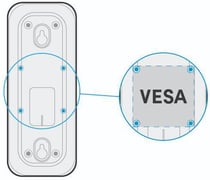
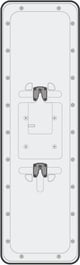
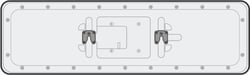
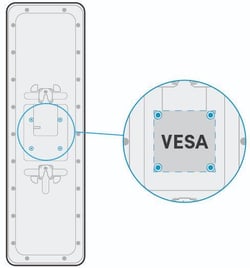
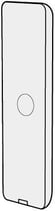
The audio bar can be installed vertically or horizontally on the wall with the mounting bracket provided. A portable stand with VESA® standard mounting may also be used.

Vertical

Horizontal

VESA
The installation steps for both vertical and horizontal orientations on the wall are provided below.
What’s in the box

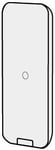
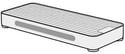
Audio bar

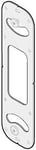
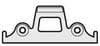
Mounting bracket

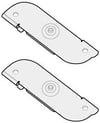
Mounting template
What you’ll need
- CAT5e or higher Ethernet cable: See Ethernet cable requirements.
- Screwdriver
- Drill
- Anchors: #10 panhead or M5 panhead minimum (x2)
- Screws: #10 panhead or M5 panhead minimum (x2)
- Pencil or pen for marking
- Ladder, level and tape measure
Wall mount — vertical and horizontal
|
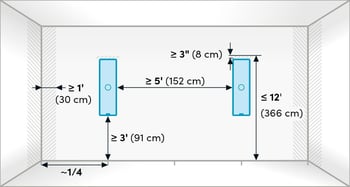
1. Plan the mounting location Select an appropriate location on the wall for installation. See HDX placement for guidance on locations. |
![]() |
|
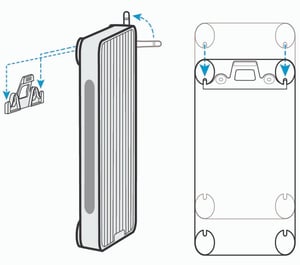
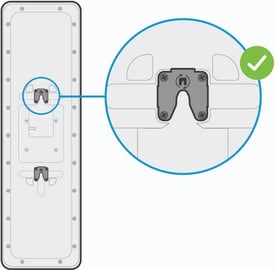
2. Choose orientation Vertical orientation: The mounting squares on the back of the audio bar come pre-attached for vertical mounting, with the notches facing the floor. |
![]() |
|
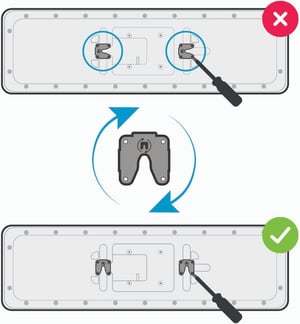
Horizontal orientation: Hardware adjustment is required to install the audio bar in the horizontal position:
|
|
|
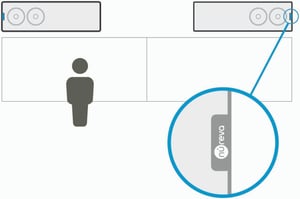
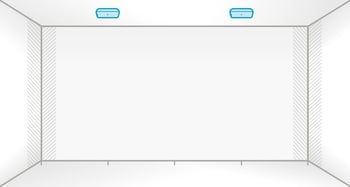
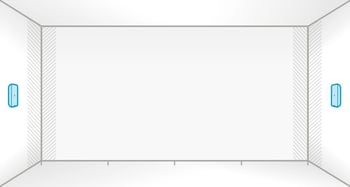
✍️ Note: For horizontal installation, ensure the Nureva logo on each audio bar is positioned at opposite ends, facing away from each other. The speakers are positioned near the Nureva logo, and this arrangement ensures proper speaker dispersion across the room. |
|
|
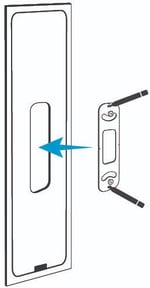
3. Mark for installation Use the mounting template provided to aid installation.
|
![]() |
|
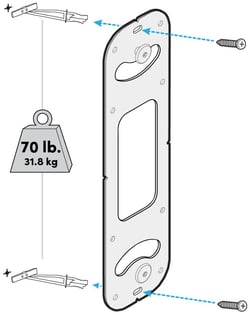
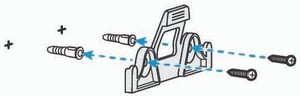
4. Install the mounting bracket Ensure the drill points are level vertically, drill the holes, insert wall anchors if needed and secure the mounting bracket with screws. |
![]() |
|
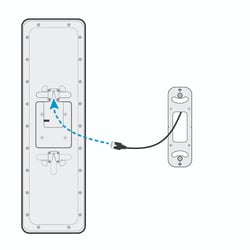
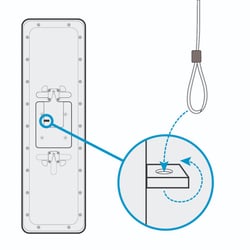
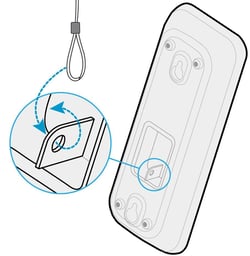
5. Route the Ethernet cable Run the Ethernet cable to the mounting area and plug it into the back of the audio bar before mounting it on the wall. 💡 Tip: For added security, you can attach a security wire or tether through the small hole in the metal frame on the back of the audio bar. |
![]() |
|
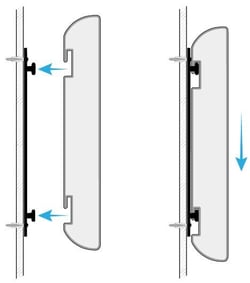
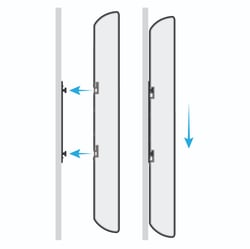
6. Mount the audio bar Align the audio bar mounting squares above the pegs on the mounting bracket. Slide the audio bar downward until it’s secured in place. |
![]() |
|
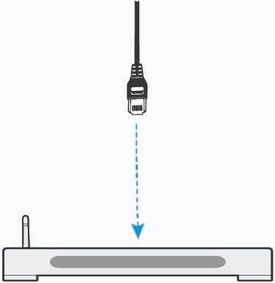
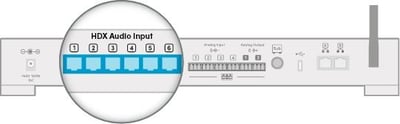
7. Connect to system hub Connect the other end of the Ethernet cable to one of the HDX audio input ports on the system hub. |
![]() |
VESA mount
HDX audio bars may be installed using VESA standard mounts (display mounts, floor stands or mobile carts). Follow the mount manufacturer’s instructions. All the applicable vertical and horizontal installation guidelines above still apply — a VESA standard mount may be used in place of the wall mount bracket but the positioning, clearance and orientation guidelines should still be followed.
Mounting considerations:
- Verify the mount is rated to support the weight of the HDX audio bar.
- Ensure stability in both vertical and horizontal orientations.
- For floor stands, confirm the base is stable and resistant to vibration.
- Always follow the mount manufacturer’s specifications.
Audio bar FAQs
Yes. The HDX audio bar can be installed vertically or horizontally. Horizontal installation requires rotating the mounting squares on the back of each audio bar so the notches face downward. For each pair of audio bars, ensure the Nureva logos are at opposite ends, facing away from each other, for proper speaker dispersion.
Each HDX component (audio bar and microphone pod) requires an Ethernet cable that meets the following specifications: CAT5e or higher, unshielded twisted pair (UTP) and 24 AWG (solid copper). Nureva recommends using cabling and wiring that is in accordance with the applicable national, regional and local electrical codes or ordinances.
Microphone pod installation
The microphone pod can be installed on the ceiling or on the wall with the mounting bracket provided. A portable stand with VESA standard mounting may also be used.

Ceiling mounted

Wall mounted

VESA
What’s in the box

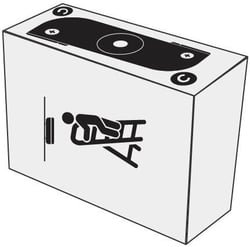
Microphone pod
Mounting bracket

T-bar clips x2

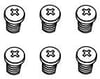
M3 panhead screws x6

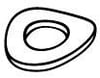
Wave washers x2
What you’ll need
- CAT5e or higher Ethernet cable: See Ethernet cable requirements.
- Screwdriver
- Ladder, level and tape measure
Additional items when mounting to wall or directly to ceiling:
- Drill
- Anchors: #10 panhead or M5 panhead minimum (x2)
- Screws: #10 panhead or M5 panhead minimum (x2)
- Pencil or pen for marking
Ceiling mount
|
1. Plan the mounting location Choose a suitable location on the ceiling for optimal audio pickup. Refer to HDX placement for guidance on locations. |
![]() |
|
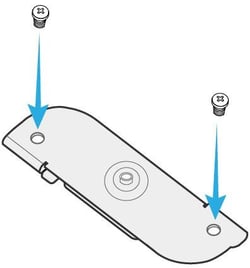
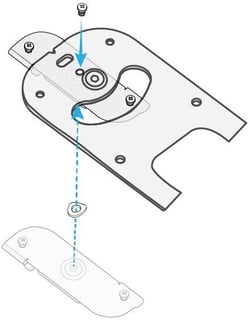
2. Attach T-bar clips to the mounting bracket
|
|
✍️ Note: Do not fully tighten the screws yet. Final tightening will be done after the bracket is mounted. |
|
Repeat the steps above for the second T-bar clip. |
|
|
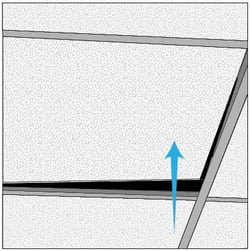
3. Prepare ceiling T-bar Position a ladder under the mounting spot. Lift and move the ceiling tiles aside to access the T-bar grid. |
![]() |
|
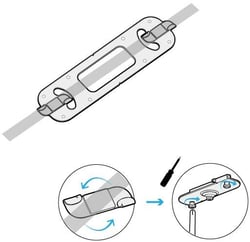
4. Secure the mounting bracket to the T-bar
|
![]() |
|
5. Route the Ethernet cable Run the Ethernet cable through the ceiling and down through the center opening of the mounting bracket. 💡 Tip: You may need to notch the ceiling tile slightly to allow it to lay flat after routing the cable. Plug the Ethernet cable into the port on the back of the microphone pod before mounting it. |
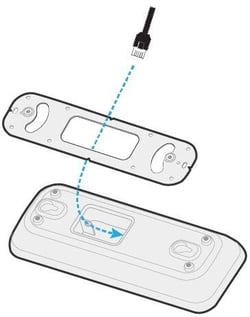
![]() |
|
💡 Tip: For added security, you can attach a security wire or tether through the small hole in the metal frame on the back of the microphone pod. |
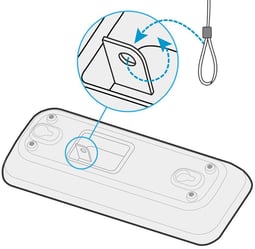
![]() |
|
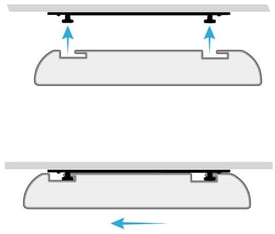
6. Mount the microphone pod
|
|
|
7. Connect to system hub Connect the other end of the Ethernet cable to any HDX audio input port on the system hub. |
![]() |
Wall mount
The following steps for mounting on the wall can also be followed for directly mounting on the ceiling.
|
1. Plan the mounting location Choose a suitable location on the wall for optimal audio pickup. Refer to HDX placement for guidance on locations. |
![]() |
|
2. Mark for installation Position the mounting bracket on the wall in the chosen location. Trace the two center oblong holes in the mounting bracket with a pencil or pen to mark drill points. |
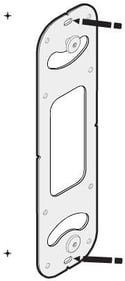
![]() |
|
3. Mount the bracket Ensure the drill points are level vertically, drill the holes, insert wall anchors if needed and secure the mounting bracket with screws. |
![]() |
|
4. Route the Ethernet cable Run the Ethernet cable to the mounting area and plug it into the back of the microphone pod. 💡 Tip: For clean cable management, route cables through the wall and out the center of the mounting bracket, or surface‑run and conceal them behind the microphone pod. |
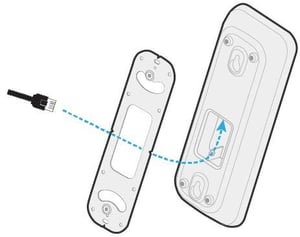
![]() |
|
💡 Tip: For added security, you can attach a security wire or tether through the small hole in the metal frame on the back of the microphone pod. |
|
|
5. Attach the microphone pod
|
|
|
6. Connect to system hub Connect the other end of the Ethernet cable to any HDX audio input port on the system hub. |
![]() |
VESA mount
HDX microphone pods may be installed using VESA standard mounting solutions, including ceiling extension mounts, wall mounts, display mounts and other supported structures. Follow the mount manufacturer’s instructions. All the applicable microphone pod installation guidelines above still apply — a VESA standard mount may be used in place of mounting on the ceiling or wall but the instructions above should still be followed as well as microphone placement guidelines.
Mounting considerations:
- Verify the mount is rated to support the weight of the HDX microphone pod.
- Confirm stability for wall, ceiling or extended‑mount installations.
- For floor stands. confirm the base is stable and resistant to vibration.
- Always follow the mount manufacturer’s specifications.
Microphone pod FAQs
Yes. The HDX microphone pod can be installed horizontally. However, the microphone pod is more securely mounted when it is installed vertically, as the keyhole design on the back, used with the included mounting bracket, is positioned for vertical orientation. For horizontal wall installation, a third-party mounting solution, such as a VESA standard mount, is recommended.
Each HDX component (audio bar and microphone pod) requires an Ethernet cable that meets the following specifications: CAT5e or higher, unshielded twisted pair (UTP) and 24 AWG (solid copper). Nureva recommends using cabling and wiring that is in accordance with the applicable national, regional and local electrical codes or ordinances.
System hub installation
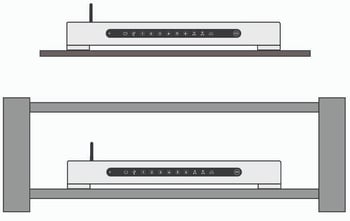
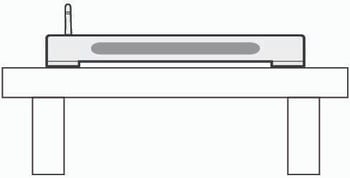
The system hub can be placed on a table, shelf or rack, or it can be mounted on a wall.

Table, shelf or rack placement

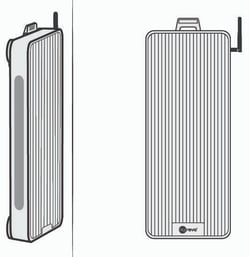
Wall mounted
What’s in the box


What you’ll need
- CAT5e or higher Ethernet cable: See Ethernet cable requirements.
Additional items when mounting to the wall:
- Screwdriver
- Drill
- Anchors: #10 panhead or M5 panhead minimum (x2)
- Screws: #10 panhead or M5 panhead minimum (x2)
- Pencil or pen for marking
Table, shelf or rack
|
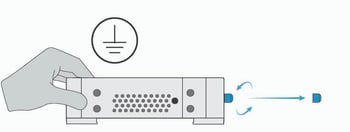
1. Install the Bluetooth antenna
⚠️ Warning — Avoid touching the connector or inner pin as doing so can damage the system hub. ✍️ Note: If it’s preferred Bluetooth LE is not enabled, leave the antenna off and ensure the protective cap remains in place. |
|
|
2. Place the system hub on a sturdy table, shelf or rack ✍️ Note: Ensure adequate airflow clearance on all sides. Refer to the HDX placement guidelines. |
|
Wall mount
|
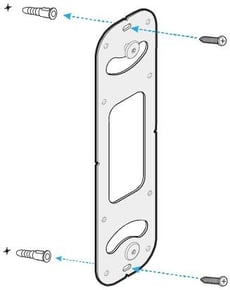
1. Mark for installation Position the mounting bracket vertically on the wall at the chosen location and mark the drill points using a pencil or pen. |
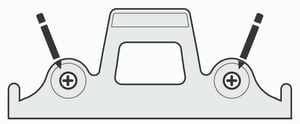
![]() |
|
2. Install the mounting bracket Ensure the drill points are level, drill the holes, insert anchors if needed and secure the mounting bracket with screws. |
|
|
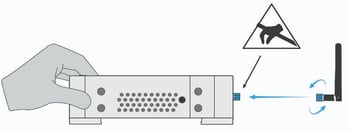
3. Install the Bluetooth antenna
⚠️ Warning — Avoid touching the connector or inner pin as doing so can damage the system hub. ✍️ Note: If it’s preferred Bluetooth LE is not enabled, leave the antenna off and ensure the protective cap remains in place. |
|
|
4. Clip the system hub onto the mounting bracket. Ensure the antenna is vertically oriented and the LED indicator lights are facing forward. ✍️ Note: Ensure adequate airflow clearance on all sides. Refer to the HDX placement guidelines. |
|
System hub FAQs
Yes. The HDX system hub comes with a mounting bracket for wall installation. The orientation should be vertical, with the Nureva logo at the bottom and the antenna at the top.
The HDX system connects to each component (audio bar and microphone pod) with an Ethernet cable (which you will need to supply). Ethernet cables should be CAT5e or higher, unshielded twisted pair (UTP) and 24 AWG (solid copper). Nureva recommends using cabling and wiring that is in accordance with the applicable national, regional and local electrical codes or ordinances.
Ethernet cable requirements
HDX does not include Ethernet cables for connecting the system hub to the audio bars and microphone pods and connecting the system hub to the network. Nureva recommends using cabling and wiring that is in accordance with the applicable national, regional and local electrical codes or ordinances.
Nureva recommends Ethernet cables are:
- CAT5e or higher
- UTP (unshielded twisted pair)
- 24 AWG (solid copper)
HDX connection steps

|
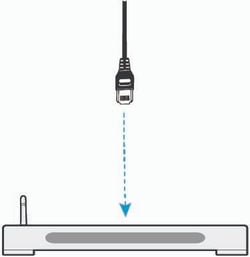
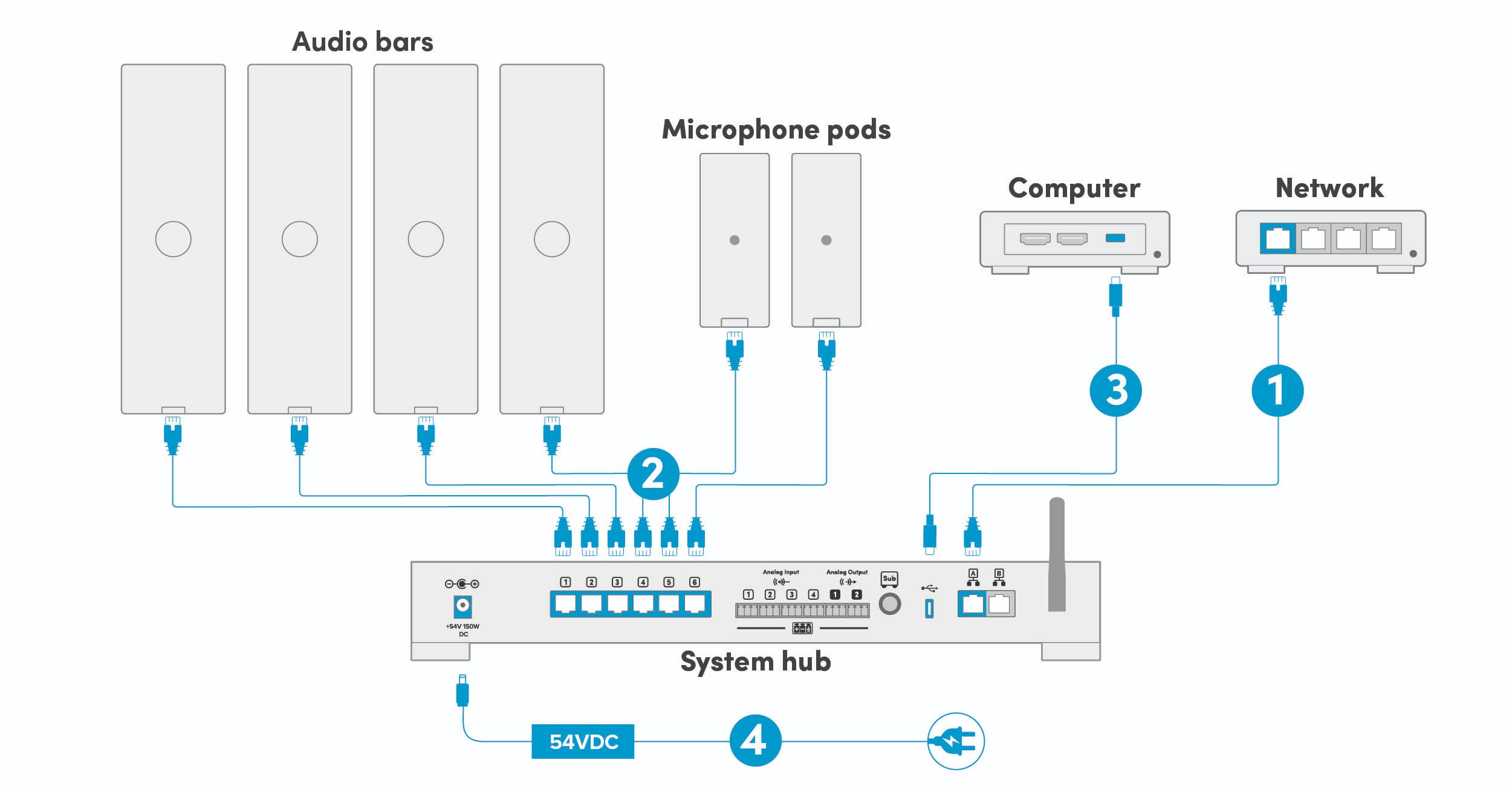
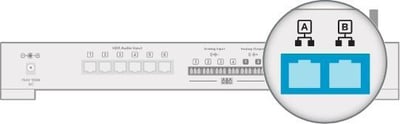
1. Connect the network cable
✍️ Note: If the system hub is not connected to an external network, updates must be done manually. |
![]() |
|
2. Connect the audio bars and (if applicable) microphone pods
|
|
|
3. Connect the computer or appliance The HDX system can now be connected to a computer or a conferencing device:
A USB-C to USB-A adapter is included, if required. |
|
|
It is recommended that all HDX components be physically installed in the room before connecting the system to the power supply. |
|
|
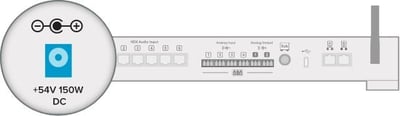
4. Connect the power supply ⚠️ Warning — risk of equipment damage: Do not plug or unplug Ethernet cables running from the audio bars and microphone pods to the system hub while the system hub is powered on. Doing so can permanently damage the system. |
|
Calibrating HDX
Calibration tunes the HDX system to the unique acoustics of your room. Running calibration ensures optimal microphone pickup and speaker performance so every conversation sounds clear and natural.
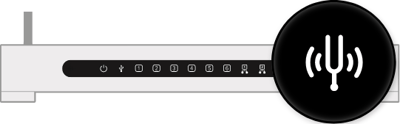
To calibrate the HDX system, press the calibrate button on the front of the system hub. The calibration sounds will start immediately.
When the calibration sequence has finished, your remote can be paired and a system update will be required.
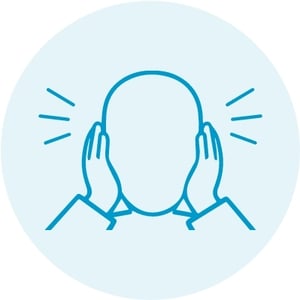
⚠️ Warning — HDX calibration is loud: A static like sound will play for up to 45 seconds. Cover your ears or wear hearing protection. Remain quiet and still until calibration finishes.


Pairing the remote
The remote will automatically attempt to pair with the system hub after the remote’s batteries have been inserted. To disconnect the remote from the system hub, press and hold the customizable button 2 and volume-down button 4 simultaneously for 3 seconds. This will clear any existing connection. To pair the remote with the system hub again, press any button to initiate the pairing process.
Pairing the remote is only possible when the Bluetooth antenna is attached.
Updating HDX
An update will be required when setting up an HDX system for the first time to ensure all features function as intended. Keeping the HDX system up to date also helps maintain performance, security and access to the latest audio features and improvements.
To learn about network requirements for updates, see network requirements.
First-time update
For the initial setup, update the HDX system over USB using a computer that is connected to the internet.
Update steps
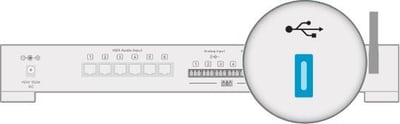
- Plug the provided USB-C cable into the USB-C port on the system hub.
- Plug the other end of the USB-C cable into a USB-C port on the computer.
- A USB-C to USB-A adapter is included, if required. - Open a web browser and enter 169.254.253.253 in the address bar.
- When prompted, enter the unique code printed on the bottom of the system hub.
- This code (format XXX-XXX-XXX) is the default password for accessing the Nureva App.
- You can change the password later in Settings. - The Nureva App opens in the browser. Press the Update button.
- Follow the on-screen instructions and keep the system powered on until the update is complete.
Learn more about all HDX update options.
Once the update is complete, the HDX system is ready for use. We recommend placing a test call to confirm optimal audio performance for both remote participants and in-room users. Verify that the HDX system is selected as the default audio device in your operating system as well as in your UC&C or audio conferencing application.
The HDX system can be managed locally through the Nureva App and enrolled in Nureva Console to remotely monitor and manage it from anywhere.
Ecosystem and integrations
Adding physical integrations
Using auxiliary ports on an HDX system
HDX comes with auxiliary ports on the system hub. They are used to send and receive audio streams to and from third-party devices. The auxiliary port options are found in the Nureva App (Devices) and Nureva Console (Settings).
|
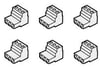
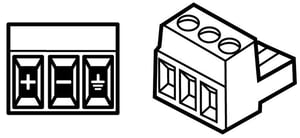
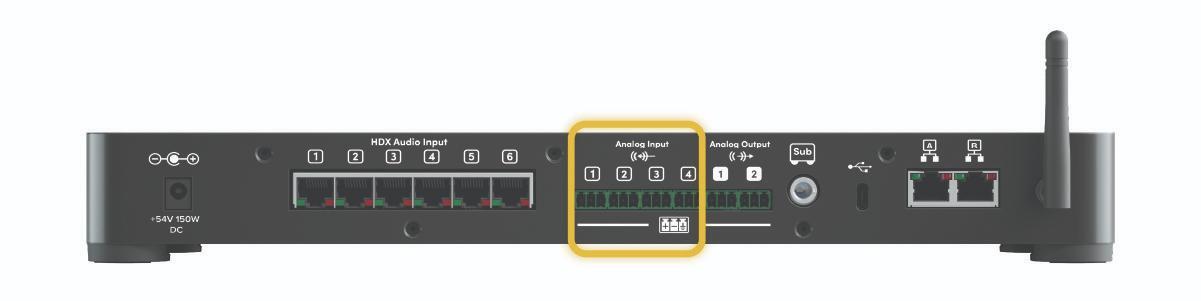
The back of the system hub has six Euroblock connections:
|
|
|
Euroblock connectors These 3-pin connectors are for balanced (differential) signals (positive, negative and ground). These inputs and outputs can be configured in the Nureva App or Nureva Console when adding a device. |
|
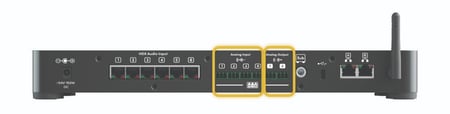
Replacement terminal blocks can be obtained, as long as they are Euroblock compatible, 3.5 mm pitch and a plug type. The connectors provided with HDX are manufactured by Same Sky, part number TBP03P3-350GR.
Adding analog inputs
The four analog inputs can be configured as individual mono inputs or as stereo inputs. To configure as stereo, the pairs must be inputs 1 and 2 or 3 and 4.
Use the Nureva App to add new analog input devices to your HDX system. Learn more.

Adding analog outputs
HDX supports third-party speakers. However, there may be limitations on the number of external speakers that can be used, and consideration will be needed regarding speaker and microphone placement.
UC&C platforms
HDX works with all leading UC&C platforms — the system hub is connected to the audio conferencing device with a USB cable.
The default setting in the Nureva App is optimal for Microsoft® Teams Rooms. This setting can be switched to Zoom Rooms.
Developer Toolkit APIs
The Nureva Developer Toolkit gives you access to cloud-based and local APIs. You can integrate Nureva devices with other products to save time and automate tasks.
Nureva’s APIs include:
- Device management API
- Device control API
- Sound location device API
- Room data API
Third-party integrations include:
- Camera tracking
- Control system
Network requirements
The HDX system hub has two network ports that provide connection with the Nureva App and Nureva Console for device management, updates and monitoring. These Ethernet ports support integrations with room control systems and camera systems and they support AVoIP with 2x2 channels to send or receive audio over the LAN to external audio systems.
Configuration tips
- Ensure port 8883 is open and the MQTT protocol is allowed on your network.
- Ensure the network uses Dynamic Host Configuration Protocol (DHCP) to assign the Internet Protocol (IP) address.
- Note that HDX does not support proxy server configurations.
- Ensure port 123 is open and the Network Time Protocol (NTP) is allowed on your network.
- Note that static IP addresses are not supported by HDX at this time.
When enhanced internet security measures or firewalls are being used, some URLs and IP addresses will need to be approved to allow for a steady connection.
URLs to approve
| Service | URLs |
| Configuration | https://app.launchdarkly.com https://clientstream.launchdarkly.com https://events.launchdarkly.com https://stream.launchdarkly.com |
| Firmware updates | https://nurevaproddistribution.blob.core.windows.net https://versions.nureva.com |
| Device enrollment to Nureva Console | https://account-management-service.nureva.com |
| IoT Hub | gateway-iothub-prod.azure-devices.net Needs either port 8883 for MQTT protocol or port 443 for SSL |
| System software updates | https://api.snapcraft.io https://assertions.ubuntu.com https://cloudfront.cdn.snapcraftcontent.com https://login.ubuntu.com |
| Telemetry | https://dc.applicationinsights.azure.com https://dc.applicationinsights.microsoft.com https://dc.services.visualstudio.com Ad blocking breaks telemetry functionality (continuous connection) |
| NTP | ntp.ubuntu.com |
IP addresses to approve
| Service | IP address |
| LaunchDarkly | 18.209.243.58 (events.launchdarkly.com) |
| Microsoft — services | 20.166.40.71 |
| Microsoft — Azure cloud | 20.50.65.88 |
| Microsoft — Network management, load balancing | 20.9.155.145 |
| Microsoft — Network management, load balancing | 20.9.155.148 |
| Microsoft — Network management, load balancing | 20.9.155.150 |
| Amazon Web Services (AWS) | 23.23.137.6 |
| Amazon Web Services (AWS) | 3.229.64.113 |
| Amazon Web Services (AWS) | 3.231.244.68 |
| AWS — Network management, load balancing | 3.209.131.209 |
| AWS — Network management, load balancing | 3.215.101.233 |
| AWS — Network management, load balancing | 3.218.251.176 |
| AWS — Network management, load balancing | 3.224.157.225 |
| Amazon Web Services (AWS) | 52.84.90.126 |
| Amazon Web Services (AWS) | 54.147.5.20 |
Troubleshooting
Quick troubleshooting steps to resolve most common issues:
-
Power: Ensure the HDX system is powered on and it is plugged into a working power source. Resetting the power will often address small issues. Unplug the AC power adapter cable from the port of the system hub. Wait about 30 seconds before plugging it back in.
-
Cables: Verify all cables are securely connected to the system hub, audio bars and microphone pods. Check Ethernet cable requirements to ensure cable types are supported.
-
Network connection: Check the external network connection, which allows the HDX system to automatically update and have access to the latest features. The system can also be manually updated using the Nureva App, but this requires the HDX system to be connected to the network.
-
Microphone pickup: If the HDX system has been moved or the room layout has changed, a quick calibration will often resolve audio issues.
-
System hub LEDs: The status indicator lights on the front and back of the system hub can help when troubleshooting issues with the system and confirming the device is ready to be used.
-
Nureva App: Monitor the health of your HDX system in the Nureva App and perform key troubleshooting actions, such as update, calibrate, restart and check device connections. Learn more.