Previous section
HDX installation BETA

The HDX user guide is in three parts. This third section covers the steps for physically installing and setting up your Nureva® HDX system, including mounting the components, connecting the cables and running an update.
Audio bar installation
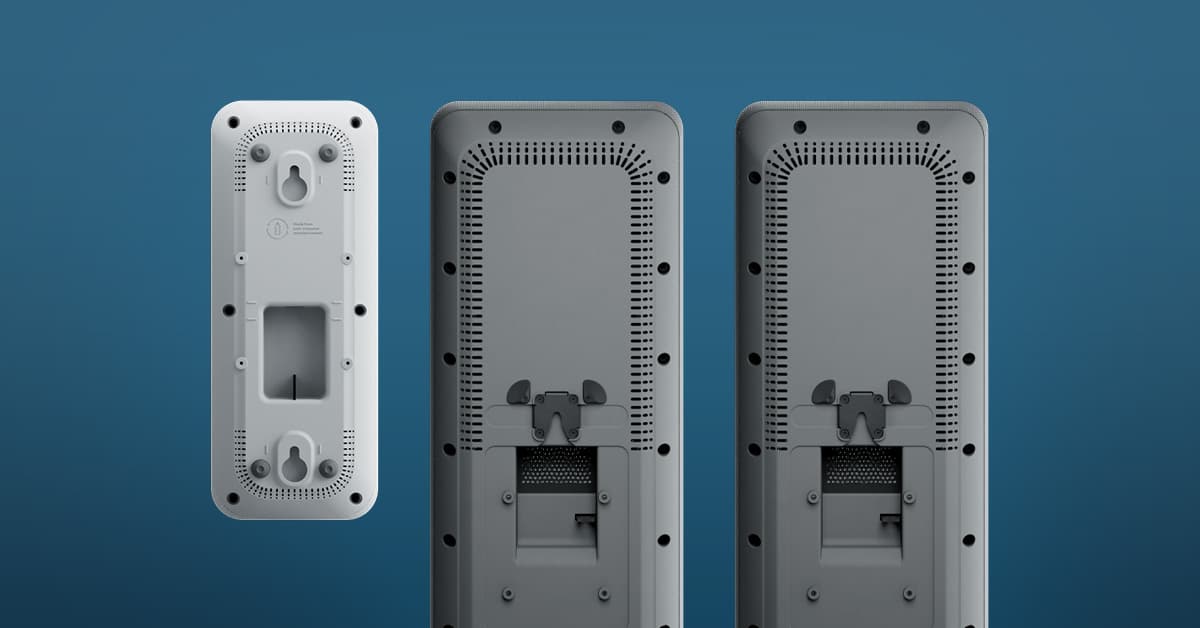
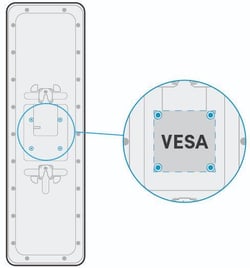
The audio bar can be installed vertically or horizontally on the wall with the mounting bracket provided. It may also be secured to a compatible 100 x 100 mm VESA® mount, including a third-party floor stand, display mount or other mounting hardware. Learn more about third-party mounting options.

Vertical

Horizontal

VESA
The installation steps for both vertical and horizontal orientations on the wall are provided below.
What’s in the box

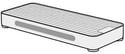
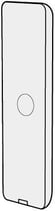
Audio bar

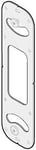
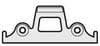
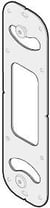
Mounting bracket

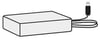
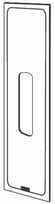
Mounting template
What you’ll need
- CAT5e or higher Ethernet cable: See Ethernet cable requirements.
- Anchors (x2): Use mounting anchors compatible with a #10 or M5 (minimum) panhead screw. Anchors must support at least four times the combined weight of the audio bar and mounting bracket. Use anchors rated for ≥70 lb (32 kg). Always follow applicable local regulations, building codes and site-specific installation requirements. See the audio bar specifications for dimension details.
- Screws: #10 panhead or M5 panhead minimum (x2)
- Pencil or pen for marking
- Screwdriver, drill, ladder, level and tape measure
Wall mount — vertical and horizontal
|
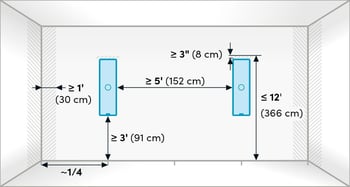
1. Plan the mounting location Select an appropriate location on the wall for installation. See HDX placement for guidance on locations. |
![]() |
|
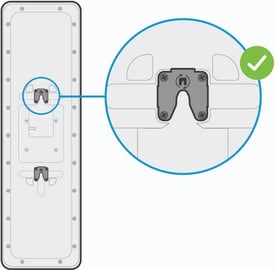
2. Choose orientation Vertical orientation: The mounting squares on the back of the audio bar come pre-attached for vertical mounting, with the notches facing the floor. |
![]() |
|
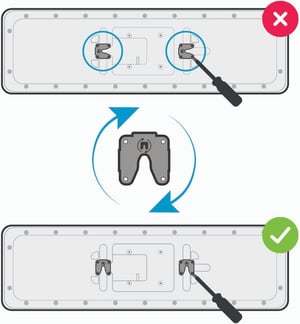
Horizontal orientation: Hardware adjustment is required to install the audio bar in the horizontal position:
|
|
|
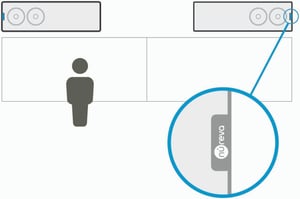
✍️ Note: For horizontal installation, ensure the Nureva logo on each audio bar is positioned at opposite ends, facing away from each other. The speakers are positioned near the Nureva logo, and this arrangement ensures proper speaker dispersion across the room. |
|
|
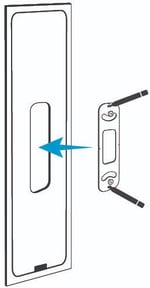
3. Mark for installation Use the mounting template provided to aid installation.
|
![]() |
|
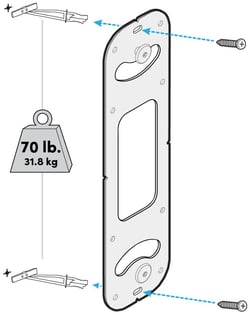
4. Install the mounting bracket Ensure the drill points are level vertically, drill the holes, insert wall anchors if needed and secure the mounting bracket with screws. ⚠️ Mounting safety — wall anchors must be able to support four times the equipment weight. The audio bars anchor load should support 70 lb. (32 kg). |
![]() |
|
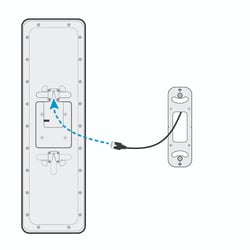
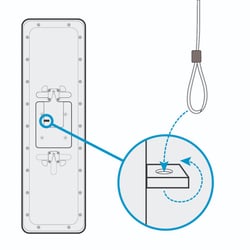
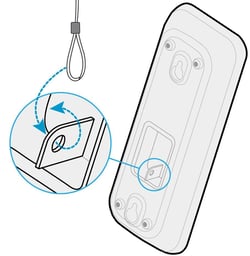
5. Route the Ethernet cable Run the Ethernet cable to the mounting area and plug it into the back of the audio bar before mounting it on the wall. 💡 Tip: For added safety (optional), you can attach a loose safety cable or tether through the small hole in the metal frame on the back of the audio bar. |
|
|
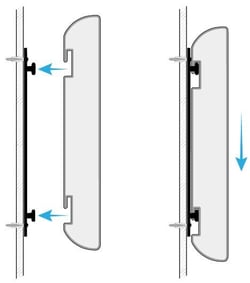
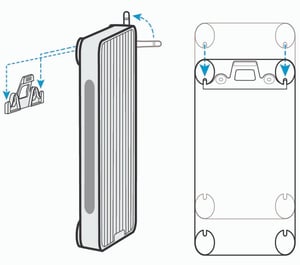
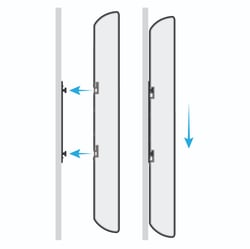
6. Mount the audio bar Align the audio bar mounting squares above the pegs on the mounting bracket. Slide the audio bar downward until it’s secured in place. |
![]() |
|
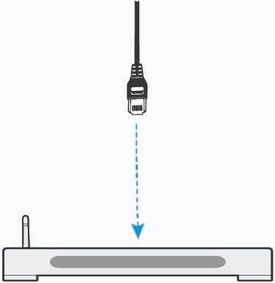
7. Connect to system hub Connect the other end of the Ethernet cable to one of the HDX device ports on the system hub. |
![]() |
VESA mount
HDX audio bars may be installed using VESA 100 x 100 mm compatible mounts (display mounts, floor stands or mobile carts). Follow the mount manufacturer’s instructions. All the applicable vertical and horizontal installation guidelines above still apply — a VESA mount may be used in place of the wall mount bracket but the positioning, clearance and orientation guidelines should still be followed.
Third-party display mounts, floor stands and mobile carts may also be used for temporary or movable installations where a permanent wall-mounting option is unavailable. Learn more.
Mounting considerations:
- Verify the mount is rated to support four times the combined weight of the HDX audio bar and mounting bracket.
- Ensure stability in both vertical and horizontal orientations.
- For floor stands, confirm the base is stable and resistant to vibration.
- Always follow the mount manufacturer’s specifications.
- Verify support for the VESA 100 x 100 mm mounting pattern.
Audio bar FAQs
Yes. The HDX audio bar can be installed vertically or horizontally. Horizontal installation requires rotating the mounting squares on the back of each audio bar so the notches face downward. For each pair of audio bars, ensure the Nureva logos are at opposite ends, facing away from each other, for proper speaker dispersion.
Each HDX component (audio bar and microphone pod) requires an Ethernet cable that meets the following specifications: CAT5e or higher, unshielded twisted pair (UTP) and 24 AWG (solid copper). Nureva recommends using cabling and wiring that is in accordance with the applicable national, regional and local electrical codes or ordinances.
Microphone pod installation
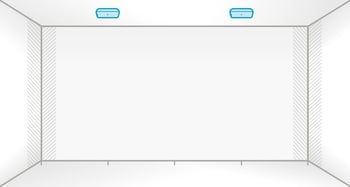
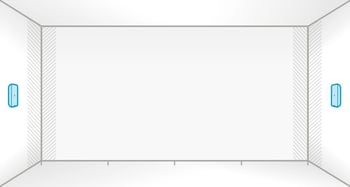
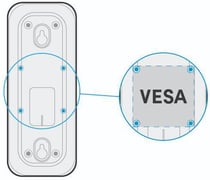
The microphone pod can be installed on the ceiling or on the wall with the mounting bracket provided. It may also be secured to a compatible 100 x 100 mm VESA mount, including a third-party floor stand, display mount or other mounting hardware.

Ceiling mounted

Wall mounted

VESA
What’s in the box

Microphone pod
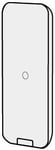
Mounting bracket

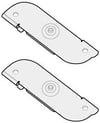
T-bar clips x2

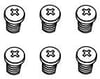
M3 panhead screws x6

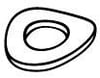
Wave washers x2
What you’ll need
- CAT5e or higher Ethernet cable: See Ethernet cable requirements.
- Screwdriver
- Ladder, level and tape measure
Additional items when mounting to wall or directly to ceiling:
- Drill
- Anchors (x2): Use mounting anchors compatible with a #10 or M5 (minimum) panhead screw. Anchors must support at least four times the combined weight of the microphone pod and mounting bracket. Use anchors rated for ≥15 lb. (6.8 kg) kg). Always follow applicable local regulations, building codes and site-specific installation requirements. See the microphone pod specifications for dimension details.
- Screws: #10 panhead or M5 panhead minimum (x2)
- Pencil or pen for marking
Ceiling mount
|
1. Plan the mounting location Choose a suitable location on the ceiling for optimal audio pickup. Refer to HDX placement for guidance on locations. |
![]() |
|
2. Attach T-bar clips to the mounting bracket
|
|
✍️ Note: Do not fully tighten the screws yet. Final tightening will be done after the bracket is mounted. |
|
Repeat the steps above for the second T-bar clip. |
|
|
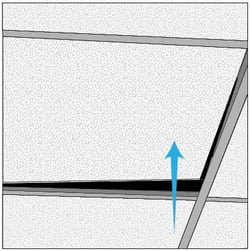
3. Prepare ceiling T-bar Position a ladder under the mounting spot. Lift and move the ceiling tiles aside to access the T-bar grid. |
![]() |
|
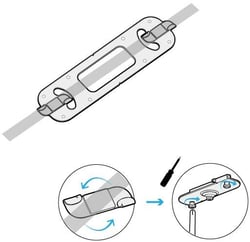
4. Secure the mounting bracket to the T-bar
|
![]() |
|
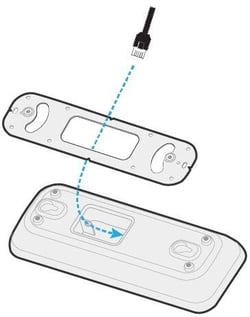
5. Route the Ethernet cable Run the Ethernet cable through the ceiling and down through the center opening of the mounting bracket. 💡 Tip: You may need to notch the ceiling tile slightly to allow it to lay flat after routing the cable. Plug the Ethernet cable into the port on the back of the microphone pod before mounting it.
|
![]() |
|
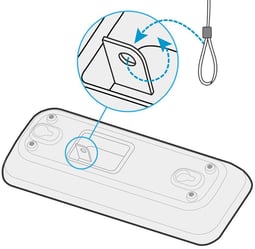
💡 Tip: For added safety (optional), you can attach a loose safety cable or tether through the small hole in the metal frame on the back of the microphone pod. |
![]() |
|
6. Mount the microphone pod
|
|
|
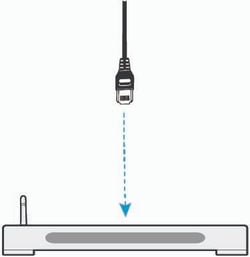
7. Connect to system hub Connect the other end of the Ethernet cable to one of the HDX device ports on the system hub. |
![]() |
Wall mount
The following steps for mounting on the wall can also be followed for directly mounting on the ceiling.
|
1. Plan the mounting location Choose a suitable location on the wall for optimal audio pickup. Refer to HDX placement for guidance on locations. |
![]() |
|
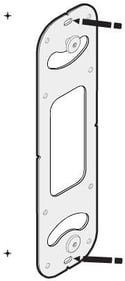
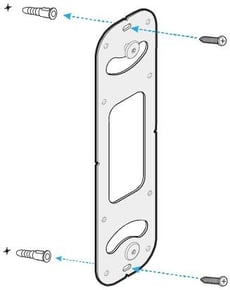
2. Mark installation points Position and level the mounting bracket then trace the two center oblong holes in the mounting bracket with a pencil or pen to mark drill points. |
![]() |
|
3. Mount the bracket Ensure the drill points are level vertically, drill the holes, insert wall anchors if needed and secure the mounting bracket with screws. ⚠️ Mounting safety – wall anchors must be able to support four times the equipment weight. The microphone pod anchor load should support 15 lb. (6.8 kg). |
![]() |
|
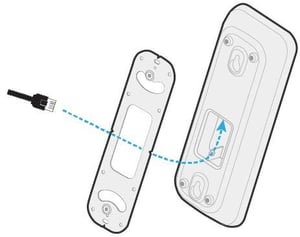
4. Route the Ethernet cable Run the Ethernet cable to the mounting area and plug it into the back of the microphone pod. 💡 Tip: For clean cable management, route cables through the wall and out the center of the mounting bracket, or surface‑run and conceal them behind the microphone pod. |
![]() |
|
💡 Tip: For added safety (optional), you can attach a loose safety cable or tether through the small hole in the metal frame on the back of the microphone pod. |
|
|
5. Attach the microphone pod
|
|
|
6. Connect to system hub Connect the other end of the Ethernet cable to one of the HDX device ports on the system hub. |
![]() |
VESA mount
HDX microphone pods may be installed using 100 x 100 mm VESA compatible mounting solutions, including ceiling extension mounts, wall mounts, display mounts and other supported structures. Follow the mount manufacturer’s instructions. All the applicable microphone pod installation guidelines above still apply — a VESA mount may be used in place of mounting on the ceiling or wall but the instructions above should still be followed as well as microphone placement guidelines.
Third-party floor stands, mobile carts and display mounts may also be used for temporary or movable installations where a permanent wall-mounting or ceiling-mounting option is unavailable. Learn more.
Mounting considerations:
- Verify the mount is rated to support at least four times the combined weight of the microphone pod and mounting bracket.
- Confirm stability for wall, ceiling or extended‑mount installations.
- For floor stands. confirm the base is stable and resistant to vibration.
- Always follow the mount manufacturer’s specifications.
- Verify the mounting solution supports the VESA 100 x 100 mm mounting pattern.
Microphone pod FAQs
Yes. The HDX microphone pod can be installed horizontally. However, the microphone pod is more securely mounted when it is installed vertically, as the keyhole design on the back, used with the included mounting bracket, is positioned for vertical orientation. For horizontal wall installation, a third-party mounting solution, such as a VESA 100 x 100 mm standard mount, is recommended.
Each HDX component (audio bar and microphone pod) requires an Ethernet cable that meets the following specifications: CAT5e or higher, unshielded twisted pair (UTP) and 24 AWG (solid copper). Nureva recommends using cabling and wiring that is in accordance with the applicable national, regional and local electrical codes or ordinances.
System hub installation
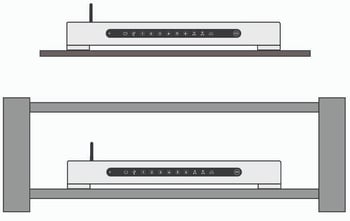
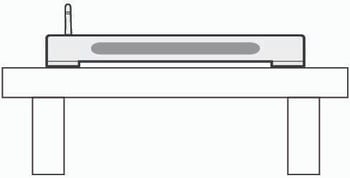
The system hub can be placed on a table, shelf or rack, or it can be mounted on a wall.

Table, shelf or rack placement

Wall mounted
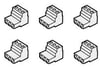
What’s in the box


What you’ll need
- CAT5e or higher Ethernet cable: See Ethernet cable requirements.
Additional items when mounting to the wall:
- Anchors (x2): Use mounting anchors compatible with a #10 or M5 (minimum) panhead screw. Anchors must support at least four times the combined weight of the system hub and mounting bracket. Use anchors rated for ≥19 lb. (8.6 kg). Always follow applicable local regulations, building codes and site-specific installation requirements. See the system hub specifications for dimension details.
- Screws: #10 panhead or M5 panhead minimum (x2)
- Screwdriver, drill, pencil or pen for marking
Table, shelf or rack
|
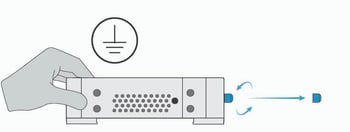
1. Install the Bluetooth antenna
⚠️ Warning — Avoid touching the connector or inner pin as doing so can damage the system hub. ✍️ Note: If it’s preferred Bluetooth LE is not enabled, leave the antenna off and ensure the protective cap remains in place. |
|
|
2. Place the system hub on a sturdy table, shelf or rack ✍️ Note: Ensure adequate airflow clearance on all sides. Refer to the system hub placement guidelines. |
|
Wall mount
|
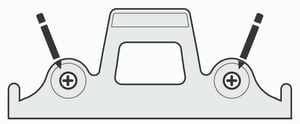
1. Mark for installation Position the mounting bracket vertically on the wall at the chosen location and mark the drill points using a pencil or pen. |
![]() |
|
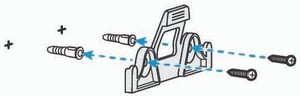
2. Install the mounting bracket Ensure the drill points are level, drill the holes, insert wall anchors if needed and secure the mounting bracket with screws. ⚠️ Mounting safety — wall anchors must be able to support four times the equipment weight. The system hub anchor load should support 19 lb. (8.6 kg). |
|
|
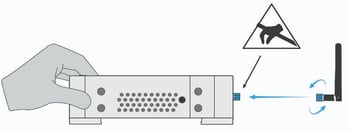
3. Install the Bluetooth antenna
⚠️ Warning — Avoid touching the connector or inner pin as doing so can damage the system hub. ✍️ Note: If it’s preferred Bluetooth LE is not enabled, leave the antenna off and ensure the protective cap remains in place. |
|
|
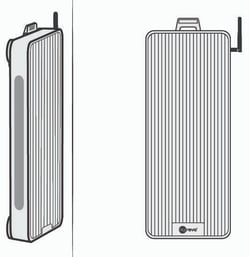
4. Clip the system hub onto the mounting bracket. Ensure the antenna is vertically oriented and the LED indicator lights are facing forward. ✍️ Note: Ensure adequate airflow clearance on all sides. Refer to the system hub placement guidelines. |
|
System hub FAQs
Yes. The HDX system hub comes with a mounting bracket for wall installation. The orientation should be vertical, with the Nureva logo at the bottom and the antenna at the top.
The HDX system connects to each component (audio bar and microphone pod) with an Ethernet cable (which you will need to supply). Ethernet cables should be CAT5e or higher, unshielded twisted pair (UTP) and 24 AWG (solid copper). Nureva recommends using cabling and wiring that is in accordance with the applicable national, regional and local electrical codes or ordinances.
Ethernet cable requirements
HDX does not include Ethernet cables for connecting the system hub to the audio bars and microphone pods and connecting the system hub to the network. Nureva recommends using cabling and wiring that is in accordance with the applicable national, regional and local electrical codes or ordinances.
Nureva recommends Ethernet cables are:
- CAT5e or higher
- UTP (unshielded twisted pair)
- 24 AWG (solid copper)
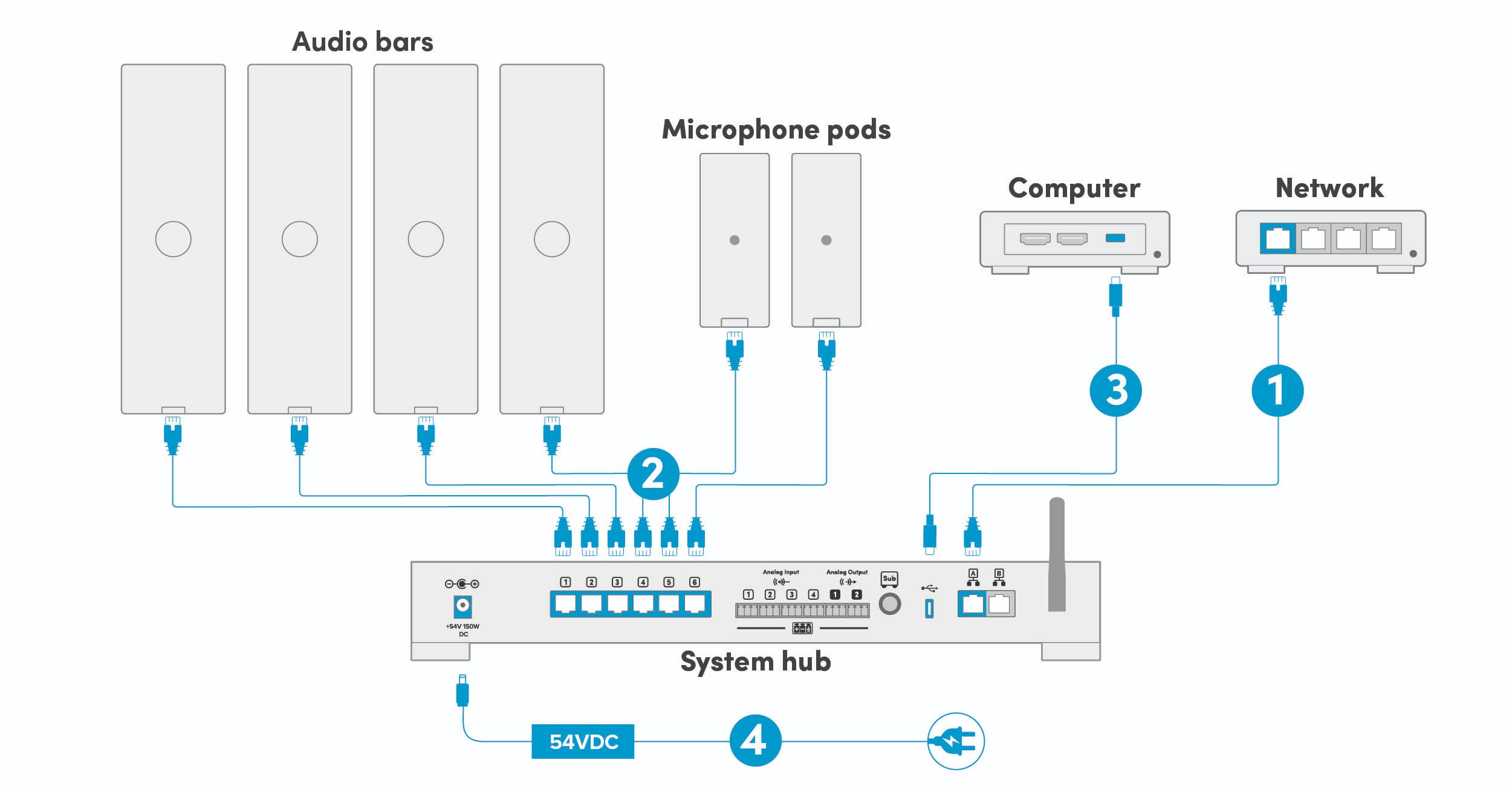
HDX connection steps
|
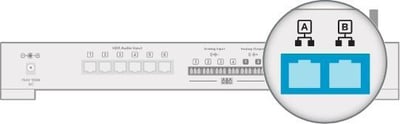
1. Connect the network cable
✍️ Note: If the system hub is not connected to an external network, updates must be done manually. |
![]() |
|
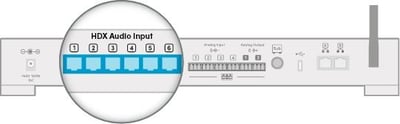
2. Connect the audio bars and (if applicable) microphone pods
|
|
|
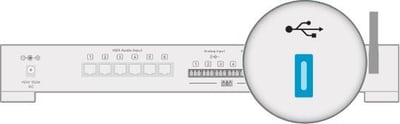
3. Connect the computer or appliance The HDX system can now be connected to a computer or a conferencing device:
|
|
|
⚠️ Warning — Read before connecting power
|
|
|
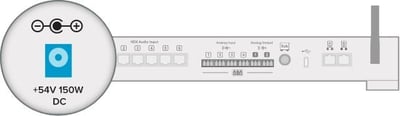
4. Connect the power supply Connect the power supply to the system hub and plug it into a power outlet. The system hub will power on and automatically connect to all components. This process may take several minutes. Once all components are detected, the HDX will begin automatic calibration. |
|
Calibrating HDX
Calibration tunes the HDX system to the unique acoustics of your room, helping optimize microphone pickup and speaker performance.
The HDX system automatically calibrates the first time it is powered on and whenever a change in component connections is detected during startup.
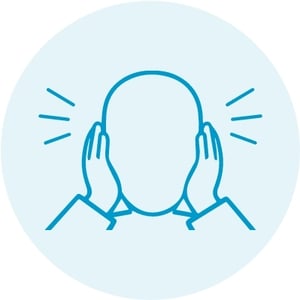
A static-like sound will play for up to 45 seconds. Cover your ears or wear hearing protection. Remain quiet and still until calibration finishes.
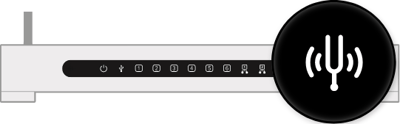
If calibration does not happen automatically, press the calibrate button on the front of the system hub to manually calibrate.
When the calibration sequence has finished, your remote can be paired and a system update will be required.


Pairing the remote
To pair the remote, insert the batteries and press any button. The remote will automatically search for the system hub. The blue indicator light will flash while the remote searches, then remain solid for 2 seconds when it is paired and the remote is ready to use.
To disconnect the remote from the system hub, press and hold the customizable button 2 and volume-down button 4 simultaneously for 4 seconds. This will clear any existing connection. To pair the remote again, press any button to restart the pairing process. Learn more.
Pairing the remote with the system hub is only possible when the Bluetooth antenna is attached.
Updating HDX
An update will be required when setting up an HDX system for the first time to ensure all features function as intended. Keeping the HDX system up to date also helps maintain performance, security and access to the latest audio features and improvements.
To learn about network requirements for updates, see network requirements.
First-time update
For the initial setup, update the HDX system over USB using a computer that is connected to the internet.
Update steps
- Plug the provided USB-C to USB-A cable into the USB-C port on the system hub.
- Plug the other end of the USB-C cable into a USB-A port on the computer.
- Open a web browser and enter 169.254.253.253 in the address bar.
- When prompted, enter the unique code that’s on the bottom of the system hub.
- This code (format XXX-XXX-XXX) is the default password for accessing the Nureva App.
- You can change the password later in Settings. - The Nureva App opens in the browser. Press the Update button.
- Follow the on-screen instructions and keep the system powered on until the update is complete.
Verifying installation
Once the update is complete, the HDX system is ready for use. Refer to the printable HDX postinstallation checklist to verify that all hardware has been installed correctly and the system is performing as expected.
We also recommend placing a test call to confirm optimal audio performance for both remote participants and in-room users. Ensure that the HDX system is selected as the default audio device in your operating system as well as in your UC&C or audio conferencing application.
The HDX system can be managed locally through the Nureva App and enrolled in Nureva Console to remotely monitor and manage it from anywhere. Learn more about device management.
Ecosystem and integrations
Adding physical integrations
Using auxiliary ports on an HDX system
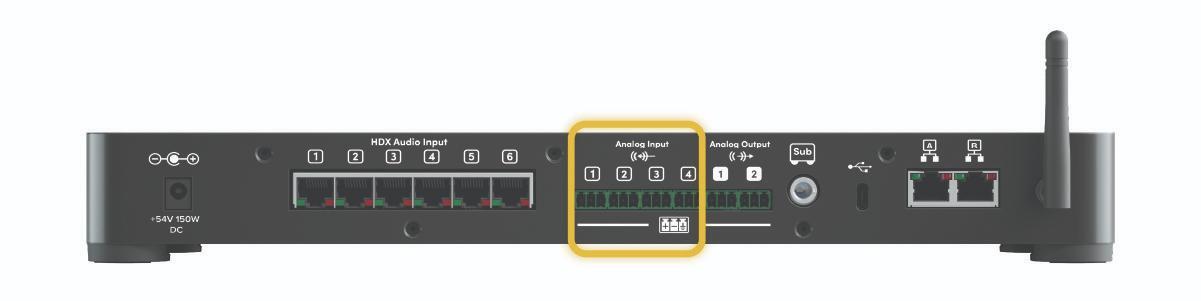
HDX comes with auxiliary balanced audio ports on the system hub. They are used to send and receive audio streams to and from third-party devices. The auxiliary port options are found in the Nureva App (Devices) and Nureva Console (Settings).
|
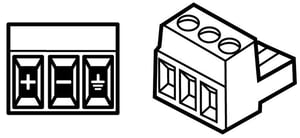
The back of the system hub has six Euroblock connections:
|
|
|
Euroblock connectors These 3-pin connectors are for balanced (differential) signals (positive, negative and ground). These inputs and outputs can be configured in the Nureva App or Nureva Console when adding a device. |
|
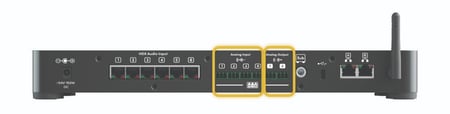
Replacement terminal blocks can be obtained, as long as they are Euroblock compatible, 3.5 mm pitch and a plug type. The connectors provided with HDX are manufactured by Same Sky, part number TBP03P3-350GR.

Adding analog outputs
HDX supports third-party speakers. However, there may be limitations on the number of external speakers that can be used, and consideration will be needed regarding speaker and microphone placement.
UC&C platforms
HDX works with all leading UC&C platforms — the system hub is connected to the audio conferencing device with a USB cable.
The default setting in the Nureva App is optimal for Microsoft® Teams Rooms. This setting can be switched to Zoom Rooms.
Developer Toolkit APIs
The Nureva Developer Toolkit gives you access to cloud-based and local APIs. You can integrate Nureva devices with other products to save time and automate tasks.
Nureva’s APIs include:
- Device management API
- Device control API
- Sound location device API
- Room data API
Third-party integrations include:
- Camera tracking
- Control system
Network requirements
The HDX system hub has two network ports that provide connection with the Nureva App and Nureva Console for device management, updates and monitoring. These Ethernet ports can also be used to support integrations with room control and camera systems. Network port settings can be updated using the Nureva App and Nureva Console.
- Nureva Console (cloud based) and other internet services: The HDX system initiates outbound internet traffic.
- Nureva App (running on your local network): The client initiates inbound traffic to the HDX system.
Configuration tips
- If possible, ensure port 8883 is open and the MQTT protocol is allowed on your network.
- HDX does not support proxy server configurations.
- Each network port is automatically set as DHCP (Dynamic Host Configuration Protocol). Network port settings can be changed in the Nureva App to Static IP.
NTP
- The default Network Time Protocol (NTP) uses ntp.ubuntu.com:123. Ensure port 123 is opened and allowed on your network.
- If you have an NTP server on your network that you want to use, set DHCP option 42 to the IP address of your NTP server on your DHCP server.
- If NTP cannot be accessed, then automatic updates may occur at unexpected times.
When enhanced internet security measures or firewalls are being used, some URLs and IP addresses will need to be approved to allow for a steady connection.
Troubleshooting
Quick troubleshooting steps to resolve most common issues:
-
Power: Ensure the HDX system is powered on and it is plugged into a working power source. Resetting the power will often address small issues. Unplug the AC power adapter cable from the port of the system hub. Wait about 30 seconds before plugging it back in. Learn more.
-
Cables: Verify all cables are securely connected to the system hub, audio bars and microphone pods. Check Ethernet cable requirements to ensure cable types are supported. If any cables have been disconnected or reconnected, a power cycle is required.
-
Update: Ensure your system is up to date. Updating HDX.
-
Network connection: Check the external network connection, which allows the HDX system to automatically update and have access to the latest features. The system can also be manually updated using the Nureva App, but this requires the HDX system to be connected to the network. Learn more.
-
Microphone pickup: If the HDX system has been moved or the room layout has changed, a quick calibration will often resolve audio issues.
-
System hub LEDs: The status indicator lights on the front and back of the system hub can help when troubleshooting issues with the system and confirming the device is ready to be used. Learn more.
-
Audio bar and microphone pod lights: The status indicator lights on the front of each component provide visual feedback about call status and system activity. Learn more.
-
Nureva App: Monitor the health of your HDX system in the Nureva App and perform key troubleshooting actions, such as update, calibrate, restart and check device connections. Learn more.