Technical training and certification
Build your expertise on Nureva® audio systems. Access certification programs, on‑demand training videos and other resources for AV/IT professionals.
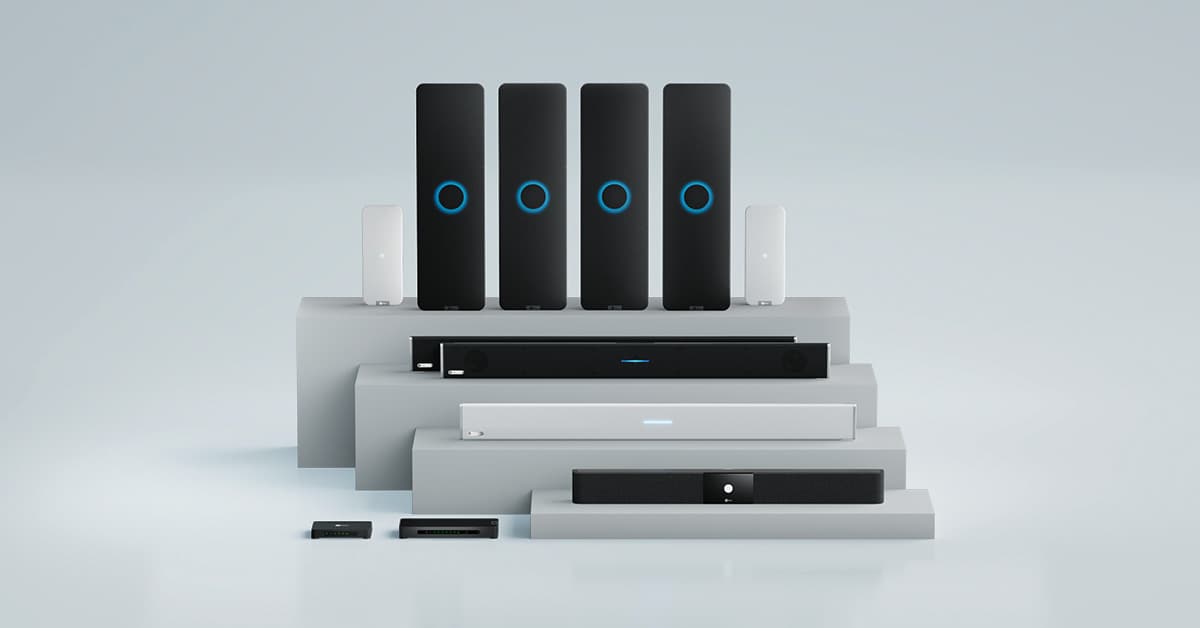
Introduction to Nureva Audio Systems
Get an overview of our audio systems and where each solution fits.
You’ll learn how to:
- Differentiate between Microphone Mist™ technology and beamforming.
- Identify Nureva’s full line of audio systems.
- Recommend audio systems based on use case.
Duration: 20 minutes
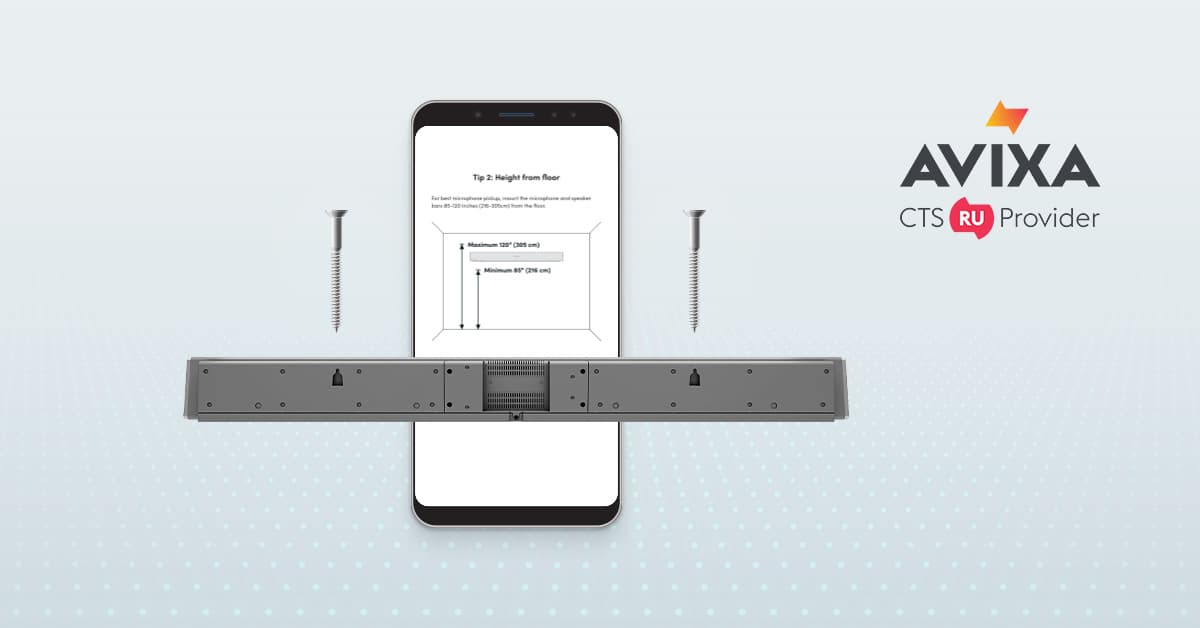
Nureva HDL Series Audio Systems: Placement and Installation
Find out how to install HDL audio systems successfully and at scale.
You’ll learn about:
- HDL310 and HDL410 design features.
- The ideal locations for system placement.
- Ways to set up systems for optimal performance.
Duration: 1 hour
RU credits: CTS 0.5, CTS-I 0.5
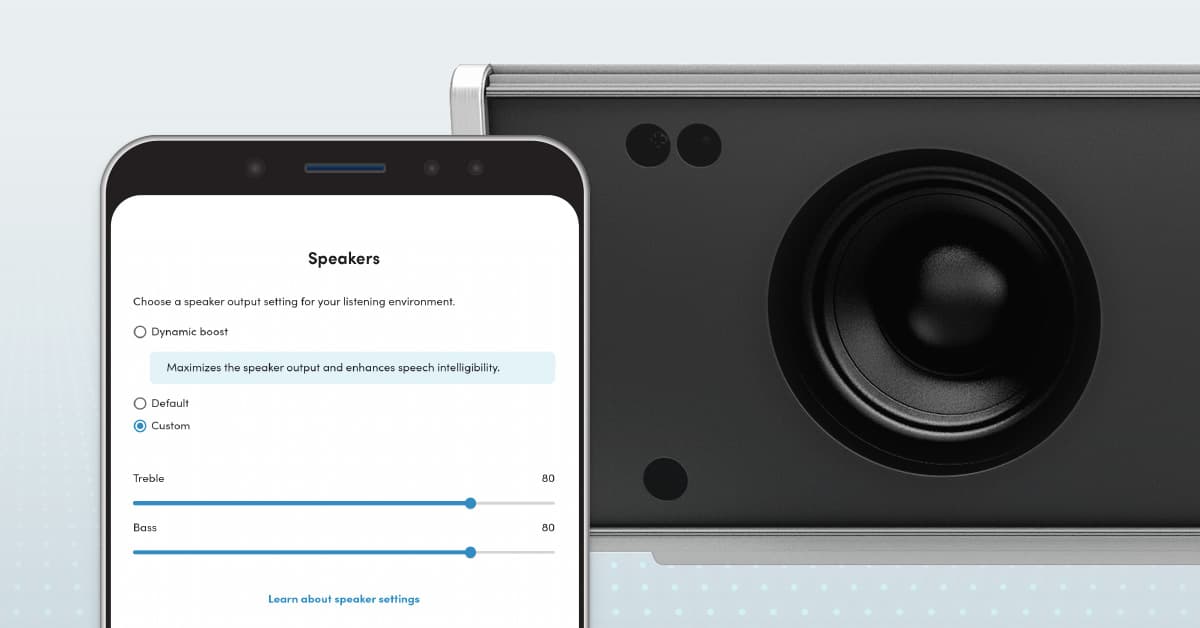
Nureva HDL Audio Features
Maximize the value of HDL systems with an overview of our advanced audio settings.
You’ll learn how to:
- Optimize HDL mics to overcome acoustic challenges.
- Set up external mics for Adaptive Voice Amplification.
- Fine-tune external mics for ideal performance.
Duration: 20 minutes
Managing Nureva Devices and Rooms
Take a deep dive into all the tools we offer to keep rooms running smoothly.
You’ll learn how to:
- Set up individual devices with the Nureva App.
- Manage multiple devices with Nureva Console.
- Choose the right tool for each scenario.
Duration: 1 hour
RU credits: CTS 0.5, CTS-D 0.5, CTS-I 0.5
Ecosystem and Integrations
See how Nureva audio systems integrate with a wide range of AV solutions.
You’ll learn how to:
- Identify compatible operating systems.
- Integrate cameras for tracking and switching.
- Use third-party integrations.
Duration: 20 minutes
Introduction to Nureva Audio Systems
Get an overview of our audio systems and where each solution fits.
You’ll learn how to:
- Differentiate between Microphone Mist technology and beamforming.
- Identify Nureva’s full line of audio systems.
- Recommend audio systems based on use case.
Duration: 20 minutes

Nureva HDX Series Design, Installation and Setup
Find out how to install HDX audio systems successfully and at scale.
You’ll learn how to:
- Select the right HDX configuration.
- Identify ideal mounting locations for components.
- Set up systems for optimal performance.
Duration: 1 hour
RU credits: CTS 0.5, CTS-D 0.5, CTS-I 0.5
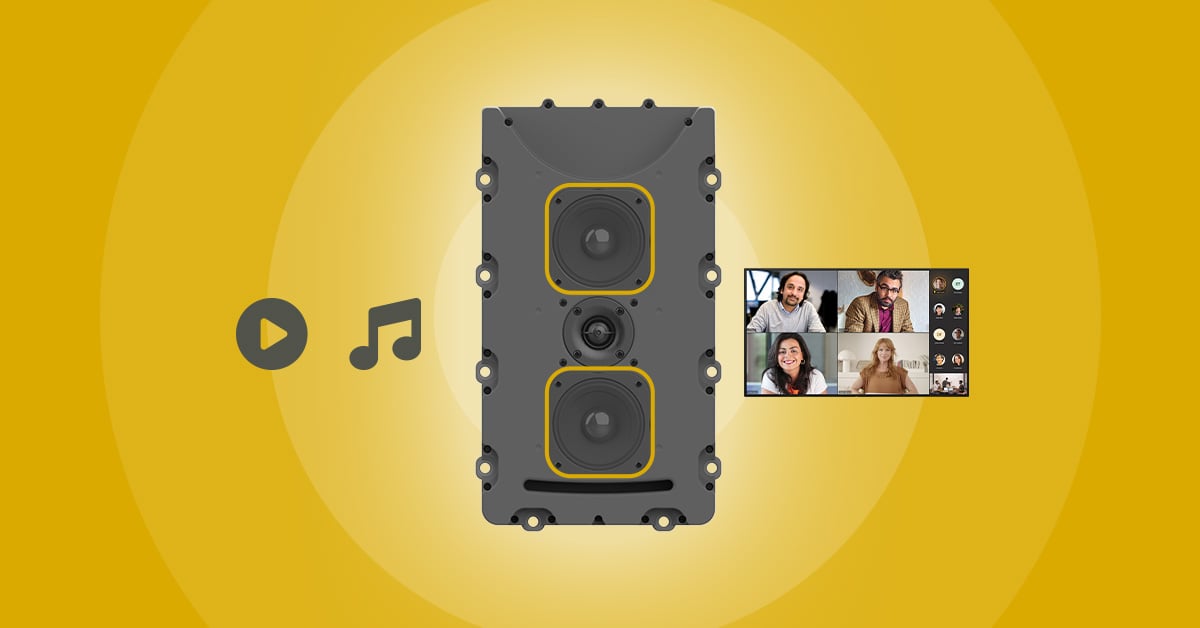
Nureva HDX Audio Features
Get the most out of HDX systems with an overview of our advanced audio features.
You’ll learn how to:
- Customize microphone and speaker settings to adapt to individual room needs.
- Integrate powered subwoofers and external microphones.
- Configure Adaptive Voice Amplification, Adaptive Voice Lift and Auracast™ broadcast audio.
Duration: 20 minutes
Managing Nureva Devices and Rooms
Take a deep dive into all the tools we offer to keep rooms running smoothly.
You’ll learn how to:
- Set up individual devices with the Nureva App.
- Manage multiple devices with Nureva Console.
- Choose the right tool for each scenario.
Duration: 1 hour
RU credits: CTS 0.5, CTS-D 0.5, CTS-I 0.5
Ecosystem and Integrations
See how Nureva audio systems integrate with a wide range of AV solutions.
You’ll learn how to:
- Identify compatible operating systems.
- Integrate cameras for tracking and switching.
- Use third-party integrations.
Duration: 20 minutes
HDL certification courses
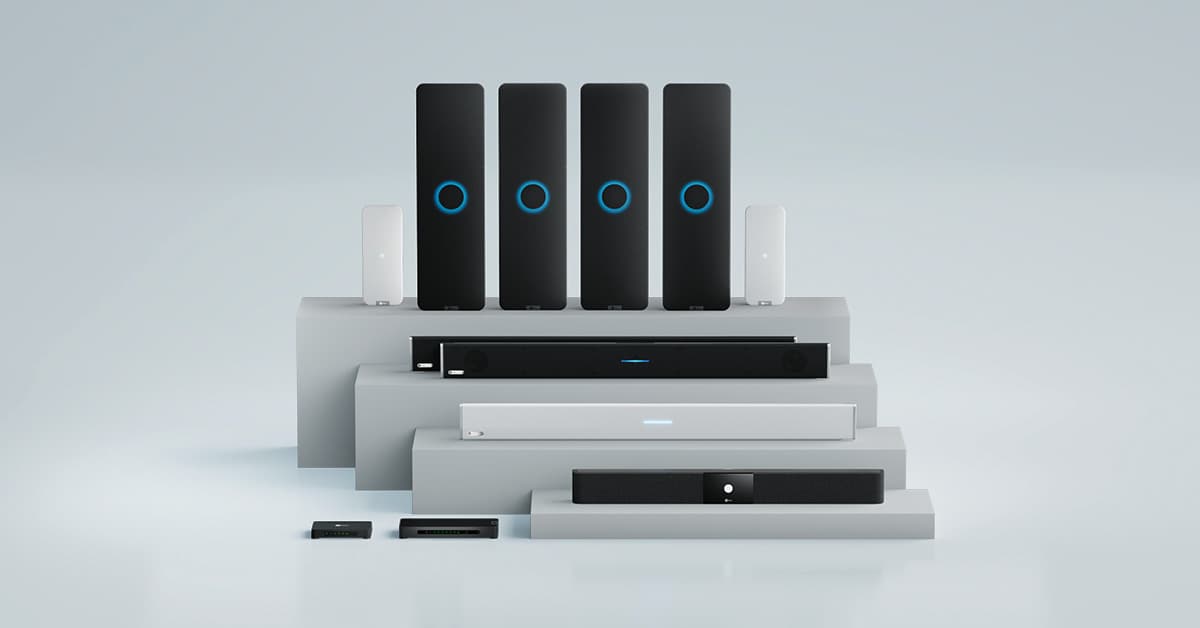
Introduction to Nureva Audio Systems
Get an overview of our audio systems and where each solution fits.
You’ll learn how to:
- Differentiate between Microphone Mist™ technology and beamforming.
- Identify Nureva’s full line of audio systems.
- Recommend audio systems based on use case.
Duration: 20 minutes
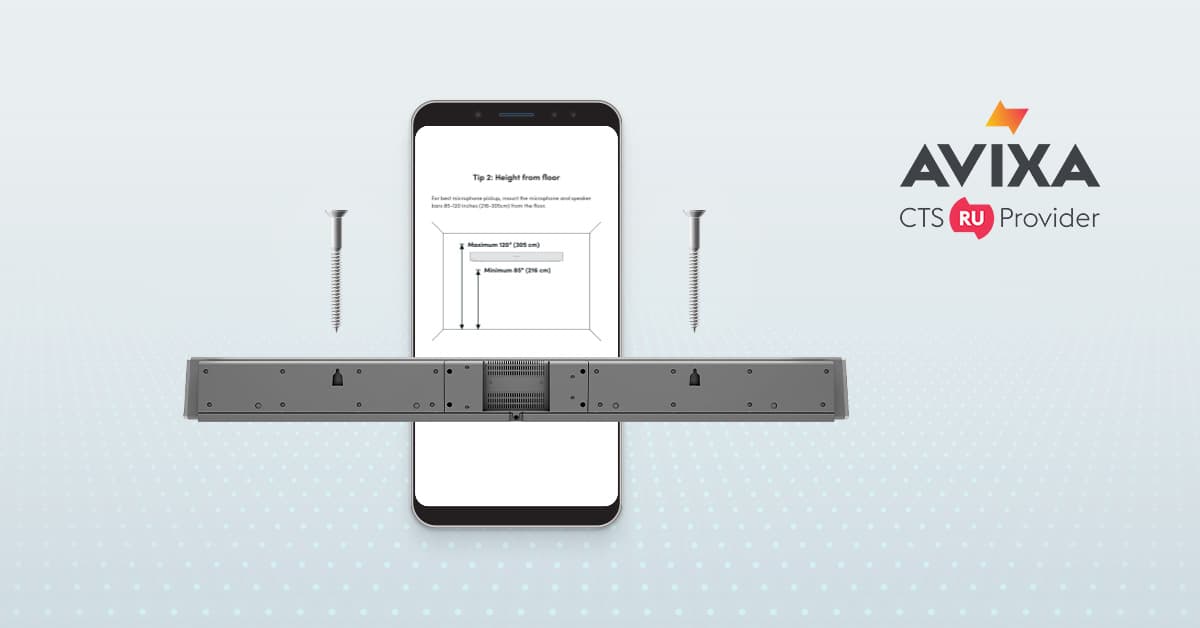
Nureva HDL Series Audio Systems: Placement and Installation
Find out how to install HDL audio systems successfully and at scale.
You’ll learn about:
- The design features of HDL310 and HDL410 systems.
- The ideal locations for microphone and speaker bar placement.
- Proper ways to install HDL systems for optimal performance.
Duration: 1 hour
RU credits: CTS: 0.5, CTS-I: 0.5
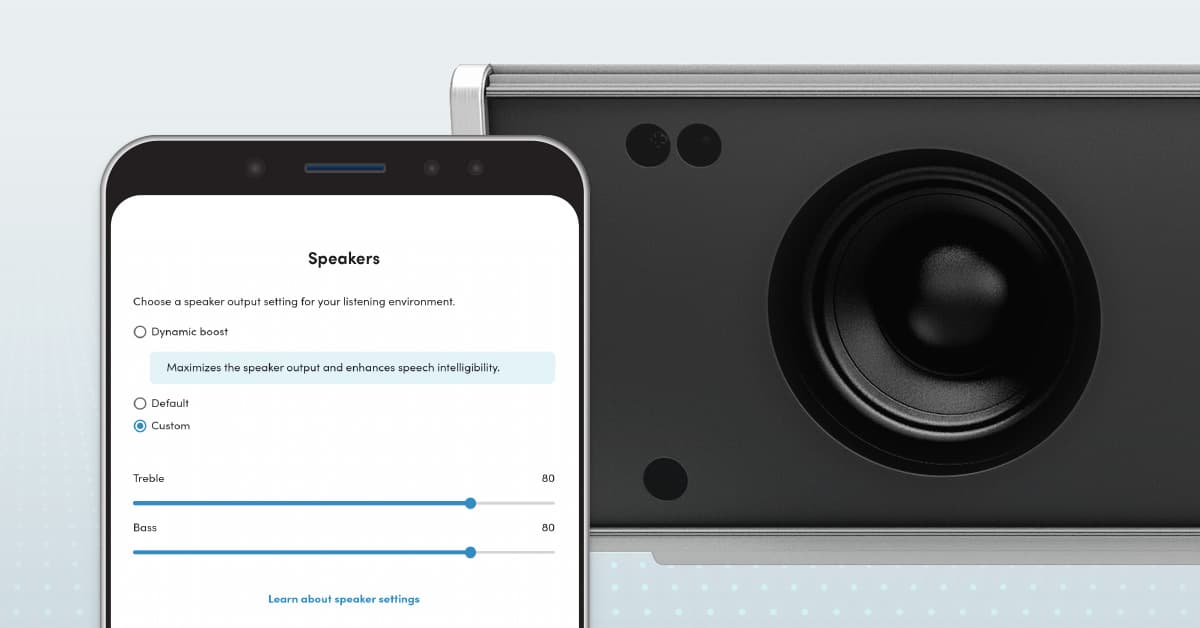
HDL Advanced Audio Features
Maximize the value of HDL systems with an overview of our advanced audio settings.
You’ll learn how to:
- Optimize HDL mics to overcome acoustic challenges.
- Set up external mics for Adaptive Voice Amplification.
- Fine-tune external mics for ideal performance.
Duration: 20 minutes
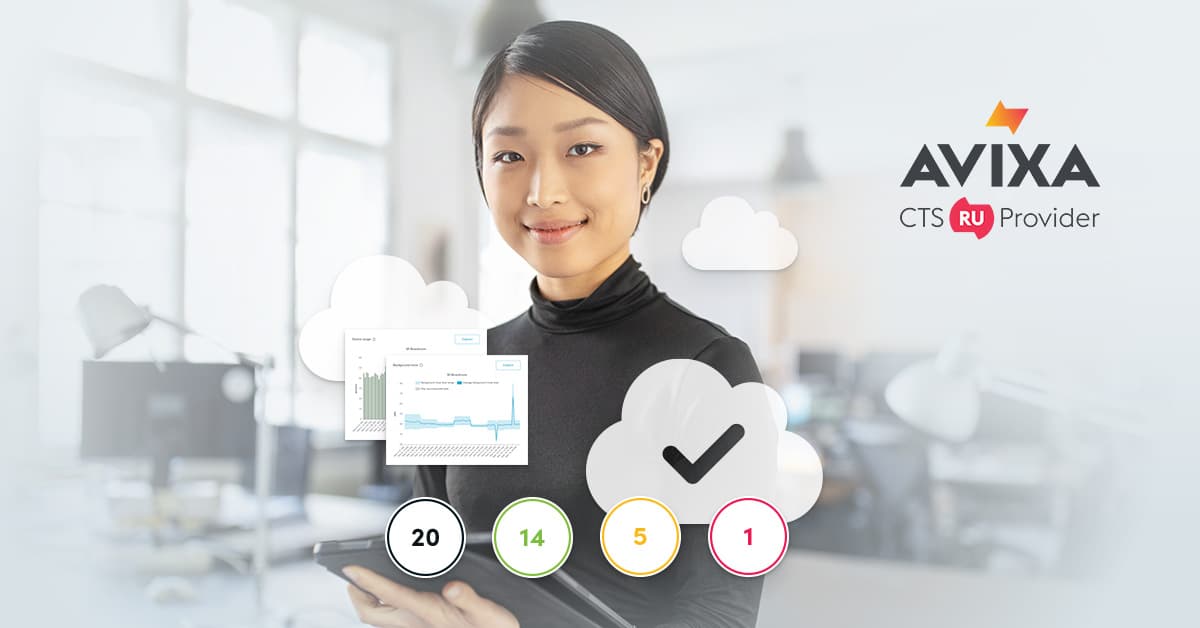
Managing Nureva Devices and Rooms
Take a deep dive into all the tools we offer to keep rooms running smoothly.
You’ll learn how to:
- Set up individual devices with the Nureva App.
- Manage multiple devices with Nureva Console.
- Choose the right tool for each scenario.
Duration: 1 hour
RU credits: CTS: 0.5, CTS-D: 0.5, CTS-I: 0.5